Online Safety
Can Websites Access Your Camera Without Permission?
Learn whether websites can access your camera without permission and how to protect your privacy online
In today’s hyper-connected digital landscape, our smartphones, laptops, and tablets are constant companions. We use them to work, socialize, bank, and explore the internet. However, this convenience comes with a lingering anxiety that many of us have felt at least once: Can a website turn on my camera without me knowing?
This question sits at the intersection of modern web technology, user privacy, and device security. Whether you are casually browsing news articles, shopping online, or checking your social media feeds, the idea of an invisible eye watching you through your screen can be unsettling.
Fortunately, modern web browsers and operating systems are designed with strict security frameworks to prevent unauthorized access. But how do these protections actually work? Are there loopholes, and what steps can you take to guarantee your digital privacy? Let’s dive deep into how website permissions work, the technologies governing your camera, and how you can take total control of your digital footprint.
How Web Browsers Control and Restrict Device Hardware
To understand how website privacy works, it helps to look at the gatekeeper between the internet and your device: your web browser. Whether you use Google Chrome, Apple Safari, Mozilla Firefox, or Microsoft Edge, these applications act as a secure sandbox.
By default, a website loaded in your browser window is isolated from your computer’s core hardware components. A webpage cannot simply reach out and grab data from your microphone, webcam, or GPS location without passing through specific security checkpoints.
The primary mechanism that makes this possible is a web standard known as the MediaDevices API (specifically
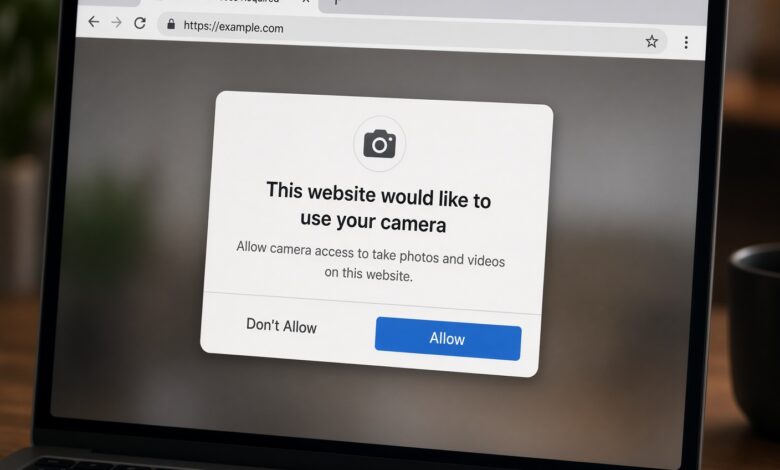
navigator.mediaDevices.getUserMedia). This application programming interface is what developers use when they want to build legitimate features that require your camera—such as joining a video conference, taking a profile picture, or using an augmented reality shopping filter.Crucially, this API is hardwired to require explicit user consent. When a script on a website requests access to your camera, the browser intercepts the request and instantly pauses execution. It then generates a prominent visual prompt—usually a popup near the address bar—asking if you want to Allow or Block access. Without a physical click or tap on one of those buttons, the website remains locked out.
The Myth vs. Reality: Can Websites Bypass Permission Prompts?
A common fear among internet users is that malicious hackers or shady corporations can secretly activate a webcam without triggering the browser’s permission warning.
In a standard, up-to-date web environment, the short answer is no. Modern browsers employ rigorous security architectures designed to make unauthorized hardware access nearly impossible without exploiting a critical vulnerability.
However, security is a constant game of cat and mouse. Let’s break down the reality of how unauthorized access could theoretically happen, and why it is less common than you might think:
1. Zero-Day Software Vulnerabilities
Every piece of software—including your operating system and web browser—contains lines of code that can occasionally harbor undiscovered bugs. These are known as “zero-day vulnerabilities.” In rare cases, highly sophisticated threat actors (such as state-sponsored hacking groups or advanced cybercriminals) discover flaws in how a browser handles media streams. They can exploit these flaws to bypass security controls.
-
The Reality: These exploits are extremely valuable, fiercely guarded, and rapidly patched by tech companies the moment they are discovered. Routine software updates are your best shield against this threat.
2. Social Engineering and Fake Prompts
Sometimes, the weakest link in security is not the technology, but human psychology. Advanced phishing pages or malicious banner ads might display a fake video player or a simulated browser permission popup inside the webpage itself, tricking you into clicking “Allow.”
-
The Reality: Real permission requests always originate from the browser’s native interface (at the top or center of the window), never from inside the webpage’s content area. Learning to spot the difference is a vital skill for safe browsing.
3. Compromised Extensions and Add-ons
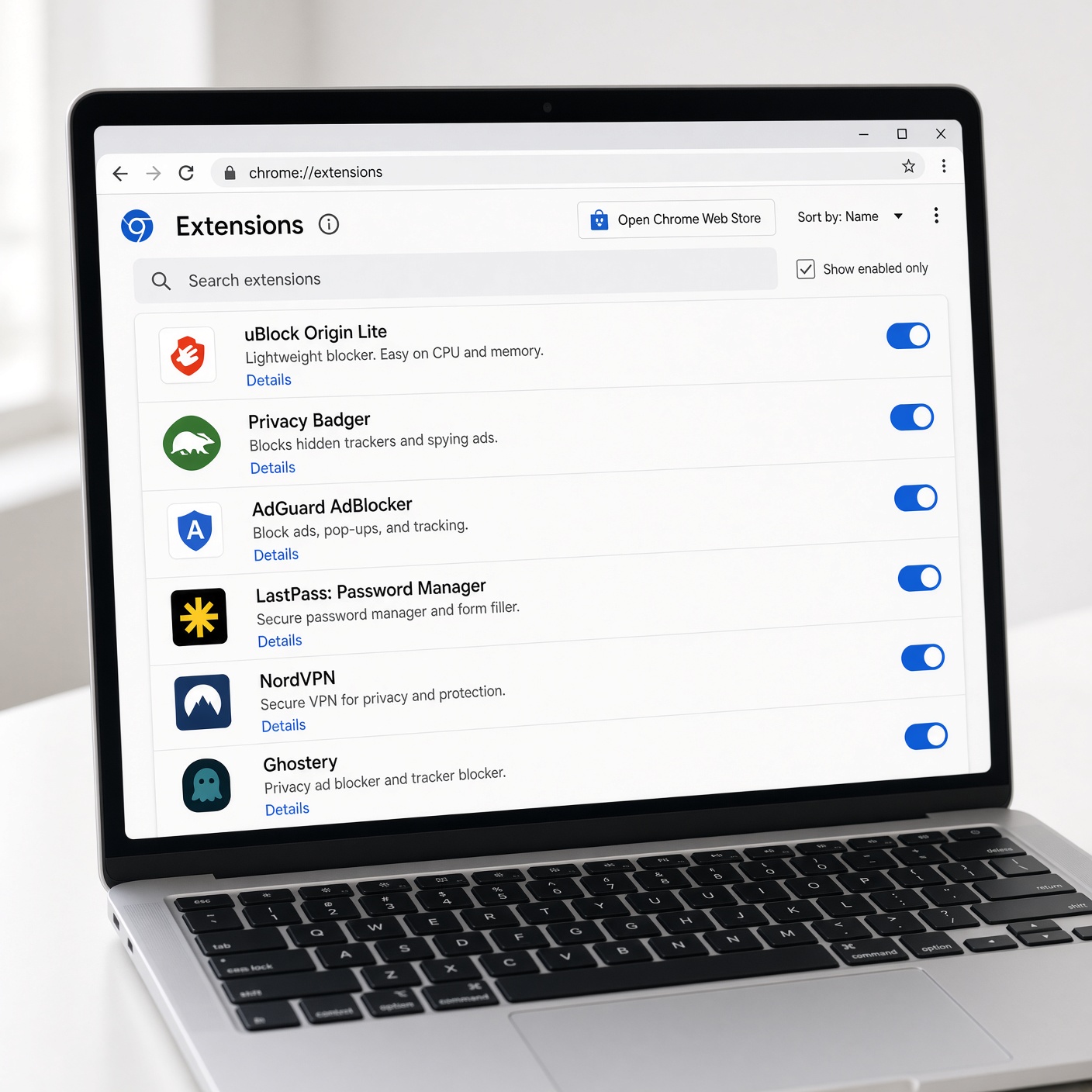
While major browsers thoroughly vet extensions in their official web stores, malicious or poorly maintained browser extensions occasionally slip through the cracks. If you install an untrusted extension, it may possess broad permissions to read and change all your data on websites, potentially circumventing normal user safeguards.
Recognizing the Visual Cues: How to Tell if Your Camera is Active
Your devices are engineered to give you unmistakable physical and visual indicators when your camera is turned on. Knowing how to read these signs ensures you are never caught off guard.
The Hardware Indicator Light
On almost all laptop computers (MacBooks, Windows PCs, and Chromebooks), a small physical LED light—usually green or white—is hardwired directly into the webcam circuit board. In most hardware configurations, it is physically impossible for the camera sensor to stream video without simultaneously powering on this LED. If the light is on, the camera is active. (Note: Some modern high-end enterprise laptops feature electronic privacy shutters or hardware kill switches that physically disconnect the camera sensor from power).
Operating System Status Badges
Modern operating systems like Windows 11, macOS, and mobile platforms like iOS and Android feature system-level indicators:
-
Macs: A bright green dot appears in the system menu bar whenever an application or browser tab is using the camera.
-
Windows: A small camera icon or notification appears on your taskbar or system tray, telling you which app currently holds an active video stream.
-
Smartphones: Colored indicator dots (green or orange) appear in the top corner of your screen the exact millisecond a hardware component is accessed.
Best Practices for Ultimate Webcam Privacy and Online Safety
Taking control of your digital security does not require a degree in computer science. By implementing a few straightforward habits, you can dramatically reduce your risk and browse with absolute peace of mind.
1. Keep Your Browser and OS Updated
Software updates are not just about new features; they include critical security patches that close loopholes malicious actors use to exploit systems. Enable automatic updates for your operating system and web browser to stay protected against newly discovered threats.
2. Audit Your Website Permissions Regularly
Over time, you likely clicked “Allow” for dozens of websites—video conferencing tools, news outlets, and interactive apps. It is good practice to audit these permissions periodically:
-
In Google Chrome: Go to
Settings > Privacy and security > Site settings > Camera. Review the list of sites allowed to use your camera and remove any you no longer recognize or use. -
In Apple Safari: Go to
Settings for This Websiteor preferences to review and revoke unnecessary hardware permissions.
3. Use Physical Privacy Covers
If you want absolute, foolproof peace of mind when your webcam is not in use, invest in a physical sliding webcam cover or a simple sticker designed for electronics. Even if a sophisticated zero-day exploit somehow bypassed every software layer, a physical barrier ensures that nothing can be seen.
4. Exercise Caution with Browser Extensions
Only install extensions from official, trusted sources (like the Chrome Web Store or Firefox Add-ons). Before adding an extension, check its user reviews, developer reputation, and the specific permissions it requests. If a simple productivity tool asks for permission to “read and change all your data on all websites,” think twice before installing it.
The Future of Web Privacy: What Lies Ahead?
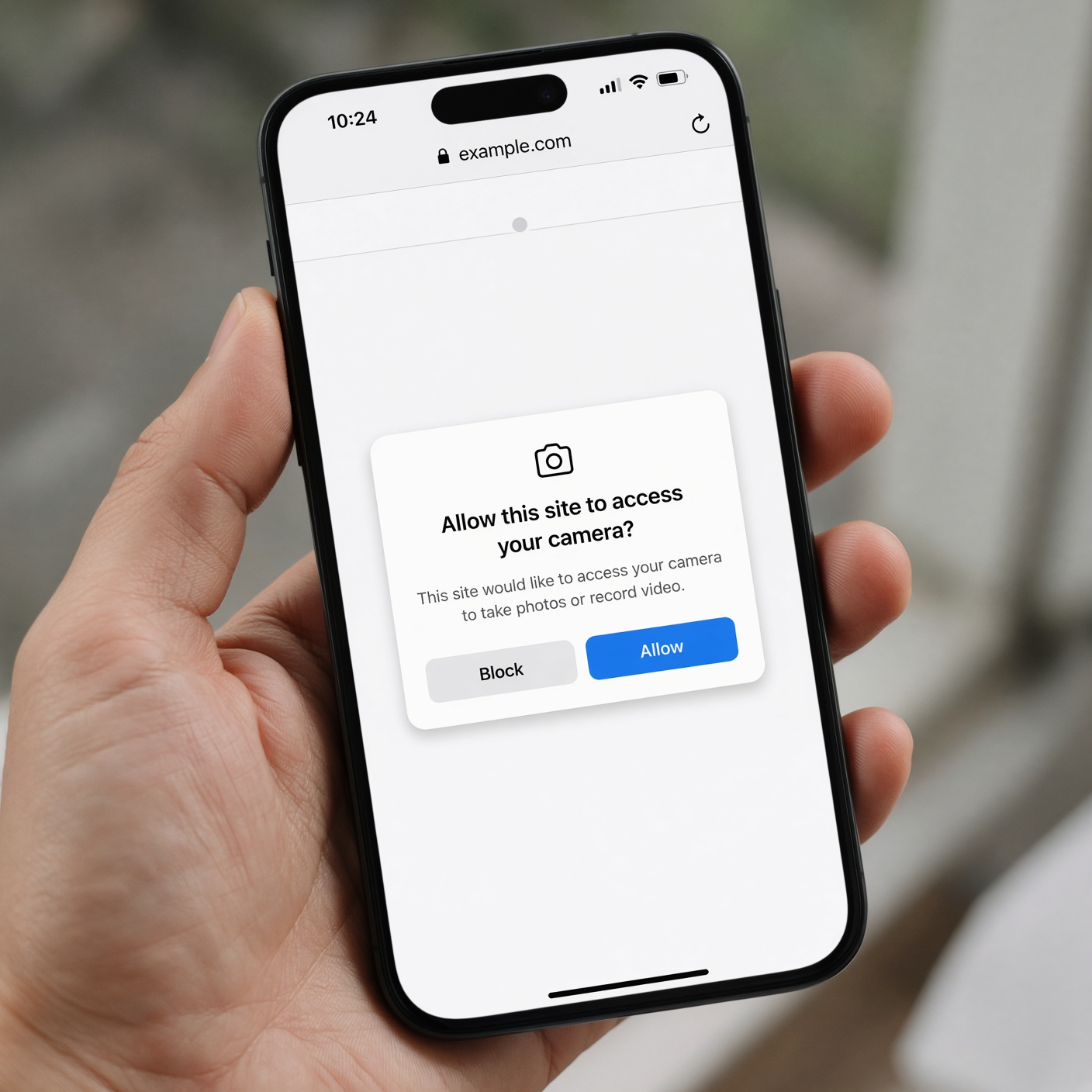
As artificial intelligence, augmented reality, and immersive web technologies continue to evolve, the demand for camera-based web experiences will only grow. Websites will increasingly ask to track hand gestures, facial expressions, and spatial environments to deliver seamless digital experiences.
In response, tech giants and security researchers are pushing for even stricter privacy frameworks. Future web standards are moving toward ephemeral permissions—where a website’s access expires automatically the moment you close the tab, requiring a fresh prompt for every new session. Furthermore, hardware-level isolation is becoming standard, ensuring that even if a browser process is compromised, it cannot interact with physical sensors without explicit, cryptographically secured authorization from the operating system kernel.
Empowering Your Digital Journey
So, can websites access your camera without permission? Under normal circumstances, no. The robust security architecture of modern web browsers, combined with operating system safeguards and physical indicator lights, ensures that you remain firmly in the driver’s seat.
While cyber threats and zero-day exploits do exist, they are rare and actively mitigated by continuous security updates. By understanding how permission prompts work, practicing good digital hygiene, auditing your browser settings, and utilizing physical privacy tools when needed, you can explore the internet safely, confidently, and without paranoia. Your digital safety is entirely within your control.