Online Safety
Does Formatting a PC Remove All Viruses?
Discover whether a full PC format is enough to remove malware and what steps may be needed afterward
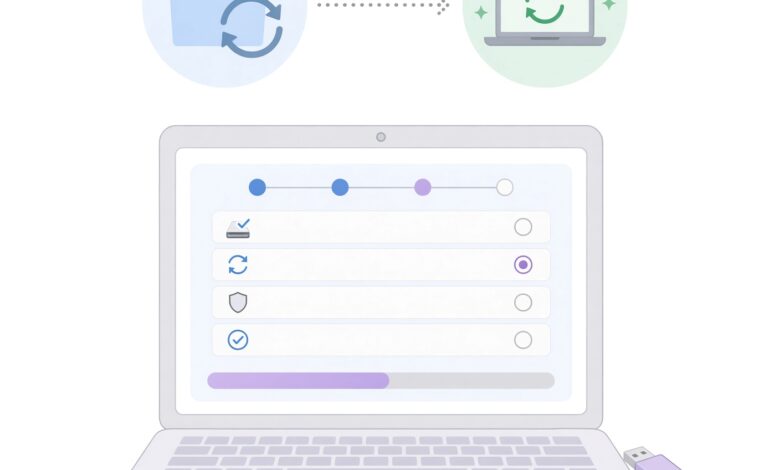
If your computer has been acting sluggish, displaying strange pop-ups, or behaving in ways you simply cannot explain, you have likely considered the ultimate troubleshooting step: formatting your hard drive and starting completely fresh. It is the digital equivalent of hitting the reset button. But a nagging question remains for millions of computer users facing stubborn malware infections: Does formatting a PC actually remove all viruses?
The short answer is yes, in the vast majority of cases, formatting your primary drive and reinstalling your operating system will successfully eliminate standard viruses, trojans, spyware, and ransomware.
However, cybersecurity is rarely black and white. As malware has evolved into sophisticated criminal enterprises, cybercriminals have developed advanced techniques designed to survive standard operating system wipes. In this comprehensive guide, we will explore what formatting actually does, the rare exceptions where malware can survive a format, how to perform a truly secure wipe, and the best practices to keep your system safe moving forward.
Understanding PC Formatting: What Happens When You Wipe Your Drive?
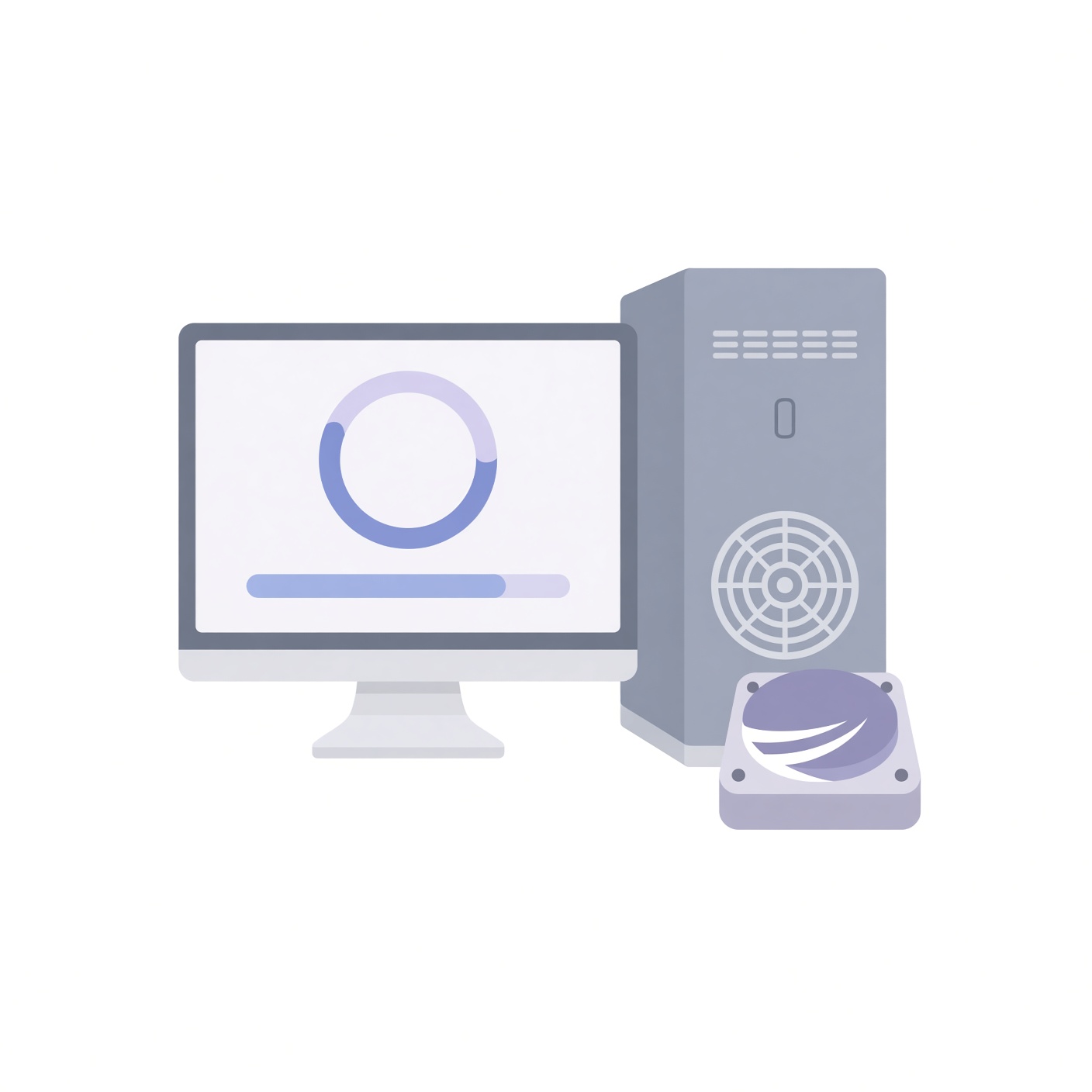
To understand whether formatting removes a virus, it helps to first understand what formatting a computer actually entails.
When people talk about “formatting” a PC, they usually mean two distinct processes combined into one:
-
Erasing the Partition (Formatting): Wiping the file system index on the storage drive (HDD or SSD). This tells the computer that all existing data is obsolete and can be overwritten.
-
Reinstalling the Operating System (OS): Installing a fresh, clean copy of Windows, macOS, or Linux from a verified external source (like a bootable USB drive).
During a standard format, the active partition where your operating system, programs, and personal files reside is wiped clean. Because traditional viruses, worms, and trojans rely on the operating system’s file structure to execute, hide, and replicate, destroying that file structure effectively destroys the malware along with it. Once a clean operating system is installed, your computer is essentially back to its factory state, free from the software clutter and infections that accumulated over time.
The Short Answer: When Formatting Works 100% of the Time
For 95% of malware infections, formatting is a foolproof cure. If your computer is infected with standard adware, keyloggers, browser hijackers, crypto-miners, or common ransomware, a clean reinstallation of the operating system completely eradicates the threat.
Because these malicious programs live inside the user profile or system directories of your active operating system, wiping the drive removes every single trace of their code. Once you complete the setup of your fresh OS, you will notice an immediate improvement in system performance, stability, and security.
Hidden Threats: Can Malware Survive a Hard Drive Format?
While standard formatting defeats most malware, advanced threats can sometimes persist through a standard operating system reinstallation. Understanding these edge cases is crucial for high-risk situations or particularly stubborn infections.
1. UEFI and BIOS Rootkits
The most sophisticated form of malware persistence targets the motherboard rather than the operating system. The Unified Extensible Firmware Interface (UEFI) and Basic Input/Output System (BIOS) are low-level firmware instructions that run before your operating system even boots up.
While exceedingly rare outside of targeted state-sponsored cyberattacks or high-end corporate espionage, firmware-level rootkits can embed themselves into the motherboard’s flash memory. Because formatting only affects your storage drive (HDD/SSD) and leaves motherboard firmware untouched, a firmware rootkit can survive a format and reinfect the operating system the moment you boot up your freshly wiped PC.
How to fix it: If you suspect a firmware-level infection, you must flash or update your motherboard’s BIOS/UEFI using a clean, official update directly from the manufacturer’s website, downloaded using a completely separate, uninfected device.
2. Secondary Drives and External Storage
A very common mistake users make is formatting only their primary “C: drive” while leaving secondary internal hard drives, external USB backup drives, or network-attached storage (NAS) devices untouched.
If your computer has multiple partitions or physical drives, malware may have replicated itself into secondary storage directories. The moment you plug in that secondary drive or access an unformatted partition after reinstalling Windows, the virus can easily reinfect your system.
How to fix it: During the installation process, ensure you wipe all internal partitions. Furthermore, scan any secondary storage devices or external backups using a robust, updated antivirus program before opening any files on them.
3. Malware Hiding in Cloud Backups and Synced Data
Many modern operating systems automatically back up your settings, application data, documents, and browser profiles to cloud services like OneDrive, Google Drive, or iCloud.
If your computer was infected and you immediately restore your cloud backup onto your freshly formatted PC, you run a high risk of automatically downloading the infected files, malicious scripts, or hijacked browser cookies right back onto your machine.
How to fix it: After a format, avoid restoring entire system backups blindly. Manually recover essential personal files (like photos, movies, and unexecutable documents), and steer clear of restoring hidden application data or system settings folders from suspicious backup dates.
How to Perform a Secure, Deep Format and Clean Installation
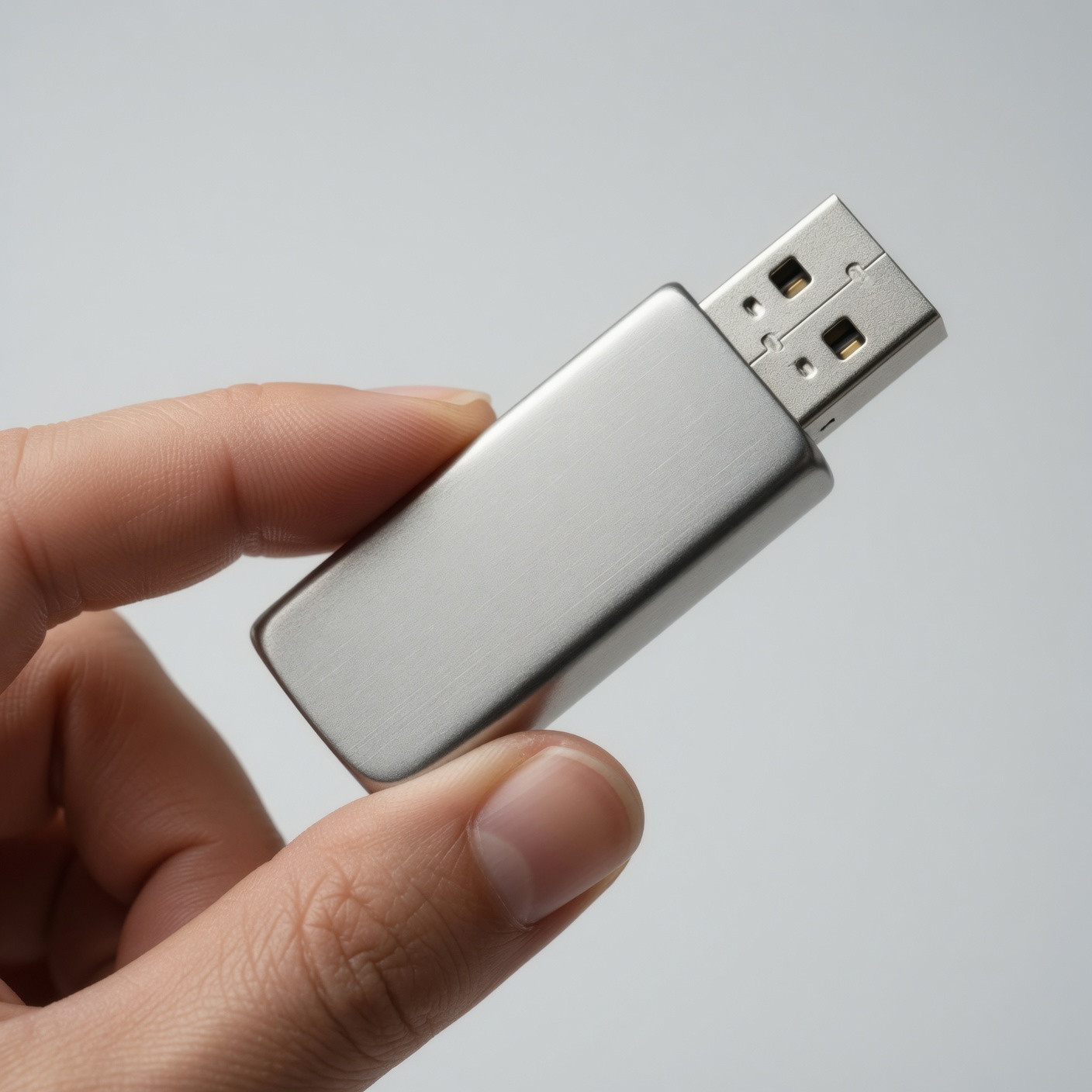
If you have decided that formatting is the right path forward, doing it correctly ensures maximum security. Follow this step-by-step roadmap to wipe your system safely:
Step 1: Backup Only Essential Personal Files
Before wiping your system, identify the irreplaceable files you want to keep—such as family photographs, personal documents, and financial records. Avoid backing up application folders, executable files (
.exe), software installers, or compressed archive files (.zip, .rar) that could harbor dormant malware. Scan your backup folder with an updated security tool before transferring the files back to your clean PC.Step 2: Create Official Installation Media
Never rely on the built-in “Reset this PC” feature if your computer is severely infected, as sophisticated malware can sometimes tamper with local recovery partitions. Instead, use an uninfected computer to download the official operating system creation tool (such as the Windows Media Creation Tool) and burn a clean bootable version onto a blank USB flash drive.
Step 3: Wipe All Drives and Partitions
Boot your computer from the installation USB. When you reach the disk selection screen during the installation wizard, delete all existing partitions on your primary drive. This destroys the old partition table, removing hidden recovery sectors or corrupted boot sectors. Once unallocated space remains, select it and proceed with the clean installation.
Essential Post-Format Security Steps to Prevent Re-Infection
A freshly formatted computer is a blank slate, but it is also temporarily vulnerable. Before you start browsing the web or logging into sensitive accounts, take these immediate protective measures:
-
Install Windows Updates: Ensure your operating system is fully up to date to patch known security vulnerabilities.
-
Deploy Reputable Antivirus Protection: Install a trusted security suite to monitor real-time web traffic and file downloads.
-
Update Your Passwords: If your computer was compromised by credential-stealing malware, change your email, banking, and social media passwords immediately from a secure, uninfected device. Enable Two-Factor Authentication (2FA) everywhere possible.
When You Don’t Need to Format: Alternative Solutions
Formatting is a powerful remedy, but it is also time-consuming. You lose your customized settings, and reinstalling all your software can take hours. Before pulling the trigger on a full format, consider these effective alternatives:
-
Offline Antivirus Scans: Bootable antivirus rescue disks (like Windows Defender Offline or Kaspersky Rescue Disk) scan your system outside of the Windows environment, eradicating stubborn threats that resist normal removal.
-
Advanced Malware Removers: Tools like Malwarebytes specialize in hunting down deeply embedded adware, trojans, and browser hijackers without requiring a full system wipe.

So, does formatting a PC remove all viruses? Yes, 95% of the time, a clean format and OS reinstallation provides a 100% effective cure for malware infections. By wiping your storage drives and starting fresh, you eliminate standard threats, recover lost processing speed, and regain total control over your digital environment.
While advanced edge cases like UEFI rootkits or careless cloud backups can theoretically bypass a standard format, following proper deep-wiping protocols ensures your computer emerges completely secure, clean, and ready for safe everyday use.