Online Safety
What Happens If You Allow a Suspicious Website to Send Notifications?
Learn what can happen after allowing a suspicious website to send notifications and how to revoke unwanted permissions
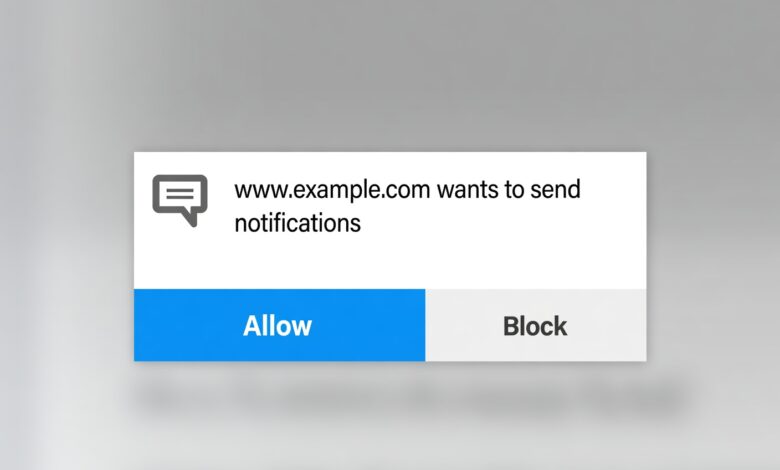
In today’s digital landscape, browsing the internet often feels like running a digital obstacle course. Every time you open a new blog, news site, or streaming platform, a small pop-up appears in the corner of your screen, urgently asking: “This site wants to show notifications. Allow or Block?”
For many internet users, clicking “Allow” has become an instinctive, knee-jerk reaction. You just want the prompt to go away so you can read your article, download a file, or watch a video. However, clicking that innocent-looking button on an unfamiliar or suspicious website can open the door to a world of cybersecurity nightmares.
If you have ever wondered what actually happens behind the scenes when you grant push notification permissions to a questionable website, you are in the right place. In this comprehensive guide, we will break down the mechanics of web push notifications, the hidden dangers of malicious subscriptions, and actionable steps you can take to protect your devices and personal data.
Understanding Web Push Notifications: How They Legitimately Work

Before diving into the risks, it helps to understand what a push notification actually is. Legitimate websites—such as news outlets, weather apps, e-commerce stores, and social media platforms—use browser push notifications to keep users engaged. When you opt in, your browser creates a secure connection with the website’s server, allowing it to send short alerts directly to your desktop or mobile screen, even when you are not actively browsing that specific page.
Under normal circumstances, this feature is completely harmless and convenient. You get notified about a breaking news story, a shipping update for an online order, or a new message from a friend.
The security vulnerability arises because the underlying technology—standardized by modern web browsers like Google Chrome, Mozilla Firefox, Microsoft Edge, and Apple Safari—does not inherently distinguish between a trusted publisher and a malicious actor. Any website, regardless of its reputation or intent, can trigger the permission prompt. Once granted access, the technical line between a helpful alert and a vector for cyber threats blurs completely.
The Anatomy of a Rogue Push Notification Campaign
When a suspicious or outright malicious website tricks you into allowing notifications, it rarely stops at simple text alerts. Instead, it hooks your browser into an automated delivery network designed to exploit human psychology. Here is a step-by-step look at how these campaigns typically operate:
-
The Deceptive Hook: You land on a sketchy website—perhaps looking for pirated media, a cracked software download, or an unverified coupon code. A fake prompt appears, disguised as a human-verification check (e.g., “Click Allow to prove you are not a robot”) or a media player update (e.g., “Update Adobe Flash Player to watch this video”).
-
The Silent Subscription: Once you click “Allow,” the site registers your browser’s unique push subscription endpoint on its remote server. You do not need to stay on the website; the connection remains active in the background of your browser profile.
-
The Flood of Alerts: Over the coming hours, days, or even weeks, your operating system starts firing off frequent, urgent pop-ups in the bottom-right corner of your screen (or top of your mobile device). These alerts often mimic system notifications or security software warnings to create panic.
Cybercriminals rely on urgency, fear, and curiosity to force interactions. By exploiting your browser’s native notification system, they bypass traditional email spam filters entirely, delivering their hooks directly to your desktop.
Major Risks and Consequences of Enabling Rogue Notifications
Allowing a suspicious website to send notifications is far more than a mere annoyance. It exposes you to several distinct security and privacy risks. Here are the primary dangers you face when you fall victim to this trap:
1. Constant Exposure to Phishing Scams and Fake Alerts
The most common payload delivered via rogue push notifications is phishing links. These alerts often mimic trusted brands—such as your bank, PayPal, Amazon, or major shipping couriers. They might scream messages like: “Urgent: Your account has been locked due to suspicious activity!” or “You’ve won a free iPhone! Claim your prize now.”
Because the notification appears through your browser, less tech-savvy users often assume the warning is legitimate, making them far more likely to click through and surrender sensitive login credentials, credit card numbers, or Social Security information on spoofed landing pages.
2. Malicious Redirects and Drive-By Downloads
Clicking on a malicious notification rarely takes you to a safe page. Instead, it frequently bounces your browser through a chain of ad-tracking networks before landing on a compromised site. These destination pages often attempt drive-by downloads—automatically trying to install adware, browser hijackers, or spyware onto your computer without your explicit consent.
3. Malware Distribution Disguised as Software Updates
Many tech-support scam notifications claim that your computer is infected with viruses, ransomware, or outdated software. They urge you to click a link to download an urgent “security patch” or “cleaner tool.” In reality, downloading and executing these files installs genuine malware, remote-access trojans (RATs), or cryptominers that drain your system resources and compromise your entire digital identity.
4. Aggressive Malvertising and Financial Fraud
The operators behind these notification networks make money through pay-per-click advertising and fraudulent affiliate schemes. By bombarding your screen with high-frequency ads for fake products, miracle diet pills, or high-risk financial schemes, they monetize your attention while potentially exposing you to fraudulent e-commerce stores that steal credit card details.
Why Cybercriminals Prefer Browser Notifications Over Email
You might wonder why bad actors invest so heavily in browser push notifications when email phishing has been around for decades. The answer comes down to delivery rates and friction:
-
Bypassing Spam Filters: Email providers like Gmail, Outlook, and Yahoo employ sophisticated machine learning algorithms to filter out phishing emails and spam before they ever reach your inbox. Browser notifications, however, route directly through your operating system’s notification daemon, entirely bypassing email security layers.
-
Instant Visual Intrusion: An email sits quietly in your inbox until you decide to open it. A push notification pops up over your active windows, demanding immediate visual attention.
-
Perceived System Authority: Because these notifications appear in the native notification tray of Windows or macOS, users often subconsciously associate them with system-level trust, assuming their operating system is the entity issuing the warning.
Psychological Tactics Used to Trick Users Into Opting In
Understanding how cybercriminals manipulate human behavior is one of the best defenses against digital threats. Malicious websites rarely ask for notification permissions straight; instead, they use engineered contexts designed to disarm your critical thinking.
Fake Human Verification (“Captcha” Spoofing)
One of the most widespread techniques involves displaying a fake Cloudflare or Google reCAPTCHA page over video content or download links. The interface instructs you: “To verify you are human, click Allow on the browser prompt.” Victims believe they are proving they are not a robot, when in reality, they are granting system-level notification access to scammers.
Media Player and Codec Updates
When visiting streaming sites or adult entertainment portals, users are frequently greeted with alerts stating: “Your media player is outdated. Click Allow to install the required video codec.” Browsers do not require external codecs or plugins managed via push notifications to play standard web video; this is a pure fabrication designed to hook your browser.
Manufactured Urgency and Fear
Scammers know that fear is a powerful motivator. Prompts warning that your device is severely infected or that your subscription has expired compel users to take rash action to resolve the perceived crisis, leading them straight into the notification trap.
How to Check if Your Browser is Compromised by Rogue Notifications
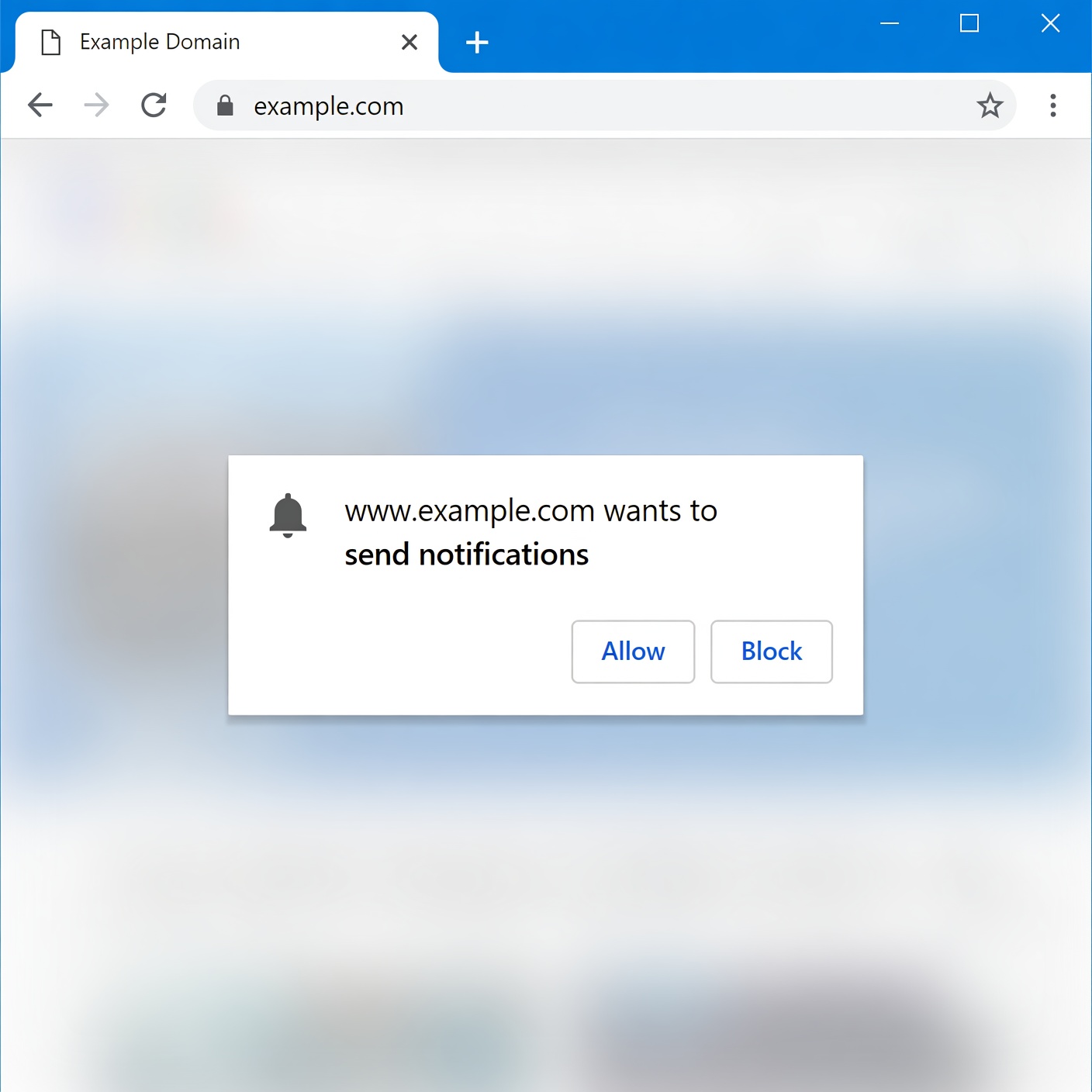
If you suspect you may have accidentally clicked “Allow” on a suspicious website in the past, or if you are suddenly seeing strange pop-ups on your desktop, you can easily audit and clean your browser settings. Here is how to check your permissions across the most popular web browsers:
Google Chrome
-
Open Chrome and click the three vertical dots in the top-right corner.
-
Select Settings > Privacy and security > Site settings.
-
Scroll down and click on Notifications.
-
Review the list under Allowed to send notifications.
-
Look for unfamiliar, random, or suspicious URLs. Click the three dots next to any questionable entry and select Remove or Block.
Mozilla Firefox
-
Open Firefox and click the three horizontal lines in the top-right corner.
-
Select Settings > Privacy & Security.
-
Scroll down to the Permissions section and find Notifications, then click the Settings… button next to it.
-
Review the list of websites. Change any suspicious site’s status from Allow to Block, or select the site and click Remove Website.
Microsoft Edge
-
Open Edge and click the three horizontal dots in the top-right corner.
-
Select Settings > Cookies and site permissions.
-
Click on Notifications.
-
Under the Allow section, locate any suspicious URLs, click the three dots, and select Remove or Block.
Apple Safari (Mac)
-
Open Safari and click Safari in the top menu bar, then select Settings (or Preferences).
-
Go to the Websites tab and click on Notifications in the left sidebar.
-
Review the list of websites on the right. Change any unwanted or suspicious sites from Allow to Deny.
Best Practices for Safe Browsing and Prevention
Cleaning up existing subscriptions is only half the battle. To ensure you never fall victim to malicious notification campaigns again, adopt these robust digital hygiene habits:
-
Default to “Block”: Consider changing your browser settings so that sites must explicitly ask for permission every single time, and make it a golden rule to click Block or Deny by default unless you completely trust the publisher.
-
Recognize Red Flags: Be highly skeptical of any website that ties a browser permission prompt to a CAPTCHA verification, video playback, or software update. Legitimate services do not require notification access to verify your humanity.
-
Keep Your Browser Updated: Browser developers constantly update their security architectures to curb abuse and introduce stricter UI warnings for deceptive sites. Ensure your browser is always running the latest version.
-
Use Reputable Security Software: Install a reliable antivirus or internet security suite equipped with real-time web filtering. Quality security tools can block known malicious domains before they even load in your browser, stopping scams at the source.
-
Educate Family and Friends: Cybercriminals frequently target demographics that may be less familiar with web mechanics, such as elderly relatives or young children. Share these safety tips with household members to protect your entire family network.
Allowing a suspicious website to send notifications might seem like a minor mistake, but it can quickly escalate into a persistent security headache filled with phishing attempts, annoying pop-ups, and potential malware exposure. By understanding how these malicious notification loops work, recognizing the deceptive psychological tactics used by bad actors, and knowing how to audit your browser permissions, you can take back full control of your digital environment.
Stay vigilant, trust your instincts when a website feels “off,” and remember: when in doubt, always click Block.