Online Safety
Is It Safe to Save Credit Card Details in Your Browser?
Discover how browsers protect saved payment information and what can put your card details at risk
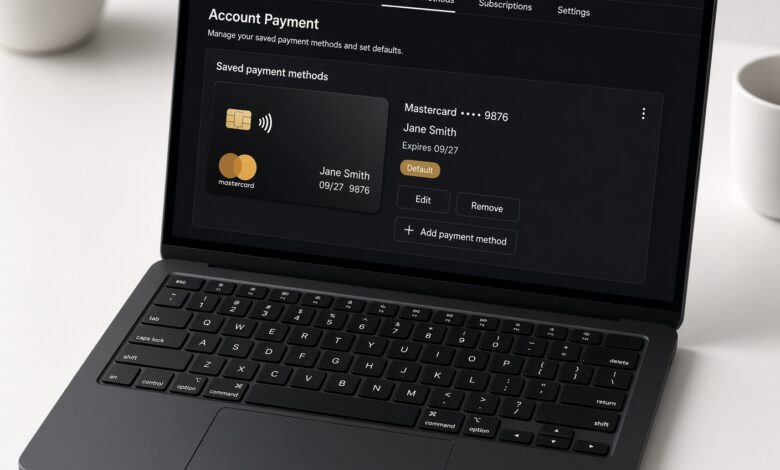
In today’s fast-paced digital world, convenience is king. When you find yourself browsing your favorite online stores or checking out at a new subscription service, nothing feels quite as seamless as a web browser offering to autofill your credit card details with a single click. No more getting up to fetch your physical wallet, no more squinting at tiny 16-digit numbers, and no more fumbling with three-digit CVV codes. Chrome, Safari, Edge, and Firefox have all made online shopping effortless by storing our financial credentials right inside our user profiles.
However, this ultimate convenience raises a critical question that every internet user must eventually ask: Is it safe to save credit card details in your browser?
The short answer is: It depends on how well you secure your device and your account. While modern web browsers use advanced encryption protocols to protect your data from external hackers lurking on public Wi-Fi, saving your card details introduces severe risks if your physical device is compromised, if malware infects your system, or if unauthorized users gain access to your unlocked computer or phone.
In this comprehensive guide, we will break down the security mechanisms behind browser autofill, examine the hidden risks, explore how it compares to dedicated password managers, and provide actionable best practices to keep your financial data secure online.
Understanding Browser Autofill: How Chrome, Safari, and Edge Protect Your Financial Data
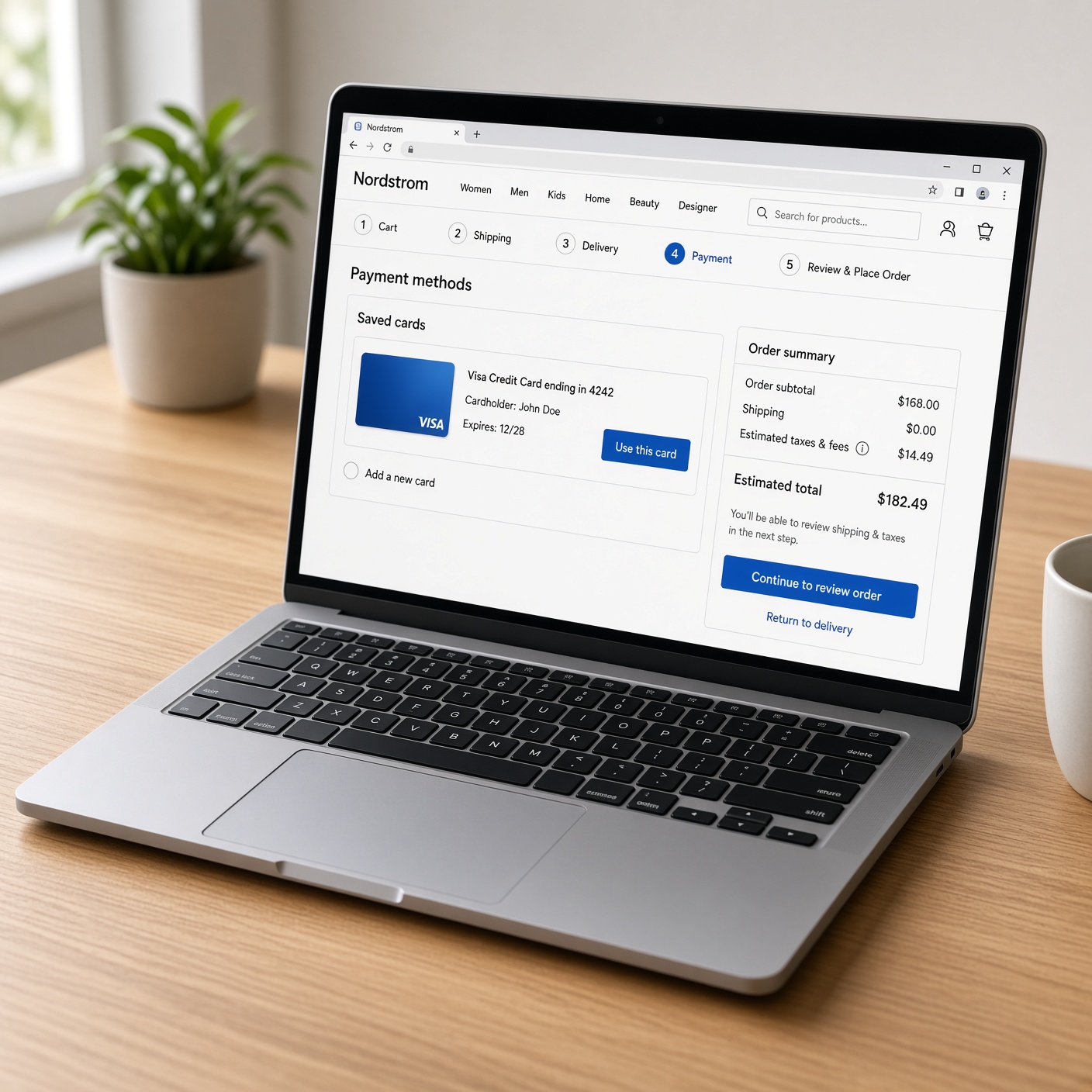
Before diving into the risks, it is important to understand what actually happens behind the scenes when you let your browser save your credit card information. Modern web browsers do not just store your raw credit card numbers in a plain text file on your hard drive.
Major browsers employ several layers of security:
-
Local Encryption: Your saved credit card details are encrypted using robust cryptographic algorithms (such as AES-256) tied to your operating system’s user account credentials.
-
Masked CVV Codes: For security reasons, most browsers do not save your three-digit CVV or CVC security code. Even if your autofill populates your card number and expiration date, you are typically required to type your CVV manually during checkout. This prevents automated scripts from instantly draining your account if they manage to trigger a form submission.
-
Biometric and Password Verification: Browsers like Safari and Chrome often require a secondary layer of authentication—such as Touch ID, Face ID, Windows Hello, or your master account password—before revealing full card details or allowing autofill on sensitive pages.
-
Cloud Sync Protection: If you sync your browser data across devices (such as syncing Chrome data via your Google Account), your data is protected during transit using HTTPS and can be further secured using a Google Account passphrase.
Despite these protective measures, browser-based storage is not foolproof. Let’s look at the vulnerabilities that security experts warn about.
The Hidden Vulnerabilities: Why Saving Credit Cards in Browsers Can Be Risky
While external cyberattacks over the internet are a major concern, the greatest threats to saved browser data often come from closer to home. Understanding these vulnerabilities will help you evaluate whether browser autofill aligns with your personal risk tolerance.
1. Physical Access and Shared Devices
If you share a computer with family members, roommates, or coworkers—or if you frequently leave your laptop unlocked in public spaces, coffee shops, or offices—browser autofill becomes an open invitation for unauthorized purchases. Anyone who opens your browser can simply navigate to an e-commerce site, click the payment field, and watch your saved credit card details automatically populate. Even if your device has a login screen, an unlocked session left unattended for just a few minutes can lead to compromised finances.
2. Infostealer Malware and Browser Hijacking
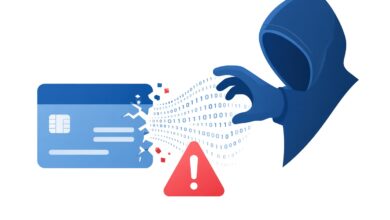
A growing threat in the cybersecurity landscape is infostealer malware (such as RedLine, Raccoon, or Vidar). These malicious programs are often downloaded unwittingly via cracked software, suspicious email attachments, or malicious ads. Once installed on a Windows or macOS system, infostealers specifically target web browsers. They bypass standard local encryption by scraping session cookies, saved login credentials, and stored credit card data directly from the browser’s local database files. Once harvested, this data is packaged and sent back to cybercriminals on the dark web.
3. Cross-Site Scripting (XSS) and Browser Extensions
While rare in mainstream, updated browsers, vulnerabilities can occasionally emerge in browser extensions. If you install malicious or poorly vetted third-party extensions from official web stores, these extensions may request broad permissions to “read and change all your data on websites.” A rogue extension could potentially monitor form fields and capture your credit card details as you type them or as the browser autofills them.
Browser Autofill vs. Dedicated Password Managers: Which Is Safer?
Many users wonder whether they should rely on built-in browser storage or switch to a dedicated password manager (such as 1Password, Bitwarden, or Dashlane) for managing payment cards.
While both options offer convenience, dedicated password managers generally provide a higher security ceiling for several reasons:
-
Zero-Knowledge Architecture: Premium password managers use end-to-end zero-knowledge encryption. This means your data is encrypted and decrypted locally on your device using your Master Password. Not even the password manager company itself has access to your plain-text credit card details.
-
Master Password Requirement: Unlike browsers that often autofill automatically upon clicking a field, standalone password managers usually require you to enter a Master Password or use biometric confirmation every single time you want to autofill financial data.
-
Advanced Security Audits: Dedicated password managers are built by companies whose sole focus is cybersecurity. They undergo regular third-party security audits and penetration testing, whereas web browsers must balance security with speed, rendering engines, and web compatibility features.
If you handle multiple credit cards, bank accounts, and sensitive identity documents, transitioning from a browser vault to a dedicated password manager is one of the most effective security upgrades you can make.
Best Practices to Secure Your Financial Data While Browsing Online
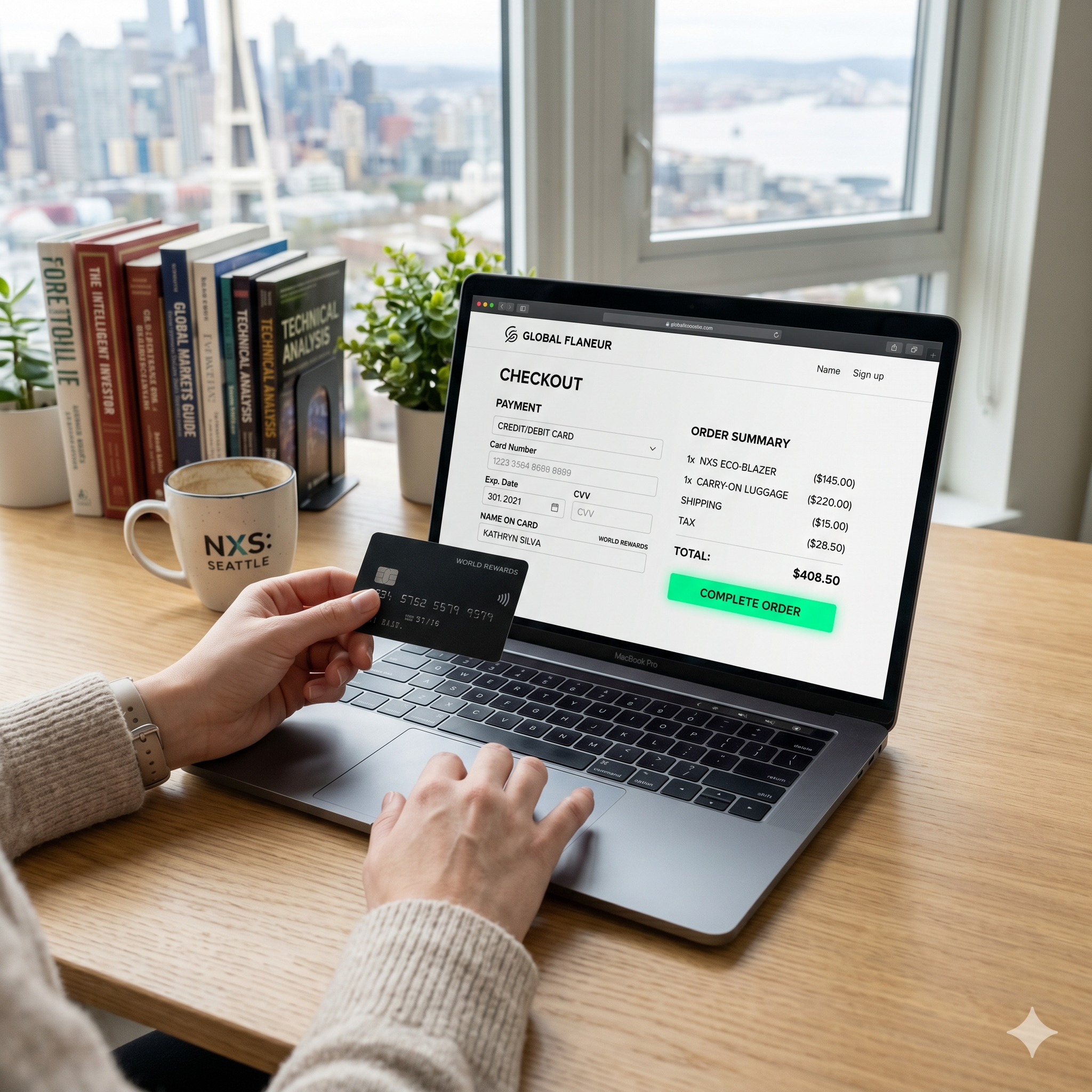
You do not necessarily have to abandon browser autofill entirely to stay safe. By implementing rigorous digital hygiene habits, you can significantly minimize your exposure to financial fraud and identity theft. Follow these essential guidelines:
Enable Multi-Factor Authentication (MFA) on Your Browser Accounts
If you use Chrome, Edge, or Safari, your browser profile is tied to your main digital account (Google, Microsoft, or Apple). Ensure that Multi-Factor Authentication (MFA) or Two-Factor Authentication (2FA) is enabled on these accounts using an authenticator app (like Google Authenticator or YubiKey). This prevents hackers from accessing your cloud-synced browser data even if they somehow steal your account password.
Lock Your Device with Strong Biometrics
Always configure your computer and smartphone to lock automatically after a short period of inactivity (e.g., 2 to 5 minutes). Require a PIN, strong password, or biometric verification (Face ID or fingerprint) every time the device wakes up. This stops physical intruders from exploiting active browser sessions.
Regularly Audit and Clean Your Saved Cards
Open your browser settings periodically and review the list of stored payment methods. Delete old, expired, or unused credit cards. Keeping a minimal footprint reduces the amount of data available if your account is ever breached.
Avoid Saving Cards on Public or Shared Computers
Never, under any circumstances, click “Save Card” when browsing on hotel business center computers, library terminals, or a friend’s device. Always use Incognito or Private Browsing mode when accessing financial accounts on non-personal hardware, and ensure you log out completely and close the browser window when finished.
Monitor Your Bank Statements Proactively
No security system is 100% impenetrable. Make it a habit to review your credit card and bank statements weekly. Set up instant SMS or push notification alerts with your bank for every transaction over a certain dollar amount or for online purchases. Catching unauthorized charges early is your best defense against financial loss.
Is Saving Credit Cards in Your Browser Worth the Risk?
Ultimately, saving credit card details in your web browser is a calculated trade-off between convenience and security.
If you practice good digital hygiene—such as using strong device locks, keeping your operating system and browser updated, enabling multi-factor authentication on your accounts, and avoiding public or shared devices—using browser autofill presents a relatively low risk for everyday online purchases.
However, if you prioritize maximum security, manage multiple cards, or want protection against infostealer malware and unauthorized physical access, turning off browser autofill and switching to a reputable, zero-knowledge password manager is the wiser path forward.
By staying proactive, keeping your software updated, and remaining vigilant against digital threats, you can enjoy a seamless online shopping experience without compromising your financial safety.