Apps
How to Change Your Location on Hinge
Learn how to change your location on Hinge and discover profiles in other cities or areas
Dating apps have completely transformed how we meet people, and Hinge stands out as one of the most popular platforms designed to be deleted. With its focus on meaningful connections, prompts, and detailed profiles, it encourages users to look beyond a simple swipe. However, life moves fast. Whether you are planning a cross-country move, preparing for an upcoming vacation, traveling for business, or simply looking to expand your dating pool beyond your immediate neighborhood, you might find yourself wondering: How do I change my location on Hinge?
Unlike some of its competitors that allow you to teleport across the globe with a simple toggle or a cheap passport feature, Hinge handles location settings a bit differently. Because the app prioritizes intentional, local dating, changing your location involves understanding how its built-in GPS system works, navigating app settings, and knowing the best workarounds if you are planning ahead.
In this comprehensive, easy-to-read guide, we will break down everything you need to know about changing your location on Hinge, the mechanics behind how the app tracks you, troubleshooting tips, and alternative strategies to connect with singles in a brand-new city.
Understanding How Hinge Tracks Your Location
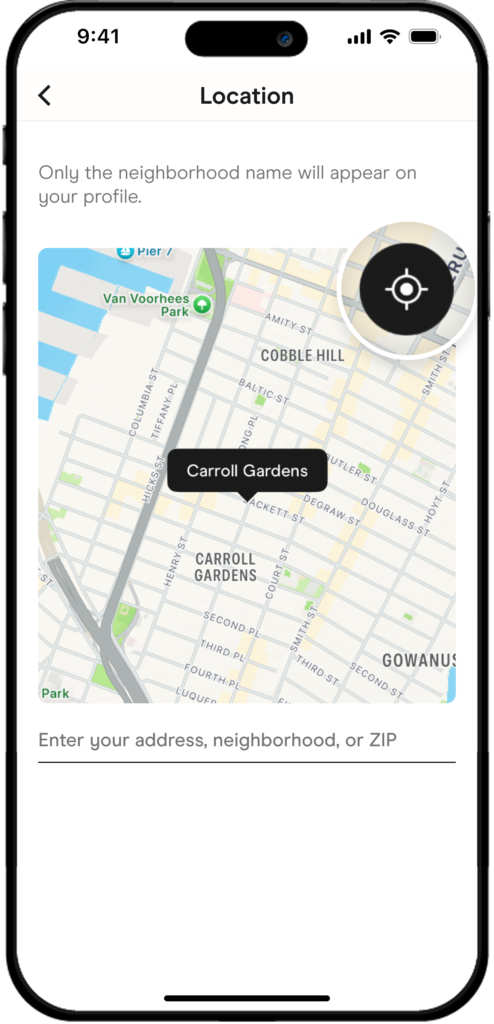
Before diving into the steps to change your location, it helps to understand how Hinge determines where you are. When you first set up your Hinge profile, the app requests permission to access your device’s location services.
Hinge relies primarily on your smartphone’s GPS coordinates rather than a manually typed-in hometown. This design choice ensures that the profiles you see are genuinely nearby, minimizing the frustration of matching with someone hundreds of miles away who you cannot realistically meet for coffee or dinner.
Because Hinge uses your phone’s real-time GPS data, the app updates your location automatically when you physically travel to a new city or neighborhood. However, this also means that if you want to change your location before you arrive somewhere—or if you want to test out a dating scene in advance—you cannot simply type a new address into a text box within the standard free version.
Method 1: The Natural Way – Updating Your Location by Traveling
If you are physically relocating or traveling to a new city, changing your location on Hinge is designed to happen automatically.
Step-by-Step Instructions:
-
Arrive at Your Destination: Once you land or arrive in your new city, ensure your phone has an active internet connection (cellular data or Wi-Fi).
-
Open the Hinge App: Launch Hinge on your iOS or Android device.
-
Allow Background Refresh: Give the app a moment to sync with your phone’s new GPS coordinates.
-
Check Your Discovery Settings: Go to your Settings, tap on Preferences, and look at your Distance filter to ensure your radius covers your new desired search area.
If your location does not update automatically after a few hours, it is usually a glitch with your phone’s location permissions rather than Hinge itself. Check your device settings to ensure Hinge is always allowed to track your location or that location permissions are properly enabled.
Method 2: Manually Changing Your Current Location in App Settings
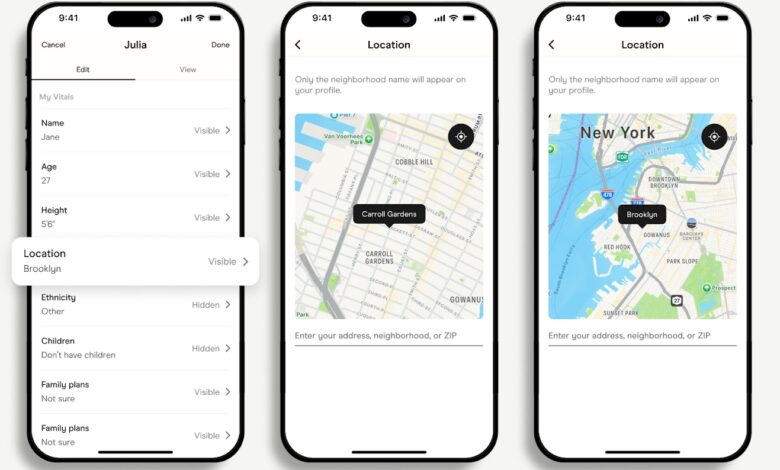
While Hinge is heavily tied to GPS, you can manually adjust your location settings within the app if you want to pinpoint a specific neighborhood or adjust your exact search parameters.
How to Adjust Your Location and Distance Preferences:
-
Open Hinge and tap your profile icon or the gear icon to open Settings.
-
Tap on Settings, then select Preferences.
-
Scroll down to the Location section.
-
Here, you can view your current set location. If you tap on it, you can enter a new zip code, city, or specific address depending on the options available in your app version.
-
Adjust your Maximum Distance slider. You can expand your radius to cover neighboring towns or restrict it tightly to your exact neighborhood.
Note: Hinge uses your current GPS as a baseline verification, so while you can filter your preferences, drastic manual changes without physical movement sometimes require adjusting device-level permissions or utilizing subscription features.
Method 3: Using HingeX or Hinge+ for Advanced Location Control
For users who travel frequently, digital nomads, or people planning a move who want to set up dates before their arrival, Hinge offers premium subscription tiers: Hinge+ and HingeX.
One of the standout perks of upgrading to these paid tiers is enhanced control over your search preferences, including your ability to look for matches in different locations.
How Premium Subscriptions Help You Change Locations:
-
Global/Advanced Filtering: Instead of being locked strictly to your current GPS pin, premium features allow you to explore profiles in entirely different cities.
-
Proactive Networking: If you know you are moving to New York, Los Angeles, Chicago, or Miami next month, you can switch your target location ahead of time and begin matching and chatting with people before your moving boxes even arrive.
Steps to Change Location with Hinge+ or HingeX:
-
Open Hinge and tap your profile icon.
-
Navigate to Preferences.
-
Under Location, tap to change your preferred city or drop a pin in your target destination (available with higher-tier features).
-
Save your changes and refresh your Discover feed to begin viewing profiles in your new target area.
Troubleshooting: Why Is Hinge Showing My Old Location?
If you have moved, traveled, or changed your settings, but Hinge is still showing people from your previous city, you are not alone. This is a common technical hiccup. Here is how to fix it quickly:
1. Check Phone Location Permissions
-
For iPhone (iOS): Go to Settings > Privacy & Security > Location Services. Ensure Location Services are turned ON, scroll down to find Hinge, and make sure it is set to While Using the App or Always. Also, ensure Precise Location is toggled ON.
-
For Android: Go to Settings > Apps > Hinge > Permissions > Location. Ensure it is set to Allow only while using the app and that Use precise location is enabled.
2. Clear App Cache and Restart
Sometimes old location data gets cached in the app memory.
-
Close out of Hinge completely by swiping it away from your active apps.
-
On Android, you can go to your phone settings, find Hinge, and clear the app cache.
-
Restart your phone entirely, then reopen Hinge to force a fresh GPS ping.
3. Log Out and Log Back In
A simple session refresh can work wonders. Log out of your Hinge account, close the app, reopen it, and log back in using your phone number or Apple/Google credentials. This forces the server to re-verify your current connection point.
Creative Tips and Best Practices for Long-Distance Dating Setup
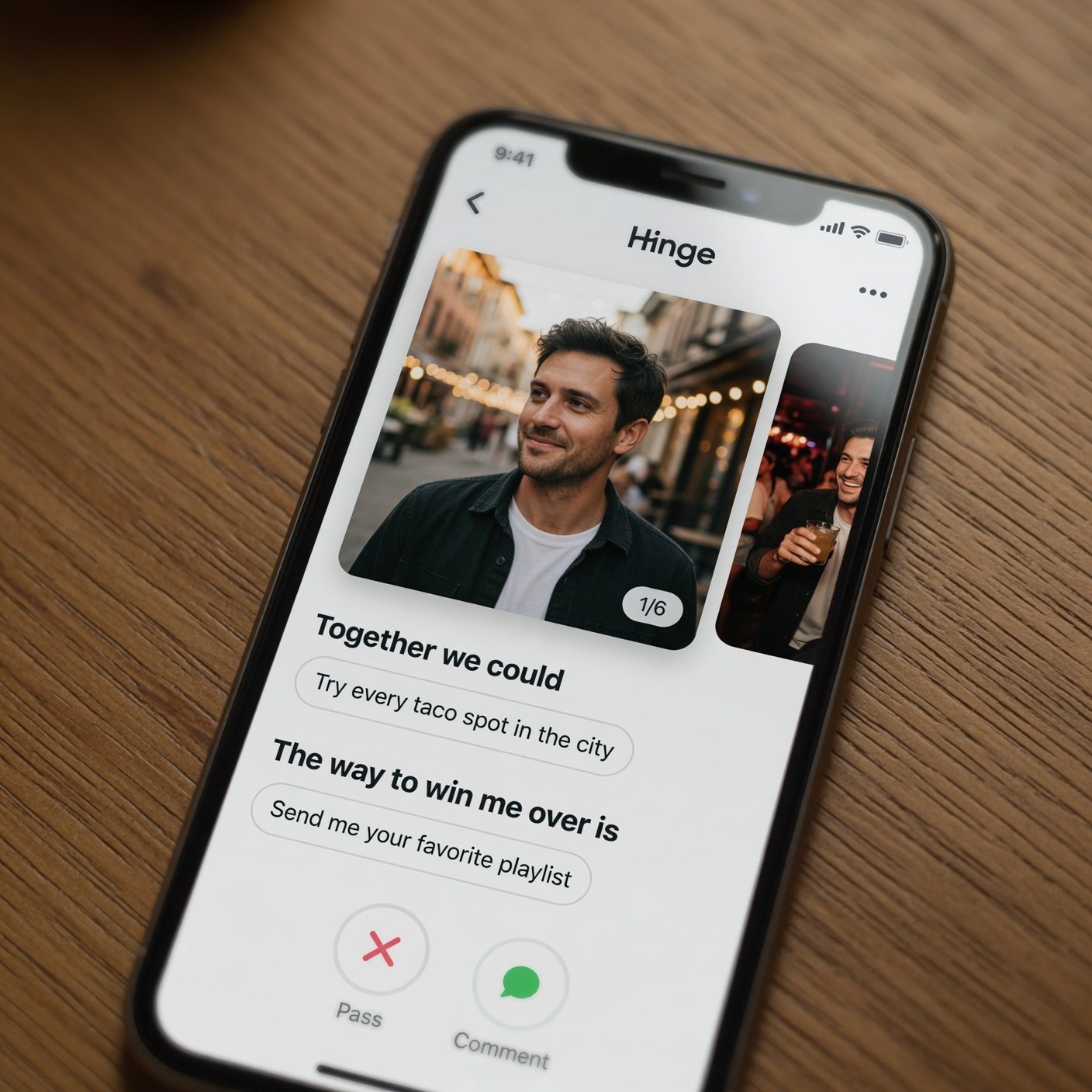
If you are changing your location proactively before a big move, changing your strategy can make a huge difference in your dating success. When you drop into a new market digitally, your profile is introduced to a fresh batch of potential matches. Here are a few expert tips to maximize your results:
-
Update Your Bio and Prompts: Mention your upcoming move in your prompts or bio (e.g., “Moving to Austin this fall!” or “Visiting Seattle next weekend”). Being transparent prevents confusion and lets people know you aren’t just a bot or a tourist passing through indefinitely.
-
Optimize Your Photos: First impressions matter immensely on Hinge. Ensure your photos are high quality, show your face clearly, and reflect your lifestyle accurately.
-
Manage Expectations: If you are matching with people in a city you don’t live in yet, make sure to communicate your timeline clearly once a conversation gets going. Most people appreciate honesty about when you will actually be in town for an in-person date.
Frequently Asked Questions (FAQs)
Can I change my location on Hinge for free?
Yes and no. You can change your location for free by physically traveling to a new city, as Hinge updates via your phone’s GPS. However, if you want to manually change your location to a city you are not currently in without traveling there physically, you generally need to upgrade to Hinge+ or HingeX, or use your device’s location settings if permitted.
Will my matches know when I change my location?
No, Hinge does not send a notification to your existing matches when you change your location. However, if your distance filter changes or if you appear in a new discovery queue, your distance indicator on your profile may update for new users.
Does using a VPN work on Hinge?
While Virtual Private Networks (VPNs) can mask your internet IP address, they often do not reliably trick Hinge because the app relies heavily on your smartphone’s hardware-level GPS and Wi-Fi triangulation data rather than just your IP address. For best results, rely on device settings, physical travel, or official app features.
Changing your location on Hinge doesn’t have to be a headache. Whether you are letting your phone’s GPS do the work during a cross-country road trip, adjusting your distance radius for neighboring towns, or utilizing premium features to scout out a new city ahead of a major move, staying in control of your profile settings ensures you never miss out on a great connection.
Take a moment to review your location preferences today, check your phone permissions, and get ready to discover wonderful new conversations wherever life takes you next!