Should You Save Passwords in Your Browser?
Discover the pros, risks, and best practices for storing passwords in your browser
In the modern digital age, we live our lives online. From checking our bank accounts and paying utility bills to catching up on social media and shopping for groceries, our digital footprint grows larger every single day. With this digital expansion comes a massive influx of accounts. Almost every website, app, and service requires an account, and each account requires a password.
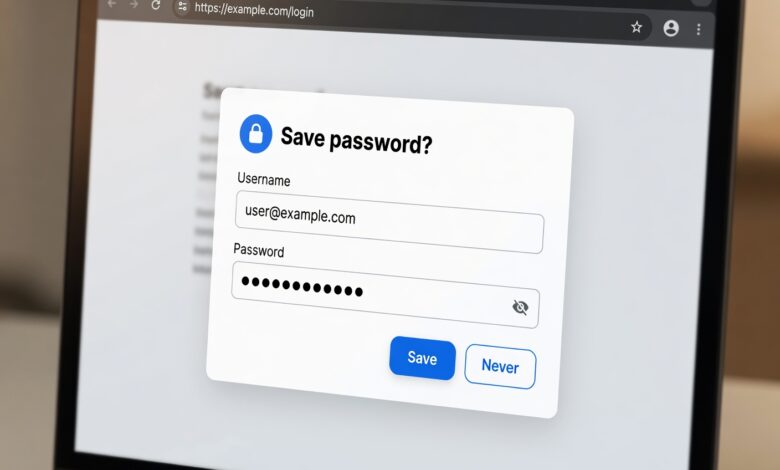
Managing dozens—or even hundreds—of unique passwords is a daunting task. Naturally, when a pop-up appears on your screen asking, “Would you like to save this password?”, it is tempting to click “Save” and let your web browser handle the heavy lifting. It is fast, convenient, and seamless. But convenience often comes at a cost in the world of cybersecurity.
Should you actually trust your web browser with your most sensitive digital keys? Or are you leaving the door wide open to cybercriminals?
In this exhaustive guide, we will dive deep into how browser password managers work, evaluate the security risks and benefits, explore alternative solutions, and help you make an informed decision to protect your digital identity.
Understanding How Browser Password Managers Work
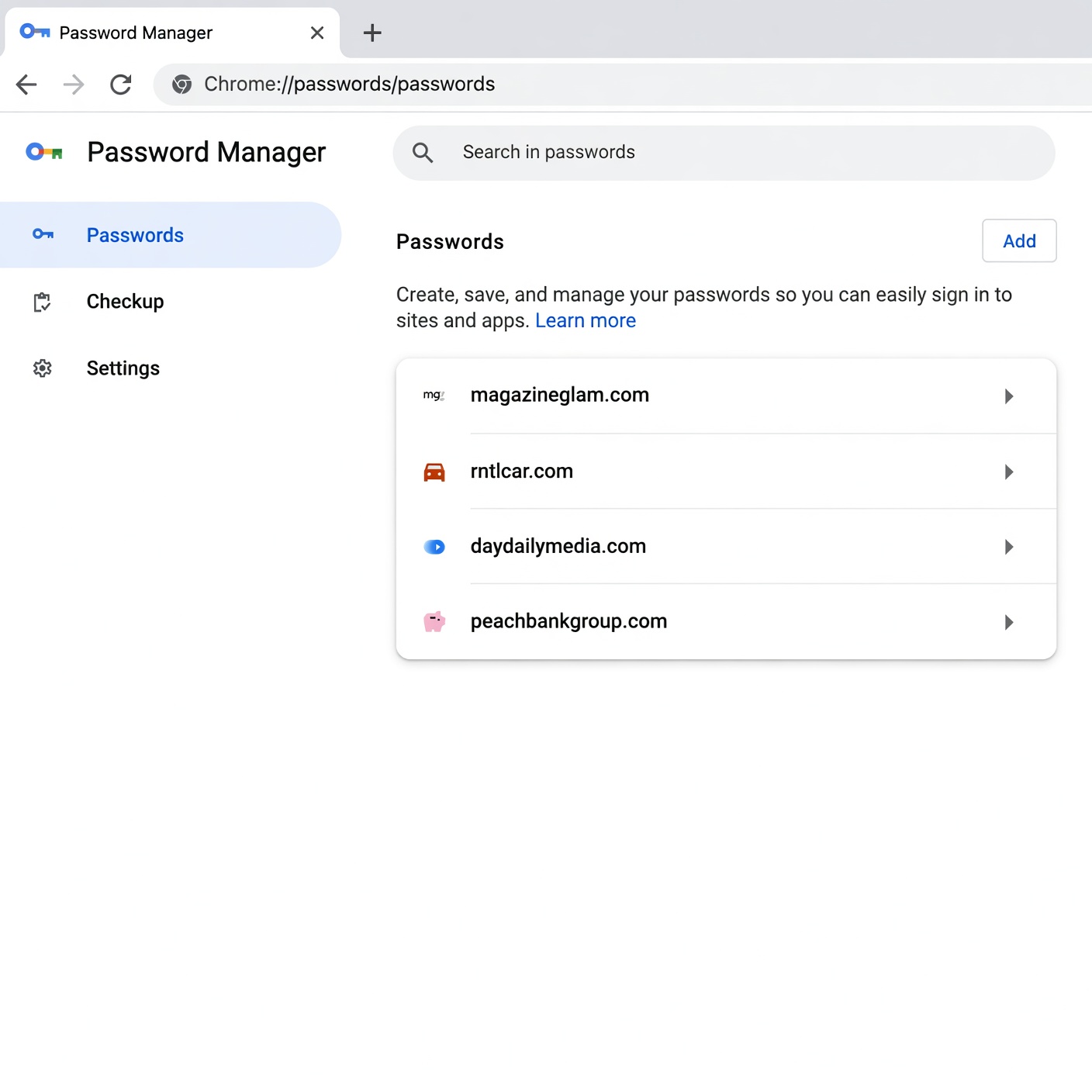
Before evaluating whether browser password storage is safe, it is crucial to understand what happens behind the scenes when you click “Save.”
Major web browsers—such as Google Chrome, Apple Safari, Microsoft Edge, and Mozilla Firefox—all feature built-in credential management systems. When you log into a website for the first time, the browser prompts you to remember the username and password. If you accept, it encrypts and stores those credentials locally on your device, and often synchronizes them across your other devices using your personal cloud account (such as your Google Account, iCloud, or Microsoft account).
The Mechanics of Local Encryption
Modern browsers do not store your passwords in plain text where anyone opening your computer can instantly read them. Instead, they use cryptographic algorithms to encrypt the data.
-
Desktop Security: On a desktop computer or laptop, browsers typically rely on your operating system’s credential store (such as Windows Credential Manager or macOS Keychain). These systems use your computer’s login password or a master system key to lock and unlock your saved data.
-
Cloud Synchronization: To make your passwords available on your phone and tablet, browsers sync this encrypted vault to their respective cloud servers. While the data is encrypted during transmission (in transit) and while stored on their servers (at rest), the level of encryption and key management varies by browser.
While this mechanism sounds secure in theory, it introduces specific vulnerabilities that everyday users often overlook.
The Hidden Cybersecurity Risks of Storing Passwords in Your Browser
While browsers have become significantly more secure over the years, relying on them as your primary password management strategy carries inherent risks. Understanding these vulnerabilities is the first step toward better digital hygiene.
1. Device Compromise and Physical Access
The single biggest vulnerability of a browser-based password manager is that it is only as secure as the device you are using.
If someone gains physical access to your unlocked computer, or if your device is stolen while logged in, they can easily open your browser settings and view your saved passwords in plain text with just a few clicks. While some browsers require your computer’s system password to reveal saved credentials, many operating systems make this bypass straightforward if the user account is already active.
2. Malware and Infostealer Trojans
Cybercriminals are well aware that millions of people store their passwords in web browsers. Because of this, they have developed malicious software specifically designed to harvest this data.
-
Infostealers: Malware strains like RedLine, Raccoon, and Vidar are specifically engineered to quietly infiltrate your computer. Once inside, they bypass browser encryption layers and extract all saved cookies, autofill data, and plain-text passwords, sending them directly back to the hacker.
-
The Danger of Unverified Downloads: Downloading cracked software, pirated games, or clicking on malicious email attachments can instantly compromise your browser vault, putting every single one of your online accounts at risk simultaneously.
3. Lack of Advanced Security Features
Browsers are designed first and foremost to be fast, efficient tools for surfing the web. Security is a major priority, but password management is ultimately an auxiliary feature. Consequently, browser vaults often lack the robust security controls found in dedicated password management software. For example, browsers rarely offer secure password sharing, emergency access features, dark web monitoring for specific personal data leaks, or granular auditing tools to highlight weak, reused, or old passwords across all your accounts.
The Benefits: Why Millions Choose Browser Password Managers
Despite the risks, it is important to acknowledge why browser password managers are so wildly popular. For the average user, they offer undeniable practical advantages over traditional, insecure methods like writing passwords on sticky notes or reusing the exact same password everywhere.
1. Unmatched Convenience and Speed
The primary selling point of browser password management is friction reduction. When you visit a website, the browser automatically recognizes the login fields and fills them out instantly. You do not have to open a separate application, copy a password, and paste it back into your browser window. This seamless user experience saves time and eliminates the frustration of frequent login barriers.
2. Encourages Unique Passwords
Before password managers became mainstream, the vast majority of internet users relied on a single “master password” that they reused across dozens of websites. If a minor website suffered a data breach, hackers could use that exact same password to access the user’s primary email, bank, and social media accounts. Browser password managers make it easy to generate long, complex, and completely random passwords for every new site you visit, preventing credential stuffing attacks.
3. Zero Extra Cost and Installation
For most people, browser password managers require zero setup effort. You are already using Chrome, Safari, Edge, or Firefox. The feature is built right into the software, requires no subscription fees, and updates automatically alongside your browser. This removes the barrier to entry, ensuring that even the most tech-averse users have some form of password protection rather than none at all.
Browser Password Managers vs. Dedicated Password Managers
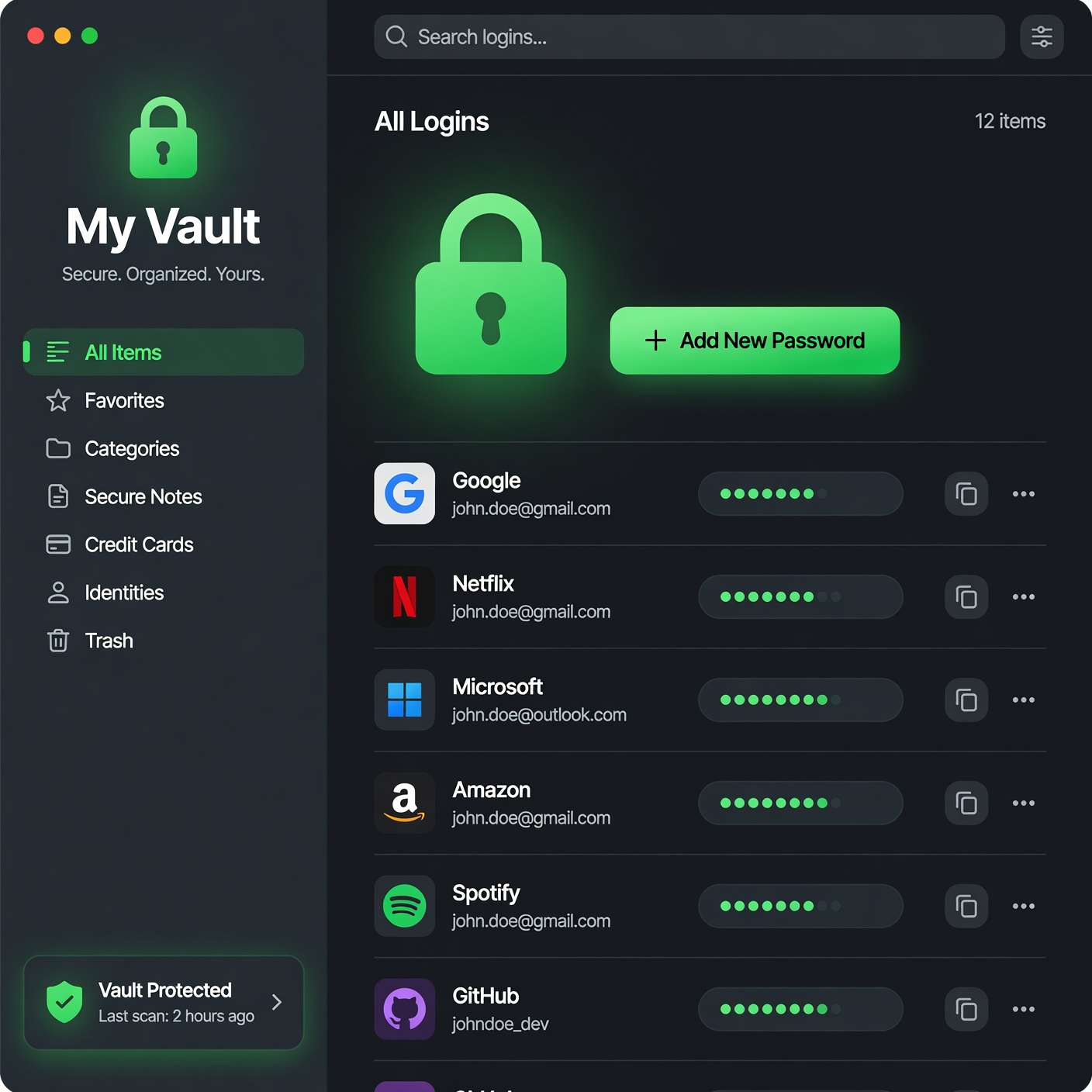
When evaluating your security posture, it helps to compare native browser tools against dedicated, third-party password managers (such as 1Password, Bitwarden, Dashlane, or KeePass). While both categories serve a similar fundamental purpose, their architecture and feature sets differ dramatically.
Dedicated Password Managers: The Gold Standard
Dedicated password managers are standalone applications and browser extensions built exclusively for managing credentials and sensitive data.
-
Zero-Knowledge Architecture: Most reputable dedicated password managers use zero-knowledge encryption. This means your data is encrypted and decrypted locally on your device using a Master Password that only you know. The company hosting the service has zero technical ability to view your passwords, meaning even if their servers are hacked, your data remains secure.
-
Multi-Platform Flexibility: Unlike browsers—which work best when you stay within their ecosystem (e.g., using Safari on Mac and iPhone)—dedicated password managers work seamlessly across any operating system, any device, and any browser.
-
Advanced Security Audits: Dedicated tools constantly scan your vault for breached passwords, weak combinations, and accounts that support Two-Factor Authentication (2FA) but do not have it enabled.
A Side-by-Side Comparison
| Feature | Built-in Browser Managers | Dedicated Password Managers |
| Cost | Free | Free tiers available; Premium options require a subscription |
| Cross-Platform Support | Limited (Best within the same ecosystem) | Universal (Works across Windows, Mac, iOS, Android, Linux) |
| Encryption Model | Varies by browser / Cloud-tied | Zero-Knowledge (Client-side encryption) |
| Security Features | Basic autofill and generation | Advanced audits, dark web monitoring, secure sharing |
| Vulnerability to Infostealers | High (Primary target for malware) | Low (Encrypted independent vault protected by master key) |
Best Practices to Secure Your Browser Passwords (If You Choose to Use Them)
If you decide that the convenience of a browser password manager outweighs the risks and you want to continue using it, you can take several vital steps to harden your security posture and minimize your vulnerability to attacks.
1. Enable a Browser Master Password or PIN
Many browsers allow you to set an additional layer of security. For instance, you can configure your browser or operating system to require a device login, PIN, or biometric scan (like fingerprint or facial recognition) before autofilling or revealing saved passwords. Never leave your browser configured to auto-reveal sensitive data without an authentication challenge.
2. Practice Impeccable Device Hygiene
Because browser passwords are stored locally on your machine, securing your physical device is paramount.
-
Always lock your computer or phone whenever you walk away from it, even in your own home.
-
Keep your operating system, browser, and all installed software updated to the absolute latest version to patch security vulnerabilities instantly.
-
Install reputable anti-malware and antivirus software to protect your system against infostealer Trojans and malicious downloads.
3. Never Bypass Multi-Factor Authentication (MFA)
Even if a cybercriminal manages to steal your browser-saved password through malware or device compromise, you can still stop them in their tracks by enforcing Multi-Factor Authentication (MFA) or Two-Factor Authentication (2FA) on all your critical accounts.
-
Use authenticator apps (like Google Authenticator, Authy, or Enpass) or hardware security keys (like YubiKey).
-
Avoid SMS-based two-factor authentication whenever possible, as text messages can be intercepted through SIM-swapping attacks.
The Role of Passkeys in the Future of Digital Security
As we look toward the future of online authentication, the traditional password is on its way out. Both tech giants and security experts are rapidly transitioning toward Passkeys.
What Are Passkeys?
Passkeys are a modern, cryptography-based replacement for passwords that make sign-ins significantly faster, easier, and inherently more secure. Instead of remembering a string of characters, your device uses a cryptographic key pair:
-
A public key stored on the website’s server.
-
A private key securely stored on your personal device (protected by your fingerprint, face scan, or device PIN).
Because the private key never leaves your device and is never shared with the website server, phishing attacks become entirely impossible. Even if a website is hacked and its database is stolen, hackers receive no usable data to access your account.
How Passkeys Integrate with Browsers and Managers
Modern browsers and password managers are rapidly adopting passkey support. You can store your passkeys inside Apple iCloud Keychain, Google Password Manager, or dedicated tools like 1Password and Bitwarden. As passkeys become the universal standard across the internet, the security risks associated with weak, guessed, or stolen text passwords will gradually fade away.
Making the Final Decision
So, should you save passwords in your browser?
The answer depends entirely on your risk tolerance and digital habits:
-
If you are a casual user who practices good device security, keeps software updated, and hates managing complex applications, using your browser’s built-in password manager is infinitely better than reusing the same weak password across multiple websites.
-
If you handle highly sensitive financial data, value absolute privacy, or manage a large portfolio of accounts across different operating systems and devices, migrating to a dedicated, zero-knowledge third-party password manager is the smartest security upgrade you can make today.
Ultimately, cybersecurity is not about achieving absolute, unbreakable safety—it is about risk management. By understanding how your credentials are stored and taking proactive steps to protect your devices, you can enjoy a seamless online experience without sacrificing your digital safety.