How to Create and Store Strong Passwords (Without Forgetting Them)
A complete guide to password security and safe storage
In the modern digital landscape, your password is the only thing standing between a cybercriminal and your most sensitive information. Whether it is your bank account, your social media presence, or your private emails, the strength of your login credentials determines your level of safety.
However, we face a common human dilemma: a password that is easy for a computer to guess is easy for us to remember, while a password that is impossible for a computer to crack is often impossible for us to memorize. This leads many to take dangerous shortcuts, like using “123456” or the name of a pet across every single website they visit.
This guide will walk you through the science of password security, teaching you how to create “unhackable” credentials and, more importantly, how to manage them so you never have to click that “Forgot Password” button again.
Why Your Current Password Might Be a Security Risk

Most people believe their passwords are secure because they include a capital letter or a single number. Unfortunately, modern hacking techniques have evolved far beyond simple guessing. Hackers today use sophisticated software that can test millions of combinations per second.
The Danger of Common Patterns
If your password follows a predictable pattern—such as your birth year, your child’s name, or a sequence like “Qwerty”—you are at high risk. Cybercriminals use “dictionary attacks” that cross-reference common words and phrases found in leaked databases. If you use “Password2024!”, a bot can crack that in less than a minute.
The Ripple Effect of Password Reuse
The biggest mistake you can make is using the same password for multiple accounts. If a minor website you used five years ago gets breached, hackers will take your email and password from that site and try them on Amazon, PayPal, and Gmail. This is known as “credential stuffing,” and it is one of the most common ways people lose access to their financial lives.
The Anatomy of a Truly Strong Password
To understand how to create a strong password, we must look at entropy. In cybersecurity, entropy refers to the randomness and unpredictability of a string of characters. The higher the entropy, the harder it is for a machine to guess.
Length Over Complexity
For a long time, the advice was to use short passwords with many symbols (e.g., P@$$w0rd!). Research now shows that length is more important than complexity. A 20-character password made of simple words is much harder to crack than an 8-character password with symbols.
Avoiding “Leaked” Information
Never include:
-
Your name or usernames.
-
Your date of birth or your family’s birthdays.
-
Your phone number or address.
-
The name of the service (e.g., do not put “Facebook” in your Facebook password).
Advanced Techniques for Creating Memorable Passwords
You don’t need to be a genius to remember a complex password. You just need a system. Here are two of the most effective methods used by security experts.
1. The Diceware Method (Passphrases)
Instead of a “password,” create a “passphrase.” This involves choosing four or five random, unrelated words and stringing them together.
-
Example:
Correct-Battery-Staple-Horse -
Why it works: It is easy for a human to visualize, but the sheer length makes it mathematically improbable for a computer to guess via brute force.
-
Pro Tip: Add a space or a hyphen between the words to increase security even further.
2. The Sentence-Acronym Method
Think of a sentence that is unique to your life but not publicly known. Then, take the first letter of every word and mix in some numbers and symbols.
-
Sentence: “I bought my first blue car in 1998 for five thousand dollars!”
-
Resulting Password:
Ibm1bcI98f$5tD! -
Why it works: To an outsider, the result looks like gibberish. To you, it’s a story you can’t forget.
How to Use a Password Manager: The Only Storage Solution You Need
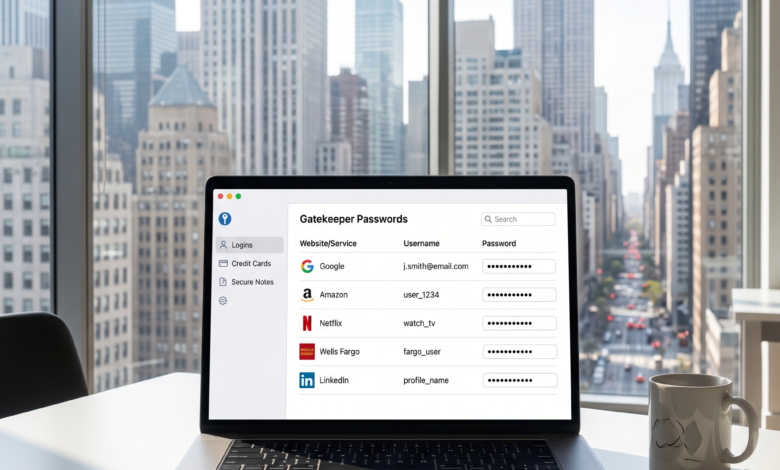
If you follow the rule of having a unique, 15+ character password for every single account, you will eventually have hundreds of passwords. It is physically impossible to remember them all. This is where a Password Manager becomes essential.
What is a Password Manager?
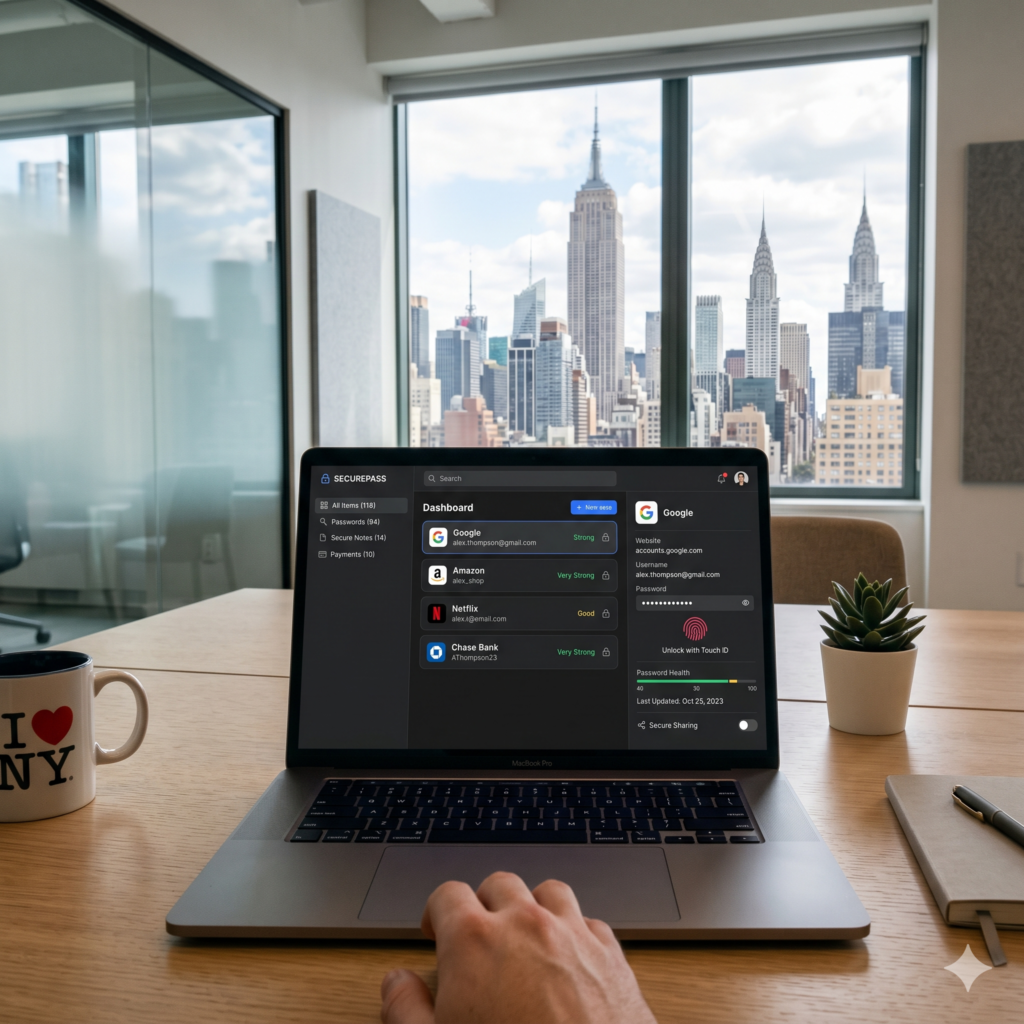
A password manager is a digital vault that stores all your login credentials in an encrypted format. You only have to remember one “Master Password” to unlock the vault. When you visit a website, the manager automatically fills in your username and password for you.
Top Benefits of Using a Manager
-
Generation: It can create random strings like
xk9!Lp#2mQ99zfor you instantly. -
Syncing: Your passwords are available on your phone, laptop, and tablet.
-
Security Alerts: Many managers will tell you if one of your passwords has been leaked in a data breach.
-
Zero-Knowledge Encryption: The best managers are designed so that even the company providing the service cannot see your passwords.
Recommended Types of Managers
-
Cloud-Based (Best for most people): Services like Bitwarden, 1Password, or Dashlane offer great ease of use across devices.
-
Local-Based (For the tech-savvy): Tools like KeePass store your vault strictly on your own device, giving you total control.
-
Browser Managers: While Chrome and Safari have built-in managers, dedicated apps are generally considered more secure and versatile.
Multi-Factor Authentication (MFA): Your Second Line of Defense
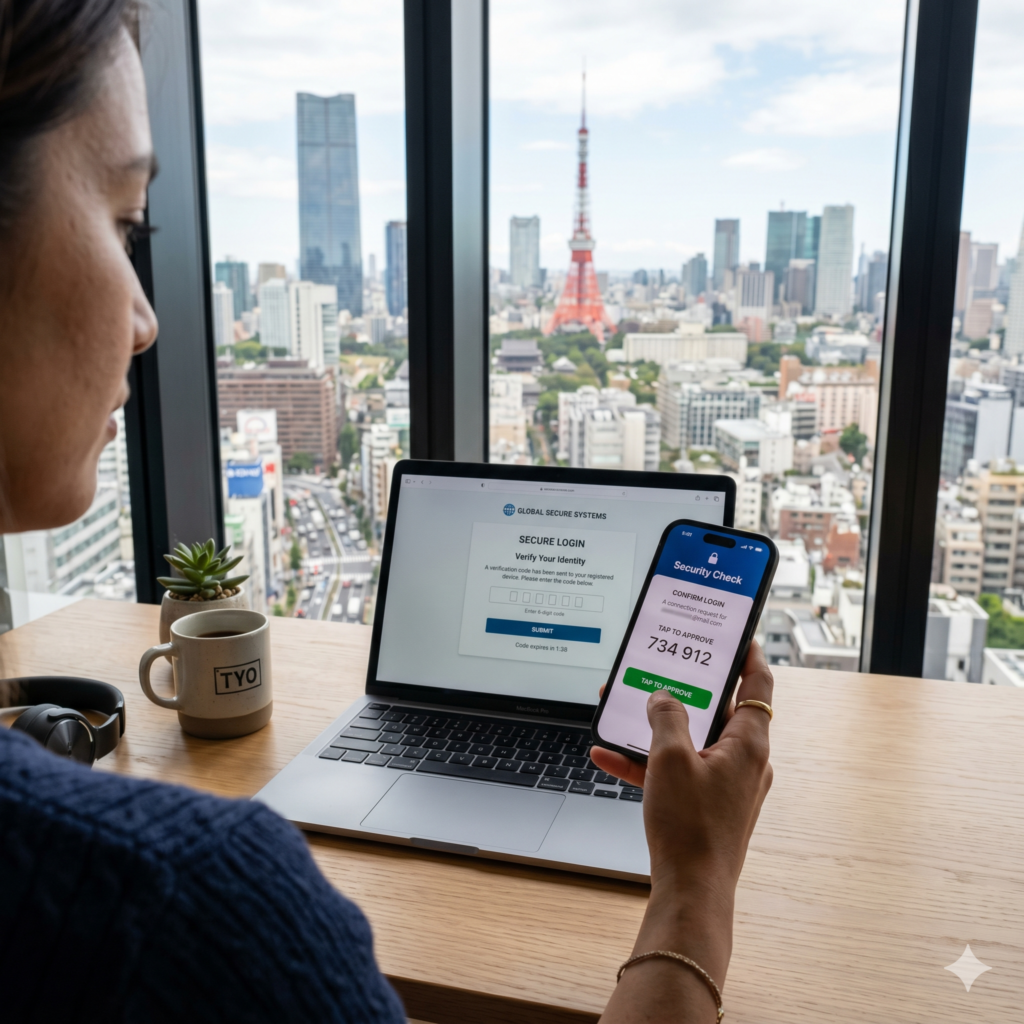
Even the strongest password can be stolen through phishing or a sophisticated hack. This is why Multi-Factor Authentication (MFA) is mandatory for any important account.
MFA requires you to provide two forms of identification before granting access. This usually consists of:
-
Something you know (your password).
-
Something you have (your phone or a security key).
SMS vs. Authenticator Apps
-
SMS Codes: These are better than nothing, but they can be intercepted through “SIM swapping” attacks.
-
Authenticator Apps (Google Authenticator, Authy): These generate a rotating code every 30 seconds on your device. They are much more secure than SMS.
-
Hardware Keys (YubiKey): A physical USB device you must plug into your computer to log in. This is the “gold standard” for security.
Common Myths About Password Security
| Myth | Reality |
| “I’m not famous, so hackers won’t target me.” | Most hacks are performed by automated bots that target everyone indiscriminately. |
| “Changing my password every 30 days makes me safer.” | Frequent changes often lead people to choose weaker passwords. Only change it if you suspect a breach. |
| “Writing passwords in a notebook is a terrible idea.” | For many elderly or non-tech users, a physical notebook kept in a locked drawer at home is actually safer than using the same weak password everywhere. |
What to Do if Your Password Is Stolen
If you receive an alert that your credentials have been compromised, you must act fast.
-
Change the Master Password: If your email or password manager is compromised, change that first.
-
Enable MFA Immediately: If you haven’t already, turn it on to lock the hackers out.
-
Check “Have I Been Pwned”: Visit this reputable website to see which of your accounts were involved in a leak.
-
Audit Your Financials: Look for unauthorized charges on your credit cards or bank accounts.
Digital Hygiene: A Checklist for a Secure Year
To keep your online life secure, perform this “digital checkup” once every six months:
-
[ ] Delete Unused Accounts: If you don’t use a service anymore, delete the account entirely. This reduces your “attack surface.”
-
[ ] Update Your Recovery Email: Ensure your backup email and phone number are current.
-
[ ] Review App Permissions: Check which apps have access to your Google or Facebook accounts and remove the ones you don’t recognize.
-
[ ] Update Your Software: Security patches for your OS and browser often fix vulnerabilities that hackers use to steal passwords.
The Future of Passwords: Are We Moving to “Passkeys”?
The tech industry is slowly moving toward a password-less future using a technology called Passkeys. Instead of typing a string of text, you use your phone’s biometric data (FaceID or Fingerprint) to verify your identity.
Major companies like Google, Apple, and Microsoft are already implementing this. While it might take a few years to become the standard, it promises a future where we no longer have to worry about “creating” or “forgetting” anything.
Final Thoughts on Online Safety
Security is not a one-time event; it is a habit. By spending just 30 minutes today setting up a password manager and creating unique passphrases for your primary accounts (Email, Bank, Social Media), you are making yourself a much harder target for cybercriminals.
Remember: Complexity is for computers, but length and strategy are for humans. Take control of your digital keys today, and you’ll never have to deal with the stress of a hacked account or a forgotten password again.