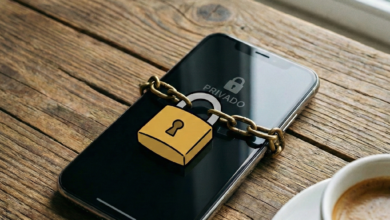
How to Protect Your Data on Public Networks
Learn how to protect your personal data when using public Wi-Fi

In an era where staying connected is a basic necessity, public Wi-Fi has become a ubiquitous convenience. Whether you are catching up on emails at a local coffee shop, waiting for a flight at an international airport, or finishing a project in a hotel lobby, free internet access is a lifesaver. However, this convenience comes with a significant trade-off: security.
Unsecured public networks are a primary playground for cybercriminals. Without the right protections, your sensitive information—including bank login credentials, private emails, and personal photos—can be intercepted in seconds. This comprehensive guide explores the advanced techniques and simple habits you need to adopt to ensure your digital life remains private, no matter where you connect.
Why Public Wi-Fi is a Security Nightmare for Your Personal Information
To understand how to protect yourself, you must first understand the vulnerability. Most home or office networks use encryption (like WPA2 or WPA3), which creates a secure “tunnel” between your device and the router. Public networks, however, often lack this basic layer of security.
When you connect to an open network at a park or a cafe, your data is essentially being broadcast through the air in a format that can be easily “read” by anyone with the right tools. Think of it like a conversation: a secure network is a private whisper in a soundproof room, while public Wi-Fi is shouting your secrets in a crowded stadium.
The Lack of Encryption
Many public hotspots do not require a password to join. While this makes it easy for you to get online, it also means the data traveling between your laptop and the router is unencrypted. A hacker sitting just a few tables away can use free software to capture “packets” of your data as they fly through the air.
Vulnerability to Malware Distribution
Unsecured networks make it remarkably easy for attackers to inject malware into your device. If you are sharing files or have your network discovery turned on, a hacker on the same network can drop malicious software onto your hard drive without you ever knowing it.
The Most Common Threats Lurking on Unsecured Networks

Cybersecurity experts categorize public Wi-Fi threats into several distinct types. Recognizing these is the first step toward effective defense.
1. Man-in-the-Middle (MitM) Attacks
A Man-in-the-Middle attack occurs when a hacker inserts themselves between your device and the website you are visiting. Instead of talking directly to the server, your device talks to the hacker, who then passes the information along. This allows them to see everything you type, including passwords.
2. The “Evil Twin” Hotspot
This is a particularly deceptive tactic. A hacker sets up a Wi-Fi network with a legitimate-sounding name, such as “Starbucks_Free_WiFi” or “Airport_Guest_Network.” When you connect to this “Evil Twin,” the hacker has total control over your connection.
3. Packet Sniffing (Eavesdropping)
Hackers use software known as “packet sniffers” to monitor traffic on a network. If the traffic isn’t encrypted via a VPN or a secure website (HTTPS), the sniffer can reveal plain-text information like the contents of your emails or the websites you are browsing.
4. Session Hijacking (Sidejacking)
Even if your login is secure, the “cookies” that keep you logged into a site might not be. In a session hijacking attack, a hacker steals your login cookie to take over your active account without ever needing your password.
Essential Tools to Keep Your Connection Private
Securing your data doesn’t require a degree in computer science. By using the right tools, you can automate your defense and browse with peace of mind.
Use a Virtual Private Network (VPN)
A VPN is the single most important tool for anyone using public networks. It creates an encrypted “tunnel” for your data. Even if a hacker intercepts your connection, they will only see a scrambled mess of characters that is impossible to decode.
-
How it works: Your data is encrypted on your device, sent through the public router, and only decrypted once it reaches the VPN server.
-
Pro Tip: Avoid “free” VPNs found in app stores. They often sell your browsing data to third parties to cover their costs. Invest in a reputable, paid service that has a strict “no-logs” policy.
Enable HTTPS Everywhere
Most modern websites use HTTPS (Hypertext Transfer Protocol Secure), which provides a layer of encryption between your browser and the site. Look for the padlock icon in your browser’s address bar.
-
The Risk: Some sites still use the older, unsecured HTTP. If you enter data into an HTTP site on public Wi-Fi, it is visible to everyone on the network.
-
The Solution: Use browser extensions like “HTTPS Everywhere” to force your browser to use the secure version of a website whenever possible.
Turn on Your System Firewall
Both Windows and macOS come with built-in firewalls. A firewall acts as a barrier that monitors incoming and outgoing traffic. On a public network, it prevents unauthorized users from probing your device for open “ports” or vulnerabilities.
Advanced Settings to Secure Your Smartphone and Laptop
Sometimes the best defense is simply making your device a smaller target. Adjusting a few settings can significantly reduce your risk profile.
Disable “Auto-Connect” to Wi-Fi
Most smartphones and laptops are set to automatically join any familiar or open network. While convenient, this can lead your phone to connect to a malicious “Evil Twin” network while it’s still in your pocket.
-
Action: Go to your Wi-Fi settings and toggle off “Ask to join networks” or “Auto-join.” Manually select the network you want to use every time.
Turn Off File Sharing and AirDrop
When you are at home, sharing folders between computers is great. On public Wi-Fi, it’s like leaving your front door wide open.
-
Windows: Go to “Network and Sharing Center” and turn off “File and printer sharing.”
-
Mac: Open “System Preferences,” go to “Sharing,” and uncheck all boxes. Set “AirDrop” to “No One” or “Contacts Only.”
Forget the Network After Use
Once you are done browsing, don’t just close your laptop. “Forget” the network in your settings. This ensures your device won’t try to reconnect to that specific SSID (network name) automatically in the future, which prevents hackers from spoofing that name later to trick your device.
Two-Factor Authentication (2FA): Your Last Line of Defense
In the worst-case scenario where a hacker does manage to steal your password, Two-Factor Authentication (2FA) acts as a secondary lock.
Why 2FA is Mandatory
2FA requires you to provide two forms of identification to access an account. Usually, this is something you know (your password) and something you have (a code sent to your phone or an app).
Use Authenticator Apps over SMS
While SMS-based 2FA is better than nothing, it is vulnerable to “SIM swapping” attacks. For maximum security, use apps like Google Authenticator, Authy, or hardware security keys (like Yubikeys). These generate codes locally on your device, making them much harder to intercept.
Safe Browsing Habits Every Digital Nomad Should Follow
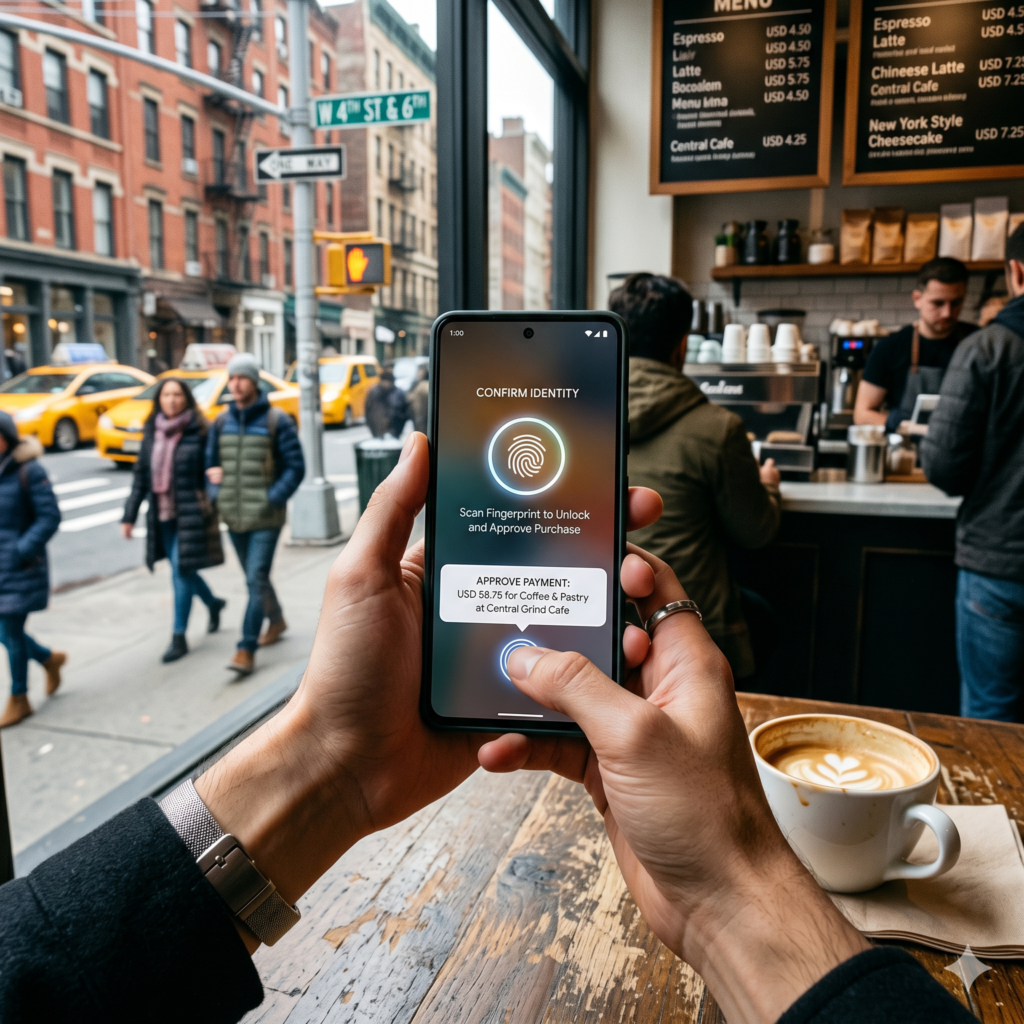
Technology can only do so much; your habits are equally important. Following these behavioral guidelines will protect you even if your technical tools fail.
1. Avoid Sensitive Transactions
Never log into your bank account, pay bills, or access sensitive work portals while on a public network. If you must do these things, wait until you are on a trusted home network or use your smartphone’s cellular data.
2. Use Cellular Data as a Hotspot
If you need to perform a sensitive task and don’t trust the local Wi-Fi, use your phone’s “Personal Hotspot” feature. Cellular networks (4G/5G) are significantly more secure than open Wi-Fi because the encryption is handled by the carrier and is much harder for a casual hacker to crack.
3. Keep Your Software Updated
Hackers often exploit “zero-day” vulnerabilities in browsers or operating systems. Companies release security patches constantly. Ensure your OS, browser, and apps are always running the latest version to close these security holes.
4. Log Out When Finished
When you are done with a session on a website, don’t just close the tab. Log out completely. This invalidates your session cookie and prevents sidejacking attacks.
How to Spot a “Fake” Public Network Before You Connect
If you must use public Wi-Fi, take a moment to verify that the network is legitimate.
-
Ask the Staff: At a coffee shop or hotel, ask an employee for the exact name of their Wi-Fi. If you see two networks with similar names (e.g., “Cafe_Guest” and “Cafe_Guest_Free”), one might be an Evil Twin.
-
Look for a Captive Portal: Most legitimate public networks require you to “Sign In” or “Accept Terms” on a webpage before granting access. While not a guarantee of security, a lack of any landing page on a supposedly professional network is a red flag.
-
Check for Encryption: Even public networks can be encrypted. If the network has a lock icon next to it and requires a password (even one written on a chalkboard in the cafe), it is much safer than an “Open” network.
Protecting Your Privacy on Public Charging Stations (Juice Jacking)
Security isn’t just about the airwaves; it’s also about the cables. “Juice Jacking” is a type of cyberattack where a hacker modifies a public USB charging station to steal data or install malware on a connected device.
USB cables are designed to carry both power and data. When you plug your phone into a public kiosk at an airport, you might be unknowingly allowing that kiosk to sync with your device.
How to Prevent Juice Jacking:
-
Use a Wall Outlet: Whenever possible, use your own AC power brick and plug it into a standard electrical outlet.
-
USB Data Blockers: These are small “USB condoms” that sit between your cable and the charging port. They physically disconnect the data pins while allowing power to flow through, ensuring no data can be transferred.
-
Power Banks: Carry a portable battery pack. Charge the pack from the public station, and then use the pack to charge your phone.
The Future of Public Network Security: WPA3 and Beyond

The world of cybersecurity is constantly evolving. A new standard called WPA3 (Wi-Fi Protected Access 3) is slowly rolling out to public hotspots. WPA3 includes a feature called “Opportunistic Wireless Encryption” (OWE).
OWE allows your device to establish an encrypted connection with a public router even if there is no password. This solves the “eavesdropping” problem of open networks. However, until WPA3 becomes the global standard—which may take several more years—you must remain vigilant and continue using a VPN.
Actionable Security Checklist for Public Wi-Fi
Before you click “Connect” next time, run through this quick checklist:
-
[ ] Is my VPN turned on? (The most critical step).
-
[ ] Did I verify the network name with the staff?
-
[ ] Is my firewall active?
-
[ ] Are my “File Sharing” and “AirDrop” settings turned off?
-
[ ] Am I avoiding my banking and credit card apps?
-
[ ] Is the website I’m visiting using HTTPS?
Public Wi-Fi is a fantastic tool that keeps us productive and connected in a mobile world. But like any tool, it must be used with caution. By combining technical solutions like VPNs and 2FA with smart browsing habits and an awareness of common threats like Evil Twins, you can enjoy the freedom of the wireless world without compromising your identity or your data.
Stay safe, stay encrypted, and always remember: if the connection is free, your data is likely the price. Protect it.