How to Secure Your Email (Your Most Important Account)
Learn how to protect your email account from hackers and threats
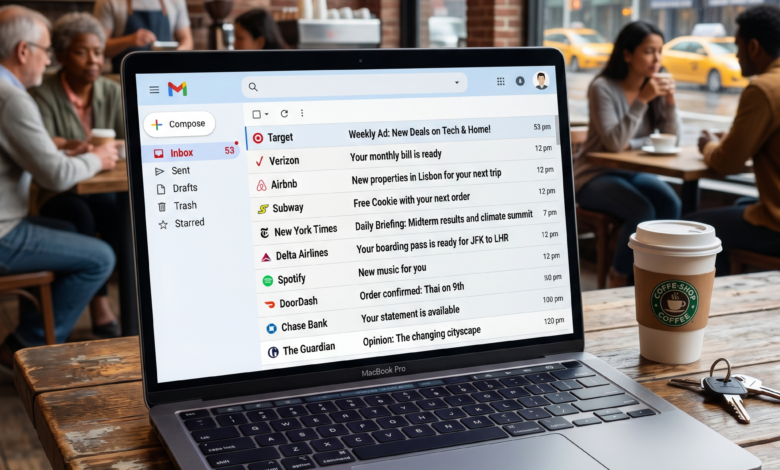
In the hierarchy of your digital life, your email account isn’t just one of many profiles; it is the crown jewel. Think about it: almost every other service you use—from your online banking and investment portfolios to your social media accounts and Amazon shopping history—is tethered to your email address.
If a cybercriminal gains access to your inbox, they don’t just see your messages. They gain a “Master Key” to your entire digital identity. They can trigger password resets for your bank, intercept sensitive documents, and even impersonate you to scam your friends and family. Despite this, email security is often an afterthought for many users.
This comprehensive guide is designed to transform your email from a vulnerable point of entry into a digital fortress. We will explore advanced strategies to secure your account, prevent sophisticated attacks, and ensure that your most private data remains exactly that—private.
The Hidden Risks: Why Your Email is a Hacker’s Top Target
To defend your account, you must first understand why it is so valuable to a criminal. It isn’t just about reading your “boring” daily newsletters.
The Password Reset Loophole
This is the most dangerous vulnerability. When you click “Forgot Password” on a website, where does the reset link go? To your email. If a hacker is already inside your inbox, they can request reset links for every financial and personal site you use, delete the notification emails before you see them, and take over your entire life in minutes.
Data Harvesting and Identity Theft
Your inbox is a treasure trove of personal information. Between tax returns, flight itineraries, utility bills, and job applications, your email contains enough “Personally Identifiable Information” (PII) for a criminal to open credit cards in your name or commit insurance fraud.
The Launchpad for Phishing
Once a hacker controls a legitimate email account, they use it to launch “lateral” attacks. Because an email coming from your address looks authentic, your contacts are much more likely to click on malicious links, spreading the infection to your professional network and loved ones.
Strengthening the Gateway: Mastering Your Primary Password
Your first line of defense is, and always will be, your password. However, the old rules of “use a capital letter and a symbol” are no longer enough to stop modern “brute-force” and “credential stuffing” attacks.
The Science of a Bulletproof Password
A strong email password must be unique and long.
-
Uniqueness: Never, under any circumstances, use your email password on any other website. If a small forum you joined ten years ago gets hacked, and you used the same password there as you do for your Gmail, you have essentially handed the keys to your house to a burglar.
-
Length over Complexity: A 20-character passphrase like
Green-Mountains-Drink-Cold-Water!is significantly harder for a computer to crack than a short, complex one likeP@ssw0rd1!.
Leveraging Password Managers
Since you should never reuse a password, you will eventually have hundreds of them. Don’t try to memorize them. Use a dedicated password manager (like Bitwarden, 1Password, or Dashlane). These tools generate truly random, high-entropy passwords and store them in an encrypted vault. Your only job is to create one “Master Password” for the manager itself—make that one the strongest of all.
Implementing Two-Factor Authentication (2FA) for Maximum Safety
If you take only one thing away from this guide, let it be this: Enable Two-Factor Authentication (2FA) immediately. 2FA adds a second layer of verification. Even if a hacker perfectly guesses your password, they still cannot get in without a second “factor” that only you possess.
SMS 2FA vs. Authenticator Apps
Most people are familiar with receiving a text message (SMS) code. While this is better than nothing, it is vulnerable to “SIM swapping”—a technique where hackers trick your mobile provider into porting your number to their device.
-
The Better Way: Use an authenticator app like Google Authenticator or Microsoft Authenticator. These apps generate codes locally on your phone, meaning they cannot be intercepted through the cellular network.
The Gold Standard: Hardware Security Keys
For the highest level of security, consider a physical hardware key like a YubiKey. These are small USB/NFC devices. To log in, you must physically plug the key into your computer or tap it against your phone. This is virtually unhackable via remote means because the hacker would need to physically steal the device from your keychain to access your account.
How to Detect and Block Sophisticated Phishing Scams
Phishing is the act of tricking you into giving away your credentials. Modern phishing isn’t just “Prince from a foreign country” emails; it’s sophisticated, personalized, and looks incredibly real.
Red Flags of a Phishing Attempt
-
Artificial Urgency: “Your account will be deleted in 24 hours unless you verify your info.” This is designed to make you panic and stop thinking clearly.
-
Mismatched URLs: Hover your mouse over a link without clicking it. Does the address actually go to
google.com, or is it something likeg00gle-security-update.net? -
Generic Greetings: If your bank emails you, they usually know your name. Be wary of “Dear Valued Customer” or “Dear [Your Email Address].”
The “Golden Rule” of Links
Never log into a sensitive account by clicking a link in an email. If you receive an alert from your bank or email provider, open a new browser tab and manually type in the website address yourself. This completely bypasses any fake pages a hacker might have set up.
Securing Your Recovery Information and Backup Protocols
What happens if you actually forget your password or lose your 2FA device? This is where your Recovery Info comes in, and it’s often a weak point.
The Danger of “Secret Questions”
“What was the name of your first pet?” or “What city were you born in?”
In the age of social media, this information is public. A hacker can find your mother’s maiden name or your high school on Facebook in seconds.
-
The Pro Tip: Treat secret questions like a second password. If the question is “What is your favorite food?”, the answer should be a random string of text like
Kangaroo-77-Blueberry. Just make sure to save that “answer” in your password manager.
Backup Codes: Your Emergency Exit
When you set up 2FA, your provider will give you a list of “Backup Codes.” These are one-time-use codes that let you in if you lose your phone.
-
Do not save these on your computer.
-
Do not email them to yourself.
-
The Best Practice: Print them out and put them in a physical safe or a hidden spot in your home.
Protecting Email Privacy on Public Wi-Fi and Shared Devices
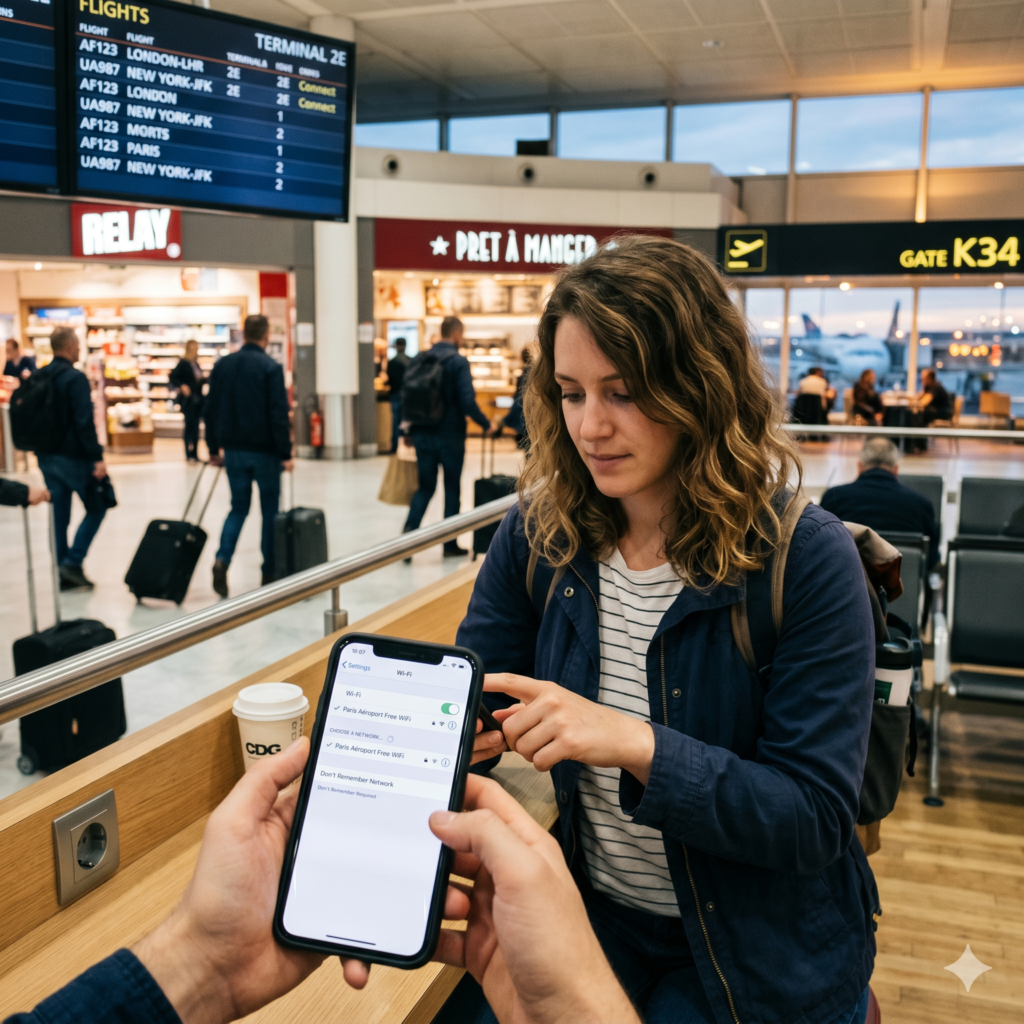
Logging into your email at an airport, a coffee shop, or a hotel business center is a high-risk activity.
The “Man-in-the-Middle” Attack
On public Wi-Fi, a hacker can sit between you and the router, intercepting every piece of data you send—including your email login.
-
The Solution: Use a Virtual Private Network (VPN). A VPN creates an encrypted “tunnel” for your data. Even if the Wi-Fi network is compromised, the hacker will only see scrambled, unreadable code.
Shared Device Hygiene
If you must use a computer that isn’t yours (like at a library):
-
Use Incognito/Private Mode.
-
Never click “Remember Me.”
-
Manually log out when finished—don’t just close the tab.
-
Clear the browser cache and history before leaving.
Evaluating the Security of Popular Email Providers
Not all email services are created equal. Depending on your needs, you might want to prioritize convenience or extreme privacy.
The “Big Three”: Gmail, Outlook, and iCloud
-
Pros: World-class security teams, excellent spam filtering, and robust 2FA options.
-
Cons: These companies often scan your metadata for advertising purposes, and they are major targets for hackers due to their massive user bases.
Privacy-Focused Providers: ProtonMail and Tuta
-
Pros: They offer End-to-End Encryption (E2EE). This means even the company providing the email cannot read your messages. They are based in jurisdictions with strong privacy laws (like Switzerland).
-
Cons: If you lose your recovery key, they cannot “reset” your password for you because they don’t have access to your data.
The Role of Encryption in Modern Email Communication
Standard email is often compared to a postcard. As it travels across the internet, anyone with the right tools can theoretically read it. Encryption turns that postcard into a sealed, armored envelope.
Transport Layer Security (TLS)
Most modern providers use TLS, which encrypts the connection while the email is moving. However, once the email lands on the server, it might be stored in a readable format.
End-to-End Encryption (E2EE)
If you are sending highly sensitive documents (like medical records or legal contracts), E2EE is the standard. Services like ProtonMail handle this automatically if both users are on the platform. If you use Gmail, you can use browser extensions like Mailvelope to add a layer of encryption, though it requires a bit more technical setup.
Managing Third-Party App Permissions and Account Access
Over the years, you have probably clicked “Sign in with Google” or “Allow Access” on dozens of apps, games, and websites. Every one of those apps is a potential “backdoor” into your account.
How to Audit Your Permissions
Go to your email account’s security settings and look for “Third-party apps with account access.” You might be surprised to see apps you haven’t used in five years still have permission to “Read, compose, and send emails.”
-
The Rule: If you don’t use it, revoke it. Period. Only give permissions to apps that absolutely need them to function.
Check Your “Authorized Devices”
Your account settings will also show a list of every phone, tablet, and computer currently logged into your email. If you see a “Macintosh in London” and you live in New York and own a PC, someone else is in your account. Use the “Sign out of all other sessions” button immediately.
Responding to a Compromised Account: An Emergency Action Plan
If the worst happens and you suspect your email has been hacked, every second counts. Follow this checklist in order:
-
Change Your Password: Use a different device (your phone instead of your computer, in case your computer has a virus) and create a brand-new, complex password.
-
Log Out of All Sessions: This kicks the hacker out of their current session.
-
Check Forwarding Rules: This is a “stealth” move hackers love. They set up a rule that automatically forwards a copy of every email you receive to their address. Even after you change your password, they can still see your incoming mail. Go to Settings > Forwarding and ensure no unrecognized addresses are there.
-
Scan for Malware: Use a reputable antivirus to check your devices for “Keyloggers” (software that records what you type).
-
Notify Your Bank: If your email was compromised, assume your financial info was seen. Alert your bank to watch for suspicious activity.
Advanced Email Hygiene Habits for Long-Term Defense
Security is a lifestyle, not a one-time setup.
Deleting Sensitive History
Do you have a scan of your passport in your “Sent” folder from three years ago? Or a PDF of your tax return? If a hacker gets in, that’s all they need.
-
Action: Regularly search your inbox for keywords like “SSN,” “Passport,” “Tax,” or “Password” and delete those emails permanently.
Use “Alias” Emails for Junk
Don’t give your primary, secure email to every random website or coupon pop-up. Use services like SimpleLogin or Apple’s “Hide My Email.” These create a “disposable” address that forwards to your main inbox. If that site gets hacked or starts spamming you, you can simply delete the alias without ever compromising your real email address.
Beware of Desktop Email Clients
Apps like Outlook Desktop or Apple Mail store your emails locally on your computer’s hard drive. If your laptop is stolen and isn’t encrypted (using BitLocker or FileVault), someone can read all your emails without ever needing your password. Ensure your physical devices are as secure as your digital accounts.
The Future of Email Security: Are Passwords Disappearing?
We are entering the era of Passkeys. Backed by tech giants like Google and Apple, Passkeys allow you to log into your email using your phone’s biometrics (FaceID or Fingerprint) instead of a password.
Passkeys are immune to phishing because there is no “text” for you to accidentally give to a fake website. They rely on complex cryptography that happens behind the scenes. As more email providers adopt this, the “forgotten password” might finally become a thing of the past.
Taking Control of Your Digital Legacy
Your email account is the center of your online universe. While the world of cybersecurity can feel overwhelming, you don’t need to be a computer scientist to be safe.
By implementing a strong password, enabling non-SMS 2FA, and staying vigilant against phishing, you have already done more than 90% of internet users. Security isn’t about being perfect; it’s about being a “hard target.” Hackers look for the low-hanging fruit—the people with easy passwords and no extra security.
Don’t be the low-hanging fruit. Take thirty minutes today to go through your settings. Your future self will thank you for the peace of mind.