Should You Allow Websites to Send Notifications?
See how fake browser notifications are used to spread scams and malware
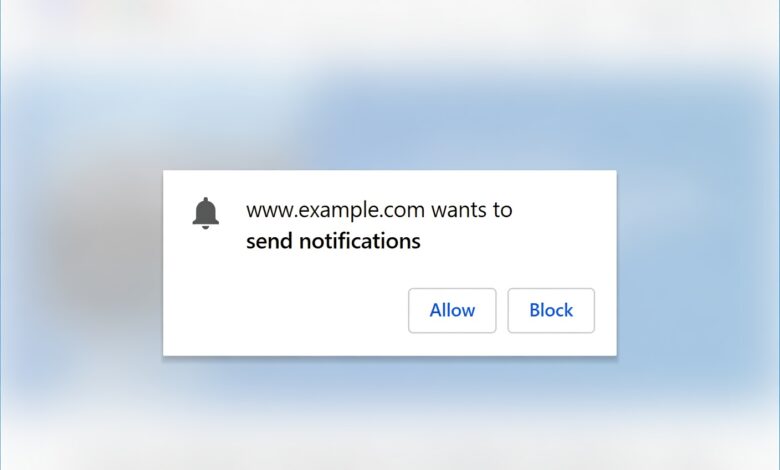
Every time you visit a new website today, a familiar pop-up appears in the corner of your screen. It usually reads: “This site wants to show notifications.”
For most internet users, this prompt has become an annoying digital speed bump. You instinctively click “Block” or “Deny” just to make it go away so you can read the article, shop for shoes, or check the news in peace.
However, have you ever paused to wonder what actually happens if you click “Allow”? Are you just signing up for harmless breaking news alerts, or are you opening a backdoor for digital marketers, scammers, and malicious actors?
In this comprehensive guide, we will break down everything you need to know about website push notifications. We will explore how they work, the hidden security risks involved, the impact on your digital privacy, and how to take back control of your browser.
What Are Website Push Notifications and How Do They Work?
To understand whether you should allow website notifications, it helps to understand what they actually are under the hood.
Website push notifications are clickable messages that pop up directly on your device—whether you are using a desktop computer, laptop, or smartphone—even when you do not currently have that specific website open in your browser.
The Technology Behind the Prompt
Unlike old-school email newsletters that require you to hand over your email address, push notifications rely on a web standard known as the Web Push API.
-
The Consent Request: When a site asks to send notifications, it uses your browser’s built-in permission system.
-
The Subscription Token: If you click “Allow,” your browser generates a unique, anonymous cryptographic token or subscription ID for that specific device and browser combination.
-
The Connection: This token is sent to the website’s server. The server can now push messages to your browser via a push service operated by your browser provider (such as Google for Chrome or Mozilla for Firefox).
Crucially, the website never learns your personal identity, email address, or phone number just because you allowed notifications. From a technical standpoint, they are only communicating with your browser’s unique token.
While this sounds anonymous and safe on the surface, the ways in which these tokens and notifications are utilized can quickly turn into a security and privacy headache.
The Hidden Dangers: Why Allowing Notifications Can Be Risky
While major news outlets and trusted blogs use push notifications to alert readers about breaking stories, a vast majority of the internet uses them for aggressive marketing, data harvesting, and outright scams.
Here are the primary risks you face when you casually click “Allow” on unfamiliar websites.
1. Spam and Notification Flooding
The most immediate consequence of allowing notifications is an endless barrage of digital noise. Once a site has permission to ping your device, they can send alerts whenever they want.
-
E-commerce Sites: Flash sales, abandoned cart reminders, and daily deals designed to trigger impulse buying.
-
Content Farms: Sensationalized headlines (“You won’t believe what happened next!”) designed purely to trick you into clicking back to the site to drive ad revenue.
If you grant permissions to multiple random websites over a few months, your computer or phone screen can quickly become cluttered with dozens of disruptive pop-ups every day, severely draining your focus and productivity.
2. Malicious Ads and Drive-by Phishing
Not all websites with notification prompts are legitimate businesses. Many compromised, low-quality, or malicious websites use deceptive tactics to trick users into subscribing. Once subscribed, they abuse the notification channel to deliver dangerous content directly to your operating system.
-
Fake Antivirus Warnings: Notifications designed to look like official alerts from Windows Defender or Apple macOS claiming your computer is infected with a virus, directing you to fraudulent tech support scams.
-
Phishing Links: Alerts mimicking your bank, PayPal, or streaming services claiming your account has been locked, luring you onto credential-harvesting phishing pages.
-
Malvertising: Push alerts promoting shady cryptocurrency schemes, get-rich-quick programs, or counterfeit goods.
Because these notifications pop up natively on your desktop or phone, they often carry a false sense of official authority, making unsuspecting users much more likely to click them than they would an ordinary email or banner ad.
3. Digital Tracking and Behavioral Profiling
In the modern digital landscape, data is currency. While push notifications do not expose your name or email, advertising networks and data brokers use interaction data to track your habits.
When you click on a notification, the website registers your engagement patterns: What time of day do you click? What type of headlines catch your attention? What topics interest you? This data feeds into your broader browser profile, allowing advertisers to build a hyper-specific behavioral dossier on you for targeted advertising across the web.
The Security and Privacy Perspective: Browser Fingerprinting and Safety
From a cybersecurity standpoint, granting unnecessary permissions to websites expands your overall attack surface. Every external connection, script, and permission is a potential vector for exploitation.
Browser Fingerprinting Risks
While modern browsers sandbox notification permissions tightly, malicious actors are constantly looking for loopholes. In some advanced multi-step cyberattacks, threat actors chain minor browser vulnerabilities together with notification permissions to bypass security restrictions, track user sessions across different browsing profiles, or execute cross-site scripting (XSS) behaviors.
The Illusion of Control
Many users believe that if a notification becomes annoying, they can simply ignore it. However, high volumes of background notifications consume system resources, cause memory bloat on mobile devices, and severely degrade battery life.
Furthermore, once a site is granted permission, it retains that power indefinitely until you manually dig into your browser settings to revoke it. Most users completely forget which websites they have given access to, leaving a trail of dormant digital permissions open for years.
When Is It Actually Safe to Allow Notifications?

Despite the risks, push notifications are not inherently evil. There are entirely legitimate scenarios where allowing notifications enhances your user experience and keeps you informed.
Trusted Platforms and Real-Time Utility
It is generally safe and often beneficial to allow notifications on websites where real-time updates matter significantly to your workflow or daily life:
-
Web-Based Communication Tools: Platforms like Slack, WhatsApp Web, Microsoft Teams, or Google Chat rely entirely on browser notifications to ensure you do not miss important messages while working in a browser tab.
-
Project Management and Collaboration: Tools like Trello, Asana, or Google Drive where immediate updates regarding team edits or document comments are crucial.
-
Financial and Banking Platforms: Real-time fraud alerts or transaction notifications (though dedicated mobile apps are usually preferred over browser alerts for banking).
-
High-Authority News Outlets: Major, trusted journalistic organizations where you actively want breaking news alerts about global events.
The Golden Rule of Thumb
Before clicking “Allow” on any website, ask yourself one simple question: “Does this website provide real-time value to my life that justifies it interrupting whatever else I am doing on my device?”
If the answer is no—for example, a recipe blog, a random review site, an online clothing store you are visiting for a one-time purchase, or an informational forum—you should click “Block” or dismiss the prompt immediately. You can always bookmark the site or visit it manually when you need it.
How to Manage, Block, and Clean Up Website Notifications
If your computer or phone is already plagued by annoying pop-ups, or if you want to lock down your browser settings to stop these prompts permanently, you can easily do so.
Here is a step-by-step guide for the most popular web browsers.
Managing Notifications in Google Chrome
-
Open Chrome and click the three vertical dots (menu) in the top-right corner.
-
Select Settings, then click on Privacy and security in the left-hand sidebar.
-
Click on Site settings.
-
Scroll down and click on Notifications.
-
Here, you can select “Sites can ask to send notifications” (the default), or choose “Don’t allow sites to use notifications” to block all prompts globally.
-
Under the Allowed to send notifications list, review every site currently permitted. Click the three dots next to any unfamiliar or unwanted site and select Remove or Block.
Managing Notifications in Mozilla Firefox
-
Open Firefox and click the three horizontal lines (menu) in the top-right corner.
-
Select Settings, then click on Privacy & Security on the left.
-
Scroll down to the Permissions section and find Notifications. Click the Settings… button next to it.
-
Review the list of websites. You can change individual site statuses from “Allow” to “Block” using the drop-down menu.
-
To stop new requests entirely, check the box that says “Block new requests asking to allow notifications.”
Managing Notifications in Apple Safari (Mac)
-
Open Safari and click Safari in the top menu bar, then select Settings (or Preferences).
-
Click on the Websites tab at the top of the window.
-
In the left-hand sidebar, scroll down and click on Notifications.
-
You will see a list of websites currently configured. You can change their permissions to Deny or Allow, or uncheck the box at the bottom that says “Allow websites to ask for permission to send notifications” to stop all future prompts.
Managing Notifications on Mobile Devices (Android and iOS)
-
Android (Chrome): Open Chrome, tap the three dots -> Settings -> Site settings -> Notifications. Toggle off notifications globally or review individual site exceptions.
-
iOS (Safari): Open iPhone Settings -> Safari -> Notifications. From here, you can control whether Safari websites are allowed to push alerts to your lock screen.
Best Practices for Ultimate Web Hygiene and Security

Securing your browser against unwanted notification spam is just one piece of the puzzle. To maintain robust digital hygiene and protect your personal privacy online, incorporate these best practices into your daily internet routine:
-
Adopt a Default-Deny Mindset: Treat notification permissions like physical keys to your house. Never hand them out casually to unfamiliar websites. When in doubt, always click “Block.”
-
Perform Regular Browser Audits: Once every few months, open your browser’s site settings and clear out old permissions, cookies, and cache data.
-
Use a Reliable Ad and Content Blocker: Modern browser extensions like uBlock Origin or reputable privacy-focused browsers can automatically suppress annoying notification permission requests before they even render on your screen.
-
Keep Your Browser Updated: Security vulnerabilities are frequently discovered in web APIs. Ensure your browser is always updated to the latest version to patch potential exploits.
-
Educate Your Family: Children and older adults are primary targets for malicious push notification scams. Share these guidelines with your household members to keep everyone safe from deceptive tech support pop-ups.
Take Control of Your Digital Space
The internet is designed to capture and monetize your attention. Features like website push notifications, while occasionally useful, are frequently weaponized by marketers and malicious actors to clutter your screen, drain your device resources, and distract your daily life.
By understanding how these systems work, evaluating whether a website truly deserves your trust, and proactively adjusting your browser settings, you can reclaim your digital peace of mind.
The next time a website asks, “This site wants to show notifications,” remember that you hold the power. Click Block, protect your privacy, and browse on your own terms.