How to Secure Your Home Wi-Fi Network
Learn the essential steps to protect your home Wi-Fi network from unauthorized access
In an era where our homes are filled with connected devices—from smartphones and laptops to smart thermostats and security cameras—the home Wi-Fi network has become the nervous system of our daily lives. Unfortunately, it is also the primary entry point for cybercriminals. If your Wi-Fi is unprotected, you aren’t just risking your own privacy; you are leaving your personal data, financial information, and connected devices vulnerable to intrusion.
Securing your Wi-Fi network is not just for tech experts. It is a fundamental digital hygiene practice that everyone should prioritize. This guide will walk you through the essential steps to lock down your network, ranging from basic settings to advanced security protocols, ensuring your home remains a private sanctuary.
Why Home Wi-Fi Security Is More Critical Than Ever
Many users assume that because their Wi-Fi requires a password, they are safe. However, default settings provided by Internet Service Providers (ISPs) and router manufacturers are often easily bypassed. Cybercriminals frequently use automated tools to scan neighborhoods for vulnerable networks. Once they gain access, they can:
-
Intercept Data: Sniff your traffic to steal passwords, credit card numbers, and personal emails.
-
Deploy Malware: Infect your devices with ransomware or spyware.
-
Piggyback on Your Connection: Slow down your speeds or use your network to conduct illegal activities, which could be traced back to your IP address.
-
Access Smart Home Devices: Gain control over smart locks, cameras, and baby monitors.
Understanding these risks is the first step toward proactive defense. Let’s dive into the technical adjustments you need to make today.
Step 1: Change the Default Router Administrative Credentials

Most routers come with a default username and password (like “admin/admin” or “admin/password”). This information is publicly available in manufacturer manuals online. The very first thing you must do is change these credentials.
How to do it:
-
Access your router’s interface by typing its IP address (often
192.168.1.1or192.168.0.1) into your browser. -
Log in using the current credentials.
-
Locate the System Tools or Administration tab.
-
Update the admin username and password. Use a strong, unique passphrase that is not used anywhere else.
Note: Do not confuse this with your Wi-Fi network password. This credential grants access to the router’s settings themselves.
Step 2: Use WPA3 or WPA2-AES Encryption
Encryption is the secret language your router uses to communicate with your devices. If your router is still using WEP (Wired Equivalent Privacy) or WPA, you are using obsolete technology that can be cracked in minutes.
-
WPA3: This is the latest and most secure standard. If all your devices support it, enable it immediately.
-
WPA2-AES: If you have older legacy devices that do not support WPA3, WPA2-AES is the industry standard for high-level security.
Avoid any setting labeled as “TKIP” or “Mixed Mode” if possible, as these can downgrade your security to older, vulnerable protocols.
Step 3: Create a Strong, Unique Wi-Fi Password
A complex Wi-Fi password is your first line of defense against “brute force” attacks, where software tries thousands of combinations to guess your key.
Tips for a secure passphrase:
-
Length is key: Aim for at least 16–20 characters.
-
Avoid personal info: Do not use birthdays, street names, or pet names.
-
Complexity: Mix uppercase, lowercase, numbers, and symbols.
-
Passphrases over Passwords: A phrase like
Blue-Elephant-Sky-78-Coffee!is significantly harder for a computer to crack than a single complicated word.
Step 4: Disable WPS (Wi-Fi Protected Setup)
WPS was designed to make connecting devices easier (like pressing a button to pair). However, it contains a significant design flaw that makes it extremely susceptible to PIN-guessing attacks. Even if it is convenient, the security risk is too high. Disable it in your router settings immediately.
Step 5: Update Router Firmware Regularly
Your router runs on software called firmware. Manufacturers frequently release updates to patch security vulnerabilities that have been discovered by researchers. If your router is outdated, you are essentially leaving an open door for hackers to exploit known flaws.
Check your router’s settings dashboard for an “Update” or “Firmware Upgrade” section. Many modern routers support automatic updates; if yours does, ensure this feature is turned on.
Step 6: Create a Guest Network for Visitors and IoT Devices
This is a professional-level tip that significantly boosts your security. Most modern routers allow you to create a “Guest Network.”
Why you should use it:
-
Visitor Privacy: When guests come over, they don’t need your main password. Give them the guest access. If their device is infected with malware, it stays on the guest network and cannot easily spread to your personal computers.
-
IoT Isolation: Smart lightbulbs, printers, and appliances are notoriously insecure. By moving these “Internet of Things” (IoT) devices to a separate guest network, you isolate them from your primary computers, phones, and storage drives.
Step 7: Disable Remote Management
Remote management allows you to access your router settings from outside your home. While this sounds convenient, it creates a massive security hole. If you don’t absolutely need it, turn it off. By disabling this, you ensure that anyone who wants to change your router settings must be physically connected to your network.
Advanced Security: Firewalls, VPNs, and MAC Filtering
For those who want to take their home security to the next level, consider these advanced strategies:
Enabling the Router Firewall
Most routers come with a built-in SPI (Stateful Packet Inspection) firewall. Ensure it is enabled. It monitors traffic attempting to enter your network and blocks unauthorized requests before they reach your devices.
Using a VPN at the Router Level
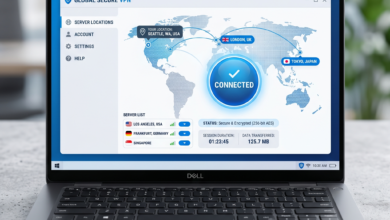
A Virtual Private Network (VPN) encrypts your data traffic. While you can install a VPN on individual devices, setting it up on your router protects every device connected to your Wi-Fi, even those that don’t support VPN apps (like gaming consoles or smart TVs).
MAC Address Filtering: A False Sense of Security?
MAC filtering allows only specific devices (identified by their unique hardware address) to join the network. While it adds a small layer of friction for an attacker, it is relatively easy for a determined hacker to “spoof” a MAC address. Use it as a secondary layer, but do not rely on it as your primary defense.
Maintaining Your Digital Hygiene
Securing your Wi-Fi is an ongoing process, not a one-time setup. As your network grows with new devices, you must remain vigilant.
-
Regular Audits: Once every few months, log into your router’s “Attached Devices” list. Do you recognize every device connected? If you see an unknown device, it’s time to change your Wi-Fi password immediately.
-
Turn it off when you’re away: If you are going on a long vacation, consider turning off your router. It saves electricity and completely eliminates the risk of an intrusion while you are away.
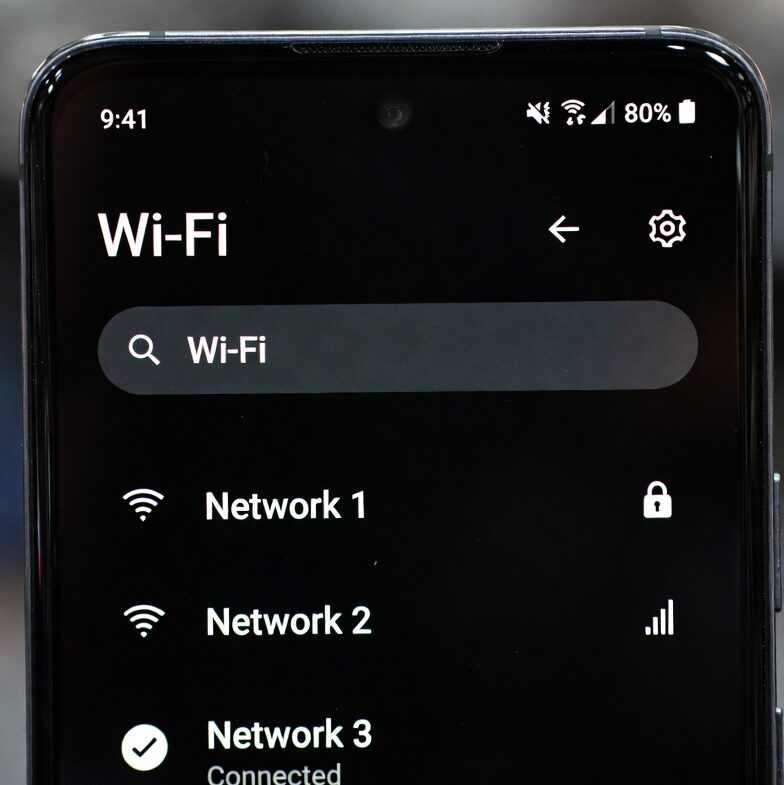
Your home Wi-Fi network is the gateway to your digital world. By taking these steps—changing default credentials, upgrading to WPA3, isolating your IoT devices, and keeping your firmware updated—you can drastically reduce your risk profile. Security isn’t about being paranoid; it’s about being prepared. Take the time to audit your settings today and enjoy the peace of mind that comes with a truly secure home network.
Deep Dive: The Hidden Dangers of IoT Devices
The rise of the “Smart Home” has introduced dozens of low-security devices into our living spaces. These devices are often manufactured with minimal security standards. Because they are designed to be cheap and easy to set up, they often have hard-coded credentials or no way to receive security updates.
The Risks of “Smart” Vulnerability
Consider a smart refrigerator or a Wi-Fi-enabled coffee maker. These devices act as “entry nodes.” If a hacker gains access to the coffee maker, they might be able to pivot and scan your network for more sensitive targets, such as your laptop or personal server. This is known as “lateral movement.”
Mitigating IoT Risk
-
Change Default Passwords: If the device allows it, change the login credentials immediately.
-
Keep Firmware Current: Check the manufacturer’s app regularly for updates.
-
Disable Unused Features: If your smart TV has a camera you don’t use, cover it. If your smart speaker has features you don’t need, disable them.
-
Network Segmentation: As mentioned previously, segmenting these devices onto a dedicated guest VLAN or guest network is the single most effective way to prevent lateral movement.
Understanding Network Traffic Monitoring
If you are technically inclined, you can monitor the health of your network by checking traffic logs. Most high-end routers provide logs of outgoing and incoming connections. While reviewing these logs is time-consuming, it can help you identify suspicious patterns, such as a device attempting to contact unknown servers in foreign countries at 3:00 AM.
If you notice excessive data usage from a device that shouldn’t be using much data, it could be a sign that it has been compromised and is being used as a bot in a botnet.
Choosing the Right Hardware for Maximum Security
Not all routers are created equal. If you are using a router provided by your ISP, you might be limited in the security features available to you.
Why You Should Consider Upgrading Your Router
-
Modern Security Protocols: Newer routers support WPA3 out of the box.
-
Automatic Security Updates: Premium mesh systems often handle updates automatically without user intervention.
-
Advanced Parental Controls: Good routers allow you to restrict device access by time, which is an excellent way to secure your network when you aren’t actively using it.
-
Security Suite Integration: Some modern routers come with integrated subscription services that block malicious websites at the network level, protecting all your devices before a threat even reaches your browser.
When shopping for a new router, look for terms like “WPA3,” “Automatic Firmware Updates,” “Built-in Antivirus/Threat Protection,” and “VLAN Support.”
Final Thoughts on Cybersecurity Awareness
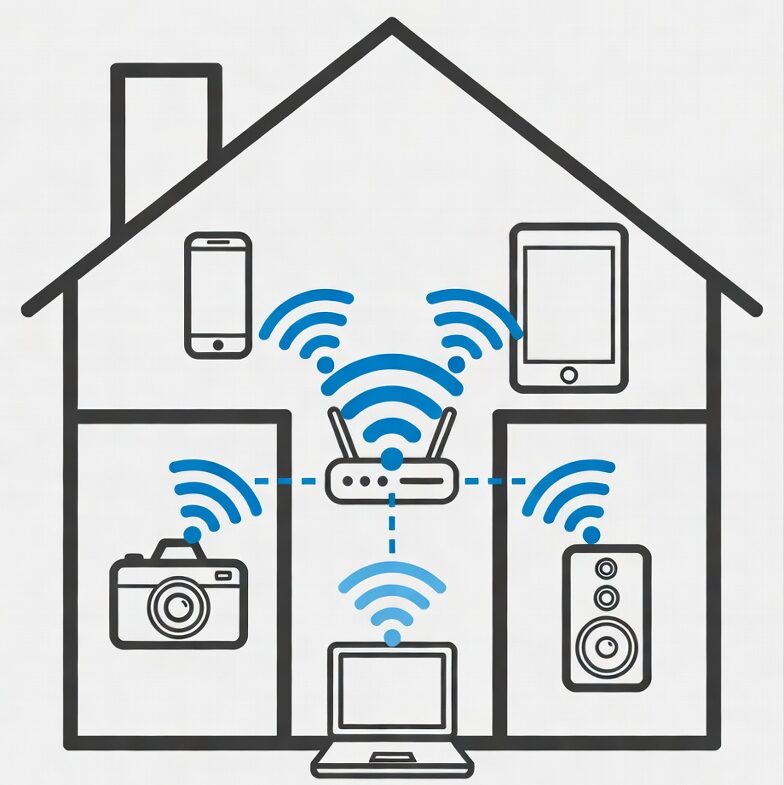
Technology is only as strong as the human behind it. Even with a perfectly configured WPA3 network, your security is compromised if you click on phishing links or download malicious files. A secure home network is one part of a larger strategy that includes:
-
Using a Password Manager: Never reuse passwords across sites.
-
Two-Factor Authentication (2FA): Enable 2FA on every account that supports it.
-
Endpoint Security: Keep your antivirus software updated on all your computers and mobile devices.
By combining a hardened home network with smart personal habits, you create a robust defense that will keep your data safe from the vast majority of threats on the modern internet. Secure your Wi-Fi, stay informed, and browse with confidence.