How to Change Your Location on Bumble
Learn how to change your location on Bumble and discover profiles in different cities or areas

Discover how to update, spoof, or expand your geographical radius on Bumble without losing your active matches or breaking platform guidelines.
Understanding How Bumble Tracks Your Position
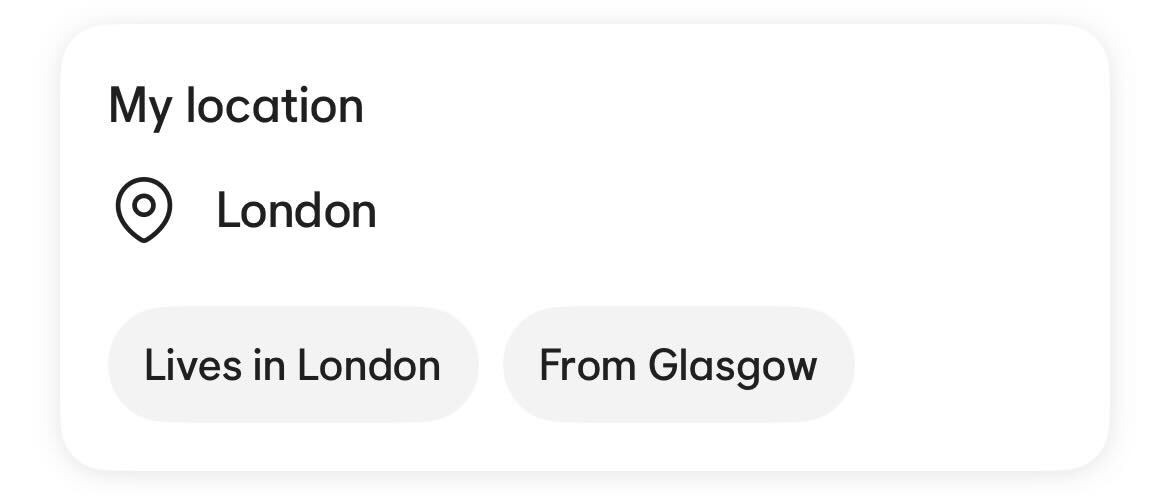
Before diving into the steps required to modify your geographical coordinates, it helps to understand how the application handles your position data. Unlike some legacy platforms that allow you to type in any city manually from a desktop browser, Bumble relies heavily on real-time device data to maintain authenticity within its community.
When you open the app, Bumble pings your smartphone’s integrated GPS hardware. This ensures that the profiles you see are genuinely nearby, minimizing the chances of encountering inactive accounts or distant matches who cannot meet up. However, this automatic tracking means that whenever you cross state lines, land in a new airport, or check into a hotel, your swipe queue updates automatically to reflect your immediate physical surroundings.
For frequent travelers, digital nomads, and long-distance planners, relying solely on automatic updates can be limiting. Fortunately, Bumble provides official pathways for adjusting where your profile appears, alongside alternative methods used by experienced users worldwide.
Method 1: Using Bumble Travel Mode (The Official Way)
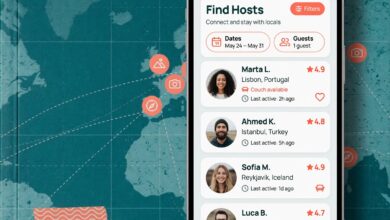
If you want to look ahead and start swiping in a new city before you physically arrive, Bumble offers an official feature designed specifically for this scenario: Travel Mode. This tool is built directly into the premium subscription tiers, giving users a seamless way to relocate their profile temporarily.
Travel Mode allows you to set your pin to any location in the world up to a week in advance. When active, your profile displays a discreet indicator letting potential matches know you are using Travel Mode, which helps manage expectations regarding your current physical presence.
Step-by-Step Instructions to Activate Travel Mode
- Open the Bumble app on your iOS or Android device.
- Tap the profile icon in the bottom-left corner of the main screen.
- Select the gear icon in the top-right corner to open your Settings menu.
- Scroll down until you find the Location section.
- Tap on Change location.
- Type in the name of the city where you want to appear and select it from the dropdown list.
- Confirm your choice when the prompt appears on your screen.
Once activated, your profile will remain in that selected city until you manually turn off Travel Mode or until your subscription period ends. Keep in mind that your existing matches from your previous location will remain in your chat tab, allowing you to maintain ongoing conversations without interruption.
Method 2: Updating Your Native Device GPS Settings
If you have recently moved permanently and notice that your Bumble feed is still showing your old neighborhood, the issue usually stems from cached location data on your smartphone. Because Bumble trusts your operating system’s location permissions, a simple manual refresh of your device settings often resolves discrepancies.
To ensure your phone is feeding accurate data to the app, check your system permissions by following these instructions:
- For iPhone Users: Go to your phone’s main Settings app, scroll down to find Bumble, tap on Location, and ensure it is set to While Using the App. Additionally, make sure Precise Location is toggled on to allow exact coordinate tracking.
- For Android Users: Open your device Settings, navigate to Apps or Application Manager, locate Bumble, tap Permissions, select Location, and choose Allow only while using the app while verifying that high-accuracy mode is enabled.
After adjusting these permissions, completely close the Bumble app by swiping it away from your recent apps tray, restart your phone, and reopen the application. This forces a fresh handshake between your device GPS and Bumble servers.
Advanced Location Techniques and Third-Party Tools
While Travel Mode is convenient, it requires an active subscription. For users looking for alternative approaches without upgrading their membership, advanced methods involving device configuration are frequently discussed within digital communities.
Some users explore developer options on Android or trusted GPS spoofing applications available on mobile app stores. These tools allow you to override your phone’s internal GPS chip and broadcast simulated coordinates to any app running on your operating system.
However, approach these external tools with caution. Dating platforms employ sophisticated detection algorithms to spot artificial coordinate jumps, sudden teleportation across continents in seconds, or mismatched IP addresses. If the system flags your account for suspicious activity, it may result in a temporary shadowban or verification request. Always prioritize account safety by keeping changes realistic and gradual.
Managing Your Distance Radius Filter
Sometimes, the issue is not changing your city, but rather adjusting how far the app searches outward from your current point. If you live in a densely populated metropolitan area like Los Angeles or Chicago, a smaller radius keeps matches close. If you live in a suburban or rural area, expanding your range is necessary.
How to Expand Your Search Distance
- Tap the profile icon in the bottom-left corner of the app.
- Tap the silhouette icon or your photo to open your profile editing view, or go directly to your discovery preferences via the settings gear.
- Look for the Distance slider in your set preferences.
- Drag the slider to the right to increase your maximum search radius (up to 100 miles or kilometers, depending on your region).
- Save your preferences to instantly refresh your card stack.
Combining a wider distance radius with careful profile curation ensures you capture users living in neighboring towns or commuter zones without needing to fake your physical position.
Troubleshooting Common Bumble Location Glitches
Even with correct settings, technical bugs can occasionally freeze your profile in an outdated location. If you find yourself stuck in a city you left days ago, try these troubleshooting steps before contacting support:
- Clear App Cache: Corrupted cache files can trap old geographical metadata. Clear your app cache through your phone’s application manager settings.
- Check Wi-Fi and Cellular Connection: Public Wi-Fi networks sometimes route your IP address through distant data centers, confusing IP-based location checks. Switch to mobile data to test your true GPS coordinates.
- Update the Application: Outdated app versions often contain bugs related to location permissions. Visit the Apple App Store or Google Play Store to install the latest patch.
- Reinstall the App: Delete Bumble entirely from your device, restart your phone, and download a fresh copy to wipe out persistent configuration errors.
Best Practices for Dating While Traveling
Relocating your profile digitally opens up exciting opportunities, but it also requires mindful etiquette. Whether you are using Travel Mode or exploring a new region organically, keep these guidelines in mind for a positive experience:
Be transparent in your bio. If you are visiting a city for only three days on business, add a quick note clarifying your timeline. This builds immediate trust and ensures that both you and your potential matches are aligned on expectations. Respect local guidelines, prioritize safety by meeting in public spaces for initial dates, and enjoy exploring new connections wherever your journey takes you.