5 Windows Processes You Should Never End Without Checking
Discover 5 important Windows processes you should recognize before ending tasks in Task Manager
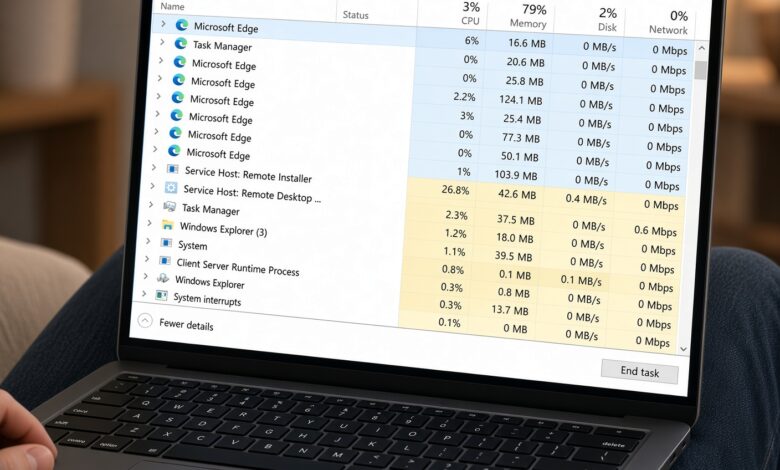
When your computer starts lagging, freezing, or running sluggishly, the first instinct for many users is to open the Task Manager, look for processes consuming high CPU or memory, and click “End Task.” While this can sometimes give an unresponsive application the push it needs to close, blindly terminating system processes can lead to catastrophic results—ranging from sudden system crashes and unsaved data loss to the infamous Blue Screen of Death (BSOD) or corrupted system files.
Windows runs hundreds of background processes simultaneously. Many of these are essential cogs in the operating system’s machinery, responsible for everything from managing hardware drivers and maintaining network connectivity to safeguarding your device against malware and unauthorized access.
Before you start shutting down unfamiliar tasks to free up a few megabytes of RAM, you need to know which processes are safe to touch and which ones must remain untouched. In this in-depth guide, we will explore 5 critical Windows processes you should never end without thoroughly checking, explain what they actually do in simple terms, and teach you how to troubleshoot sluggish system performance safely.
1. Wininit.exe (Windows Initialization Process): The Core Guardian of Your Operating System

What is Wininit.exe and Why is It Critical?
If you ever spot wininit.exe running in your Task Manager and wonder if it’s safe to close, the short answer is absolutely not. Standing for Windows Initialization, wininit.exe is a core Windows system process that starts very early during the boot sequence—long before you even see your desktop wallpaper.
Think of wininit.exe as the general contractor of a newly constructed building. Once the foundation is laid, it brings in the specialized crews to finish the job. Specifically, wininit.exe is responsible for launching other indispensable system services right at startup, including:
- Services.exe (Service Control Manager, which manages background Windows services)
- Lsass.exe (Local Security Authority Subsystem Service, which handles user logins and security policies)
- LsaIso.exe (An isolated process used for enhanced credential security)
Because it acts as the parent process for so many fundamental security and system layers, terminating wininit.exe will instantly trigger a critical system failure. Windows relies on this process to maintain system stability and enforce security boundaries.
What Happens If You Force-End It?
If you somehow manage to bypass Windows protections and force-end wininit.exe, your system will immediately crash. You will lose any unsaved work across all open applications, and your computer will likely force a reboot or display a BSOD error.
How to Verify Its Legitimacy
Because wininit.exe is such a vital target, malware authors sometimes attempt to disguise malicious programs by naming them similarly (such as wininit.isp or placing a fake executable in a random folder).
- Legitimate Location:
C:\Windows\System32\wininit.exe - How to Check: Right-click the process in Task Manager, select Properties, and verify that the file path matches the official System32 directory. Genuine system files are digitally signed by Microsoft.
2. Csrss.exe (Client Server Runtime Subsystem): The Engine Behind Your Graphical Interface
What is Csrss.exe and What Does It Control?
Every time you move your mouse cursor, open a window, click a button, or press a keyboard shortcut, csrss.exe is working behind the scenes. Standing for Client Server Runtime Subsystem, this is the user-mode side of the Windows subsystem that manages graphical instruction execution, console windows, and thread creation.
Older versions of Windows handled graphics directly within the kernel, which often caused the entire computer to crash if a graphics driver failed. Modern Windows architecture separates these visual tasks into user-mode processes like csrss.exe to isolate failures and keep the operating system stable.
You will typically notice that there is more than one instance of csrss.exe running in your Task Manager. This is completely normal! Windows runs separate instances for different desktop sessions and user accounts to keep them isolated and secure.
The Risks of Terminating Csrss.exe
Attempting to end a csrss.exe process will prompt a stern warning box from Windows stating that ending the process could cause instability, data loss, or system shutdown. If you ignore this warning and force it to close, your system will crash instantly, resulting in a hard reboot.
Security and Verification Best Practices
Malware can occasionally inject code into or masquerade as runtime subsystems.
- Legitimate Location:
C:\Windows\System32\csrss.exe - Safe Resource Usage: Under normal conditions,
csrss.execonsumes a modest amount of CPU and memory. If you notice an instance consuming massive amounts of CPU power for no apparent reason, run a full system scan with reputable antivirus software rather than manually killing the task.
3. Smss.exe (Session Manager Subsystem): The Master Architect of Windows Booting
Understanding Smss.exe and Its Role in System Initialization
The Session Manager Subsystem, known as smss.exe, is another fundamental component that you must never terminate. Operating during the earliest stages of the Windows boot process, smss.exe is responsible for creating environment variables, starting the paging file (virtual memory), and launching other crucial subsystems like csrss.exe and wininit.exe.
Once smss.exe completes its initialization duties, it typically remains running in the background as a parent process waiting for other sub-processes. Without smss.exe, Windows cannot transition from the hardware initialization phase into the graphical user interface you interact with every day.
Why Ending Smss.exe Causes Immediate System Collapse
Because smss.exe orchestrates memory management and subsystem creation, killing it disrupts the fundamental communication channels of the operating system. Doing so will freeze your computer instantly, forcing a hard reset and risking file corruption across your hard drive or SSD.
How to Distinguish Real Smss.exe from Impostors
- Legitimate Location:
C:\Windows\System32\smss.exe - Key Characteristic: Once the boot sequence is finished, legitimate instances of
smss.exegenerally consume negligible CPU and memory resources. If you spot a file namedsmss.exerunning from a user profile folder or temporary directory, treat it as a high-priority security threat.
4. Winlogon.exe (Windows Logon Process): Managing Secure User Sessions

What is Winlogon.exe?
When you turn on your PC, step away and let it lock, or press Ctrl + Alt + Delete to access Task Manager or switch user accounts, winlogon.exe is the process handling those actions. The Windows Logon Process is responsible for managing secure desktop transitions, handling authentication screens, and running custom shell notifications when you log in or out.
Furthermore, winlogon.exe triggers your personalized screen saver when your computer is idle and manages the secure input desktop, ensuring that malicious background applications cannot intercept your keystrokes while you are entering your password or PIN.
What Happens If You Kill Winlogon.exe?
Ending winlogon.exe forces Windows to invalidate the active user session. This triggers an immediate logoff or system crash. Any unsaved documents, open browser tabs, or active games will close without warning, resulting in data loss.
Identifying Genuine vs. Rogue Processes
- Legitimate Location:
C:\Windows\System32\winlogon.exe - Troubleshooting Tip: If your login screen hangs or your desktop fails to load after entering your password,
winlogon.exemight be encountering a conflict with third-party software or corrupted drivers. Instead of killing the process, perform a clean boot or run system file checker tools (SFC /scannow) via Command Prompt.
5. Services.exe (Services Control Manager): The Backbone of Windows Background Operations
What Does Services.exe Do?
Your Windows operating system relies on hundreds of background services to function correctly—from Windows Update and audio management to Wi-Fi connectivity, print spooling, and security firewalls. The Services Control Manager, or services.exe, is the master controller that starts, stops, and interacts with these background services whenever your computer boots up or requests a specific task.
If services.exe stops working, your operating system loses its ability to manage hardware devices, connect to networks, or run scheduled maintenance tasks.
The Consequences of Stopping Services.exe
Terminating services.exe is effectively pulling the plug on the brainstem of Windows operations. It will cause an immediate system crash, rendering your computer completely unresponsive and triggering a sudden shutdown or reboot.
How to Safely Manage Background Services
If you want to optimize your PC’s performance by disabling unnecessary background tasks, never use Task Manager to kill services.exe. Instead, use the built-in Services Manager:
- Press
Windows Key + Rto open the Run dialog box. - Type
services.mscand press Enter. - Review the list of background services, right-click a non-essential service (such as Print Spooler if you don’t own a printer), select Properties, and change the startup type to Manual or Disabled.
Advanced Troubleshooting Tips: Safe Practices for Managing Windows Performance
When dealing with a sluggish computer, practicing safe troubleshooting prevents accidental data loss and system corruption. Follow these best practices before modifying any active Windows task:
- Research Before You End: If you encounter an unfamiliar process in Task Manager, right-click it and select Search online. This quickly reveals whether the task belongs to legitimate software (like your browser, graphics driver, or antivirus) or something unknown.
- Use Resource Monitor for Deeper Insights: Instead of relying solely on Task Manager, open Resource Monitor (
resmonvia the Run menu) to see which processes are actively writing to disk, utilizing network bandwidth, or communicating with external servers. - Keep Your Operating System Updated: Many mysterious performance spikes are caused by known bugs in Windows updates or outdated device drivers. Enable automatic updates to keep your system secure and optimized.
- Install Reliable Security Software: Use trusted anti-malware solutions to protect critical system files from unauthorized modification or spoofing.
Managing system performance is an essential skill for maintaining a fast, stable, and secure computer, but it requires patience and caution. While processes like web browsers, media players, and chat applications can be safely closed whenever they misbehave, foundational system tasks like wininit.exe, csrss.exe, smss.exe, winlogon.exe, and services.exe must be left alone. By understanding the vital roles these background processes play, you can protect your operating system from crashes, data loss, and security vulnerabilities while keeping your PC running at peak efficiency.