Can AirDrop Be Used to Spread Malware?
Understand the security risks of AirDrop and how to use it safely

Apple’s AirDrop is one of the most convenient features in the modern digital ecosystem. With just a few taps, users can share high-resolution photos, documents, website links, and large files instantly with nearby Apple devices without needing an internet connection. By leveraging Wi-Fi Direct and Bluetooth Low Energy, Apple made file sharing seamless, fast, and secure.
However, convenience often attracts unwanted attention from cybercriminals. As wireless sharing becomes more deeply integrated into our daily routines, a pressing question arises: Can AirDrop be used to spread malware?
The short answer is yes, but it is heavily mitigated by modern security controls and requires specific user interaction.
In this comprehensive guide, we will explore the mechanics of AirDrop security, the reality of wireless malware vectors, historical vulnerabilities, and actionable best practices to keep your iPhone, iPad, and Mac safe from potential threats.
Understanding How Apple AirDrop Works Behind the Scenes

To understand whether AirDrop can distribute malware, it helps to look at how the technology functions under the hood.
AirDrop is not a traditional open network protocol like standard Bluetooth file transfers of the past. Instead, Apple designed a proprietary, encrypted protocol that operates through a hybrid connection:
-
Bluetooth Low Energy (BLE): Used to discover nearby devices and initiate contact.
-
Peer-to-Peer Wi-Fi: Once a connection is established, a direct, encrypted Wi-Fi connection is created between the two devices to transfer files rapidly without routing data through a router or the internet.
The Human Gatekeeper: Consent is Mandatory
By design, AirDrop requires explicit human consent to receive any file. When someone attempts to send you a file via AirDrop, your screen lights up with a preview of the content (such as an image thumbnail or file name) and a prompt giving you two choices: Accept or Decline.
Without a user physically tapping “Accept,” a file cannot automatically land on your device storage. This foundational rule serves as the primary barrier against automated malware infections via AirDrop.
The Threat Landscape: Can AirDrop Actually Deliver Malware?
While the system is heavily secured, cyber security researchers and threat actors continuously test the boundaries of wireless protocols. Over the years, several theoretical and practical vectors have been explored.
1. The Social Engineering Threat
The most common way malware or malicious payloads could enter a device via AirDrop is not through a zero-click software exploit, but through social engineering.
Cybercriminals rely on manipulation, trickery, and psychological pressure. Imagine sitting in a crowded coffee shop, airport terminal, or subway car. A malicious actor uses AirDrop to send a file to dozens of nearby Apple devices simultaneously.
-
The Bait: The file might be disguised as a harmless or enticing file name, such as
Free_WiFi_Password.pdf,Boarding_Pass.pdf, orImportant_Security_Update.dmg. -
The Trap: If a distracted or curious user taps Accept, the file is downloaded to their device.
-
The Execution: If the file is a cleverly crafted malicious payload—such as a macro-enabled document, a script, or a malicious app installer—and the user attempts to open it, the malware can execute.
2. Historical Vulnerabilities and “AirDrop Spoofing”
Security researchers have occasionally discovered flaws in how AirDrop handles device identification and contact verification.
For instance, researchers demonstrated vulnerabilities where attackers could spoof contact information or exploit the way Apple devices broadcast hashed phone numbers and email addresses during the discovery phase. While these flaws generally allowed attackers to spam users with unwanted images or crash devices (a phenomenon often called “Cyber Flashing” or digital harassment), they highlighted the fact that proximity-based protocols carry inherent privacy and security risks.
Apple promptly addressed these discovery-related privacy flaws in subsequent iOS updates by restricting AirDrop discovery by default to “Contacts Only.”
The Myth of “Zero-Click” AirDrop Infections
A common fear among smartphone users is the concept of a “zero-click” exploit—a cyber attack that requires no user interaction whatsoever. Can an attacker walk past you in a hallway and silently inject malware onto your iPhone via AirDrop without you ever knowing?
No.
Due to Apple’s strict sandboxing architecture and the mandatory user prompt requirement, a true zero-click attack via AirDrop is structurally blocked. An incoming file cannot bypass the operating system’s prompt window, nor can it silently execute code in the background of a modern iOS, iPadOS, or macOS device without explicit user authentication (such as entering a device passcode or biometric confirmation).
However, proximity-based attacks that cause denial of service (such as endlessly looping prompt windows that freeze a device until Wi-Fi and Bluetooth are toggled off in the Control Center) have occurred in the past. Apple patched these system-level annoyance vectors, but they demonstrate why wireless settings should be managed carefully in public spaces.
Best Practices to Secure Your Apple Devices Against Wireless Threats
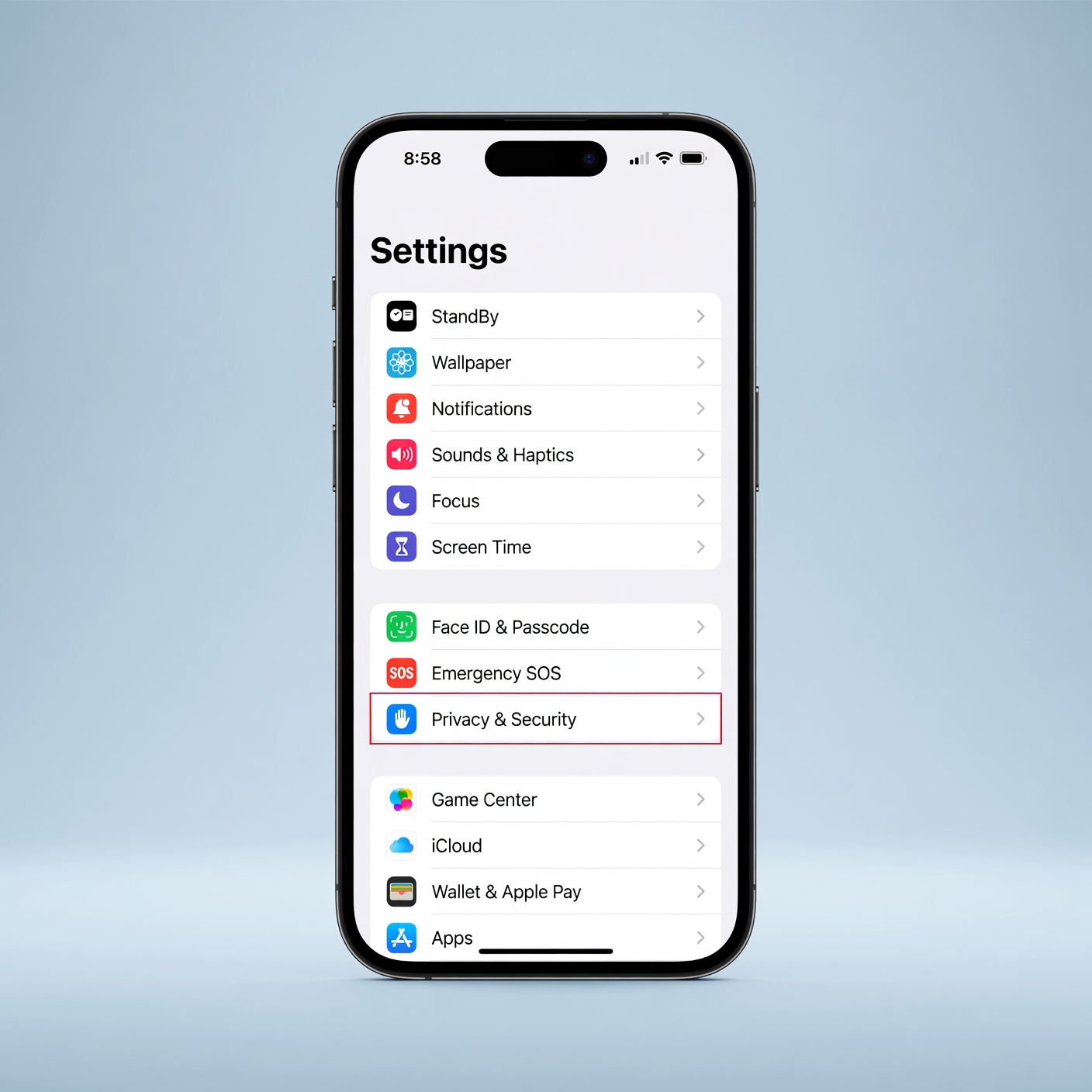
Securing your device against AirDrop-related risks does not require you to stop using the feature altogether. Instead, it requires adopting smart configuration habits and digital hygiene.
1. Change Your AirDrop Setting to “Contacts Only” (or Receiving Off)
By default, newer versions of iOS limit AirDrop from everyone to “Contacts Only” for a maximum of 10 minutes before reverting. This is a vital security feature.
-
How to check your settings on iOS:
-
Open the Settings app.
-
Tap General.
-
Tap AirDrop.
-
Select Contacts Only (or Receiving Off if you rarely use the feature).
-
Setting your device to “Contacts Only” means that strangers within physical range cannot even see your device name on their sharing menu, completely eliminating the possibility of receiving unsolicited files in public places.
2. Practice Extreme Caution with Unknown Senders
Never accept an AirDrop file from someone you do not know, no matter how urgent or enticing the file name appears. If you receive an unexpected prompt in a public area:
-
Immediately tap Decline.
-
If you suspect someone nearby is spamming devices maliciously, simply swipe down to open your Control Center and temporarily toggle off Wi-Fi and Bluetooth, or put your device in Airplane Mode.
3. Keep Your Operating System Updated
Apple frequently patches underlying security flaws in iOS, iPadOS, and macOS. Security updates often include hardening for wireless protocols, Bluetooth management, and file-handling parsers. Turning on Automatic Updates ensures your device is shielded against newly discovered attack methodologies.
The Role of App Sandboxing and Built-In Protections
Even in a worst-case scenario where a user mistakenly accepts a malicious file via AirDrop, Apple’s operating systems feature multi-layered defensive barriers designed to stop execution:
-
App Sandboxing: iOS apps run in isolated containers. They cannot inspect or modify data belonging to other apps or the operating system core.
-
Gatekeeper and XProtect (macOS): If a malicious executable file is sent to a Mac via AirDrop, macOS Gatekeeper scans the application for known malware signatures and verifies developer signatures before allowing it to run.
-
Built-In Malware Scanners: Modern Apple devices actively analyze downloaded files for known threats before letting them open.
These safety nets drastically lower the success rate of file-based social engineering attacks, provided the user does not manually override system safety warnings.
Balancing Convenience and Digital Safety

Can AirDrop be used to spread malware? Technically and practically, the vector exists primarily through human error and social engineering, rather than flaws in the underlying technology itself. Because Apple requires explicit user consent, sandboxes file execution, and restricts discovery settings, AirDrop remains a secure tool when used responsibly.
By locking down your discovery preferences to “Contacts Only,” remaining vigilant in public spaces, and exercising skepticism toward unexpected file prompts, you can enjoy the lightning-fast convenience of wireless sharing without compromising your digital security.