Online Safety Tips for iPhone Users
Discover the essential security settings every iPhone user should enable
We live our lives on our smartphones. From managing bank accounts and storing family photos to keeping passwords, emails, and health records, your iPhone holds the blueprint of your digital life. Because Apple devices are known for robust security, many users assume they are entirely safe out of the box. However, as cyber threats grow more sophisticated, default settings are often no longer enough.
Whether you are looking to ward off modern digital scams, protect your personal data from prying eyes, or lock down your device against physical theft, taking proactive steps is essential. This comprehensive guide will walk you through advanced, actionable online safety tips for iPhone users, written in plain English to help you secure your digital world effortlessly.
Why iPhone Security Matters More Than Ever Today
Many people believe that owning an Apple device means you are automatically immune to malware, phishing attacks, and data breaches. While Apple implements strict ecosystem controls and high-grade encryption, cybercriminals constantly engineer new ways to bypass them.
Today’s threats rarely look like a movie hacker typing frantically on a screen. Instead, they manifest as subtle phishing texts, malicious calendar spam, unauthorized access to cloud backups, or opportunistic thieves who watch you type your passcode in public before stealing your device.
Securing your phone isn’t about living in fear or drowning in complicated technical jargon. It is about building a few simple, resilient habits and toggling a handful of powerful settings that instantly elevate your defense.
Master Your Device Passcode and Lock Down Lock Screen Access
Your device passcode is the absolute first line of defense protecting everything on your screen. If someone catches you typing a simple six-digit PIN or a predictable pattern like your birth year, they can unlock your entire digital life in seconds.
Switch to a Custom Alphanumeric Passcode
Standard numerical PINs can sometimes be brute-forced or easily guessed by someone looking over your shoulder. Upgrading to a custom alphanumeric code introduces letters and symbols, exponentially increasing security.
-
Head to Settings > Face ID & Passcode (or Touch ID & Passcode).
-
Tap Change Passcode, enter your current code, and select Passcode Options.
-
Choose Custom Alphanumeric Code and create a strong, memorable combination.
Restrict Control Center Access on the Lock Screen
By default, anyone can swipe down on your locked iPhone to access the Control Center, turn on Airplane Mode, or disconnect your phone from the internet. This prevents tracking if your phone is stolen. You can block this loophole easily:
-
Go to Settings > Face ID & Passcode.
-
Scroll down to the section titled Allow Access When Locked.
-
Toggle off Control Center (and optionally accessories or wallet if you prefer maximum security). Now, your phone cannot be forced into offline mode without your face or passcode.
Activate Stolen Device Protection
One of the most powerful safeguards introduced to modern iOS ecosystems is Stolen Device Protection. Even if a thief manages to steal your physical iPhone and shoulder-surf your passcode, this feature builds an impenetrable wall around your critical account data.
When enabled away from familiar locations (like your home or workplace), Stolen Device Protection requires biometric authentication (Face ID or Touch ID) with no fallback to your passcode to perform sensitive actions, such as:
-
Viewing or autofilling stored passwords and credit cards.
-
Applying for new Apple Card accounts.
-
Erasing all content and settings.
Furthermore, for high-stakes changes—like modifying your Apple Account password or turning off Find My—the feature enforces a mandatory security delay. The thief must wait for hours and successfully pass a second biometric scan to complete the action, rendering a stolen phone practically useless for identity theft or account takeover.
-
How to turn it on: Navigate to Settings > Face ID & Passcode, enter your passcode, scroll down to Stolen Device Protection, and toggle it to On.
Secure Your Cloud with Advanced Data Protection for iCloud

Most people think their cloud storage is entirely private, but standard cloud setups store encryption keys on remote servers. This means that while your data is scrambled in transit, a major server breach or rare legal subpoena could theoretically expose stored backups.
Advanced Data Protection for iCloud extends end-to-end encryption to the vast majority of your iCloud data, including your iCloud Backups, Notes, Photos, Reminders, and voice memos. Under this protocol, your encryption keys reside strictly on your trusted devices, meaning not even Apple can read or access your data.
-
How to turn it on: Open Settings > Tap your Name (Apple Account) > iCloud > Scroll down to Advanced Data Protection and follow the on-screen prompts to configure your recovery contact or recovery key.
-
Note: Because Apple cannot reset this password for you if you lose access, make sure to save your recovery code safely offline.
Audit App Permissions and Protect Your Location Privacy
We routinely download apps that ask for permissions far beyond what they actually need. A simple flashlight app or photo editor rarely needs access to your precise location, Bluetooth, contacts, or local network. Leaving these permissions open creates unnecessary tracking vectors.
Perform a Quick App Permission Audit
Take control of what your apps can see by regularly reviewing your privacy dashboard:
-
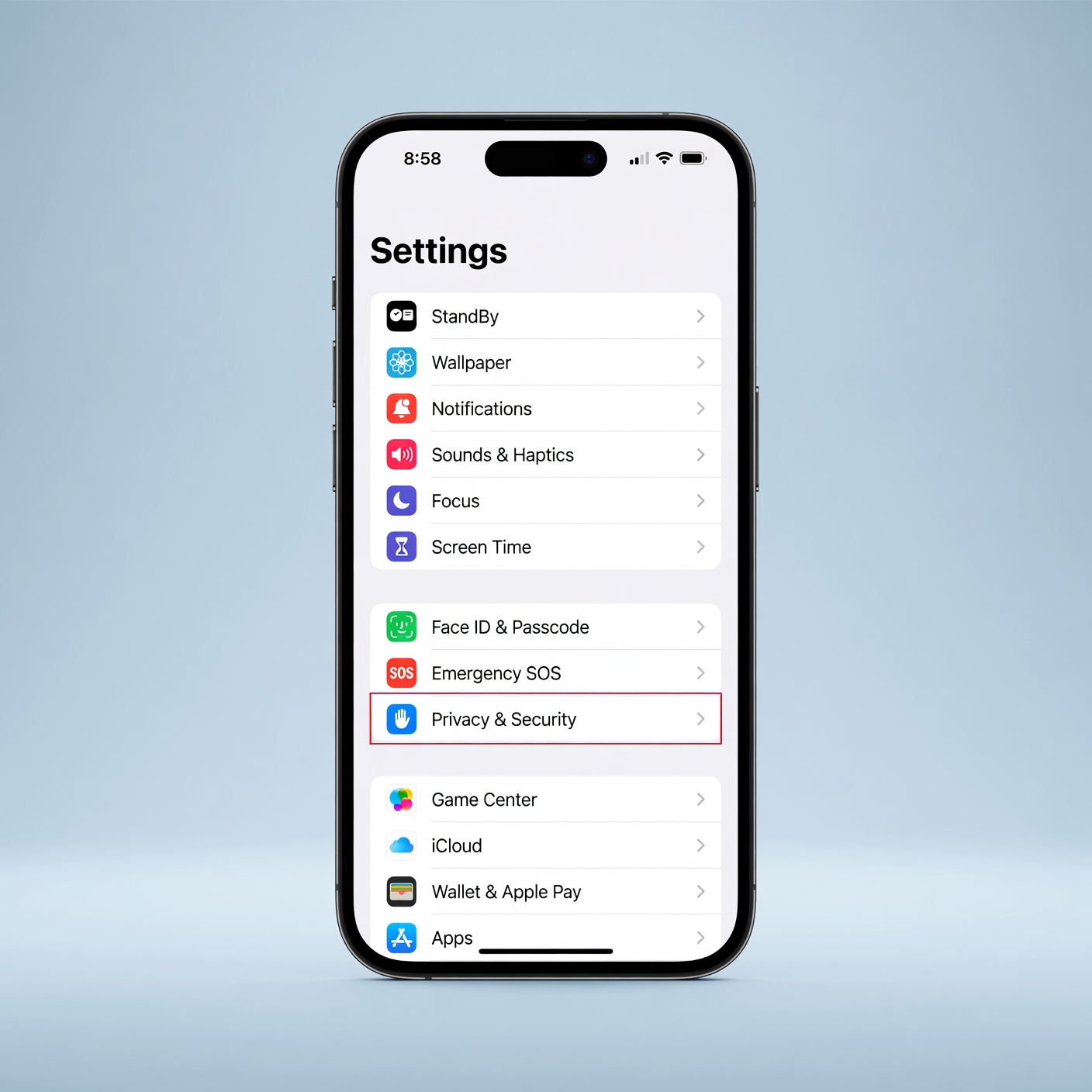
Go to Settings > Privacy & Security.
-
Tap through categories like Location Services, Photos, Contacts, and Bluetooth.
-
Restrict apps to “While Using” rather than “Always,” or turn access off entirely for apps you rarely use.
Limit Cross-App Tracking
Advertisers and data brokers love to track your behavior across different apps to build detailed behavioral profiles. You can shut this down globally:
-
Go to Settings > Privacy & Security > Tracking.
-
Toggle off Allow Apps to Request to Track. This automatically denies third-party apps permission to monitor your activity across other companies’ apps and websites.
Lock and Hide Sensitive Apps
There are times when you need to hand your unlocked phone to a friend to show a photo, or let a family member make a quick phone call. During those moments, you don’t want anyone stumbling across your mobile banking applications, private messaging chats, or health records.
Modern iOS versions allow you to seamlessly lock or completely hide individual applications.
-
To Lock an App: Touch and hold an app icon on your home screen, tap Require Face ID, and confirm. From then on, opening that specific app will require biometric confirmation, even if the phone itself is already unlocked.
-
To Hide an App: You can tuck sensitive apps away into a hidden folder that requires Face ID to reveal, keeping them completely out of search results, notification previews, and home screen grids.
Shield Your Network Connection with iCloud Private Relay
Public Wi-Fi networks at coffee shops, airports, hotels, and restaurants are notoriously insecure hotbeds for cyber snoopers. Anyone with basic network sniffing tools on the same router can monitor the websites you visit.
If you subscribe to iCloud+, you have access to a built-in tool called iCloud Private Relay. Unlike a standard virtual private network (VPN) that routes your entire connection through a single alternative server, Private Relay uses a clever two-hop architecture:
-
Your request is encrypted and sent through a node operated by Apple, which strips away your IP address so no one knows who is browsing.
-
A second independent partner decrypts the target website address and sends you on your way.
This means neither Apple nor network providers can build a profile of who you are and what websites you visit.
-
How to turn it on: Go to Settings > Tap your Name (Apple Account) > iCloud > Private Relay and toggle it On.
Recognize and Defeat Common iPhone Scams and Phishing
Technical safeguards are vital, but human awareness remains your greatest shield. Cybercriminals frequently target iPhone users using clever social engineering tricks.
The Fake “Apple Security Warning” Pop-Up
While browsing the web, you might suddenly encounter an aggressive pop-up or a redirected webpage blaring urgent warnings: “Critical Alert: Your iPhone has been infected with 4 viruses! Click here to clean immediately.”
This is always a scam. Apple web browsers do not track deep system-level malware infections via browser alerts. These pop-ups are designed to scare you into downloading adware or calling a fake support line.
-
The fix: Simply close the Safari tab immediately. If the browser freezes, force-close the app. To clear residual scareware, go to Settings > Safari and tap Clear History and Website Data.
Malicious Calendar Subscriptions and Profile Traps
Have you ever noticed strange events automatically appearing in your native Calendar app, telling you that your phone won a prize or needs urgent updates? This happens when you accidentally click a malicious link on a website that subscribes your calendar to a spam feed.
-
The fix: Go to Settings > General > VPN & Device Management. Look for any unfamiliar configuration profiles or unknown calendars you did not intentionally install, and tap Remove Profile to instantly neutralize them.
Build Sustainable, Low-Stress Security Habits
True digital safety doesn’t come from living in a state of constant paranoia; it comes from establishing a few quiet, consistent routines. By implementing the foundational habits below, you can stay miles ahead of digital threats effortlessly:
-
Keep Your Software Updated: Never ignore software update prompts. Apple frequently patches actively exploited security vulnerabilities in iOS updates. Turning on Automatic Updates under Settings > General > Software Update ensures you stay protected without needing to think about it.
-
Consistently Use Two-Factor Authentication (2FA): Ensure that every critical account tied to your Apple ID uses robust 2FA. Whenever possible, avoid SMS-based verification codes (which can be intercepted via SIM-swapping) and favor authenticator apps or physical security keys.
-
Leverage the Built-in Passwords App: Stop reusing the same weak password across multiple websites. The native iOS Passwords app safely generates, stores, and autofills high-strength cryptographic passwords, while proactively warning you if any of your credentials appear in known public data leaks.
By taking just 10 to 15 minutes today to configure these settings, enable Stolen Device Protection, and lock down your app permissions, you transform your iPhone into a heavily fortified personal vault. Enjoy the peace of mind that comes with knowing your digital life is secure, private, and entirely under your control.