How to Avoid Fake Browser Pop-Ups
Discover the warning signs of malicious browser pop-ups and online scams
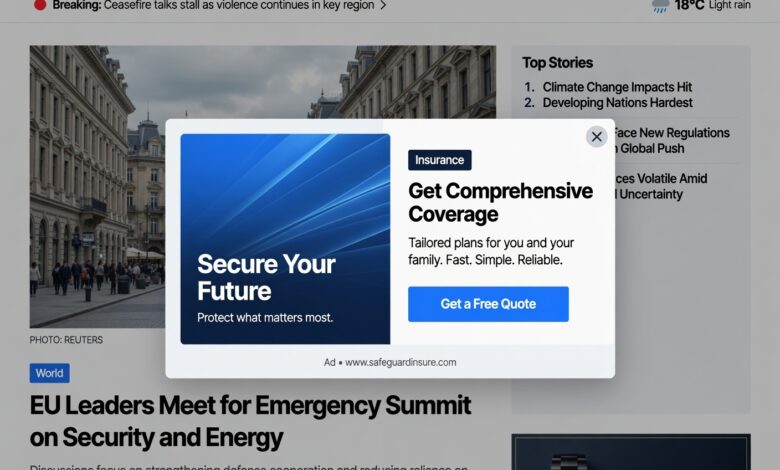
Have you ever been browsing the web when suddenly a massive, blaring alert flashes across your screen? Your browser starts making loud alarm noises, flashing red warning lights, and claiming that your computer is heavily infected with dangerous viruses. It might even display a toll-free phone number, urging you to call “Microsoft,” “Apple,” or “certified tech support” immediately to save your files.
Take a deep breath. You are likely looking at a fake browser pop-up scam.
These deceptive windows are engineered by cybercriminals to cause panic, manipulate your emotions, and trick you into handing over your money or sensitive personal data. Fortunately, once you understand how these tricks operate, they become entirely harmless. This comprehensive guide will walk you through everything you need to know to identify, avoid, and safely eliminate fake browser pop-ups once and for all.
What Are Fake Browser Pop-Ups and Why Do They Happen?

To protect yourself effectively, it helps to understand what you are dealing with. A fake browser pop-up is essentially a digital illusion. It is not an actual diagnostic message from your operating system (like Windows or macOS) or your antivirus software. Instead, it is just a clever combination of HTML, JavaScript, and CSS code running inside a webpage or a compromised ad banner.
Scammers use these fake alerts to execute what the cybersecurity industry calls Tech Support Scams. When you land on a shady website—or a legitimate website that has been injected with malicious advertising networks—the code forces your web browser into full-screen mode. It may loop endless alert dialog boxes so you cannot click away, creating a false sense of an absolute system lock.
The primary goal is simple: induce panic. When people panic, they make mistakes. The scammers want you to call the phone number on the screen, download remote-access software, or pay hundreds of dollars for fake software licenses to “clean” a computer that was never infected in the first place.
Core Psychological Triggers Used by Cybercriminals
Cybercriminals rely heavily on social engineering rather than complex computer hacking. Recognizing their psychological tactics is your first line of defense:
-
Manufactured Urgency: The pop-up will often display a ticking countdown timer or claim your data will be permanently erased in a matter of minutes if you don’t act.
-
Authority Bias: They mimic official branding, using logos stolen from Microsoft, Apple, McAfee, or Norton to look authentic.
-
Fear and Intimidation: Phrases like “CRITICAL SECURITY ALERT,” “YOUR IP ADDRESS HAS BEEN LOGGED,” or “ILLEGAL ACTIVITY DETECTED” are designed to trigger an immediate, irrational fear response.
Remember a golden rule of technology: Legitimate operating systems and real security software will never lock your browser screen and demand that you call an unknown phone number.
How to Safely Close and Dismiss a Fake Pop-Up Window
If a malicious pop-up freezes your browser or takes over your screen, you must resist the urge to click anywhere inside the window—even on the fake “X” or “Close” buttons built into the scam graphic, which are often programmed to trigger malicious downloads. Instead, use these foolproof methods to close the browser safely:
1. Use Keyboard Shortcuts
-
Windows: Press
Ctrl + Wto close the active tab, orAlt + F4to close the entire browser application. -
Mac: Press
Cmd + Wto close the tab, orCmd + Qto quit the browser entirely.
2. Force Quit via Task Manager (When the Browser is Frozen)
If the page has locked your controls and won’t respond to standard closing commands, you need to terminate the program forcefully:
-
Windows: Press
Ctrl + Shift + Escto open the Task Manager. Find your browser (Google Chrome, Microsoft Edge, Mozilla Firefox, etc.) in the list, right-click it, and select End Task. -
Mac: Press
Cmd + Option + Esc, select your browser from the Force Quit Applications window, and click Force Quit.
Pro Tip: When you reopen your browser after a forced shutdown, it may ask if you want to “Restore Pages.” Do not restore them, or you will pull the scam page right back up. Choose to open a fresh session.
Step-by-Step Guide: Purging Adware and Bad Browser Permissions
If fake pop-ups happen to you repeatedly, it means a malicious website has been granted permission to send push notifications, or an unwanted program (adware) has nested itself inside your system. Clean it up using these steps:
Clearing Malicious Notification Permissions
Many modern scam sites trick users into clicking “Allow” on the browser’s native notification prompt. Once allowed, they send constant spam messages that look like system warnings right from your taskbar.
-
Google Chrome / Microsoft Edge: Click the three dots in the top-right corner, go to Settings > Privacy and security > Site settings > Notifications. Look under the “Allowed to send notifications” section. If you see unfamiliar websites, click the three dots next to them and select Remove or Block.
-
Apple Safari (Mac): Open Safari, go to Settings (or Preferences) > Websites > Notifications, and remove any suspicious entries from the list.
Resetting Your Browser Settings to Default
If extensions or hidden configurations keep redirecting your searches or triggering alerts, resetting the browser fixes it instantly:
-
Navigate to your browser’s Settings, locate the Reset settings tab (often found under advanced or system settings), and choose Restore settings to their original defaults.
Uninstalling Unwanted Programs (Adware)
Sometimes a rogue browser hijacker is tied to software installed on your computer:
-
Windows: Go to Settings > Apps > Installed apps, review the list for any unfamiliar software downloaded around the time the pop-ups started, and click Uninstall.
-
Mac: Open Finder > Applications, look for unrecognized apps, and drag them to the Trash. Empty your Trash afterward.
Advanced Preventive Strategies to Keep Your Browser Secure
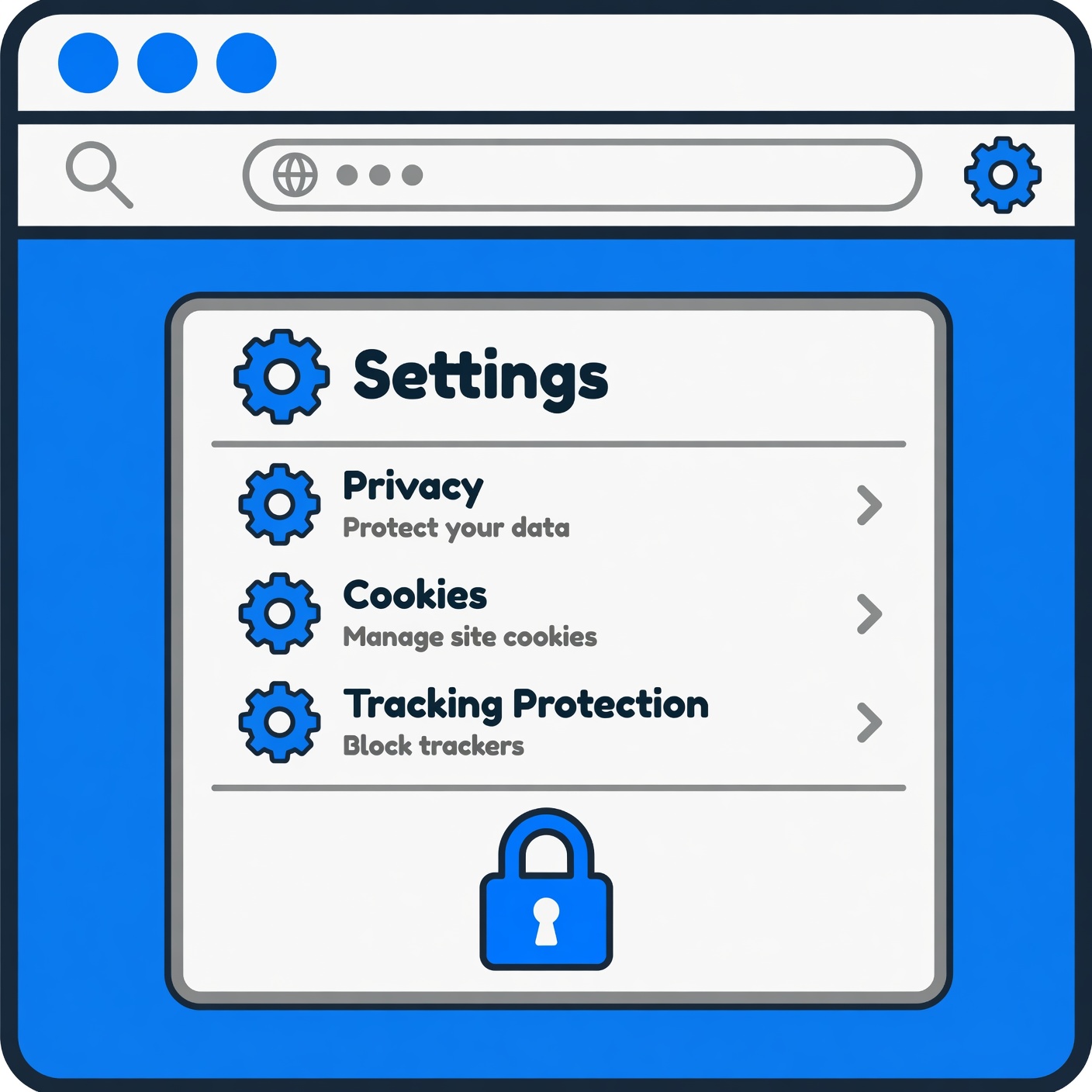
Defense is always easier than recovery. Implementing these proactive measures will drastically reduce your exposure to malicious scripts and online scams:
-
Install a Reputable Ad-Blocker: Quality content filters and browser extensions block malicious ad scripts before they even have a chance to load on your screen.
-
Keep Everything Updated: Cybercriminals love exploiting outdated software vulnerabilities. Ensure your operating system, web browser, and security tools are set to update automatically.
-
Turn on Built-In Safe Browsing Features: Browsers like Chrome, Edge, and Safari feature built-in protection tools (such as Google Safe Browsing or Microsoft Defender SmartScreen) that actively flag known deceptive sites and dangerous downloads. Keep these features turned on at all times.
-
Run Regular Antivirus Scans: Perform periodic full-system scans using a trusted security suite to catch background adware or PUPs (Potentially Unwanted Programs) early.
What to Do If You Already Fell for a Scam
Realizing you’ve fallen victim to an online scam can feel stressful, but taking immediate, calm action can minimize any damage:
-
Disconnect Your Device: If you allowed a stranger remote access to your computer, immediately disconnect your Wi-Fi or unplug your Ethernet cable to sever their connection.
-
Uninstall Remote Software: If the scammer instructed you to download tools like AnyDesk, TeamViewer, or UltraViewer, uninstall them immediately.
-
Run an Offline Malware Scan: Run a thorough antivirus scan to root out any backdoors or malicious payloads left behind.
-
Monitor Your Financial Accounts: If you shared credit card details or bank logins, call your bank immediately to freeze cards, dispute fraudulent charges, and monitor your credit reports closely.
-
Change Your Passwords: Update your primary email, banking, and password manager credentials from a clean, uncompromised device.
Conclusion
Fake browser pop-ups are designed to exploit human psychology, not impenetrable code. By staying calm, refusing to panic under manufactured urgency, knowing how to close frozen tabs safely, and maintaining clean browser permissions, you can completely neutralize these online nuisances. Share this guide with friends and family members who might be vulnerable to these deceptive traps, and enjoy a safer, more peaceful digital experience.