How Fake CAPTCHA Scams Infect Computers
Understand how fake CAPTCHA pages trick users into downloading malware
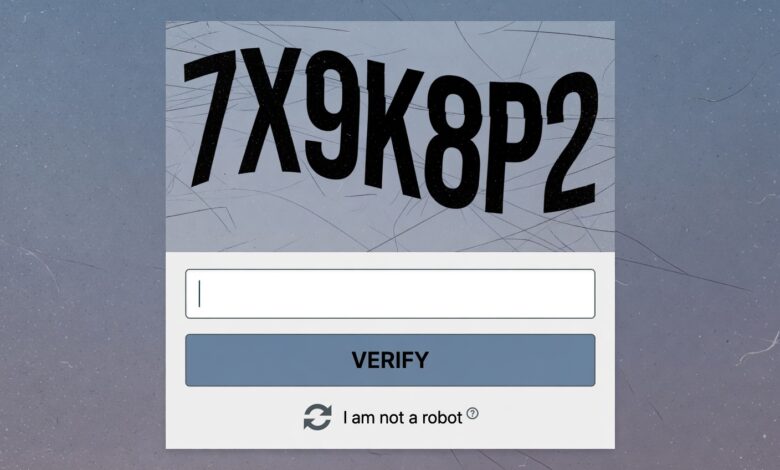
In the modern digital landscape, we have all become accustomed to the “I’m not a robot” checkbox. CAPTCHAs—Completely Automated Public Turing tests to tell Computers and Humans Apart—are the silent guardians of the internet. They prevent bots from spamming forums, scraping data, and overwhelming login pages.
However, cybercriminals are master manipulators. They have realized that the most effective way to bypass your defenses isn’t through complex code, but through social engineering. By mimicking the trusted interface of a security verification, scammers are now tricking thousands of users into executing malware, stealing passwords, and compromising their entire digital identity.
In this guide, we will break down exactly how these fake CAPTCHA scams operate, how they infect your computer, and—most importantly—how you can protect yourself from falling victim to this deceptive tactic.
What Exactly Is a Fake CAPTCHA Scam?
At its core, a fake CAPTCHA scam is a psychological trick. It leverages your familiarity with legitimate security protocols to make you feel safe while performing an inherently unsafe action.
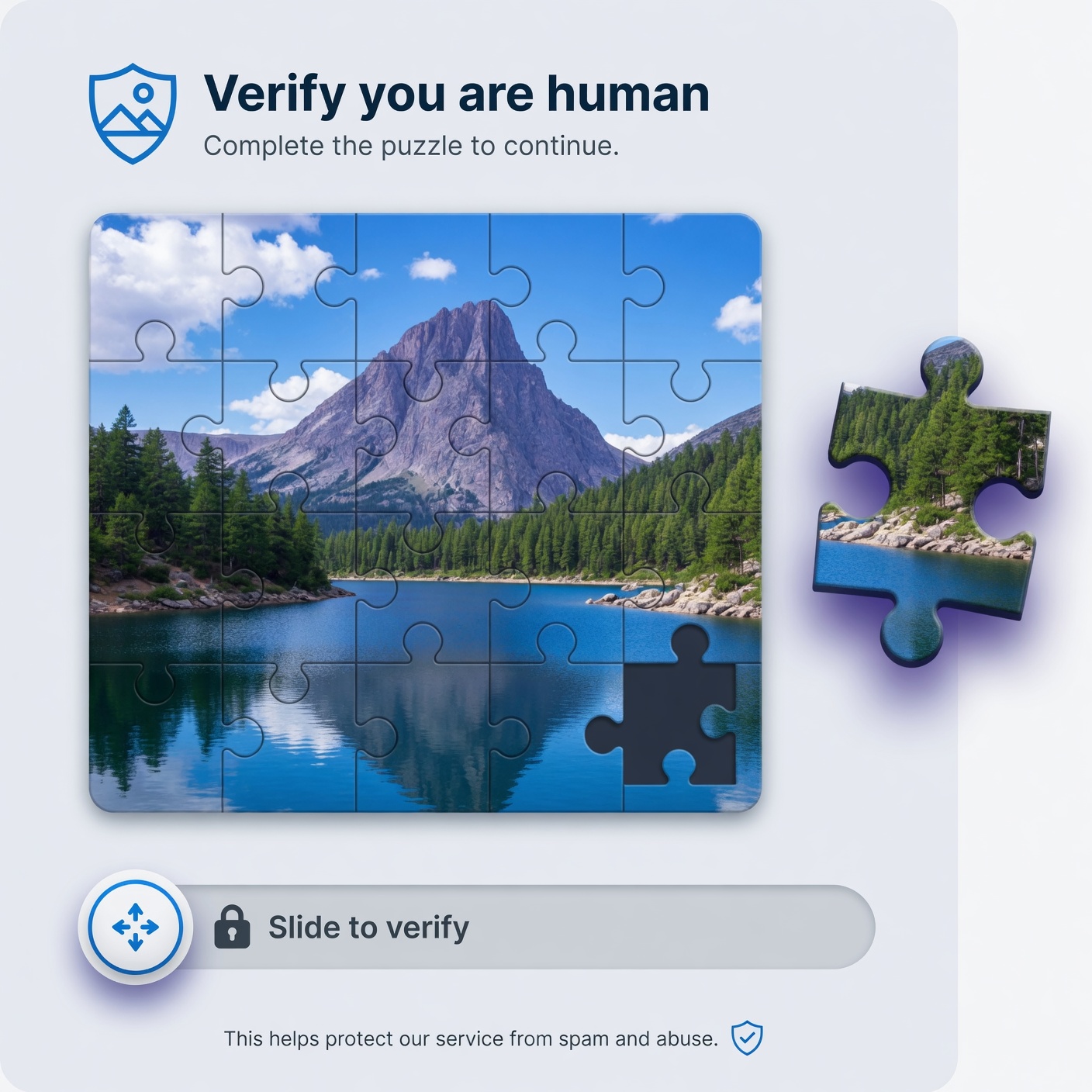
When you visit a website—often one offering pirated content, free software downloads, or shady streaming—you might be suddenly presented with a box that looks exactly like Google’s reCAPTCHA. It has the iconic “I’m not a robot” text, the familiar square, and the authentic-looking blue checkmark icon. But this is not a security test; it is a gateway.
The scam works by creating a false sense of urgency. The page might tell you, “You must verify your humanity to continue,” or “A security check is required before viewing this content.” When you click the box, you aren’t proving you’re human—you are triggering a malicious script that has been carefully hidden behind the interface.
The Mechanics: How the Infection Happens
You might wonder, “How can a simple checkbox infect my computer?” The answer lies in how these scammers manipulate your browser’s interaction with your operating system.
1. The Clipboard Manipulation (ClickFix)
One of the most dangerous and common techniques is known as the “ClickFix” attack. When you click the fake CAPTCHA, a hidden command is copied directly to your computer’s clipboard. The website then prompts you to perform a simple task to “verify” your identity, such as:
-
Pressing Windows Key + R (to open the Run dialog).
-
Pasting the text from your clipboard.
-
Pressing Enter.
Because you are told this is a security measure, you follow the steps. By pasting that text into the Run command, you are essentially giving your computer a direct command to download and install a malicious payload from the attacker’s server. You have just authorized your own infection.
2. Drive-by Downloads
In other scenarios, the fake CAPTCHA acts as a “trigger” for a drive-by download. The moment you interact with the page, a file is automatically downloaded to your browser’s download folder. If you open it—thinking it is a required verification tool or a “plugin” needed to see the content—you are installing an info-stealer or a Trojan directly into your system.
3. Malicious Browser Extensions
Sometimes, clicking the verification button redirects you to a page that claims you need an “update” or a “security patch” to finish the task. This leads to the installation of a malicious browser extension. Once installed, this extension can:
-
Read your browsing activity.
-
Intercept your login credentials.
-
Inject advertisements into the websites you visit.
-
Steal your session cookies, allowing hackers to bypass two-factor authentication on your favorite sites.
Why These Scams Are So Effective
The reason fake CAPTCHA scams see such high success rates is that they exploit cognitive ease. We are programmed to trust the CAPTCHA because it has become a universal symbol of internet safety. When we see it, our brains “switch off” the skepticism we might otherwise apply to a weird pop-up or a strange file download.
Furthermore, attackers use:
-
Authority: By mimicking big brands like Google, they borrow credibility.
-
Urgency: They often use timers or threatening language (“Your access will be denied”) to make you act without thinking.
-
Simplicity: The steps provided are easy to follow, making users feel that the process is straightforward and safe.
The Payload: What Happens Once You Are Infected?
If you fall for a fake CAPTCHA scam, the consequences can be severe. The malware installed is rarely a simple “nuisance” program. Modern “info-stealers” (like Lumma, Vidar, or RedLine) are designed to be silent. They don’t want to crash your computer; they want to hide and work in the background.
-
Credential Theft: These programs scan your browser data, extracting saved passwords, autofill information, and credit card details.
-
Financial Theft: Many steal your cryptocurrency wallet keys or session tokens for banking websites.
-
System Backdoors: They can open a channel for other hackers to access your machine remotely, turning your computer into a “zombie” or a host for ransomware.
-
Data Exfiltration: Your personal files, documents, and identity information can be sent back to the attacker’s command-and-control server.
How to Spot a Fake CAPTCHA Before It’s Too Late

Cybersecurity is as much about observation as it is about software. Here are the red flags to look for:
1. The Context is Wrong
If you are asked to solve a CAPTCHA in a place where it makes no sense—such as after clicking a random link in an email, or on a site that does not usually require a login—be suspicious. Why would a site need you to prove you are human just to view a simple article or a download page?
2. The URL Looks Strange
Look at the web address in your browser bar. Does it look like [google.com/recaptcha](https://google.com/recaptcha)? Or is it a jumble of random characters and numbers hosted on a strange domain (e.g., verify-access-99.site or security-check-hub.xyz)? If the domain doesn’t match the site you are supposed to be visiting, leave immediately.
3. The “Helpful” Instructions
Legitimate websites will never ask you to use the “Windows + R” keys to paste commands. If a website provides a tutorial on how to use your computer’s system commands to “unlock” content, it is 100% a scam.
4. Poor UI Design
Scammers are getting better, but they are still prone to mistakes. Look for:
-
Misaligned logos or fuzzy, low-resolution graphics.
-
Typos or grammatical errors in the instructions.
-
CAPTCHAs that appear in pop-ups or floating windows rather than being embedded in the page itself.
What To Do If You Clicked the Fake CAPTCHA
If you realized you just fell for a scam, do not panic, but act immediately:
-
Disconnect: Pull the plug on your internet or disconnect your Wi-Fi. This prevents the malware from communicating with the attacker’s server and receiving further instructions.
-
Close Everything: Close your browser, the Run dialog, and any other windows you were interacting with.
-
Run a Scan: Use a reputable antivirus or anti-malware tool to perform a full system scan. Ensure the definitions are updated.
-
Change Credentials: If you suspect your password might have been compromised, change it immediately from a different, clean device. Focus on critical accounts first: email, banking, and primary password managers.
-
Check for Files: Navigate to your “Downloads” folder and delete any suspicious files that were downloaded during the incident.
Strengthening Your Digital Defenses
The best defense is to harden your system before an attack happens. Follow these best practices to keep your devices secure:
-
Use a Password Manager: Password managers like Bitwarden or 1Password will not autofill your credentials on a fake website. If the site is a phishing imitation, your manager won’t recognize it, which serves as an early-warning system.
-
Enable Multi-Factor Authentication (MFA): Even if an attacker steals your password, MFA provides a crucial second layer of defense that makes it significantly harder for them to access your accounts.
-
Keep Your Browser Updated: Modern browsers like Chrome, Firefox, and Edge have built-in “Safe Browsing” features that detect known malicious domains. Keeping your software updated ensures these protections are active.
-
Install an Ad-Blocker: Many fake CAPTCHA campaigns are served through malicious ad networks. Using a high-quality ad-blocker can prevent these scripts from ever reaching your screen.
-
Stay Skeptical: The internet is a tool, but it is also a wild place. Remember that if something feels “off,” it probably is. When in doubt, close the tab.
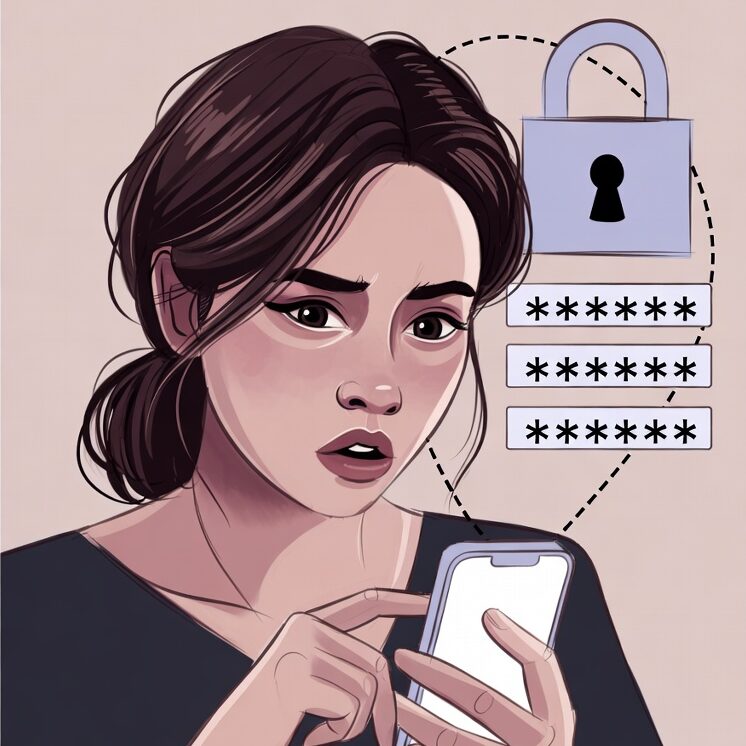
Fake CAPTCHA scams are a clever evolution of social engineering, preying on our natural desire for a safe internet experience. By masquerading as a common security check, they bypass our suspicion and trick us into turning our own devices against us.
However, by understanding how these scams work—specifically the “ClickFix” clipboard technique and the psychological manipulation of fake security prompts—you have already taken the most important step in protecting yourself. Awareness is your strongest firewall. The next time you see a CAPTCHA, take a second to verify: Is it where it should be? Does the URL look legitimate? If you ever have a doubt, walk away. Your data is worth far more than the content you were trying to access.
Frequently Asked Questions (FAQ)
Q: Can I get infected just by visiting the website with the fake CAPTCHA?
A: Usually, the infection requires an interaction, such as clicking a button or following instructions. However, some advanced sites can initiate malicious downloads automatically. Always use a secure, updated browser.
Q: Is it safe to use a VPN to visit these sites?
A: A VPN protects your privacy by masking your IP address, but it does not protect you from downloading malware or being tricked by social engineering. A VPN is not a substitute for healthy skepticism.
Q: Why don’t my antivirus tools catch these sites?
A: Scammers change their domains and tactics constantly. Antivirus software works best at detecting the payload (the malware file), but it may not always block the website itself if the site is new or masquerading as something else. Always rely on your own judgment first.
Q: What is the most common sign of a ClickFix attack?
A: If a website ever asks you to press “Windows + R” or copy/paste a command into your terminal or run dialog, it is 100% malicious. No legitimate service will ever ask you to do this to verify your humanity.