How Fake Browser Extensions Steal Your Data
Learn how to verify browser extensions and avoid downloading fake add-ons
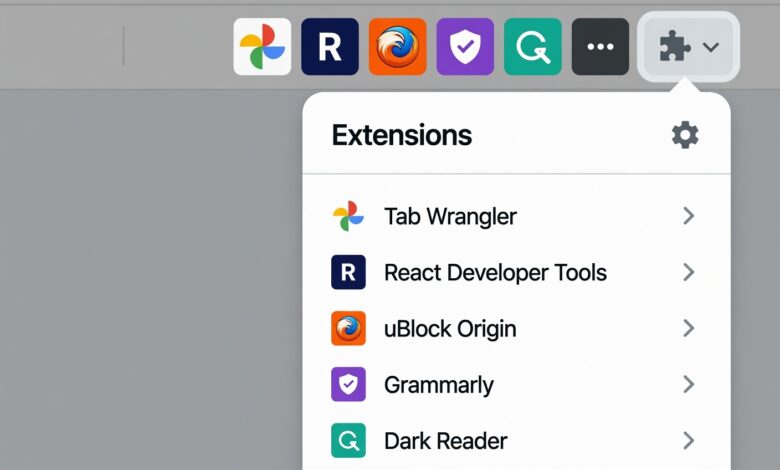
In an era where our digital lives are primarily lived within a browser window, browser extensions have become essential tools. They help us block intrusive ads, manage passwords, translate foreign languages, and even boost our productivity with AI-powered assistants. However, this convenience comes with a hidden, high-stakes trade-off.
Your browser is the gateway to your personal, financial, and professional data. When you install an extension, you are effectively handing over a “master key” to that gateway. While many developers create useful, safe tools, a growing number of malicious actors are exploiting this ecosystem. These fake or compromised browser extensions operate in the shadows, quietly siphoning off your most sensitive information.
Understanding how these threats work is the first step toward reclaiming your digital privacy. This guide will walk you through the mechanics of extension-based data theft, how to identify the warning signs, and the practical steps you can take to harden your browser security.
What Are Browser Extensions and Why Are They Risky?
At their core, browser extensions are small software programs that customize your browsing experience. They interact directly with the browser’s code, which gives them the technical capability to read, modify, and intercept the content of the websites you visit.
From a security perspective, this is a significant “attack surface.” Because extensions often require broad permissions—such as “Read and change all your data on the websites you visit”—they have a unique vantage point. If an extension is malicious, it doesn’t need to break through firewalls or bypass complex encryption; it simply has to wait for you to log in to your bank, check your email, or type a password. It then captures that data directly from your screen or memory before it is even encrypted for transmission.
How Malicious Extensions Steal Your Data: The Tactics

Cybercriminals are increasingly sophisticated. They no longer rely on simple pop-ups; they use subtle, long-term strategies to remain undetected for months or even years.
1. Keylogging: The Silent Data Collector
Keylogging is one of the oldest and most effective methods of theft. A malicious extension records every single keystroke you make while using your browser. This includes usernames, passwords, credit card numbers, and even private messages. Because this data is captured at the source—your keyboard—it bypasses many traditional security measures. The data is then silently transmitted to an attacker-controlled server in the background, often in real-time.
2. Cookie Theft and Session Hijacking
Modern websites use “session cookies” to keep you logged in so you don’t have to type your password every time you refresh a page. Malicious extensions are designed to exfiltrate these cookies. By stealing them, attackers can import your session into their own browsers, effectively “becoming you.” They can bypass two-factor authentication (2FA) and access your accounts as if they were sitting at your computer.
3. Page Injection and Phishing
Have you ever visited your bank’s website and noticed a slight delay or a strange, invisible overlay? Some extensions use “page injection” to modify the sites you visit. They can insert fake login forms on legitimate pages or swap out the destination address of a transfer. To your eyes, the URL looks correct, and the site looks authentic, but you are actually interacting with a fraudulent script embedded by the extension.
4. The Rise of “Prompt Poaching” (AI Impersonation)
With the massive surge in popularity of generative AI tools like ChatGPT and Gemini, a new threat has emerged: AI-themed browser extensions. Many of these are fake, masquerading as official productivity assistants. When you type a prompt into these extensions, they don’t just return an AI response; they also capture everything you send. Users often mistakenly treat AI chats as a “private notebook,” pasting sensitive work documents, API keys, and personal information that is immediately harvested by attackers.
The Strategy of Deception: Why They Seem Legitimate
You might wonder, “If these are malicious, why are they allowed on the official stores?” Attackers have developed several clever methods to gain your trust:
-
Brand Impersonation: They use names, icons, and descriptions that closely mimic popular, trusted extensions.
-
The “Sleeper” Tactic: An extension may function perfectly and safely for months. Once it gains a high rating and thousands of users, the developer pushes a “malicious update” that introduces the harmful code.
-
Buying Existing Extensions: Attackers often approach the original developers of legitimate, high-rated extensions and offer to buy them. Once the account is transferred, they push an update that turns the once-useful tool into a data-harvesting machine.
-
Social Proof Manipulation: Many malicious extensions boast thousands of 5-star reviews. Don’t be fooled—these are frequently generated by bot networks to instill a false sense of security.
How to Audit Your Browser for Malicious Extensions
The best defense is regular maintenance. You should perform a “browser audit” at least once a quarter. Here is a step-by-step checklist to clean up your environment:
Step 1: Conduct an Honest Assessment
Go to your browser’s extensions management page (e.g., chrome://extensions in Chrome, edge://extensions in Edge). Look at every single item on the list and ask these three questions:
-
Do I recognize this? If you don’t remember installing it, remove it immediately.
-
Do I use this? If you haven’t used it in the last month, the risk of keeping it installed outweighs the benefit. Delete it.
-
Did I install this for a specific, one-time task? Uninstall it as soon as the task is done.
Step 2: Scrutinize Permissions
Click “Details” on your extensions. Look specifically at the “Site Access” or “Permissions” section. If a simple extension, like a “Dark Mode” theme or a simple currency converter, requests permission to “Read and change all your data on all websites,” that is a major red flag. If an extension needs more power than its core function requires, it is better to find an alternative.
Step 3: Check for Policy-Installed Extensions
Sometimes, malware can install extensions at a system level that cannot be easily removed via the browser menu. If you see an extension that is “Managed by your organization” and you are using a personal computer, this is a clear sign of a deeper infection. You may need to use system-level security tools or run a full malware scan to purge these deep-seated threats.
Best Practices for Future Protection
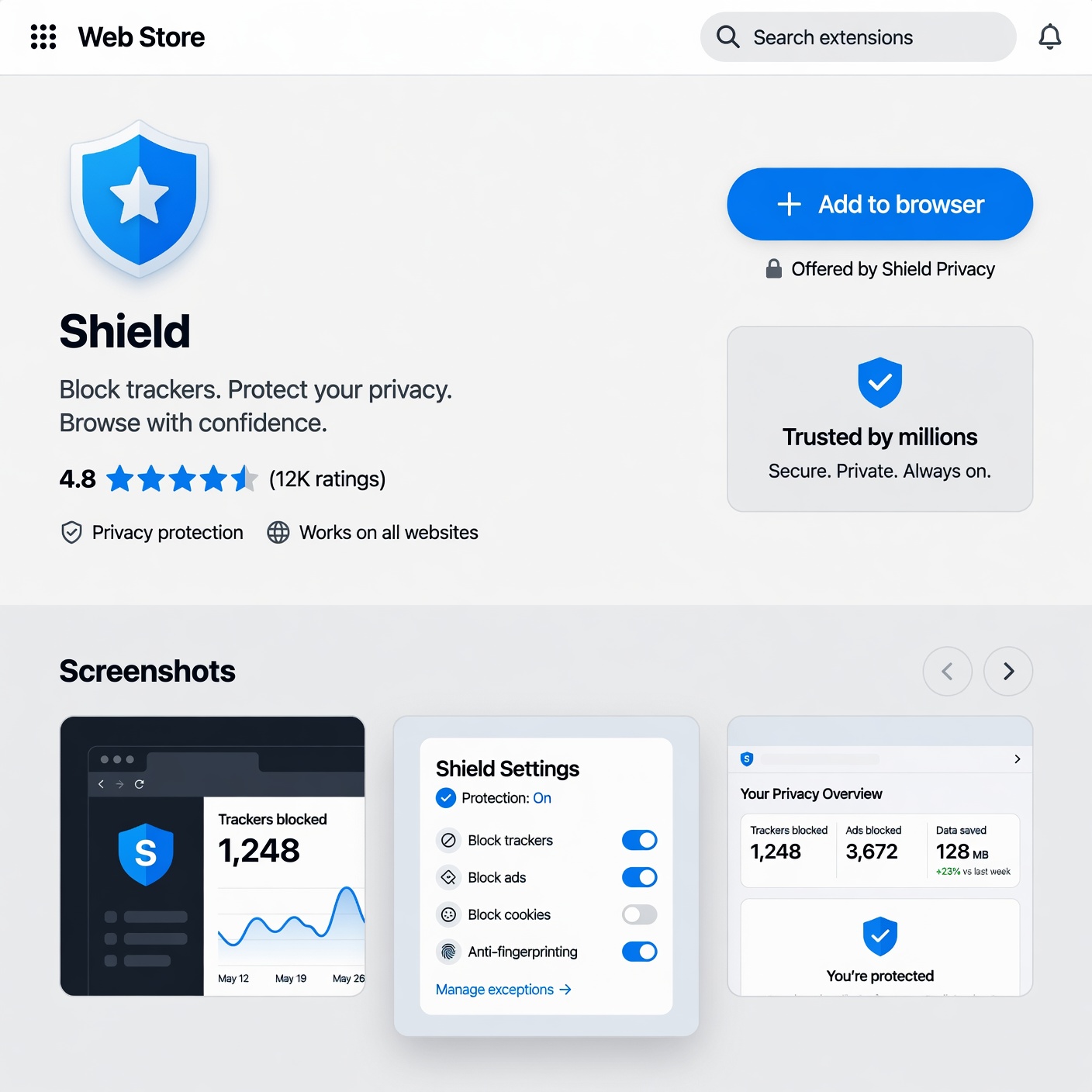
Maintaining a secure browser is an ongoing process. Use these rules to prevent future compromises:
-
Follow the “Minimalist” Approach: The golden rule of browser security is simple: the fewer extensions you have, the smaller your attack surface. Only keep the absolute necessities.
-
Check the Developer’s Reputation: Before clicking “Add to Chrome” or “Install,” take a moment to look at the developer. Do they have a professional website? Are they a known entity? Avoid extensions from unknown, one-off developers whenever possible.
-
Read Recent Reviews: When checking the store page, ignore the oldest 5-star reviews. Scroll to the most recent ones. If users are complaining about “pop-ups,” “redirects,” or “slow performance,” stay away.
-
Use Built-in Features: Modern browsers have become incredibly feature-rich. Many things that used to require an extension—such as PDF editing, password management, or ad blocking—can now be done using native browser features or highly reputable, well-known software.
-
Run Regular Security Scans: Don’t rely solely on your browser. Use reputable anti-malware software that includes real-time web protection. These tools can often detect the “beaconing” behavior of malicious extensions that are trying to send your data to external servers.
When to Take Drastic Action
If you notice your browser acting strangely—such as frequent search engine redirects, new toolbars appearing out of nowhere, or ads appearing on websites that shouldn’t have them—it is time to act quickly.
-
Stop Using the Browser for Sensitive Tasks: Avoid logging into your bank or email until you have resolved the issue.
-
Reset Your Browser: Most modern browsers have a “Reset Settings” option that restores the browser to its original state, disabling all extensions and clearing cached data. This is often the fastest way to get rid of deeply embedded malicious scripts.
-
Change Your Passwords: If you suspect an extension was stealing data, assume your credentials have been compromised. Change your most important passwords immediately, especially for your email, bank, and password manager.
-
Enable Multi-Factor Authentication (MFA): If you haven’t already, enable MFA on every account that supports it. Even if an attacker steals your password, they will be blocked by the second layer of verification.
Browser extensions are a testament to the power of the open web, but they are also a testament to the creativity of cybercriminals. By viewing every extension as a potential risk rather than a guaranteed benefit, you can make smarter decisions about what you allow into your digital workspace.
Remember, your data is your most valuable asset. Take the time to audit your browser today, remove the clutter, and adopt a “trust but verify” mindset. By being proactive and disciplined, you can enjoy the convenience of a customized browser without leaving your virtual front door wide open. Stay vigilant, keep your software updated, and always prioritize your security over a minor convenience.