Online Safety
What Is Bitwarden Emergency Access?
Understand what Bitwarden Emergency Access is, how it works, and when it can be useful

In today’s hyper-connected digital landscape, we secure our lives behind a wall of complex passwords, financial accounts, crypto wallets, and sentimental digital assets. But this raises a critical question that most internet users prefer to avoid: What happens to your online accounts if you experience a sudden medical emergency, a severe accident, or pass away unexpectedly?
Without a proper plan, your family members, loved ones, or business partners could find themselves locked out of vital accounts, unable to pay bills, manage subscriptions, or settle your digital estate. This exact dilemma is solved by a powerful built-in feature called Bitwarden Emergency Access.
Designed with strict zero-knowledge encryption, this tool ensures that planning for the worst does not compromise your everyday security. This comprehensive guide explores how Bitwarden Emergency Access works, why it is essential for modern digital hygiene, how to configure it correctly, and how it aligns with best practices for online safety and digital legacy planning.
Understanding Digital Legacy and Why Password Manager Recovery Matters
For decades, estate planning meant organizing physical filing cabinets, safety deposit boxes, and paper wills. Today, our most valuable assets exist entirely in the cloud. From banking portals and investment platforms to cloud storage containing family photographs, our digital footprint is vast and deeply personal.
Traditional approaches to password sharing—such as writing master passwords down on sticky notes, saving them in unencrypted text files, or sharing your master password verbally—expose you to catastrophic security risks. Anyone with your master password gains immediate, unrestricted access to your entire digital life.
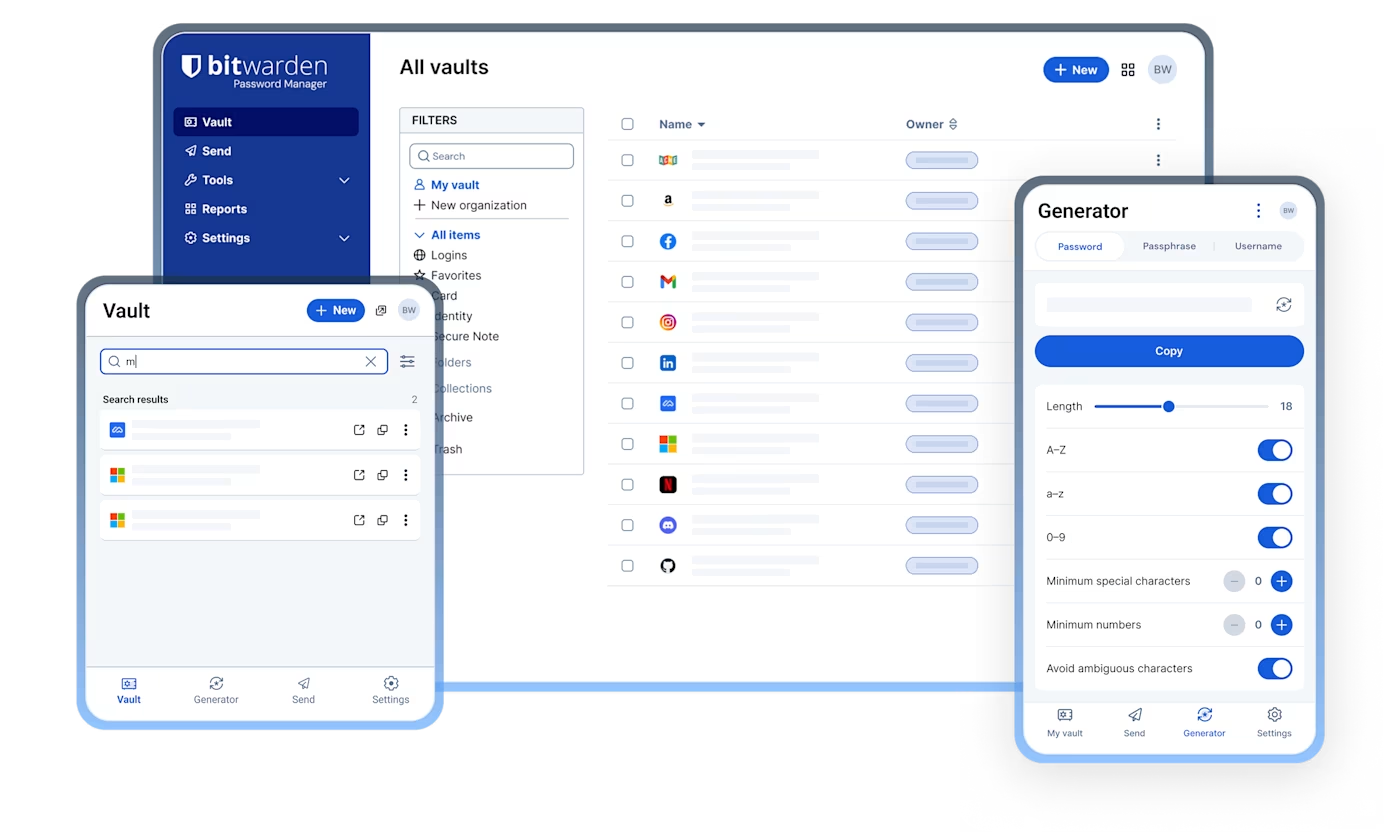
A secure password manager like Bitwarden changes the paradigm by utilizing zero-knowledge architecture. This means encryption and decryption happen exclusively on your local device. Not even Bitwarden employees can read your data. However, this high level of security creates a double-edged sword: if you lose your master password or become incapacitated, nobody can break into your vault.
Emergency Access bridges this gap safely. It establishes a cryptographic bridge between your vault and a trusted individual without ever exposing your sensitive keys to third parties or cloud servers.
How Bitwarden Emergency Access Works: The Core Mechanics
At its heart, the Emergency Access feature involves two primary roles:
-
The Grantor: The account holder who owns the Bitwarden vault and wishes to share access under emergency conditions.
-
The Grantee: The trusted emergency contact chosen by the grantor who will be permitted to request access to the vault.
The system relies on robust public-key cryptography to maintain absolute security. When you invite a contact, cryptographic keys are exchanged securely. Crucially, the grantee does not gain immediate access upon invitation. Instead, a multi-step protocol ensures that you retain total control until an actual crisis occurs.
The Two Types of Access Levels Explained
When configuring an emergency contact, Bitwarden allows you to choose between two distinct permission levels depending on how much trust you want to place in that individual:
-
View Access: Once an emergency request is approved, the trusted contact is granted read-only access to all items inside your individual vault. They can view login credentials, secure notes, credit card information, and file attachments. This option is ideal if you only want someone to find specific documents or retrieve passwords without altering your account structure.
-
Takeover Access: This permission level grants the trusted contact the ability to completely assume control of the account. Upon approval, the grantee is prompted to create a brand-new master password for your vault. This action effectively resets your master password, bypasses existing two-step login (2FA) protections, and gives them full read/write management over your account.
Setting Up Wait Times and Safeguards Against Accidental Triggers
One of the most brilliant security safeguards built into Bitwarden’s system is the Wait Time configuration.
When a trusted contact initiates an emergency access request, an automated safety mechanism kicks in:
-
An email notification is immediately dispatched to the grantor.
-
A predetermined waiting period begins (e.g., 1 day, 5 days, or longer, as specified by the account owner).
-
Manual Intervention: If you are safe and able to log in, you can manually approve or reject the request instantly with a single click.
-
Automatic Approval: If you fail to respond before the wait time expires—implying you are incapacitated or unable to access your device—the request is automatically approved, and the cryptographic keys are released to the grantee.
This delay period acts as a crucial buffer. If a contact makes a mistake, misunderstandings happen, or a malicious actor compromises your contact’s account, you have ample time to intercept, deny, and revoke the request before any data exposure occurs.
Step-by-Step Guide: How to Configure Emergency Access in Bitwarden

Setting up this feature requires a Bitwarden Premium, Family, Teams, or Enterprise subscription. However, the designated emergency contact (the grantee) only needs a standard, free Bitwarden account to accept and receive the invitation.
Step 1: Sending the Invitation
-
Log into your Bitwarden account via the Web Vault.
-
Navigate to Settings and click on Emergency access.
-
Select the option to Add emergency contact.
-
Enter the email address associated with your trusted contact’s Bitwarden account.
-
Choose your preferred access level (View or Takeover).
-
Set an appropriate Wait time (the minimum is one day).
-
Click Save to dispatch the invitation.
Step 2: Accepting and Confirming the Link
-
The recipient will receive an email invitation containing a secure link, which remains valid for five days.
-
Once the grantee logs in and accepts the invitation, their status updates in your vault.
-
You must return to your Bitwarden Web Vault settings, locate the pending contact, click Confirm, and verify the displayed fingerprint phrase with your contact to establish absolute trust.
Best Practices for Choosing Your Trusted Emergency Contacts
Selecting an emergency contact is not a decision to be taken lightly. Because this person will potentially hold the keys to your entire financial and digital identity, apply strict criteria when choosing them:
-
Assess Technical Literacy: Choose someone who understands basic cybersecurity concepts, digital hygiene, and knows how to use a password manager safely.
-
Evaluate Trust and Reliability: Select a spouse, close family member, or trusted legal executor who respects privacy and shares your values regarding digital estate handling.
-
Establish Clear Offline Communication: Ensure your emergency contact knows why they have been chosen, what expectations you have, and what steps they should take if an emergency truly arises. Do not let this feature sit quietly without your contact knowing they have a role to play.
-
Maintain Multiple Contacts: Premium users are not limited to just one contact. You can designate multiple trusted individuals with varying access levels and wait times to ensure redundancy in your digital continuity plan.
Bitwarden Emergency Access vs. Other Account Recovery Options
Many users confuse emergency access with traditional account recovery tools provided by software services. It is vital to understand the structural differences:
| Feature | Bitwarden Emergency Access | Standard Cloud Service Account Recovery |
| Data Protection | Zero-knowledge encryption; data remains private even from the provider. | Dependent on corporate servers holding decryption keys or recovery phone numbers. |
| Control | Fully managed by the user; custom wait times and access scopes. | Controlled by automated algorithms, SMS codes, or customer support approval. |
| Intended Use | Long-term digital legacy planning and critical incapacitation scenarios. | Day-to-day password resets and lost login recovery. |
Because password managers prioritize privacy above all else, companies cannot simply click a button to email you a new password. Implementing features like Emergency Access provides the ideal balance between absolute privacy and pragmatic safety.
Securing Your Digital Future Today
Ignoring the reality of digital legacy leaves loved ones vulnerable to bureaucratic nightmares, locked financial accounts, and lost memories. Configuring Bitwarden Emergency Access takes only a few minutes, yet it provides invaluable peace of mind for you and your family.
By pairing a world-class password manager with a thoughtful emergency plan, you ensure that your digital life remains entirely secure today, while staying accessible when it matters most. Take a moment to review your account settings, establish your trusted contacts, and take full control of your digital future.
Frequently Asked Questions (FAQ)
Do my emergency contacts need a paid Bitwarden subscription?
No. While the account holder (grantor) must have a Premium or organization-level plan to offer emergency access, the trusted contact (grantee) can use a completely free Bitwarden account.
Can my emergency contact spy on my vault whenever they want?
No. Emergency contacts cannot view your data under normal circumstances. They must formally submit an access request, which triggers your designated wait time and sends you immediate email notifications, allowing you to block unauthorized requests.
What happens if I lose my Premium subscription status?
If your premium membership lapses or is canceled, your existing emergency contacts will still retain their ability to request and obtain access in an emergency situation, though you will be temporarily restricted from editing or adding new contacts until the subscription is renewed.