How Often Should You Change Your Passwords?
Understand how often you should change your passwords based on today's security best practices
In an era where our entire lives—from banking and health records to social media and professional correspondence—are stored in the cloud, digital security is no longer an optional luxury; it is a necessity. A central pillar of this security is the humble password. You have likely heard conflicting advice: some experts suggest changing your passwords every 30 days, while others argue that frequent changes lead to “password fatigue” and weaker security habits.
So, what is the truth? How often should you actually change your passwords, and what are the best practices for keeping your digital identity safe in 2026? This comprehensive guide will break down the latest cybersecurity standards, debunk common myths, and provide actionable strategies to lock down your accounts effectively.
The Evolution of Password Security: Why Frequent Changes Aren’t Always Better

For years, the gold standard recommended by IT departments and government agencies was to rotate passwords every 90 days. The logic seemed sound: if a hacker obtains a password, they only have a limited window of time to use it.
However, behavioral science and cybersecurity data have shifted this perspective significantly. Today, organizations like the National Institute of Standards and Technology (NIST) have updated their guidelines. The reason is simple: when users are forced to change passwords frequently, they tend to create predictable patterns.
For example, if you are required to change your password from Summer2026! to Summer2026!!, you aren’t creating a more secure barrier; you are creating a predictable algorithm that a simple script can easily crack. Frequent forced rotations often lead to:
-
Password Reuse: Using the same password across multiple sites to avoid the stress of remembering new ones.
-
Weak Password Selection: Creating simple, easily guessable passwords just to satisfy a “change” requirement.
-
Writing Passwords Down: Storing credentials on sticky notes or unencrypted text files, which are physically insecure.
The modern consensus: Focus on strength and uniqueness rather than the frequency of rotation. You should only change a password if you have reason to believe it has been compromised.
Identifying When You Must Change Your Passwords
While you don’t need to rotate your passwords like clockwork, there are specific “red flag” scenarios where an immediate change is required to prevent unauthorized access.
1. Evidence of a Data Breach
If a service you use—such as an email provider, social media platform, or online store—announces a data breach, your credentials may be floating around on the dark web. Use services like Have I Been Pwned to check if your email address has appeared in known leaks. If it has, change your password for that site immediately and any other sites where you used the same password.
2. Suspicious Account Activity
Did you receive a login notification from a device or location you don’t recognize? Even if you think it might be a false alarm, it is better to be safe. Change your password immediately and review your account’s recent activity log to ensure no unauthorized settings or recovery information were altered.
3. Usage of Public or Shared Computers
If you log into an account on a library computer, a friend’s laptop, or a public kiosk, there is a risk that keyloggers or malicious browser extensions could have captured your keystrokes. Change your password once you are back on a secure, private device.
Crafting Unhackable Passwords: The “Passphrase” Method
The most common way passwords are stolen is not through “brute force” (guessing character by character) but through “credential stuffing” (using lists of passwords stolen from other sites). To combat this, your passwords must be unique to every single account.
Instead of trying to memorize complex strings of characters, adopt the Passphrase Method.
A passphrase is a string of random words that are easy for you to remember but extremely difficult for a computer to guess.
-
Bad Password:
P@ssword123(Easily guessed by dictionary attacks). -
Good Passphrase:
Blue-Coffee-Guitar-Mountain-99(High entropy, easy to visualize).
By combining four or five unrelated words, you create a long, complex sequence that would take a supercomputer millions of years to crack.
The Role of Password Managers: Your Digital Vault
Expecting a human to remember unique, 20-character passwords for 100 different websites is unrealistic. This is why a Password Manager is the single most important tool in your security arsenal.
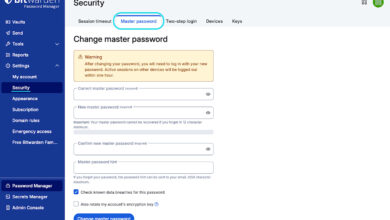
A password manager is an encrypted application that stores all your credentials in a “vault.” You only need to remember one Master Password—the key to the vault. The manager then generates, saves, and auto-fills complex passwords for every other site you visit.
Why Password Managers are superior:
-
Encryption: They use industry-standard AES-256 encryption.
-
Convenience: You never have to manually type a password again.
-
Cross-Platform: Access your credentials on your smartphone, tablet, and desktop seamlessly.
-
Security Audits: Most modern managers will alert you if you have reused a password or if one of your stored passwords has appeared in a known data breach.
The Second Layer: Why Multi-Factor Authentication (MFA) is Non-Negotiable
Even the strongest password can be stolen via phishing. This is where Multi-Factor Authentication (MFA) comes in. MFA adds a second layer of defense, ensuring that even if a hacker knows your password, they cannot enter your account without a secondary verification method.
Common Types of MFA:
-
Authenticator Apps (Recommended): Apps like Google Authenticator or Authy generate time-sensitive codes on your device. These are much more secure than SMS codes.
-
Security Keys: Physical hardware tokens (like a YubiKey) that you plug into your device. These are the gold standard because they are immune to remote phishing.
-
Biometrics: Using your fingerprint or facial recognition to access an app.
-
SMS/Email Codes (Least Secure): While better than nothing, codes sent via SMS are vulnerable to “SIM swapping” attacks. Use these only if no other method is available.
Action Item: Go through your most important accounts—email, banking, and primary cloud storage—and enable MFA immediately. This single step provides more security than changing your password every week ever could.
How to Protect Yourself from Phishing Attacks
Phishing remains the #1 way hackers gain access to accounts. They send emails or texts disguised as legitimate businesses (like your bank or Netflix) trying to trick you into entering your password on a fake website.
How to Spot a Phishing Attempt:
-
Urgency: The message claims your account will be deleted or suspended if you don’t act now.
-
Mismatched URLs: Hover your mouse over a link (on desktop) to see the actual web address. If the link says
paypal-security-update.cominstead ofpaypal.com, it is a scam. -
Unusual Requests: Legitimate companies will never email you asking for your password or a MFA code.
Always navigate directly to the official website by typing the address into your browser rather than clicking links in emails or texts.
Building a Security Mindset: A Habit-Based Approach
Digital hygiene is not a “one-and-done” project; it is a lifestyle. To keep your information safe in 2026 and beyond, integrate these five habits into your routine:
-
Conduct a Quarterly Audit: Every three months, spend 15 minutes reviewing which accounts are still active. If you no longer use a service, delete the account. The fewer accounts you have, the smaller your attack surface.
-
Keep Software Updated: Outdated browsers and operating systems often contain security vulnerabilities that hackers can exploit. Enable automatic updates on all your devices.
-
Segregate Your Emails: Consider using one email address for professional/financial accounts and a separate, secondary email for newsletters, social media, and online shopping. If the secondary account is breached, your core financial identity remains isolated.
-
Use a Secured Network: Avoid accessing sensitive accounts while connected to public, unencrypted Wi-Fi (like those at coffee shops or airports). If you must, use a reputable VPN (Virtual Private Network) to encrypt your traffic.
-
Review Permissions: Occasionally check the “Connected Apps” or “Security Settings” section of your major accounts (like Google or Facebook) to see which third-party apps have access to your data. Revoke permissions for anything you no longer use.
The Path to Digital Resilience
To summarize: stop worrying about changing your passwords every month. Instead, focus on building uniqueness, complexity, and redundancy.
By using a reliable password manager, enabling Multi-Factor Authentication on every account that supports it, and remaining vigilant against phishing, you create a “defense-in-depth” strategy. This approach makes you a difficult target for cybercriminals, who typically look for the easiest path of least resistance.
Your digital life is worth protecting. Take the time today to set up your password manager and enable your two-factor authentication. In a world where data is the new currency, these simple steps are the best investment you can make in your own security.