Signs Someone Is Using Your Wi-Fi Without Permission
Learn how to identify unauthorized devices connected to your home network
In today’s hyper-connected world, your Wi-Fi network is the backbone of your digital life. From streaming movies and working from home to managing your smart home devices and accessing sensitive banking apps, everything runs through your router. But what if you aren’t the only one using it?
If your internet speed has suddenly plummeted, or you’ve noticed devices on your network you don’t recognize, you might be a victim of Wi-Fi freeloading. Unauthorized users—often called “Wi-Fi squatters”—not only slow down your connection but can also pose significant security risks to your personal data.
In this comprehensive guide, we’ll walk you through how to identify if someone is using your Wi-Fi without permission, the dangers it presents, and exactly how to secure your network for good.
Why Is Unauthorized Wi-Fi Access a Major Security Risk?
Many people assume the worst thing about an unauthorized user is a slower Netflix buffer. However, the reality is much darker. When someone joins your Wi-Fi, they are essentially “inside” your house, digitally speaking.
1. Data Interception and Snooping
If a malicious actor gains access to your network, they can potentially use packet sniffing software to monitor the traffic passing through the router. This can lead to the exposure of unencrypted browsing data, personal emails, or even login credentials for sites that don’t use robust HTTPS protocols.
2. Legal Liability and Illegal Activity
Perhaps the most overlooked risk is legal. If someone uses your IP address to perform illegal activities—such as downloading pirated content, accessing illicit websites, or sending spam—the digital trail leads directly back to your ISP account. Proving that it was a neighbor or a random person in your parking lot instead of you can be a complex and expensive legal headache.
3. Network Congestion and Performance Issues
While less critical than security, performance degradation is the most common symptom. Multiple users on a single connection create latency, especially if those users are downloading large files or streaming high-definition video. This impacts your gaming, video calls, and overall productivity.
Top Signs That Someone Is Stealing Your Wi-Fi
How can you tell if your bandwidth is being “borrowed” by someone else? Keep an eye out for these tell-tale signs.
Noticeable Drops in Internet Speed
If your ISP guarantees a certain speed and you’ve always had stable connectivity, a sudden, inexplicable drop in performance is a red flag. If you run a speed test and find your download/upload speeds are significantly lower than what you pay for—especially during off-peak hours—it’s time to investigate.
Strange Devices Appearing in Your Router Settings
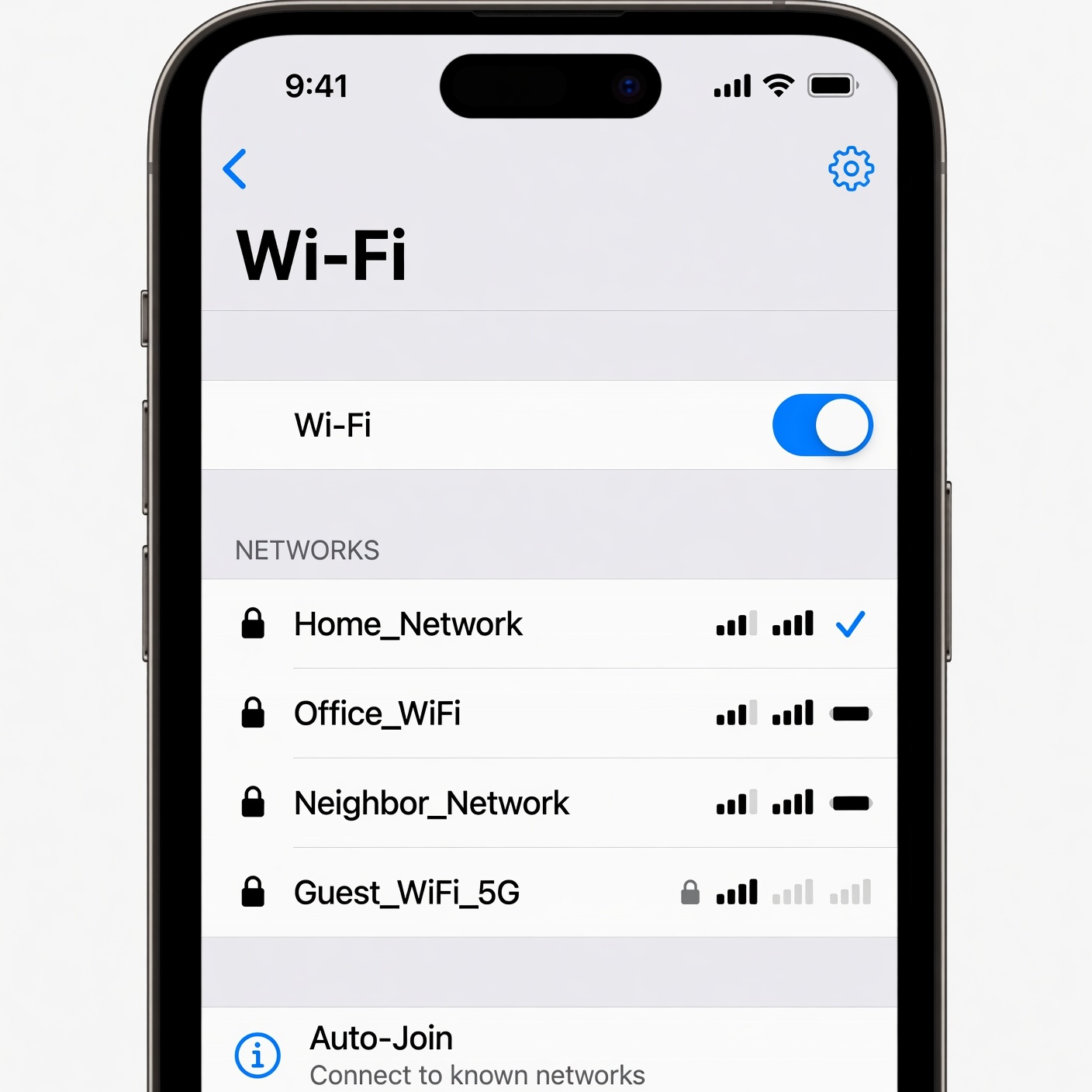
Most modern routers provide an “Attached Devices” or “Client List” page in their admin panel. This is your primary diagnostic tool. If you see device names you don’t recognize (e.g., “Unknown-Device,” “Galaxy-S23,” or “Laptop-X”) that don’t match your family’s devices, you have confirmed unauthorized access.
Unusual Wi-Fi Activity at Night
Do you notice the lights on your router blinking frantically when everyone in the house is asleep or when no devices are turned on? This is a strong indicator that someone nearby is utilizing your connection, likely taking advantage of your inactivity to download large files.
Inability to Connect Your Own Devices
If you find yourself getting “Authentication Failed” or “IP Address Conflict” errors on your own devices despite using the correct password, it could be a sign that a sophisticated intruder is spoofing your MAC address or overwhelming your DHCP server.
How to Check Your Network: The Step-by-Step Audit
You don’t need to be an IT professional to audit your home network. Follow these simple steps to find out who is connected.
1. Accessing Your Router’s Admin Panel
To see who is on your network, you need to enter your router’s interface:
-
Open a web browser on a computer connected to your Wi-Fi.
-
Type your router’s IP address into the address bar (common addresses include
192.168.0.1or192.168.1.1). -
Enter your admin username and password (check the sticker on the bottom of the router if you haven’t changed these).
2. Identifying Connected Devices
Once logged in, look for a tab labeled “Attached Devices,” “Connected Clients,” or “DHCP Client List.”
-
Compile a list: Write down or take a screenshot of every device listed.
-
Verify: Check the devices in your house—your phone, laptop, smart TV, gaming console, and tablets. Match the MAC addresses or device names to the list.
-
The “Unknown” factor: Any device that doesn’t match your inventory is a trespasser.
3. Using Third-Party Network Scanner Apps
If the router interface is too complicated, you can use user-friendly mobile apps like Fing or Wireless Network Watcher. These apps scan your network and provide a list of all active devices, often identifying the device manufacturer (e.g., Apple, Samsung, Intel), which makes identifying intruders much faster.
Advanced Security Measures: How to Kick Intruders Off
If you’ve found someone on your network, don’t panic. Follow these steps to secure your connection and keep them out permanently.
Change Your Wi-Fi Password Immediately
The most effective way to disconnect everyone is to change the Wi-Fi password (the Pre-Shared Key).
-
Log into your router admin panel.
-
Navigate to Wireless Settings.
-
Choose a strong, complex password (a mix of uppercase, lowercase, numbers, and symbols).
-
Important: Once you change this, every device you own will need the new password to reconnect.
Update Your Encryption Protocol
Older routers might still be using WEP or WPA. These are highly insecure and can be cracked by amateur hackers in minutes. Always ensure your security settings are set to WPA3 (or at least WPA2-AES). Avoid “WPA/WPA2 Mixed Mode” if possible.
Disable WPS (Wi-Fi Protected Setup)
WPS was designed to make connecting devices easier (usually with a PIN or a button), but it is a notorious security vulnerability. Hackers use brute-force attacks to crack the WPS PIN. Turn this feature Off in your router settings immediately.
Hide Your SSID (Service Set Identifier)
While this is a “security by obscurity” measure and won’t stop a determined hacker, it does hide your network from casual Wi-Fi scanners. If your network name doesn’t appear in the list, most people will move on to an easier target.
Set Up a Guest Network
If you have frequent visitors, don’t give them your primary password. Enable the Guest Network feature on your router. This isolates guest devices from your main network, protecting your primary computers and file servers even if a guest’s device is infected with malware.
Beyond the Basics: Strengthening Your Home Defense
Once you’ve secured the Wi-Fi, take these extra steps to ensure your digital fortress remains impenetrable.
MAC Address Filtering
Every device has a unique physical hardware address called a MAC address. Most routers allow you to create a “Whitelist” of approved MAC addresses. If a device’s MAC address isn’t on the list, the router will refuse to grant it access, even if the intruder has the correct password.
Keep Router Firmware Updated
Just like your phone and computer, your router runs on software (firmware). Manufacturers periodically release updates to patch security holes. Check your router’s website or your admin dashboard to ensure you are running the latest version.
Disable Remote Management
Many routers allow you to access the settings from outside your home. Unless you specifically need this, disable remote administration. This prevents hackers from trying to log into your router settings from a different location.
Consider a Strong Firewall
If you use a high-end router or a mesh system, ensure the built-in firewall is enabled. A good firewall monitors incoming and outgoing traffic and blocks suspicious connections that don’t match your typical usage patterns.
When to Replace Your Router
Sometimes, no amount of configuration can save an outdated router. If your router is more than 5-7 years old, it may no longer receive security updates.
-
Unsupported Standards: If your router only supports 802.11n or older, it is slow and lacks modern security protocols.
-
Hardware Failures: If you notice that your settings keep resetting, or the connection drops repeatedly despite proper security, the hardware might be failing or already compromised by persistent malware.
-
The Investment: Upgrading to a modern Wi-Fi 6 or Wi-Fi 7 router provides significantly better security, faster speeds, and improved management interfaces that make tracking devices easier.
Proactive Monitoring: The Best Defense is a Good Offense
Securing your network isn’t a one-time job; it’s a routine chore, similar to changing the batteries in your smoke detector.
-
Monthly Checks: Set a reminder to log into your router once a month. Quickly scan the connected devices list. It takes less than two minutes and provides peace of mind.
-
Strong Passwords: Never use “password123” or your family name. Use a password manager to generate a truly random string of characters for your Wi-Fi.
-
Education: Ensure that all family members understand the importance of not sharing the Wi-Fi password with neighbors or strangers.
Understanding the “Neighbor” Problem
Sometimes, the culprit isn’t a hacker, but a well-meaning neighbor who asked for the Wi-Fi password six months ago. Maybe they gave it to a friend, or perhaps their phone is set to “auto-connect” whenever they are in range of your house.
If you suspect this is the case, be polite but firm. You don’t have to be confrontational. You can simply say, “I’ve been having some connectivity issues and decided to reset my network security and limit the number of devices on the connection for better performance.” Changing the password is the standard “reset” button for these social situations.
The Role of ISP Security Features
Modern Internet Service Providers (ISPs) often bundle security apps with their service. While these aren’t a replacement for a secure router setup, they can provide an extra layer of protection. Some ISP apps will send a push notification to your phone every time a new device connects to your network. If you aren’t sure if your router has this capability, check your ISP’s official app or portal.
Troubleshooting: What to Do If You Still See Unknown Devices
If you have changed your password, updated your firmware, and disabled WPS, but you still see “ghost” devices, consider these possibilities:
-
Smart Home Devices: Modern homes are full of “hidden” devices. Do you have a smart fridge, a Wi-Fi-enabled thermostat, a robot vacuum, or smart light bulbs? Each of these connects to your Wi-Fi and often shows up with weird names (e.g., “Espressif-Device” or “Tuya-Smart”). Before you panic, check the MAC address of your smart appliances.
-
Virtualized Connections: Some devices (especially modern smartphones) use “Private Wi-Fi Address” features. This creates a randomized MAC address for privacy, which can make your own phone look like an unknown device in your router’s list.
-
The “Repeater” Issue: If you have a Wi-Fi range extender, the devices connected to the extender might show up in your main router list as if they are connected directly to it. This can sometimes cause confusion in how the devices are named or categorized.
Take Control of Your Digital Space
Your home Wi-Fi is a private utility, not a public service. Protecting it is not just about keeping your speeds high—it is about keeping your digital life private and secure. By regularly auditing your connected devices, using strong encryption, and keeping your hardware updated, you can rest easy knowing that your network is yours and yours alone.
Start today: log into your router, review your connected devices, and if you see anything out of place, change that password. It’s a small step that pays off in big security dividends.
Frequently Asked Questions (FAQ)
1. Can someone hack my Wi-Fi just by being near my house?
Yes, if your security is weak or if your password is simple, someone with specialized software can attempt to gain access to your network from a car or a neighboring house.
2. Does an unauthorized user have access to my files?
If you have file sharing enabled on your computer and the network is set to “Public,” an unauthorized user might be able to see shared folders. Always ensure your network profile is set to “Private” in your computer’s OS settings.
3. Will changing my Wi-Fi password disconnect my smart home devices?
Yes. Any device connected to your Wi-Fi will lose the connection once the password is changed. You will need to go through the setup process for each smart home device to provide the new credentials.
4. Is it illegal for someone to use my Wi-Fi?
In many jurisdictions, unauthorized access to a computer network is a criminal offense, often categorized under “unauthorized access to protected computers” or theft of services.
5. How do I know if my router has been compromised?
If your browser redirects you to strange websites, your DNS settings have been changed, or you see unrecognized admin accounts in your router settings, your router may be compromised. In this case, a hard factory reset is necessary.