How to Secure Google Chrome in 5 Minutes
Learn the essential Chrome security settings that can protect your privacy in minutes
Your web browser is the gateway to your digital life. Every day, you use Google Chrome to log into your bank accounts, check private emails, shop online, and handle sensitive professional documents. Because Chrome handles so much of your personal data, it has naturally become a primary target for cybercriminals, malware distributors, and aggressive data trackers.
If you are using Chrome with its default out-of-the-box settings, your digital door is left partially ajar. The good news? You do not need a degree in cybersecurity to lock it down. In fact, you can significantly upgrade your browser defense mechanism in just five minutes.
Why Browser Security Matters More Than Ever Today

Cyber threats have evolved far beyond obvious computer viruses. Modern attacks target your browser session directly through advanced phishing campaigns, malicious extensions, script injection, and session cookie hijacking. When a malicious actor compromises your browser, they bypass traditional operating system firewalls because they are riding on the trusted sessions you already opened.
Google Chrome includes powerful, built-in security architecture, but many of its strongest defensive features are buried deep within settings menus or left on standard, moderate protection levels. Hardening your browser means shifting those settings from reactive to proactive, ensuring that dangerous scripts, sketchy downloads, and fraudulent websites are stopped before they ever reach your screen.
Step 1: Upgrade to Enhanced Safe Browsing Protection
The single fastest adjustment you can make in Chrome is changing how it evaluates the websites you visit. By default, Chrome uses “Standard Protection,” which checks sites against a localized, fast-updating list of known threats. However, threat actors spin up new malicious domains every single minute.
To protect yourself against zero-day phishing schemes and newly minted malware traps:
-
Click the three vertical dots in the top-right corner of Chrome and select Settings.
-
Navigate to Privacy and security on the left-hand menu, then click on Security.
-
Switch your protection level from Standard to Enhanced Protection.
What Enhanced Protection Actually Does
When you activate Enhanced Protection, Chrome predicts and warns you about dangerous events before they happen by sharing threat data with Google Safe Browsing in real-time. If you accidentally download a suspicious file, it can send a deep inspection sample to Google to verify if the file is safe. It acts as an active shield that evolves alongside modern hacker methodologies without slowing down your everyday web browsing experience.
Step 2: Enable “Always Use Secure Connections” (HTTPS-Only Mode)
In the past, the lock icon in the address bar told you a site was safe. Today, virtually all legitimate sites use HTTPS encryption, but cybercriminals still attempt to downgrade your connection to unencrypted HTTP to intercept your passwords and data packets.
To force Chrome into maintaining absolute cryptographic discipline:
-
Stay inside the Privacy and security > Security menu.
-
Scroll down until you find the toggle labeled Always use secure connections.
-
Turn this feature ON.
This setting forces Chrome to automatically upgrade all website requests to secure HTTPS URLs. If a website attempts to load an insecure version that does not support modern encryption standards, Chrome will throw a prominent warning screen stopping you from proceeding blindly into an exposed connection.
Step 3: Implement Secure DNS (Domain Name System) Lookup
When you type a web address into your search bar, your browser relies on a DNS server to translate that human-readable name into a machine-readable IP address. By default, this lookup is often handled by your Internet Service Provider (ISP), meaning your browsing history can be monitored, logged, or subjected to man-in-the-middle redirection attacks.
You can encrypt this communication channel using Secure DNS:
-
Within the same Security settings page, look for the section titled Use secure DNS.
-
Ensure the toggle is switched ON.
-
Instead of using your default provider, select the drop-down menu and choose a trusted, privacy-focused custom provider such as Cloudflare (1.1.1.1) or Google Public DNS.
This hides your DNS lookup traffic from local network sniffers, adding an extra layer of privacy and stopping local network tampering dead in its tracks.
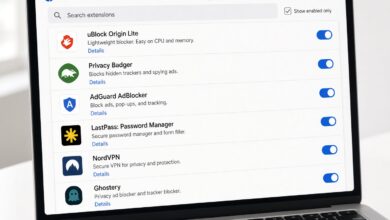
Step 4: Purge Unsafe and Inactive Browser Extensions
Extensions are wonderful productivity boosters, but they are also one of the most common vectors for data exfiltration. An extension with “read and change all your data on all websites” permission can see your credit card numbers, track your habits, or inject malicious ads into your banking sessions.
Conducting a quick extension audit takes less than sixty seconds:
-
Type
chrome://extensionsdirectly into your address bar and hit Enter. -
Review every single extension currently installed. Ask yourself: When was the last time I actually used this?
-
Toggle off or completely Remove anything you do not actively recognize or trust.
-
For the extensions you keep, click Details and restrict their site access permissions from “On all sites” to “On click” or specific domains where they are needed.
Step 5: Clean Up Cookies and Restrict Third-Party Tracking
Data trackers and intrusive ad networks rely heavily on cross-site cookies to map your digital identity across the web. Hardening your cookie configuration blocks these invisible observers from following you from site to site.
-
Go back to Settings and click on Privacy and security.
-
Select Third-party cookies.
-
Choose Block third-party cookies in regular browsing mode.
This stops external trackers from collecting your data while still allowing first-party cookies to keep you logged into the sites and web applications you use every day.
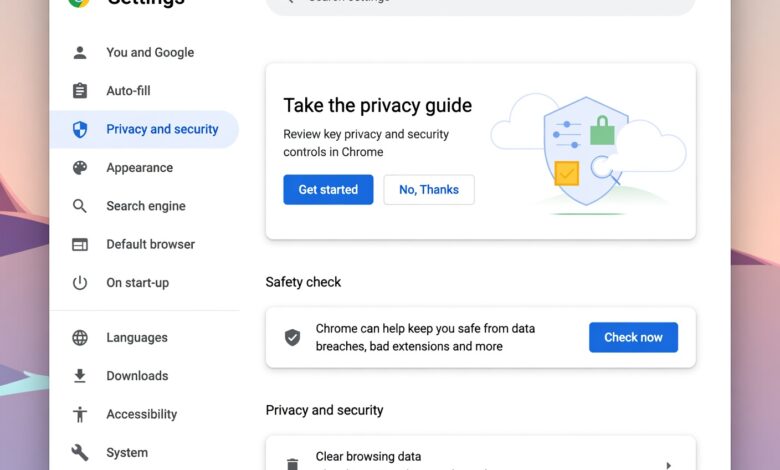
Step 6: Run Chrome’s Built-In Safety Checkup
Google has integrated an automated diagnostic tool into Chrome that checks for multiple security vectors all at once. Instead of hunting through menus individually, you can audit your entire browser health instantly.
-
Go to Settings.
-
Click on Safety Check right at the top of the left-hand menu.
-
Click Check now.
Within seconds, Chrome will scan your browser for updates, check if any of your saved passwords have appeared in public data breaches, scan for harmful software, and verify that Safe Browsing is operating at peak capacity. If it flags any compromised credentials or risky configurations, follow its prompts to resolve them immediately.
Step 7: Enforce Automatic Browser Updates
The most sophisticated security settings in the world will not save you if your browser is running on outdated source code. Zero-day exploits target unpatched vulnerabilities that software engineers have already fixed in newer releases.
-
Chrome updates automatically in the background when you relaunch the browser. However, if you see a colored indicator dot (orange, green, or red) next to the three vertical dots menu in the top right, it means an update is waiting for a restart.
-
Click the menu, select Update Google Chrome, and relaunch your browser immediately. Never postpone an update.
Best Practices for Maintaining Long-Term Browser Health
Hardening your browser is not a one-time chore; it is a continuous digital habit. To ensure your browsing environment remains completely secure over the long haul, integrate these routine maintenance steps into your digital life:
-
Avoid Saving Passwords in Plain Text: While Chrome’s built-in password manager is convenient, consider transitioning to a dedicated, encrypted third-party password manager with multi-factor authentication.
-
Be Skeptical of Download Prompts: Always download software and documents directly from official creator websites rather than clicking random promotional links or third-party repository mirrors.
-
Clear Your Cache Periodically: Once a month, clear your browsing history, cached images, and temporary site data to eliminate redundant tracking artifacts and keep your browser running at peak performance speed.
By investing just five minutes today to configure Enhanced Safe Browsing, enforce secure HTTPS connections, lock down site permissions, and clean out untrusted extensions, you dramatically reduce your digital attack surface. A secure browser ensures that your online experience remains fast, private, and entirely under your control.