How to Check If Your Webcam Has Been Accessed
Learn how to tell if your webcam has been accessed without your knowledge

Webcams have become an essential tool for everyday life, connecting us to remote workplaces, long-distance family members, and online classrooms. However, this helpful technology also introduces a massive security vulnerability. Hackers can exploit weaknesses in your operating system, software, or network to gain unauthorized access to your camera—a cybercrime known as camfecting.
The thought of an invisible intruder watching your every move inside your own home is terrifying. What makes this threat particularly dangerous is that advanced spyware can often bypass standard indicator lights, leaving users completely unaware that their privacy has been compromised.
This comprehensive guide will teach you exactly how to detect if your webcam has been accessed, understand the tools cybercriminals use, and implement robust security measures to protect your digital privacy.
Understanding Camfecting: How Do Hackers Access Your Webcam?
Before diving into the technical detection methods, it is vital to understand how unauthorized webcam access happens in the first place. Cybercriminals rarely hack into a camera directly; instead, they compromise the device hosting it.
Remote Access Trojans (RATs)
The most common weapon used in camfecting is a Remote Access Trojan (RAT). This is a type of malware that an unsuspecting user accidentally downloads, usually via a malicious email attachment, a compromised link, or pirated software. Once installed, a RAT grants the attacker full administrative control over the infected computer, including the ability to activate the webcam, record audio, log keystrokes, and steal personal files.
Exploiting Software Vulnerabilities
Outdated operating systems, unpatched video conferencing applications, and insecure browser extensions frequently contain security loopholes. Hackers scan the internet for devices running these vulnerable programs and deploy automated scripts to exploit them, creating a backdoor into the system.
Compromised Wi-Fi Networks
If you connect your laptop to an unsecured public Wi-Fi network, or if your home wireless router uses a weak, default password, sophisticated bad actors can intercept your network traffic. In some cases, this allows them to bridge the gap into your local network devices, including smart home security cameras and integrated laptop webcams.
1. Monitor the Physical Webcam Indicator Light for Unusual Behavior
The simplest and most immediate line of defense is your device’s physical hardware light. On almost all laptops and external webcams, a small LED light illuminates whenever the camera sensor receives power.
Watching for Random Blinking or Activation
If your webcam indicator light turns on when you do not have a video conferencing application, streaming platform, or camera app open, this is an immediate red flag. Take note of when it occurs:
-
Does it flash briefly during system startup?
-
Does it stay on continuously while you browse casual websites?
-
Does it activate when the computer is supposed to be idle?
Beware of Advanced LED Malware Bypasses
While the indicator light is a great baseline tool, you cannot rely on it entirely. Security researchers have demonstrated that sophisticated malware can rewrite firmware or manipulate device drivers to activate the camera sensor without triggering the LED light. Therefore, a dark indicator light does not guarantee that your webcam is secure. You must look deeper into your system configuration.
2. Analyze Active System Processes Using Task Manager or Activity Monitor
When a hacker accesses your webcam, they must run a software process on your machine to stream or record the video feed. By looking closely at your operating system’s active tasks, you can identify suspicious applications hiding in the background.
Identifying Suspicious Programs on Windows (Task Manager)
-
Press
Ctrl + Shift + Escto open the Task Manager. -
Click on More details at the bottom if you are in the simplified view.
-
Navigate to the Processes tab.
-
Look down the list for apps you don’t recognize, or look specifically at the Apps and Background processes sections.
-
If you see an unfamiliar program consuming significant CPU, Memory, or Network resources, right-click it and select Search online to investigate what it is.
Checking Running Applications on macOS (Activity Monitor)
-
Open Finder, go to Applications, then open the Utilities folder.
-
Launch the Activity Monitor.
-
Click on the CPU or Network tabs to view active background operations.
-
Keep a close eye on processes that actively transmit data or display unusual names. You can use the search bar in the upper right corner to look for keywords like “camera,” “video,” or “webcam” to see what internal utilities are currently calling upon the hardware.
3. Review Web Browser Camera Permissions and Active Extensions
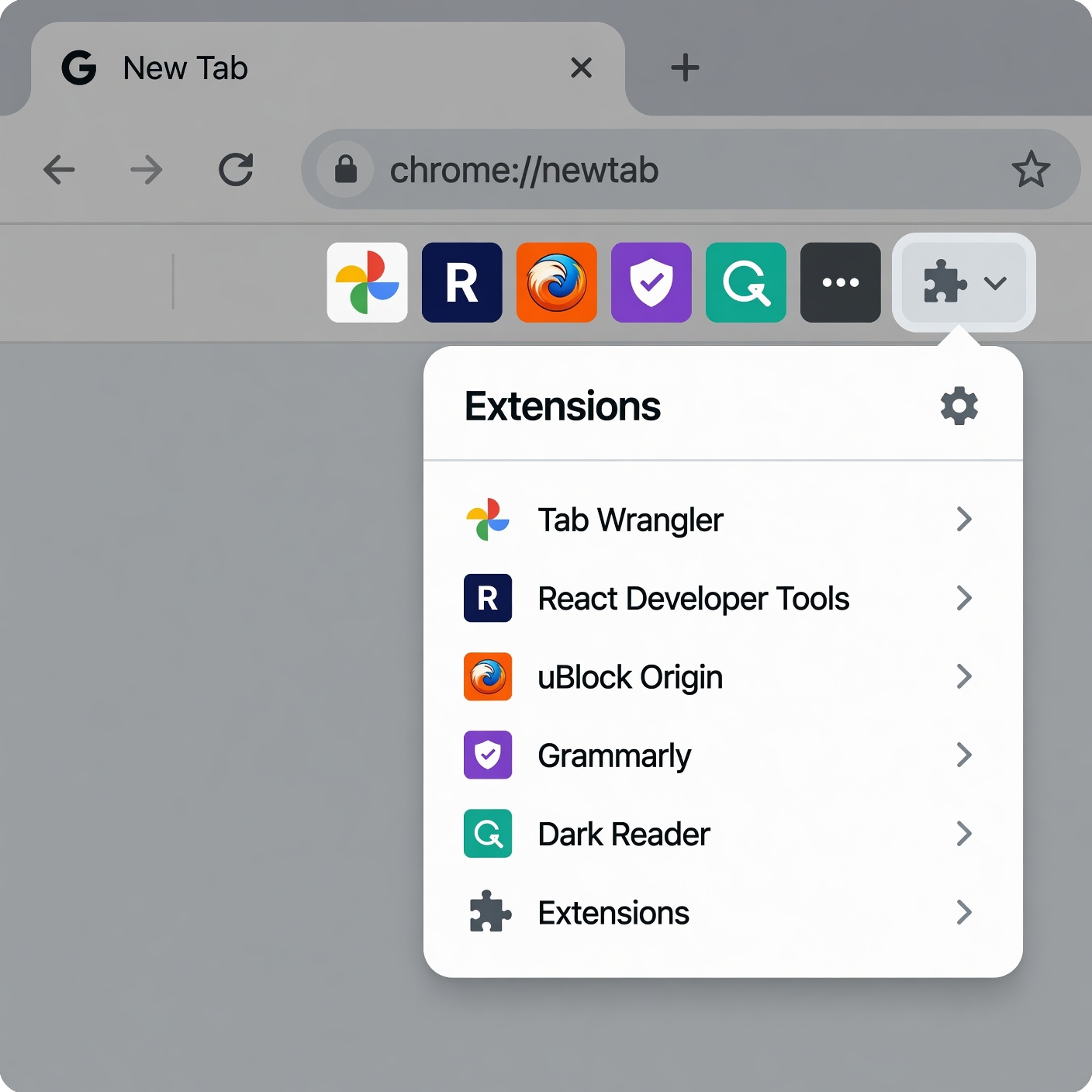
Modern web browsers are incredibly powerful, meaning they can interact directly with your hardware. If you inadvertently granted permission to an unsafe website or installed a malicious browser extension, your webcam could be accessed directly through your browser.
Auditing Google Chrome Camera Settings
-
Click the three vertical dots in the top-right corner of Chrome and select Settings.
-
On the left sidebar, click Privacy and security, then click Site settings.
-
Scroll down to the Permissions section and click on Camera.
-
Review the list under Allowed to use your camera. If you see any suspicious, unfamiliar, or unverified websites listed here, delete them immediately by clicking the trash can icon next to them.
-
For maximum safety, ensure the default behavior is set to “Sites can ask to use your camera.”
Auditing Safari, Edge, and Firefox
The process is very similar across all major web browsers:
-
Microsoft Edge: Go to
Settings > Cookies and site permissions > Camera. -
Mozilla Firefox: Navigate to
Options > Privacy & Security > Permissions > Camera Settings. -
Apple Safari: Open
Settings > Websites > Camerato toggle access to “Deny” or “Ask” for specific web domains.
Additionally, disable any browser extensions that you do not use regularly, as compromised extensions are a frequent vector for silent data collection.
4. Track Webcam Usage History and Hardware Logs
If a background application accesses your webcam and closes it quickly, you might miss it in Task Manager. Fortunately, your operating system keeps a log of which applications have recently interacted with your privacy hardware.
Using Windows 11 Privacy Settings to Check Recent Access
Windows provides a transparent way to see which applications have opened your camera in the past few days.
-
Press
Windows Key + Ito open the Settings menu. -
Click on Privacy & security in the left menu.
-
Scroll down to the App permissions header and select Camera.
-
Expand the menu that says Let apps access your camera and scroll down to the bottom.
-
You will see a detailed, time-stamped list showing exactly which apps accessed your webcam and the precise date and time they last did so. Look for unexpected entries or tools that shouldn’t require camera access (like a calculator or calendar app).
Using Advanced Tools: Sysinternals Process Explorer
For advanced diagnostics on Windows, you can track down the exact software string utilizing your webcam hardware handle.
-
Download the official, free Process Explorer tool from Microsoft’s Sysinternals website.
-
Run the application as an Administrator.
-
You need to find your webcam’s internal device name. To do this, open Device Manager (right-click the Start button), find your webcam under Cameras, right-click it, go to
Properties > Details, and select Physical Device Object name from the dropdown menu. Copy this value (e.g.,\Device\0000003c). -
Back in Process Explorer, press
Ctrl + Fto open the search box. -
Paste the device name string and click Search.
-
The results will reveal the exact process name and Process ID (PID) currently controlling your webcam hardware.
5. Audit Outbound Network Traffic for Data Exfiltration
If a hacker is using your webcam to spy on you, they must send that video stream back to their command-and-control server. This creates an ongoing stream of outgoing network traffic that you can track down.
Monitoring Data Spikes with Resource Monitor
-
Press
Windows Key + R, typeresmon, and hit Enter to open Windows Resource Monitor. -
Click on the Network tab.
-
Expand the Processes with Network Activity tab.
-
Watch the columns for Send (B/sec). If a non-browsing background application is consistently uploading large amounts of data, it could be exfiltrating recorded video or audio files.
Inspecting Connections with the Command Prompt
You can view a live list of all active network connections using the built-in Netstat utility.
-
Type
cmdinto your Windows search bar, right-click Command Prompt, and choose Run as administrator. -
Type the following command and press Enter:
DOS
netstat -ano -
This command generates a list of all active network connections along with their local addresses, foreign destination addresses, and the unique Process Identifier (PID) numbers.
-
Match any suspicious foreign IP addresses back to the corresponding PID using Task Manager to discover which background application is communicating over the internet.
What to Do If Your Webcam Has Been Hacked

If your investigation confirms that an unauthorized application or unknown entity is controlling your webcam, you must act quickly to contain the breach and secure your digital environment.
Step 1: Disconnect from the Internet Immediately
The moment you suspect malicious activity, disable your Wi-Fi connection or unplug your Ethernet cable. This instantly cuts off the hacker’s connection to your device, halting any live video streaming, data exfiltration, or further malware commands.
Step 2: Cover or Disconnect the Physical Camera Sensor
Apply a piece of opaque tape, a sticky note, or a dedicated plastic webcam slider cover over the lens. If you are using an external USB webcam, unplug the cable from the computer immediately. This provides absolute hardware-level privacy while you fix the underlying software issue.
Step 3: Run a Deep Anti-Malware Scan
Using a clean, separate device, download the installer for a reputable, high-quality anti-malware and antivirus tool (such as Malwarebytes, Bitdefender, or Windows Defender Offline) onto a USB drive. Transfer it to your compromised machine, boot the system into Safe Mode, and run a complete, deep system scan to locate and destroy any hidden Remote Access Trojans (RATs) or spyware.
Step 4: Revoke Unnecessary Software Permissions
Go back into your operating system’s privacy settings and turn off camera permissions for all applications that do not strictly require them. Do the same inside your web browsers, wiping out cached site permissions completely.
Step 5: Perform a Clean Operating System Reinstallation (Recommended)
Advanced modern spyware can root itself deeply into your system files, hiding from standard antivirus utilities. If you find definitive proof of a targeted hack, the safest course of action is to back up your vital personal documents (scanning them carefully for malware first), format your hard drive entirely, and perform a fresh, clean installation of your operating system.
Proactive Strategies to Prevent Future Webcam Hacking Attempts
Securing your device after a security breach is necessary, but maintaining a strong defensive posture will prevent cybercriminals from ever gaining access in the first place.
| Prevention Method | Security Impact | Implementation Complexity |
| Physical Webcam Cover | 100% Protection against visual spying | Very Low (Apply a slider or tape) |
| Enable Multi-Factor Authentication (MFA) | Prevents unauthorized account takeovers | Low (Configure via account settings) |
| Routine Software Updates | Patches system backdoors and exploits | Automated (Keep OS auto-update active) |
| Strict Application Permissions | Limits which apps can call hardware drivers | Medium (Review settings quarterly) |
Utilize a Dedicated Physical Webcam Cover
No matter how advanced your cybersecurity software is, nothing beats a physical barrier. A simple webcam slider cover costs very little and guarantees that even if a hacker takes total control of your computer’s software, they will see nothing but pitch darkness.
Keep All Software and Drivers Completely Up to Date
Enable automatic updates for your operating system (Windows Update or macOS Software Update). Regularly update your web browsers, communication apps (like Zoom, Microsoft Teams, and Discord), and webcam hardware drivers. Software updates frequently contain critical security patches that close newly discovered vulnerabilities before hackers can abuse them.
Avoid Shady Downloads and Phishing Links
Be exceptionally careful when downloading files from the internet. Never download software patches, game modifications, or media files from unverified third-party websites or torrent networks. Avoid clicking on links inside unexpected emails, direct messages, or pop-up advertisements, as these are the primary distribution channels for Remote Access Trojans.
Secure Your Network Architecture
Ensure your home Wi-Fi network uses a modern encryption standard (such as WPA3 or WPA2-AES) and a long, complex password. Change the default administrative password on your home internet router to prevent bad actors from tampering with your DNS configurations or monitoring local network traffic.
Final Thoughts on Digital Privacy
Your webcam is an open window into your private life. While the convenience of modern video communication is undeniable, it requires consistent vigilance to keep that window secure. By checking your camera indicator lights, inspecting background system processes, tracking app usage logs, and utilizing a simple physical lens cover, you can protect your personal space from malicious digital eyes.
Make it a habit to audit your device permissions regularly. Cybersecurity is not a one-time setup—it is an ongoing practice that keeps you safe, secure, and in absolute control of your digital identity.