Online Safety Features You Should Enable Today
See which security features help prevent hacking and data theft
In today’s interconnected digital landscape, cybersecurity can often feel overwhelming. Data breaches, sophisticated phishing campaigns, and identity theft make headlines on an almost daily basis. However, protecting your digital life does not require a degree in computer science or hours of complex configuration.
Often, the most powerful defenses against cyber threats are already built directly into the devices, accounts, and applications you use every day. They simply need to be turned on.
By default, many major platforms prioritize convenience over maximum security, leaving crucial safeguards inactive. Taking just a few minutes to adjust these configurations can dramatically reduce your risk profile. Below is a comprehensive guide to the essential online safety features you should enable today to secure your personal data, finances, and digital identity.
Why Default Security Settings Are Not Enough
When you purchase a new smartphone, open a new email account, or install a fresh web browser, the out-of-the-box settings are universally designed for immediate usability. Tech companies want to minimize friction so you can start using their products right away. Consequently, advanced security protocols are frequently left disabled, or user tracking and data collection are opted-in automatically.
Relying on default settings leaves you vulnerable to common attack vectors such as credential stuffing, automated malware distribution, and unauthorized account access. Transitioning from a passive user to an active defender means recognizing that security requires intentional choice. Enabling hidden or dormant safety features acts as a digital deadbolt, keeping malicious actors out even if your password happens to be compromised elsewhere.
Multi-Factor Authentication (MFA): Your Strongest Account Defense
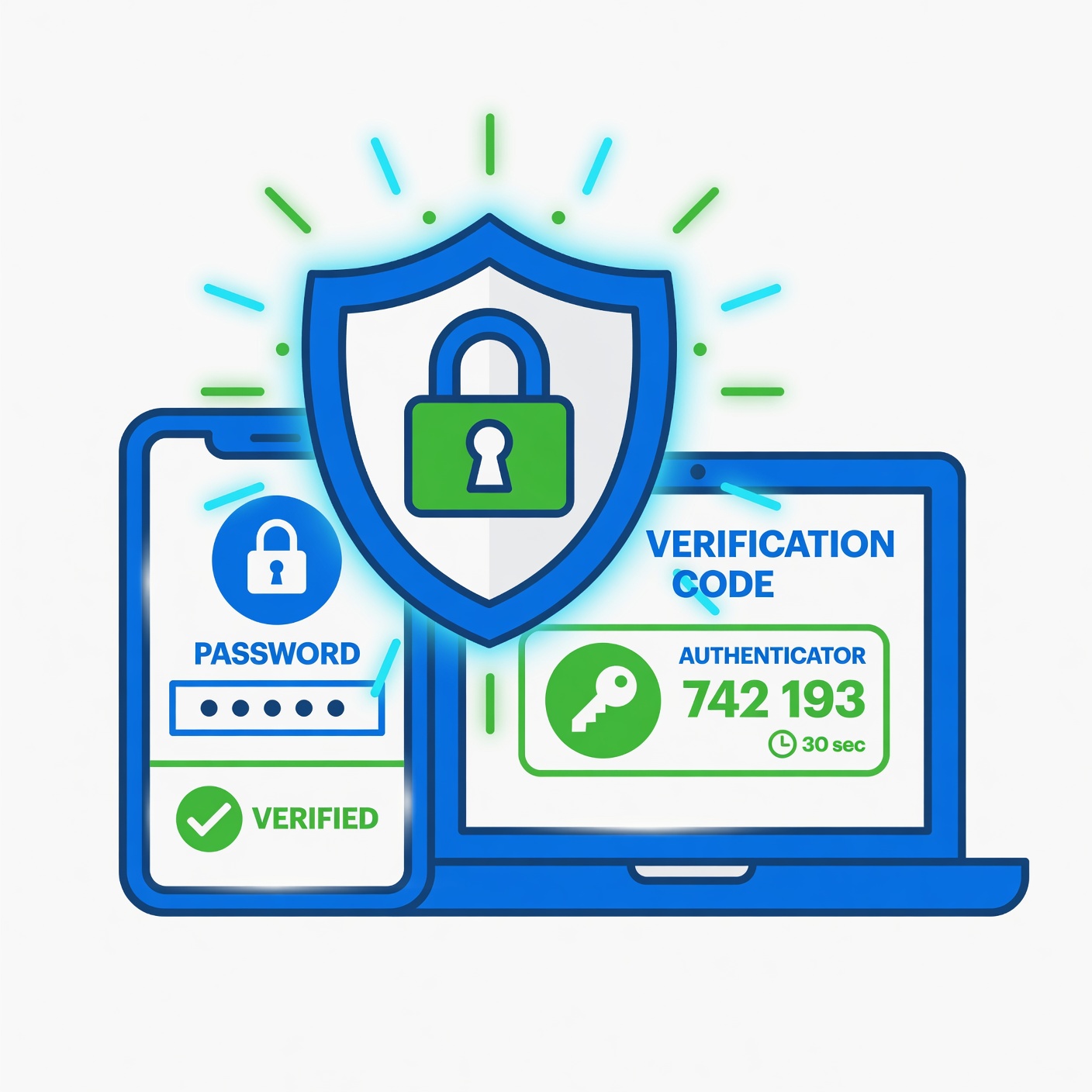
If you take only one action after reading this article, make it this one: enable Multi-Factor Authentication (MFA)—often referred to as Two-Step Verification (2SV)—on every single account that offers it.
Understanding How Multi-Factor Authentication Works
Traditional login security relies on a single factor: something you know (your password). If a cybercriminal guesses, buys, or steals your password through a data breach, your account is entirely open. MFA introduces a second or third requirement:
-
Something you have: A secure code sent via text, generated by an authenticator app (like Google Authenticator or Authy), or stored on a physical security key.
-
Something you are: Biometric data, such as a fingerprint or facial recognition scan.
Even if an attacker manages to intercept your password, they cannot access your account without that physical secondary device or biometric confirmation.
Choosing the Right Type of MFA
While receiving codes via SMS text message is better than nothing, it is vulnerable to “SIM-swapping” attacks where hackers trick mobile carriers into transferring your phone number. Whenever possible, prioritize:
-
Authenticator Apps: Apps that generate time-based one-time passwords (TOTP) offline.
-
Passkeys: The next evolution in authentication that uses device screen locks and public-key cryptography to completely eliminate vulnerable text passwords.
Password Managers and Built-In Vaults
Human memory is simply not equipped to handle the dozens of complex, unique passwords required for modern online life. This psychological limitation leads to dangerous habits: reusing the same password across multiple websites, or using easily guessable sequences like birthdays and pet names.
The Danger of Password Reuse
If a low-security shopping site you use suffers a data breach, hackers immediately take your leaked email and password combination and run automated scripts to test it against major banking, email, and social media platforms. This technique, known as credential stuffing, causes hundreds of thousands of secondary account takeovers every year.
How Password Managers Solve the Problem
Enabling a trusted password manager—whether built into your browser, operating system, or provided by an independent service—completely removes this risk. A password manager does the following:
-
Generates long, random, and completely unique alphanumeric passwords for every new account you create.
-
Stores those credentials securely behind a single master password or biometric login.
-
Automatically fills in your login details, protecting you against sophisticated look-alike phishing websites that won’t trick your password manager.
Automatic Software and Operating System Updates
It is easy to click “Remind Me Tomorrow” when a notification pops up announcing a system update or software patch. However, ignoring these notifications leaves your digital front door wide open.
The Reality of Zero-Day Exploits
Software developers are locked in a continuous race against malicious hackers. When a security flaw is discovered in an operating system, web browser, or mobile app, hackers rush to exploit it before it can be fixed. This window of vulnerability is known as a “zero-day” exploit.
When tech companies patch these holes, they release security updates. Enabling automatic updates on your computer, smartphone, smart home devices, and apps ensures that these gaps are closed the moment a fix becomes available, often protecting you before you are even aware a threat existed.
Enhanced Browser Security and Built-In Tracking Protections
Your web browser is your primary vehicle for navigating the internet, which also makes it a primary target for malicious scripts, intrusive trackers, and fraudulent links.
Essential Browser Settings to Turn On Today
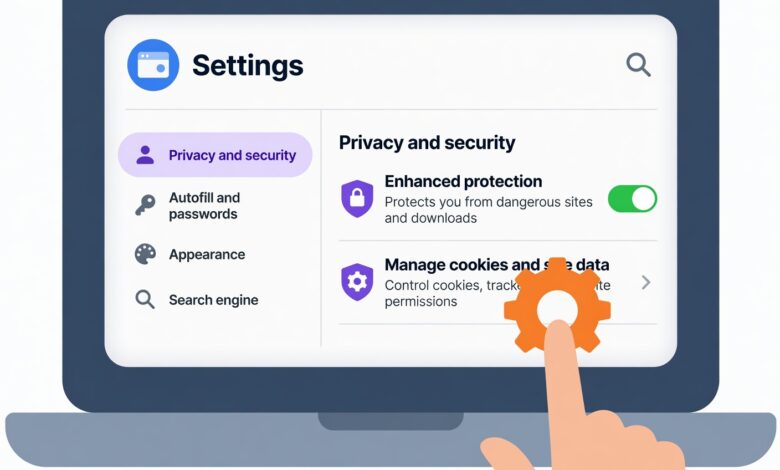
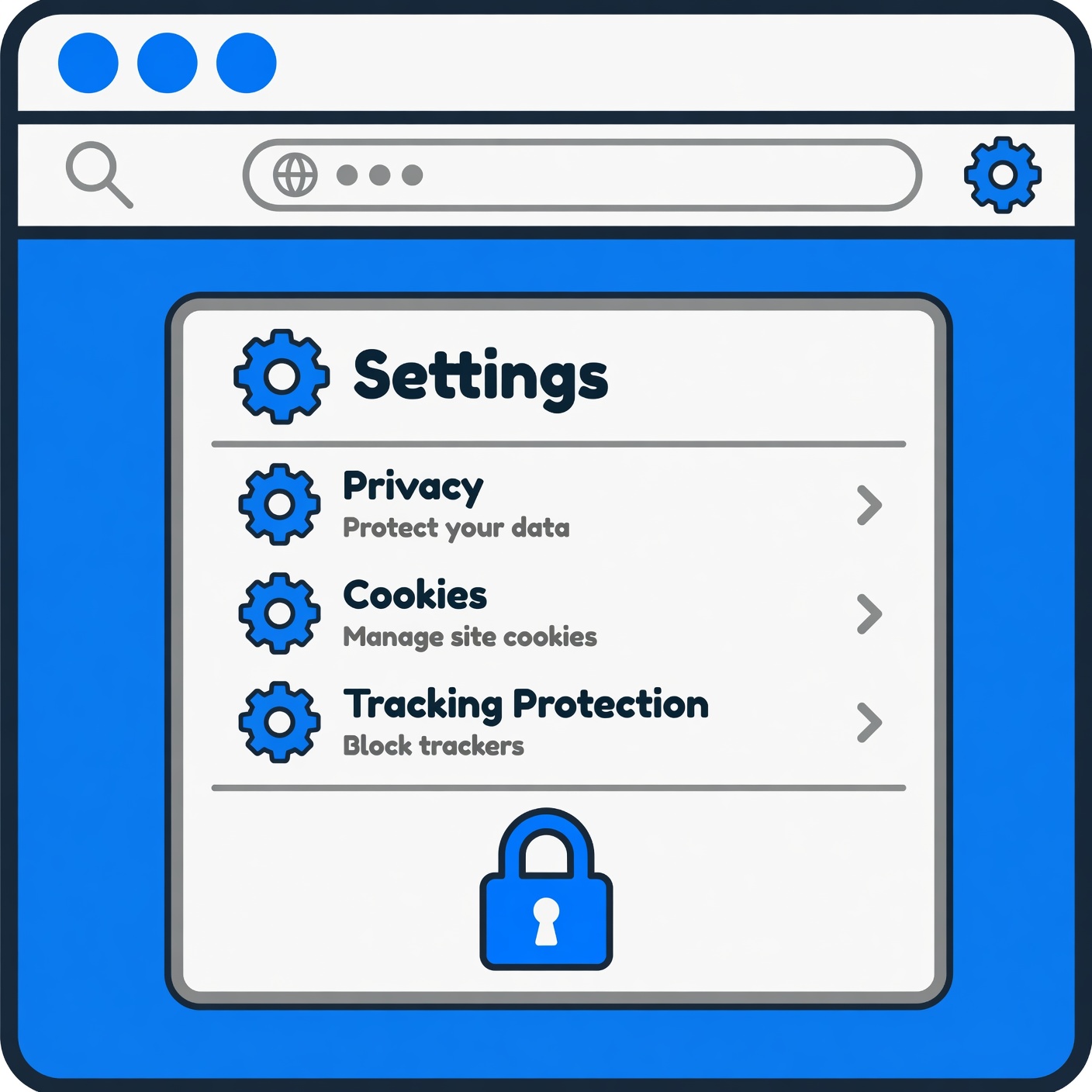
Dive into your browser’s settings menu right now and verify that the following safeguards are active:
-
Built-In Safe Browsing / SmartScreen: Features that actively check the websites you visit against real-time lists of known phishing and malware distribution domains. If you click a dangerous link, the browser intercepts the page and displays a stark warning.
-
Popup and Script Blockers: Prevent malicious background scripts from automatically downloading payloads or redirecting your session to scam pages.
-
Third-Party Cookie Blocking: Restricts advertising networks from tracking your movement across unrelated websites, significantly enhancing your everyday digital privacy.
Device-Level Privacy and Location Permissions
Modern smartphones and computers request access to a wide variety of device features—such as your camera, microphone, contacts, and precise GPS location—for almost every app you install. Many apps request these permissions indefinitely, even when you are not actively using them.
Auditing App Permissions
Take control of your device privacy by performing a regular permission audit:
-
Navigate to your phone or computer’s Privacy & Security settings menu.
-
Review which applications have access to your Location Services.
-
Change permissions from “Always Allow” to “Only While Using the App” or “Never” for any application that does not strictly require constant tracking.
-
Revoke permissions entirely for apps you no longer use. This minimizes your data exposure footprint in the event that a third-party app developer suffers a server compromise.
Financial and Account Activity Alerts
Prevention is vital, but early detection is your next best line of defense if a breach does occur. Setting up real-time notification alerts provides an immediate tripwire against unauthorized activity.
Setting Up Transaction and Login Notifications
Log into your primary bank accounts, credit card portals, and major tech platforms (like Google, Apple, and Microsoft) to configure custom alerts:
-
Transaction Thresholds: Set notifications to trigger for any transaction exceeding a specific dollar amount, or for every online and international purchase.
-
New Login Warnings: Enable emails or text messages whenever a login attempt is registered from an unrecognized device, new geographic location, or unfamiliar web browser.
-
Password Change Confirmations: Ensure you are instantly alerted if credentials or recovery phone numbers are modified on your sensitive accounts.
Catching an unauthorized transaction or login within minutes allows you to freeze cards, terminate sessions, and secure funds long before significant damage can be done.
Building a Sustainable Digital Safety Habit
Online safety is not a single checkbox that you can tick once and forget forever; it is an ongoing process and a healthy digital habit. Cyber threats evolve continuously, but tech platforms also consistently roll out advanced defensive tools to counter them.
By taking the time today to enable Multi-Factor Authentication, activate a password manager, turn on automatic updates, audit your app permissions, and set up financial alerts, you transform yourself from an easy target into a hardened digital citizen. Start with one or two settings today, work your way through the list, and enjoy the peace of mind that comes with knowing your digital life is properly secured.