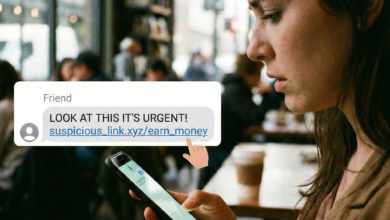
How to Stay Safe While Using Public Wi-Fi
Learn how to protect your data while using public Wi-Fi networks

We’ve all been there. You’re at your favorite coffee shop, the airport, or a hotel lobby, and you need to get some work done or check your social media. You open your laptop or phone, see a network named “Free Guest Wi-Fi,” and click connect. It’s convenient, it’s free, and it’s everywhere.
But behind that convenience lies a digital minefield. Public Wi-Fi is essentially a playground for hackers, data sniffers, and identity thieves. When you connect to an unencrypted public network, you are essentially shouting your private information across a crowded room where anyone with the right tools can “hear” exactly what you’re sending.
In this comprehensive guide, we will explore the hidden dangers of open networks and provide you with a professional-grade toolkit to stay safe while browsing on the go.
Why Public Wi-Fi Networks Pose a Massive Security Risk
The primary issue with public Wi-Fi is that it is designed for accessibility, not security. Most public hotspots do not require a password to join, or they provide a shared password to everyone in the building. While this makes it easy for customers to get online, it also removes the most basic layer of encryption that protects your data.
On a home or office network, your traffic is typically encrypted using WPA2 or WPA3 protocols. This means that even if someone intercepted the radio waves traveling between your laptop and the router, they wouldn’t be able to read the data. On a public network, that encryption is often absent or compromised.
The Lack of a “Perimeter”
In cybersecurity, we often talk about a “perimeter”—a boundary that keeps the bad guys out. On public Wi-Fi, there is no perimeter. You are sitting on the same network as everyone else in the cafe. If one of those people is a malicious actor, they have a direct line of sight to your device.
The Most Common Public Wi-Fi Attacks You Should Know

To protect yourself, you first need to understand how hackers operate in these environments. They don’t usually need to be “super-geniuses”; they just need basic software and a bit of patience.
1. Man-in-the-Middle (MITM) Attacks
This is the most common form of Wi-Fi hijacking. In a MITM attack, the hacker inserts themselves between your device and the website you are trying to visit. Instead of talking directly to the router, your device sends data to the hacker’s computer, which then passes it along to the internet.
The hacker can see everything you do in real-time. If you log into your bank, they catch the credentials. If you send an email, they read the contents. The scariest part? You usually have no idea it’s happening.
2. The “Evil Twin” Hotspot
Have you ever seen two networks with almost the same name? For example, “Starbucks_WiFi” and “Starbucks_Free_WiFi”? One of them might be a trap.
An “Evil Twin” is a rogue access point set up by a hacker using a powerful antenna. They name it something believable to trick you into connecting. Once you’re on their network, they have total control over your internet traffic. They can even serve you “spoofed” versions of websites—like a fake Google login page—to steal your passwords.
3. Packet Sniffing (Sidejacking)
Hackers use software known as “packet sniffers” to monitor data traffic over a network. Think of it like a digital wiretap. They aren’t necessarily stopping your data; they are just making a copy of it as it flies through the air. If the websites you visit aren’t properly encrypted, these sniffers can pull out cookies, login tokens, and plain-text messages.
How to Check if a Public Wi-Fi Connection is Safe
Before you even think about entering a password or checking your email, perform a quick “vibe check” on the network.
-
Is it Password Protected? A network that requires a password (WPA2/WPA3) is infinitely safer than one that is “Open.” Even if the password is written on a chalkboard for everyone to see, it still forces a level of individual encryption that open networks lack.
-
Does it Have a Captive Portal? Many legitimate businesses use a “landing page” where you have to agree to terms and conditions. While this isn’t a guarantee of security, it usually indicates the network is being managed by a professional service.
-
Check the Name with Staff: Don’t just trust the list on your screen. Ask a barista or a front-desk clerk, “What is the exact name of your Wi-Fi?” This helps you avoid the “Evil Twin” traps mentioned earlier.
Why a VPN is the Best Way to Secure Your Data on Public Wi-Fi
If you take only one piece of advice from this article, let it be this: Use a Virtual Private Network (VPN).
A VPN acts as an encrypted tunnel for your data. When you turn on a VPN, your information is scrambled before it even leaves your device. It travels through the public Wi-Fi network as an unreadable mess of code, goes to the VPN server, and then out to the internet.
Benefits of Using a VPN on the Go:
-
Invisible to Sniffers: Even if a hacker intercepts your data, all they see is encrypted gibberish. They can’t see which websites you’re visiting or what you’re typing.
-
IP Masking: Your real IP address is hidden, making it much harder for websites and trackers to follow you around the web.
-
Bypass Censorship: If you’re traveling and the local Wi-Fi blocks certain sites (like YouTube or news outlets), a VPN allows you to browse freely.
Pro Tip: Avoid “Free VPNs.” Maintaining a secure server network is expensive. If you aren’t paying for the product, you (and your data) are the product. Stick to reputable, paid services like ExpressVPN, NordVPN, or ProtonVPN.
Essential Browser Security Settings for Public Browsing
Your web browser is your window to the internet, and you need to make sure that window is reinforced.
Always Look for HTTPS
HTTPS (Hypertext Transfer Protocol Secure) ensures that the communication between your browser and the website is encrypted. Look for the padlock icon in the address bar. If a site uses “HTTP” (no ‘S’), do not enter any sensitive information.
Modern browsers like Chrome and Firefox have a “HTTPS-Only Mode” in their settings. Enable this to ensure that your browser automatically attempts to connect to the secure version of every site and warns you if a secure connection isn’t available.
Disable “Connect Automatically”
Most smartphones and laptops have a setting that automatically connects them to known Wi-Fi networks. This is a massive security hole. If you’ve connected to an “Airport_Free_WiFi” once, your phone will try to connect to any network with that name in the future. A hacker can easily exploit this by naming their rogue hotspot the same thing.
Go into your Wi-Fi settings and toggle off “Auto-Join” or “Ask to Join Networks.”
Mastering Your Device Settings: Windows, Mac, iOS, and Android
Your operating system has built-in features that can either help or hurt your security. When you are on a public network, you want your device to be as “invisible” as possible.
For Windows Users:
When you connect to a new network, Windows asks if you want your PC to be discoverable. Always select “Public” for this setting. This turns off file and printer sharing and hides your computer from other devices on the same network.
For macOS Users:
Go to System Settings > General > Sharing and ensure that File Sharing, Screen Sharing, and Printer Sharing are all turned off. You should also enable the “Stealth Mode” in your Firewall settings (Network > Firewall > Options), which prevents your Mac from responding to “ping” requests from hackers looking for targets.
For Mobile Users (iOS & Android):
-
Turn off Bluetooth and AirDrop: Hackers can use Bluetooth vulnerabilities to push malware to your phone or “sniff” your device’s ID. Keep these off unless you are actively using them.
-
Use a Privacy Screen: Physical security matters too! In a crowded cafe, “shoulder surfing” (someone looking over your shoulder to see your PIN) is a real threat.
The Role of Two-Factor Authentication (2FA) in Public Safety
Let’s say the worst-case scenario happens: a hacker manages to steal your password while you’re on public Wi-Fi. If you have Two-Factor Authentication (2FA) enabled, they still can’t get into your account.
2FA requires a second “key” to log in—usually a code generated by an app (like Google Authenticator or Authy) or a physical security key (like a YubiKey).
Avoid SMS-based 2FA if possible. SMS messages are unencrypted and can be intercepted or redirected via “SIM swapping.” App-based authenticators are much more secure for someone who frequently works from public spaces.
When to Skip the Wi-Fi and Use Your Mobile Hotspot Instead
Sometimes, the risk simply isn’t worth it. If you need to perform high-stakes tasks, you should abandon public Wi-Fi altogether and use your phone’s cellular data.
High-Stakes Tasks Include:
-
Online Banking: Never, ever check your bank balance or transfer money on public Wi-Fi, even with a VPN. Wait until you have a secure connection.
-
Shopping with a Credit Card: Entering CVV codes and card numbers on an open network is asking for trouble.
-
Accessing Work Portals: If you handle sensitive client data or company secrets, your employer likely has strict policies against using public hotspots.
Using your phone as a Personal Hotspot creates a private, encrypted WPA2 connection that only you can access. While it uses your data plan, it provides a level of security that no public cafe can match.
Security for Travelers: Hotels and Airports
Travelers are prime targets for hackers because they are often tired, distracted, and desperate for a connection.
Hotel Wi-Fi Myths
Many people think that because they paid for a room and entered their room number to get online, the connection is secure. It isn’t. Hotel networks are notoriously poorly managed and are frequent targets for “Hotel-specific” malware that waits for guests to connect so it can infect their devices.
Airport Charging Stations (Juice Jacking)
While not strictly a Wi-Fi issue, it’s a related public security threat. Hackers can modify public USB charging ports to install malware or download data from your phone the moment you plug it in.
The Solution: Use a “USB Data Blocker” (a small dongle that allows power but blocks data) or simply use a traditional wall outlet with your own power brick.
What to Do if You Think You’ve Been Compromised
If your computer starts acting strangely after using public Wi-Fi—such as windows opening on their own, your mouse moving without your input, or receiving “unusual login” alerts—take action immediately.
-
Disconnect: Turn off Wi-Fi and Bluetooth immediately to cut the hacker’s link to your machine.
-
Run a Malware Scan: Use a reputable antivirus tool to check for keyloggers or remote access trojans (RATs).
-
Change Passwords from a Secure Device: Use a different, trusted device (like your phone on cellular data) to change the passwords for your email, bank, and primary social accounts.
-
Monitor Your Accounts: Keep a close eye on your bank statements and credit reports for the next 30 to 60 days.
Awareness is Your Strongest Defense
Public Wi-Fi is a fantastic tool that keeps us connected in an increasingly mobile world. However, it requires a “security-first” mindset. You don’t need to be afraid of the internet, but you do need to be respectful of the risks.
By using a VPN, keeping your sharing settings off, and knowing when to switch to a mobile hotspot, you can enjoy your latte and your internet access without becoming another statistic in the world of cybercrime. Stay alert, stay encrypted, and shop (or work) safely.
Public Wi-Fi Security FAQ
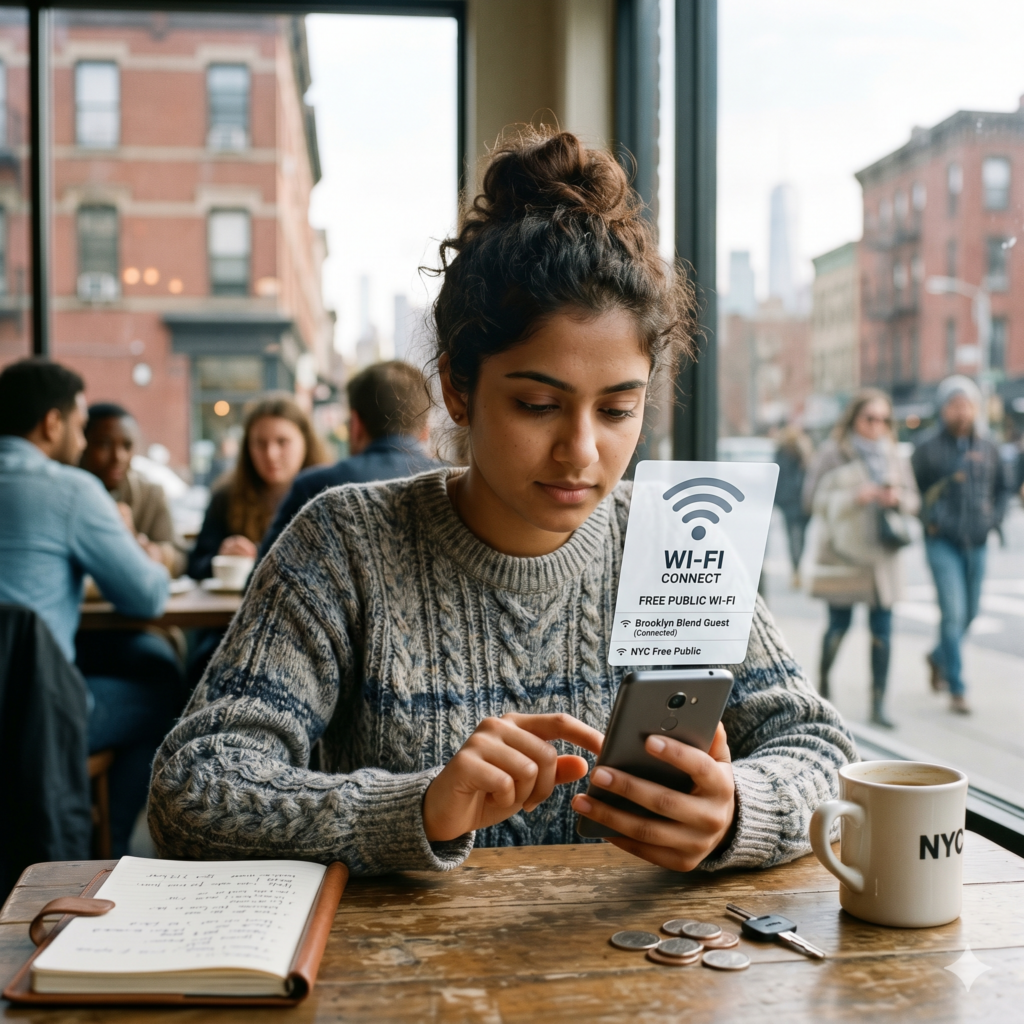
Is it safe to use public Wi-Fi if I’m only reading news?
Generally, yes. Reading public news sites (like CNN or the BBC) is low-risk because you aren’t entering any credentials. However, a hacker could still “inject” malicious ads into your browser session, so a VPN is still recommended.
Does “Incognito Mode” make me safe on public Wi-Fi?
No. Incognito mode only prevents your browser from saving your history and cookies locally on your computer. It does nothing to encrypt your data as it travels through the air. A hacker can see your “incognito” traffic just as easily as normal traffic.
Can a hacker see my screen on public Wi-Fi?
Not unless they have already successfully installed malware (like a Remote Access Tool) on your device. Simply being on the same Wi-Fi doesn’t give them a “live feed” of your screen, but it does let them see the data flowing out of your apps.
Is Apple’s “iCloud Private Relay” as good as a VPN?
It’s a great start! Private Relay encrypts your DNS requests and Safari traffic, which is excellent for privacy. However, a full VPN is more comprehensive because it encrypts all traffic from your device, including apps like Slack, Spotify, and Mail.