Best Security Settings to Enable on Your Smartphone
Protect your accounts, messages, and personal information with better security settings
Our smartphones have evolved from simple communication devices into the central command centers of our lives. They hold our banking apps, private conversations, family photos, medical records, and professional emails. Essentially, your smartphone is a digital mirror of your entire identity.
While manufacturers like Apple and Google invest billions into security, the “factory settings” are often optimized for ease of use rather than maximum protection. To truly secure your data, you need to take an active role in configuring your device. This guide will walk you through the most critical security settings to enable right now, whether you are using an iPhone or an Android device.
1. Strengthening Your First Line of Defense: Advanced Lock Screen Security
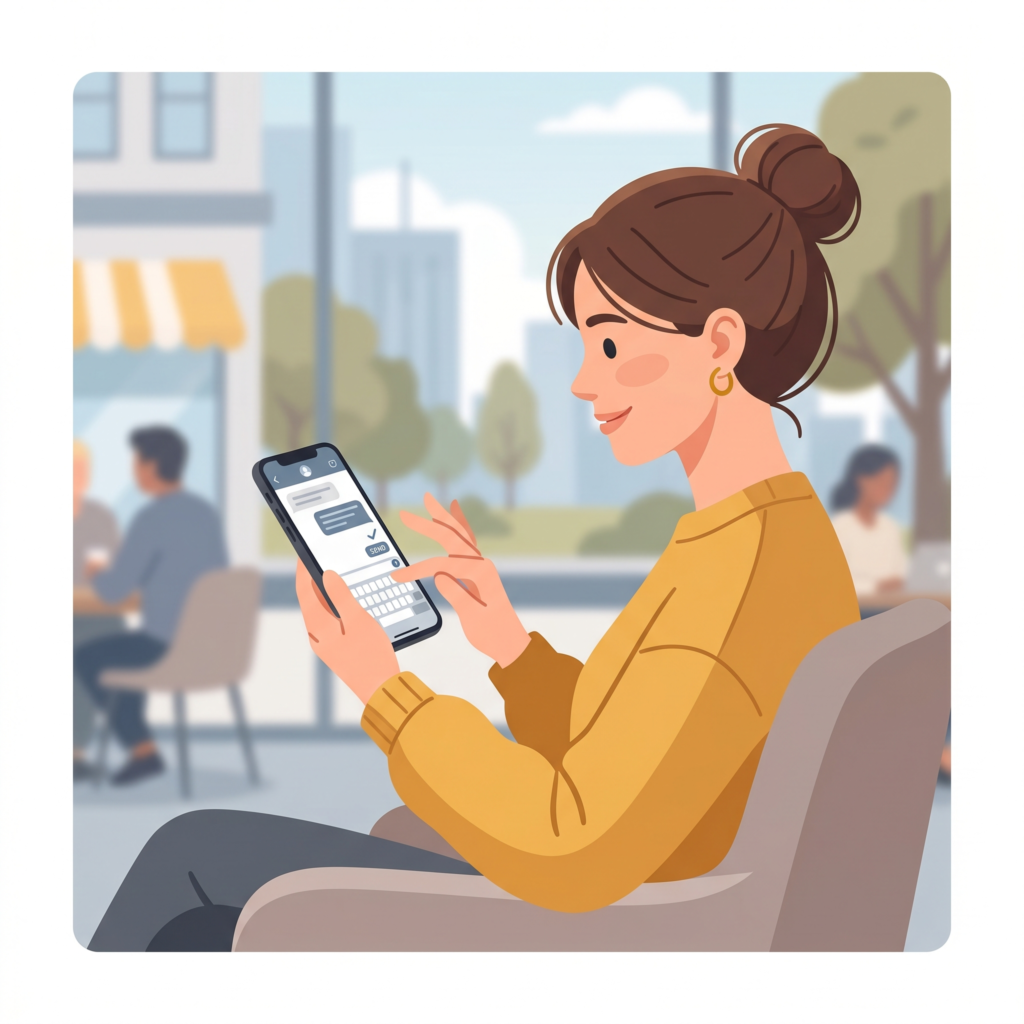
The most common threat to your data isn’t a hacker in a dark room halfway across the world—it’s someone physically picking up your phone. If your lock screen is weak, every other security measure is essentially moot.
Move Beyond the 4-Digit PIN
If you are still using a 4-digit PIN, you are vulnerable to simple “shoulder surfing” or even basic guessing. A 4-digit PIN only has 10,000 possible combinations. Most modern security experts recommend a 6-digit PIN at the minimum, which increases combinations to one million. Better yet, use an alphanumeric password.
Biometric Best Practices: FaceID and Fingerprints
Biometrics (FaceID, TouchID, and Android’s fingerprint sensors) are incredibly convenient and generally very secure. However, they are not foolproof.
-
The “Lockdown” Hack: On both iOS and Android, there is a way to instantly disable biometrics and force a PIN/Password. On an iPhone, holding the side button and either volume button briefly does this. On many Androids, you can enable a “Show Lockdown Option” in your power menu settings. Use this if you are in a situation where you feel your physical safety or privacy is at risk.
-
Avoid Using “Trusted Devices” for Unlocking: Features like Android’s “Smart Lock” (which keeps your phone unlocked when near your smartwatch or in your “Home” location) are convenient but risky. If someone steals both your phone and your watch, or breaks into your home, your phone remains an open book.
Hide Sensitive Notification Content
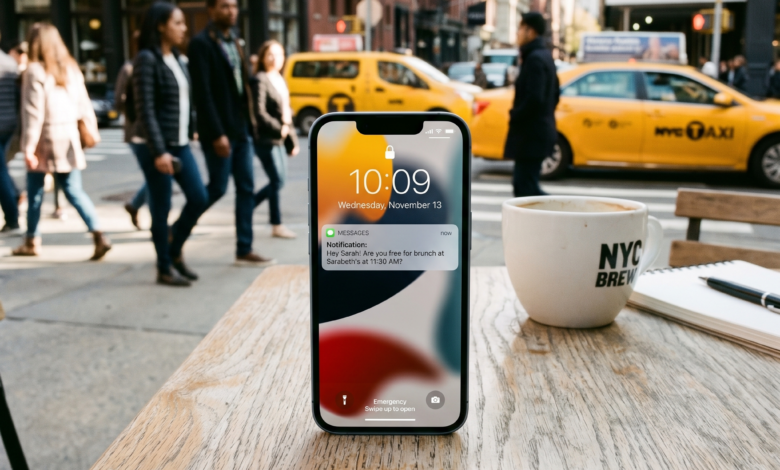
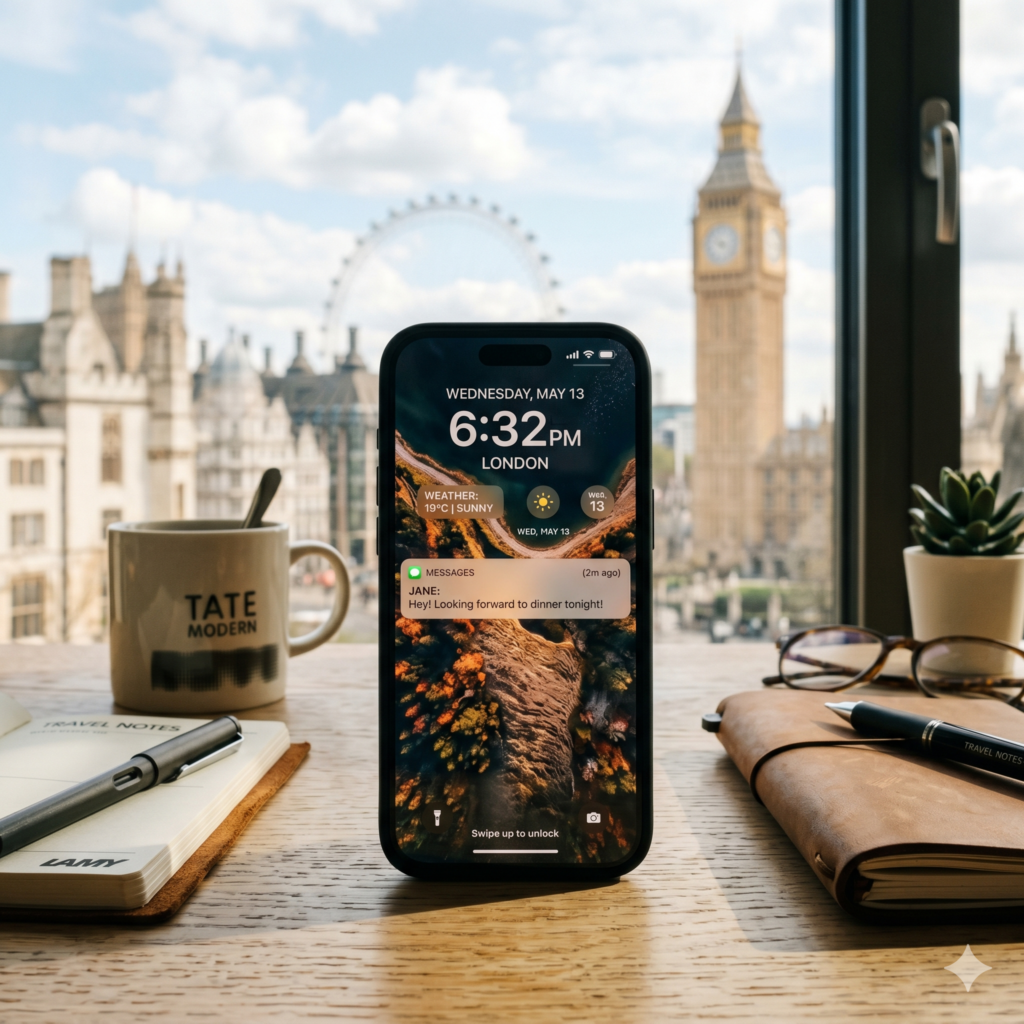
By default, many phones show the content of a message on the lock screen. This means a stranger can see your private texts or, more dangerously, your 2FA (Two-Factor Authentication) codes without ever unlocking your phone.
-
The Fix: Go to your notification settings and select “Show Sensitive Content Only When Unlocked.” This way, you’ll see that you have a message, but the preview remains hidden until your face or fingerprint is scanned.
2. Mastering App Permissions: Auditing Your Privacy Dashboard
We’ve all been there: you download a simple flashlight app or a calculator, and it suddenly asks for access to your contacts, microphone, and location. This is often a data-harvesting tactic.
The “Golden Rule” of Permissions
If an app doesn’t need a permission to function, don’t give it. A photo editor needs access to your “Photos,” but it definitely doesn’t need your “Microphone” or “Location.”
Location Services: “While Using” vs. “Always”
This is one of the biggest drains on both your battery and your privacy.
-
Set to “While Using”: Most apps (like Maps or Yelp) only need your location when you are actively looking for something.
-
Check for “Background Location”: Go into your privacy settings and look for apps that have “Always” access. Unless it’s a weather app with alerts or a “Find My” service, change it to “While Using.”
-
Precise vs. Approximate Location: Modern versions of iOS and Android allow you to give an app your “Approximate” location (within a few miles) rather than your “Precise” location (your exact doorstep). Use approximate location for apps like local news or weather.
The Privacy Indicators
Pay attention to the little green or orange dots at the top of your screen. These are “Privacy Indicators” that tell you when an app is currently using your camera or microphone. If you see that dot glowing while you’re just scrolling through a basic game, that app is spying on you. Delete it immediately.
3. Securing Your Digital Identity: The End of the SMS 2FA Era
Most people believe that having a code sent to their phone via text message (SMS) is the peak of security. Unfortunately, cybercriminals have found a way around this called SIM Swapping. They trick your mobile carrier into porting your phone number to a SIM card they control. Once they have your number, they can reset your bank passwords using the SMS codes sent to “your” phone.
Use Authentication Apps
Instead of SMS, use an app like Google Authenticator, Authy, or Microsoft Authenticator. These apps generate codes locally on your device. Since the codes aren’t sent over the cellular network, they cannot be intercepted by SIM swappers.
The Power of Passkeys
We are entering a “passwordless” future. Passkeys use your phone’s biometric hardware to create a unique digital key for every website. Unlike passwords, passkeys cannot be phished because the “key” never leaves your device. If a website offers to “Sign in with a Passkey,” take it.
Encrypted Backups
If you back up your phone to the cloud (iCloud or Google One), ensure that End-to-End Encryption (E2EE) is enabled.
-
For iPhone: This is called Advanced Data Protection. It ensures that even if Apple’s servers were hacked (or if the government requested your data), Apple itself doesn’t hold the keys to decrypt your photos and messages.
-
For Android: Ensure your Google Account backup has a “Screen Lock” requirement for decryption.
4. Advanced Operating System Settings: Pro-Level Protection
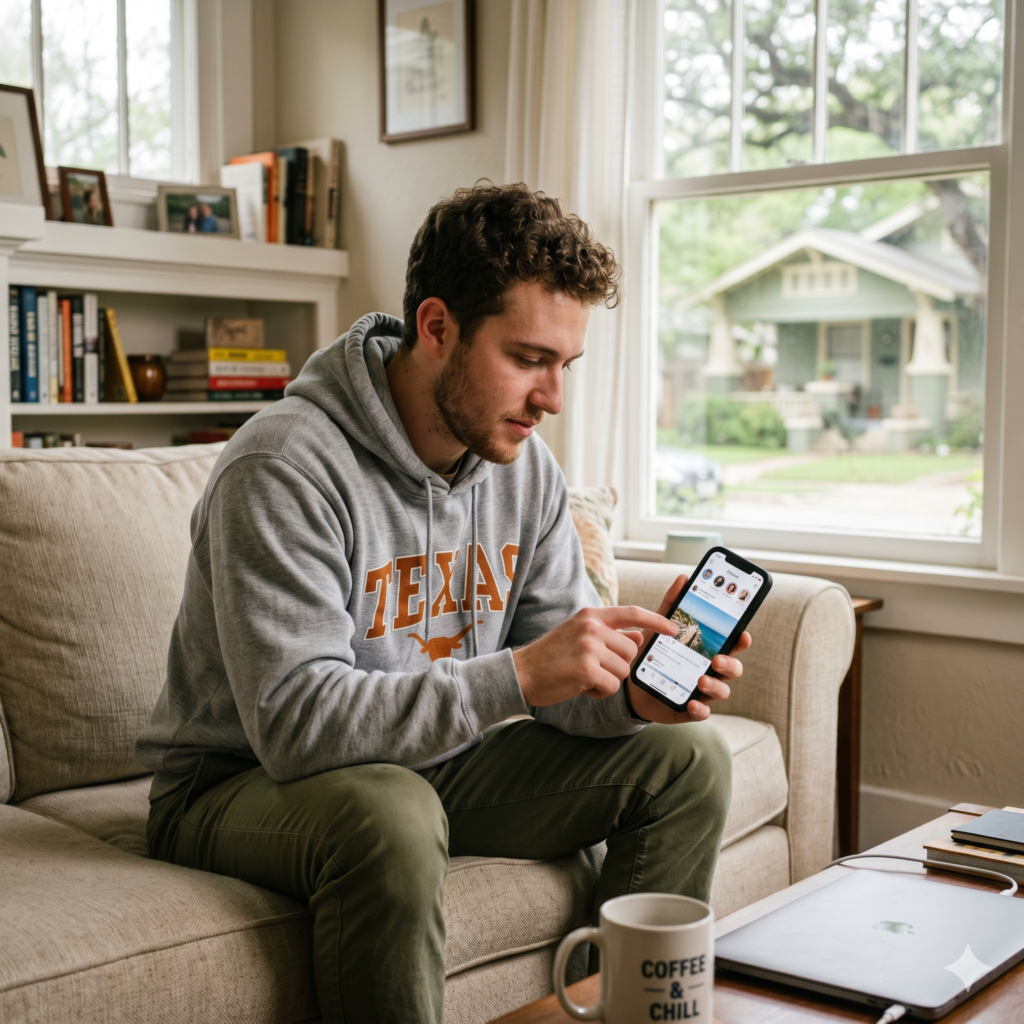
Both Apple and Google have hidden “pro” modes for users who are at higher risk of targeted attacks, but these settings are useful for anyone who values their privacy.
iOS Lockdown Mode
If you are an iPhone user, Lockdown Mode is the “nuclear option.” It disables several complex web technologies, blocks incoming FaceTime calls from unknown numbers, and strips metadata from photos. While it’s designed for journalists and activists, enabling it when you are traveling in high-risk areas is a smart move.
Android’s Private Space and Work Profiles
Recent Android updates have introduced Private Space, allowing you to create a sandboxed area for your most sensitive apps (like banking or healthcare). You can set a separate password for this space, and it stays hidden from your main app drawer.
Turn Off “Personalized Ads”
Your phone has a unique “Advertising ID” that trackers use to build a profile of your shopping habits and movements.
-
On iPhone: Go to Settings > Privacy & Security > Tracking and toggle off “Allow Apps to Request to Track.”
-
On Android: Go to Settings > Privacy > Ads and select “Delete Advertising ID.”
5. Network and Connectivity Safety: Wi-Fi, Bluetooth, and NFC
The hardware that connects your phone to the world is also a potential entry point for attackers.
Manage Your Wi-Fi Intelligence
Your phone is constantly “shouting” into the air, looking for Wi-Fi networks it has connected to in the past. Hackers use a device called a “WiFi Pineapple” to listen for these shouts and then pretend to be that network (e.g., your home Wi-Fi).
-
Setting: Disable “Auto-Join Networks.” Make your phone ask you before it connects to anything new.
Bluetooth and AirDrop Risks
Bluetooth vulnerabilities (like “BlueBorne”) can allow an attacker to take control of your device without you even clicking a link.
-
Setting: Turn off Bluetooth when you aren’t using it. On an iPhone, set AirDrop to “Receiving Off” or “Contacts Only.” Never leave it on “Everyone” in public spaces.
NFC (Near Field Communication)
NFC is what allows you to use Apple Pay or Google Pay. While highly secure, it’s still good practice to ensure your phone requires a biometric scan before the NFC chip activates. Most modern phones do this by default, but double-check that “Contactless Payments” are locked behind your PIN or FaceID.
6. Physical Theft and Recovery: Preparing for the Worst
If your phone is stolen, your goal is to make it a “brick” so the thief can’t access your data or resell the device.
“Find My” Services
Ensure Find My iPhone or Find My Device (Android) is active. Crucially, enable “Offline Finding.” This allows other nearby devices in the network to securely report your phone’s location even if it isn’t connected to Wi-Fi or Cellular data.
SIM PIN: The Forgotten Security Step
If a thief takes your phone, they can pop out your SIM card and put it into their own phone to gain control of your phone number.
-
The Fix: Enable a SIM PIN. This requires a 4-digit code every time the SIM card is inserted into a device. Without it, the SIM card is useless.
Stolen Device Protection (iOS)
Apple recently introduced a feature called Stolen Device Protection. If your phone is in an unfamiliar location, it adds a “Security Delay” for sensitive actions like changing your Apple ID password. It also requires biometrics (no PIN fallback) for accessing saved passwords. Turn this on immediately.
7. Digital Hygiene: The Importance of System Maintenance
Security isn’t a one-time setup; it’s an ongoing process.
Software Updates are Not Optional
Most system updates aren’t about new emojis; they are patches for “Zero-Day” vulnerabilities that hackers are actively exploiting. Enable Automatic Updates and try to install them as soon as they are released.
Review Your Third-Party Apps
Once a month, go through your app drawer and delete anything you haven’t used in 30 days. Every app is a potential security hole. If you don’t use it, lose it.
Taking Control of Your Mobile Privacy
In an age where data is more valuable than oil, your smartphone is your most precious asset. By spending 30 minutes going through these settings, you aren’t just protecting a gadget; you are protecting your finances, your reputation, and your peace of mind.
Privacy is a journey, not a destination. Start with the basics—a strong PIN and 2FA—and gradually move toward more advanced protections like encrypted backups and passkeys. The goal isn’t to live in fear, but to live with the confidence that your digital life is under your control.
Smartphone Security FAQ
Does an Antivirus app actually work on a phone?
For iPhones, no. iOS “sandboxes” apps so strictly that an antivirus can’t actually scan your system. For Android, a reputable security app (like Bitdefender or Malwarebytes) can be helpful if you frequently download apps from outside the Google Play Store, but for most users, the built-in “Play Protect” is sufficient.
Is it safe to charge my phone at a public USB station?
Generally, no. This is called “Juice Jacking.” A modified USB port can steal data or install malware. Always use your own wall plug, or buy a “USB Data Blocker” dongle that only allows power to pass through, not data.
Can my phone be hacked if I don’t click anything?
While “Zero-Click” exploits exist, they are extremely rare and usually used by nation-states against high-value targets. For the average person, 99% of hacks require some form of user interaction, like clicking a bad link or granting a suspicious permission. Stick to these settings, and you’ll be safer than 95% of users.