Hidden Phone Settings That Improve Your Security
Learn which built-in features help protect your device from hackers and unauthorized access
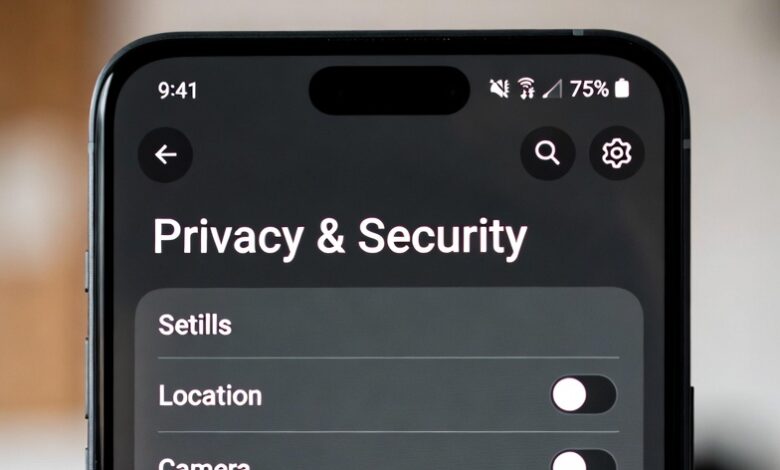
In today’s digital age, our smartphones have become extensions of ourselves. They hold our most intimate conversations, our financial records, our travel history, and our personal photos. Yet, most users leave their devices running on default settings—configurations designed for convenience, not necessarily for your digital privacy.
The good news? You don’t need to be a cybersecurity expert to lock down your digital life. Many of the most effective security measures are already built into your phone; they are simply hidden behind layers of menus that most people never explore.
In this guide, we will walk through the essential, often overlooked settings on both Android and iPhone devices that will significantly harden your digital defenses.
1. Mastering Your Location Privacy

Location data is one of the most valuable pieces of information for data brokers and advertisers. By default, many applications request constant access to your GPS coordinates, even when they have no legitimate reason to do so.
How to Tighten Location Settings
-
Audit App Permissions: Go to Settings > Privacy & Security > Location Services (iOS) or Settings > Location > App Permissions (Android). Review every single app on your list.
-
The “While Using” Rule: Never set an app to “Always Allow” unless it is absolutely necessary (such as a map app for navigation). Change most apps to “While Using the App” or “Ask Next Time.”
-
Disable “Significant Locations”: Your phone often keeps a log of the places you visit most frequently to “personalize” your experience. You can turn this off to prevent your device from maintaining a map of your private life.
2. Eliminating Ad-Tracking and Unique Identifiers
Did you ever search for a product on Google and suddenly see ads for it on your social media feeds? This is largely driven by cross-app tracking and advertising identifiers. Both Apple and Google assign your device a unique ID that follows your behavior across different apps.
Taking Back Your Digital Identity
-
Disable “Allow Apps to Request to Track”: On your iPhone, navigate to Privacy & Security > Tracking. Turning this off forces apps to stop profiling you across other companies’ apps and websites.
-
Reset Your Advertising ID: If you are on Android, you can go to Settings > Privacy > Ads and choose to “Reset advertising ID” or “Delete advertising ID.” This effectively gives you a “clean slate” and prevents advertisers from building a long-term profile based on your history.
3. Securing Your Lock Screen Notifications
Your phone might be locked, but is your information safe? By default, most smartphones display preview notifications for text messages, emails, and calendar events right on your lock screen. If you leave your phone on a table, a stranger could read your two-factor authentication (2FA) codes or private messages without ever needing your passcode.
How to Hide Sensitive Previews
-
On iPhone: Go to Settings > Notifications > Show Previews. Change this to “When Unlocked” or “Never.”
-
On Android: Navigate to Settings > Notifications > Notifications on Lock Screen. Select “Don’t show any notifications” or “Hide sensitive content.” This ensures that even if you receive a sensitive code, it remains hidden until you unlock the device with your face or fingerprint.
4. Reviewing Microphone and Camera Permissions
We often blindly hit “Allow” when an app asks for camera or microphone access. While a video conferencing app needs your camera, a flashlight app or a calculator certainly does not.
Conducting a Security Audit
-
The Permission Manager: Android users should visit Settings > Privacy > Permission Manager. Here, you can see exactly which apps have access to your microphone, camera, and contacts.
-
Visual Indicators: Modern versions of iOS and Android now show a small green or orange dot in the corner of your screen when the camera or microphone is in use. If you see this dot when you aren’t using an app, investigate immediately—an app may be spying on your background activity.
5. Preventing “Hey Siri” and “Hey Google” Over-Listening
Voice assistants are incredibly convenient, but they require your phone to be constantly “listening” for a trigger word. While these devices are designed to process audio locally, many users feel more comfortable disabling the active “always-listening” feature to both save battery and ensure maximum privacy.
-
For iOS: Go to Settings > Siri & Search and toggle off “Listen for ‘Hey Siri’.”
-
For Android: Open the Google app, tap your profile picture, go to Settings > Google Assistant > Hey Google & Voice Match, and toggle it off.
6. The Importance of Biometric vs. Passcode Security
While FaceID and fingerprint scanners are convenient, they are not bulletproof. Did you know that in many jurisdictions, law enforcement can legally compel you to unlock your phone using biometric data, but they may need a warrant to force you to reveal a complex alphanumeric passcode?
-
Best Practice: Always use a strong, six-digit (or longer) alphanumeric passcode. Biometrics are great for daily speed, but your primary lock should be a passcode that only you know. This provides an extra legal and practical layer of defense.
7. Enabling “Find My” and Remote Wipe Features
The physical security of your device is just as important as the digital security. If your phone is stolen, the most immediate danger is the loss of your data.
-
Activate Find My Device: Ensure that Find My iPhone (Apple) or Find My Device (Android) is toggled on in your security settings.
-
Remote Wipe: These services allow you to remotely lock your phone, play a sound to locate it, or—in a worst-case scenario—remotely erase all personal data from the device. Setting this up now is a one-time task that could save you from identity theft later.
8. Why You Should Avoid Third-Party Keyboards
You might be tempted to install a “fancy” keyboard app with colorful themes and custom emojis. However, a third-party keyboard has the potential to record every single thing you type—including your passwords, credit card numbers, and private messages.
-
Stick to the Defaults: Whenever possible, use the native keyboard provided by Apple or Google. If you must use a third-party keyboard, never grant it “Full Access” permissions in your settings.
9. Keeping Your Software Updated (The Silent Shield)
It sounds simple, but keeping your operating system (OS) updated is the single most important thing you can do for your security. Updates aren’t just about new features; they contain critical “security patches” that fix vulnerabilities that hackers use to gain access to your phone.
-
Enable Auto-Updates: In Settings > General > Software Update (iOS) or Settings > Security (Android), ensure that “Automatic Updates” is toggled on. This ensures your phone is always defended against the latest known threats.
10. The Power of a Password Manager
The biggest weakness in digital security is often human memory. If you use the same password for your banking, email, and social media, one data breach at a minor site could lead to a domino effect of compromised accounts.
-
Use Built-in Tools: Both Apple’s iCloud Keychain and Google Password Manager are excellent, free, and secure. They generate unique, complex passwords for every site you visit and store them encrypted. Start letting your phone handle your passwords today.
Making Privacy a Habit

Improving your phone’s security isn’t a one-time event; it is a mindset. By taking these small steps—reviewing your permissions, limiting location sharing, and staying updated—you are creating a robust barrier against unauthorized access.
Your smartphone is the most powerful tool you own. With these hidden settings, you ensure that it works for you, and not for the data aggregators or bad actors looking to exploit your information. Take ten minutes today to check these settings—your future self will thank you.
Disclaimer: This article is for informational purposes only. Security settings may vary slightly depending on your specific device model and operating system version. Always ensure your software is up to date to access the latest security features.