Basic Cybersecurity Tips for Everyday Internet Users
Learn essential cybersecurity habits to stay safer online every day
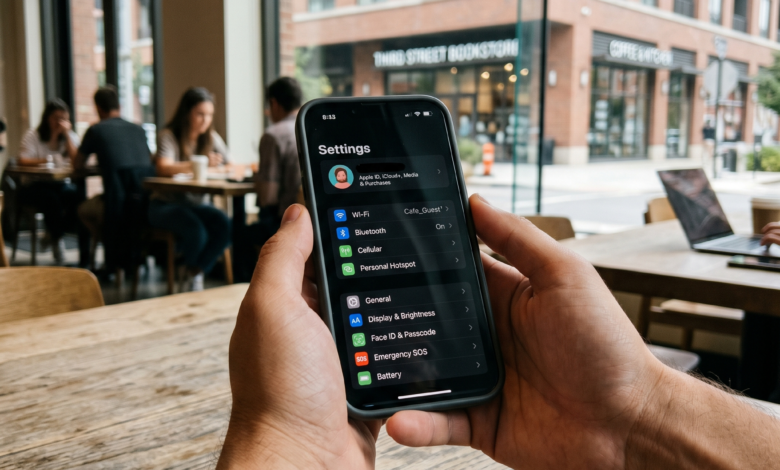
The internet has fundamentally transformed how we live, work, shop, and connect. It brings the world’s knowledge to our fingertips and allows us to manage our entire lives from a device that fits in our pockets. However, this incredible convenience comes with a trade-off. As our lives become increasingly digital, we expose ourselves to a growing number of online threats.
For the average person, the world of cybersecurity can feel incredibly overwhelming. Technical jargon like “encryption,” “malware,” “phishing,” and “zero-day exploits” makes it seem like online safety is a job only for IT professionals. But here is the truth: you do not need a computer science degree to protect yourself online.
In fact, the vast majority of cyberattacks succeed not because of sophisticated cinematic hacking, but because of simple human error or overlooked digital hygiene. By implementing a few foundational habits, you can dramatically reduce your vulnerability and navigate the digital space with confidence.
This comprehensive, easy-to-understand guide breaks down the essential cybersecurity practices every everyday internet user needs to know.
Why Strong Passwords Fail and How a Password Manager Saves Your Digital Life
For decades, we have been told to create strong passwords. We were told to mix uppercase letters, lowercase letters, numbers, and special characters. The result? Users ended up with passwords like P@ssw0rd!2026, which are incredibly difficult for humans to remember but remarkably easy for modern automated hacking tools to crack.
Worse yet, because these complex passwords are so hard to memorize, many people make the critical mistake of password reuse. They use the exact same password for their online banking, their social media accounts, and that random online shoe store they bought from once.
The Deadly Danger of Credential Stuffing
When a minor website suffers a data breach, hackers steal lists of email addresses and passwords. They then use automated bots to test those exact same credentials on hundreds of other major websites—like Amazon, PayPal, and Google. This technique is called credential stuffing. If you reuse passwords, a breach at a low-security website can give hackers total access to your financial and personal life.
The Solution: Switch to Passphrases
Instead of short, complex passwords, the modern standard is to use passphrases. A passphrase is a string of random words joined together.
-
Weak and hard to remember:
Myl0v3!2 -
Incredibly strong and easy to visualize:
CorrectHorseBatteryStapleorBlueBananaDancingUnderRain
Because passphrases are much longer, they drastically increase the time it takes for a computer to guess them via “brute-force” attacks, while remaining significantly easier for you to remember.
Why You Absolutely Need a Password Manager
Realistically, you cannot memorize a unique, 20-character passphrase for every single online account you own. This is where a password manager becomes non-negotiable.
A password manager is a secure digital vault that generates, stores, and encrypts highly complex, unique passwords for every website you use.
-
How it works: You only have to memorize one exceptionally strong master passphrase to unlock the vault. When you visit a website, the password manager automatically fills in your login details.
-
The security bonus: Most reputable password managers will automatically alert you if a website you have an account with has been breached, allowing you to change your password immediately.
-
Trusted options: Look into industry-standard, heavily audited options like Bitwarden, 1Password, or Dashlane.
Activating Multi-Factor Authentication: Your Most Powerful Defense Against Hackers
If a cybercriminal somehow manages to guess, steal, or buy your password, a strong password alone will not save your account. That is where Multi-Factor Authentication (MFA), also known as Two-Factor Authentication (2FA), comes into play. It is single-handedly the most effective security measure you can enable.
MFA requires you to provide two or more verification factors to gain access to your account. Think of your password as the physical key to your front door, and MFA as a biometric fingerprint scanner right next to the keyhole. Even if someone steals your physical key, they still cannot get inside.
The Three Types of Authentication Factors
MFA relies on a combination of distinct categories:
-
Something you know: Your traditional password or PIN.
-
Something you have: Your physical smartphone, a security key, or an authentication app.
-
Something you are: Your biometric data, such as a fingerprint or facial recognition (FaceID).
Not All MFA is Created Equal: Ranking Your Options
When setting up MFA on your email, banking, and social media accounts, you will often be given a choice of how you want to receive your secondary code. Here is how they stack up from least secure to most secure:
| MFA Method | Security Level | How It Works | Pros & Cons |
| SMS/Text Message | Low to Medium | The website texts a 6-digit code to your phone number. | Pros: Convenient. Cons: Vulnerable to “SIM-swapping” attacks where hackers convince your carrier to move your number to their device. |
| Authenticator Apps | High | Apps like Google Authenticator or Microsoft Authenticator generate time-sensitive codes locally on your phone. | Pros: Immune to SIM-swapping; doesn’t require a cellular signal. Cons: If you lose your phone without backup codes, recovery can be tedious. |
| Hardware Keys | Maximum | A physical USB/NFC device (like a YubiKey) that you must physically plug into your device or tap against it. | Pros: Practically unhackable via remote attacks. Cons: Costs money to buy; easy to misplace if not kept on a keychain. |
Pro Tip: If a service offers MFA, turn it on immediately. Start with your primary email address and your online banking accounts, as these are the primary targets for identity thieves.
How to Spot Phishing Scams Before Clicking a Malicious Link
Phishing is the undisputed king of cybercrime. It is a form of social engineering where attackers masquerade as a trustworthy entity—like your bank, Netflix, Uncle Sam, or even your boss—to trick you into revealing sensitive information, handing over money, or downloading malicious software.
As technology improves, phishing attempts have evolved past the classic, poorly written emails claiming you inherited millions from a distant prince. Today’s phishing attacks are highly sophisticated, visually identical to legitimate corporate communications, and incredibly psychologically manipulative.
The Psychology Behind the Scam
Phishing relies heavily on creating a false sense of urgency, fear, or excitement. Attackers want to trigger an emotional reaction so that your logical brain turns off. Common themes include:
-
“Your account will be permanently suspended within 24 hours if you don’t verify your identity.”
-
“Suspicious login attempt detected from another country. Click here to secure your account.”
-
“Your package could not be delivered due to an incorrect address. Pay a $1.50 fee to reschedule.”
4 Golden Rules for Spotting Phishing Attempts
To keep yourself from falling victim to these psychological traps, train your eye to look for these subtle indicators:
-
Check the Sender’s Actual Email Address: Do not just look at the display name. A message might say it is from “PayPal Support,” but if you click or hover over the name, the actual email address might be something completely unrelated like
[email protected]. -
Inspect Links Before Clicking: On a computer, hover your mouse cursor over any link without clicking it. Look at the bottom corner of your browser window to see the actual destination URL. If the text says
netflix.combut the preview link points anywhere else, do not touch it. -
Look Out for Generic Greetings: Legitimate companies you do business with will almost always address you by your actual name. If an email starts with “Dear Customer” or “Valued Member,” treat it with high suspicion.
-
Be Skeptical of Unexpected Attachments: Never open attachments you weren’t expecting, especially if they end in formats like
.exe,.scr,.zip, or even macros within.docor.xlsfiles.
[ Unverified Sender ] ---> [ Psychological Threat/Urgency ] ---> [ Hidden Fake Link ]
                                                                         |
                                      Stop & Verify Independently <------+
If you ever receive an alarming notification from an organization, never use the links or phone numbers provided in that message. Instead, open a completely fresh browser tab, type the official website address manually, log in to your account securely, and check your notification center from there.
Securing Your Home Wi-Fi Network From Unwanted Intruders
Your home Wi-Fi network is the invisible gateway to every connected device in your house, including your laptops, smartphones, smart TVs, baby monitors, and security cameras. If an intruder gains access to your home network, they can potentially intercept your data traffic or hijack your smart devices.
When your internet service provider (ISP) installs your router, it usually arrives configured with default settings designed for maximum setup convenience, not security. Taking twenty minutes to harden your home network is a vital step in personal cybersecurity.
Change the Router’s Administrative Password
There is a massive difference between your Wi-Fi password (which you give to guests) and your router’s admin password (which allows you to change system settings). Most routers ship with shockingly simple, publicly available default admin credentials, such as username: admin and password: password. If someone connects to your Wi-Fi or finds a way to access your router remotely, they can use these default credentials to take total control of your network.
Customize Your Network Name (SSID)
The default network name (SSID) usually broadcasts the exact brand and model of your router (e.g., Netgear_XYZ123 or Linksys_SmartWiFi). This tells potential attackers exactly what hardware you are running, making it easier for them to look up known security vulnerabilities specific to that model. Change your SSID to something generic that doesn’t identify you, your address, or your equipment type.
Implement Modern Encryption Standards
When setting up your Wi-Fi password, your router will ask you to choose a security protocol. Always choose the most modern standard available:
-
WPA3: The current gold standard. Use this if your router and devices support it.
-
WPA2-AES: The standard for older but still highly secure configurations.
-
Avoid WEP or WPA: These protocols are completely outdated and can be cracked in mere minutes using free software readily available online.
Create a Dedicated Guest Network
Most modern routers allow you to broadcast a secondary “Guest Network.” This creates a completely isolated sub-network with its own unique password. Use this network for two specific groups:
-
Actual Guests: This keeps your friends’ potentially malware-infected phones completely separate from your primary devices.
-
Smart Home (IoT) Devices: Smart appliances, cheap smart bulbs, and internet-connected security cameras are notoriously poorly secured and rarely updated. By throwing them all onto an isolated guest network, a vulnerability in a smart lightbulb won’t give a hacker a direct pathway to your personal laptop.
Safe Browsing Habits: How to Navigate the Web Without Getting Infected
The modern web browser is a marvel of engineering, but it is also one of the primary environments where users encounter digital hazards. Safe browsing isn’t about avoiding the internet entirely; it is about knowing how to evaluate the safety of the websites you interact with daily.
Understanding HTTPS vs. HTTP
You have likely noticed the padlock icon next to website URLs in your address bar, signaling that a site uses HTTPS (Hypertext Transfer Protocol Secure).
HTTP  (Unencrypted) ---> Data visible to anyone on the same network
HTTPS (Encrypted)   ---> Data scrambled and secure between you and the site
HTTPS ensures that the data traveling between your device and the website is completely encrypted. If you fill out a credit card form on an HTTPS site, a hacker sitting on the same network cannot read that information.
The Major Misconception: A very common mistake is believing that an HTTPS padlock means a website is “safe” or “trustworthy.” It does not. It simply means the connection is secure. Cybercriminals can easily set up fake phishing websites with valid HTTPS certificates. Always verify where you are before entering data, not just if the padlock is present.
The Hidden Dangers of Public Wi-Fi Networks
Free public Wi-Fi networks at coffee shops, airports, and hotels are incredibly convenient, but they are inherently unsafe. Because these networks are open to anyone, bad actors can set up malicious hotspots with names like Airport_Free_WiFi_Official to perform Man-in-the-Middle (MitM) attacks, capturing everything you do online while connected to them.
If you must use a public Wi-Fi network to get work done, follow these two safety rules:
-
Never access sensitive accounts: Avoid logging into your bank accounts, medical portals, or primary email addresses.
-
Use a Virtual Private Network (VPN): A reputable, paid VPN creates an encrypted tunnel for all your internet traffic. Even if a malicious actor intercepts your data on a public network, all they will see is completely unreadable cryptographic gibberish.
Use a High-Quality Ad Blocker
Online advertisements are no longer just annoying; they can be actively dangerous. Through a tactic known as malvertising, cybercriminals buy advertising space on completely legitimate, mainstream websites and inject malicious code into the ad banners. Simply loading the page can trigger a background download of malware onto your computer, even if you never click on the ad itself. Using a robust, trusted ad blocker like uBlock Origin is a massive quality-of-life and security upgrade.
The Hidden Danger of Clicking “Remind Me Later” on Software Updates
We have all been there. You are right in the middle of a project or relaxing with a movie, and a pop-up appears announcing that your operating system or applications require an update. It is incredibly tempting to click “Remind Me Later” and ignore it for weeks on end.
This habit is one of the biggest cybersecurity risks you can take.
Understanding the Lifecycle of a Software Vulnerability
Software code is immensely complex, consisting of millions of lines written by teams of humans. Inevitably, mistakes are made, leaving unintentional security flaws (vulnerabilities) in the code.
When security researchers or developers discover these flaws, they work quickly to write a fix, which is then distributed to the public as a software patch or update.
Vulnerability Discovered ---> Attackers Build Exploit ---> Patch Released by Company ---> User Installs Update (Safe!)
                                                                 |
                                                   User Clicks "Remind Me Later" (Vulnerable!)
The moment a software company releases a security patch, they must document what flaw they are fixing. This means cybercriminals read the update notes to understand exactly how to exploit systems that haven’t updated yet. By delaying your updates, you are giving hackers a clear roadmap to compromise your machine.
Actionable Maintenance Tips
-
Enable Automatic Updates: Turn on auto-updates for Windows, macOS, iOS, and Android. Let your devices update overnight while you sleep.
-
Don’t Forget Third-Party Software: Keep your web browsers (Chrome, Firefox, Safari) and browser extensions updated. Web browsers are your primary window to the internet and are targeted constantly.
-
Retire Unused Applications: Go through your applications list once every few months and uninstall software you no longer use. The fewer apps you have installed, the smaller your total digital attack surface becomes.
Smartphone Cybersecurity: How to Protect Your Mobile Device Today
Our smartphones are no longer just communication devices; they are highly personal pocketsized computers containing our banking apps, private conversations, photo libraries, and real-time GPS locations. Despite this, many users treat mobile security as an afterthought compared to laptop or desktop security.
Stick Exclusively to Official App Stores
Whether you use an Apple iPhone or an Android device, only download applications from official marketplaces like the Apple App Store or the Google Play Store. These platforms use automated scanning systems and human review processes to weed out malicious applications before they ever reach your device.
Avoid “sideloading” apps from random third-party websites or forums, as these are heavily utilized vectors for distributing mobile spyware and banking trojans.
Audit Your App Permissions Regularly
When you install a new application, it will ask for permission to access various features of your phone. Always ask yourself if the request makes logical sense for the app’s functionality.
-
Does a navigation app need access to your location? Yes.
-
Does a basic calculator app or a flashlight app need access to your contact list, microphone, and photo gallery? Absolutely not.
Be ruthless with your permissions. If an app requests access to data it doesn’t realistically need to perform its core function, deny the permission or uninstall the app entirely.
Secure the Physical Device
If your phone is physically lost or stolen, its software defenses are your last line of protection.
-
Use Strong Biometrics and PINs: Set up biometric authentication (FaceID or fingerprint scanning) and back it up with a complex 6-digit PIN. Avoid simple 4-digit PINs like
0000,1234, or your birth year. -
Enable “Find My Device” Functions: Ensure Apple’s “Find My” or Google’s “Find My Device” is completely activated. This allows you to track a lost phone, play an alert sound to find it, or remotely wipe all your personal data if it is permanently unrecoverable.
Social Media Privacy Settings: Stopping Social Engineering in Its Tracks
Cybercriminals love social media. Platforms like Facebook, Instagram, LinkedIn, and TikTok are massive, open-source intelligence databases where everyday users willingly publish highly sensitive personal information. This data is gold for scammers looking to build targeted profiles for social engineering attacks.
The Dark Side of Viral Social Media Quizzes
You have likely seen those fun, viral graphics floating around social media asking questions like:
-
“What was the name of your very first pet plus the street you grew up on? That’s your rockstar name!”
-
“Can you name a movie that came out the exact year you graduated high school?”
-
“Share your mother’s maiden name using only emojis!”
While they look like innocent fun designed to drive engagement, these questions perfectly match the most common security verification questions used by financial institutions and email providers to reset lost passwords. By participating, you are publicly broadcasting the answers to your security questions to the entire internet.
Lock Down Your Account Visibility
By default, many social media platforms make your profile information visible to the public web, meaning anyone—including automated scraping bots—can view your posts, friend lists, and employment status.
Take a few moments to review your privacy settings on every platform:
-
Change your account visibility from “Public” to “Friends Only” or “Private.”
-
Restrict who can look you up using your phone number or email address.
-
Hide your friend lists from public viewing to prevent scammers from cloning your profile and messaging your loved ones asking for emergency money.
Be Smart About Location Sharing
Avoid posting photos of your vacation while you are still away from home. Broadcasting your real-time location tells anyone watching your public profile that your home is currently empty and vulnerable to a physical burglary. Wait until you return home to post your travel photo albums.
The 3-2-1 Backup Strategy: Protecting Your Digital Files From Ransomware
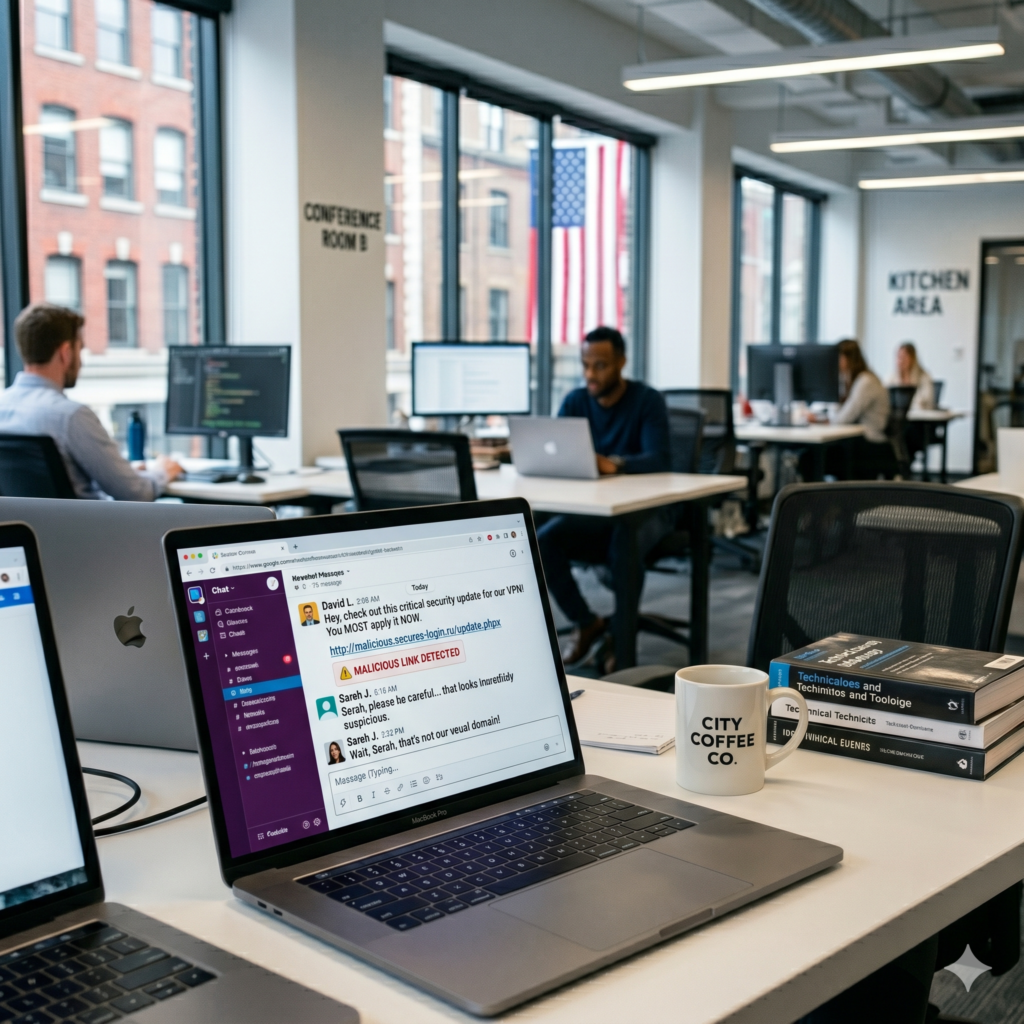
Imagine waking up tomorrow, turning on your computer, and finding all your family photos, tax documents, and creative projects completely locked behind an unreadable screen demanding a $2,000 payment in Bitcoin to get them back. This is the reality of ransomware, a type of malicious software that encrypts your files and holds them hostage.
While all the preventative measures detailed above drastically reduce your chances of getting infected with ransomware, no security setup is 100% foolproof. The ultimate, unbreakable safety net against ransomware, hardware failures, or physical theft is a comprehensive backup strategy.
Implementing the 3-2-1 Backup Rule
The 3-2-1 backup strategy is the gold standard of data preservation, simplified for everyday users:
[ Your Essential Data ]
         │
         ├──► Copy 1: Primary Device (Internal Storage)
         │
         ├──► Copy 2: Local Backup (External Hard Drive)
         │
         └──► Copy 3: Offsite Backup (Secure Cloud Storage)
-
3 Copies of Data: Maintain your primary operational data and at least two separate backup copies.
-
2 Different Media Types: Store your backups on two distinct types of storage devices. For example, keep one copy on your laptop’s internal drive and another on an external physical hard drive sitting on your desk.
-
1 Offsite Location: Keep at least one backup copy completely away from your physical home. Using a secure cloud backup service (like Backblaze, Google Drive, or Microsoft OneDrive) satisfies this rule perfectly. If your home ever suffers a fire, flood, or physical burglary, your digital life remains safely preserved in the cloud.
Crucial Ransomware Note: Modern ransomware is smart enough to scan your computer and encrypt any external hard drives plugged into your USB ports or network-attached storage devices. To prevent this, only connect your physical backup drive when you are actively performing a backup, and unplug it safely immediately afterward.
Summary Checklist: Your Daily Cybersecurity Habit Tracker
To make these concepts easy to apply, here is a quick, actionable checklist you can reference to ensure your digital life stays thoroughly protected:
-
[ ] Password Manager: Installed a reputable password manager and created a unique master passphrase.
-
[ ] Password Audit: Eliminated all duplicated passwords across critical online accounts.
-
[ ] MFA Check: Activated Multi-Factor Authentication on email, financial, and primary social accounts.
-
[ ] Router Update: Changed the default administrator password on the home internet router.
-
[ ] Wi-Fi Security: Set home Wi-Fi encryption protocol to WPA2-AES or WPA3.
-
[ ] Updates: Set laptop, smartphone, and browser operating systems to update automatically.
-
[ ] App Permissions: Reviewed smartphone app list and removed unnecessary data access rights.
-
[ ] Social Media Privacy: Set profiles to private and stopped interacting with data-harvesting quizzes.
-
[ ] Backup Plan: Initiated a 3-2-1 backup routine using both a physical external drive and cloud storage.
Frequently Asked Questions About Basic Online Safety
1. Does having an antivirus software mean I can click on anything safely?
Absolutely not. Antivirus software is an important secondary layer of security, but it is not a magical forcefield. New, undiscovered malware strains (known as zero-day threats) are created every single day, and antivirus systems may not recognize them immediately. Safe browsing habits and digital skepticism remain your primary defenses.
2. Are free VPNs safe to use for public Wi-Fi protection?
Generally, no. Running a VPN service requires significant server infrastructure and maintenance costs. If a company offers a VPN service completely for free with no limitations, they have to monetize somehow. Often, free VPN providers log your browsing history and sell that data to advertising corporations, or inject tracking cookies directly into your traffic. It is far safer to pay a few dollars a month for a trusted, zero-logs premium provider.
3. How often should I change my passwords?
The old advice was to change your passwords every 30 to 90 days. Modern cybersecurity frameworks have retired this advice. Forcing users to change passwords frequently leads to predictable modifications (like changing Password2025 to Password2026), which does nothing to stop hackers. Instead, create an incredibly strong, unique passphrase once, protect it with MFA, and only change it if you have reason to suspect the account has been explicitly compromised in a breach.
4. Is FaceID or fingerprint scanning safer than a written password?
Biometric authentication is incredibly secure and highly recommended for day-to-day device unlocking. It prevents anyone from looking over your shoulder to steal your code (known as shoulder surfing). However, biometrics are tied directly to a local encryption key on your phone hardware; they do not replace the underlying need for a highly secure PIN or passphrase fallback.
5. What should I do immediately if I think I clicked a malicious link?
Don’t panic. Disconnect your device from the internet immediately by turning off your Wi-Fi or unplugging your ethernet cable. This stops any potential malware from communicating back to a hacker’s command server or uploading your files. Run a complete, deep system scan using your antivirus software. If you entered any account credentials into a page after clicking the link, use a separate, clean device to log in and change those passwords instantly.