How to Secure a New Phone Before You Start Using It
Learn the essential security steps to take before using your new phone for the first time

Unboxing a brand-new smartphone is always an exciting experience. Whether you just picked up the latest flagship device or a budget-friendly option, the temptation to immediately download your favorite apps, log into social media, and start snapping photos is incredibly high.
However, setting up a new device without taking proper precautions is one of the most common mistakes everyday users make. When you turn on a phone for the first time, its default settings are optimized for a fast, frictionless setup and maximum manufacturer data collection—not necessarily your personal security and privacy.
If you do not lock down your device before it becomes central to your digital identity, you leave your banking apps, private messages, personal photos, and two-factor authentication tokens vulnerable to interception, physical theft, or digital tracking. This comprehensive guide walks you through the essential, easy-to-follow steps to completely secure your new Android or iPhone before you start using it as your primary device.
Why Default Factory Settings Are a Major Security Risk for Your Data
When a smartphone leaves the factory floor, the operating system is built to appeal to the widest possible audience. This means convenience always wins over security. Features like lock-screen notifications, location tracking, diagnostic data sharing, and background cloud syncing are turned on by default to make the phone feel “smart” right out of the box.
Unfortunately, these exact configurations create immediate security vulnerabilities:
-
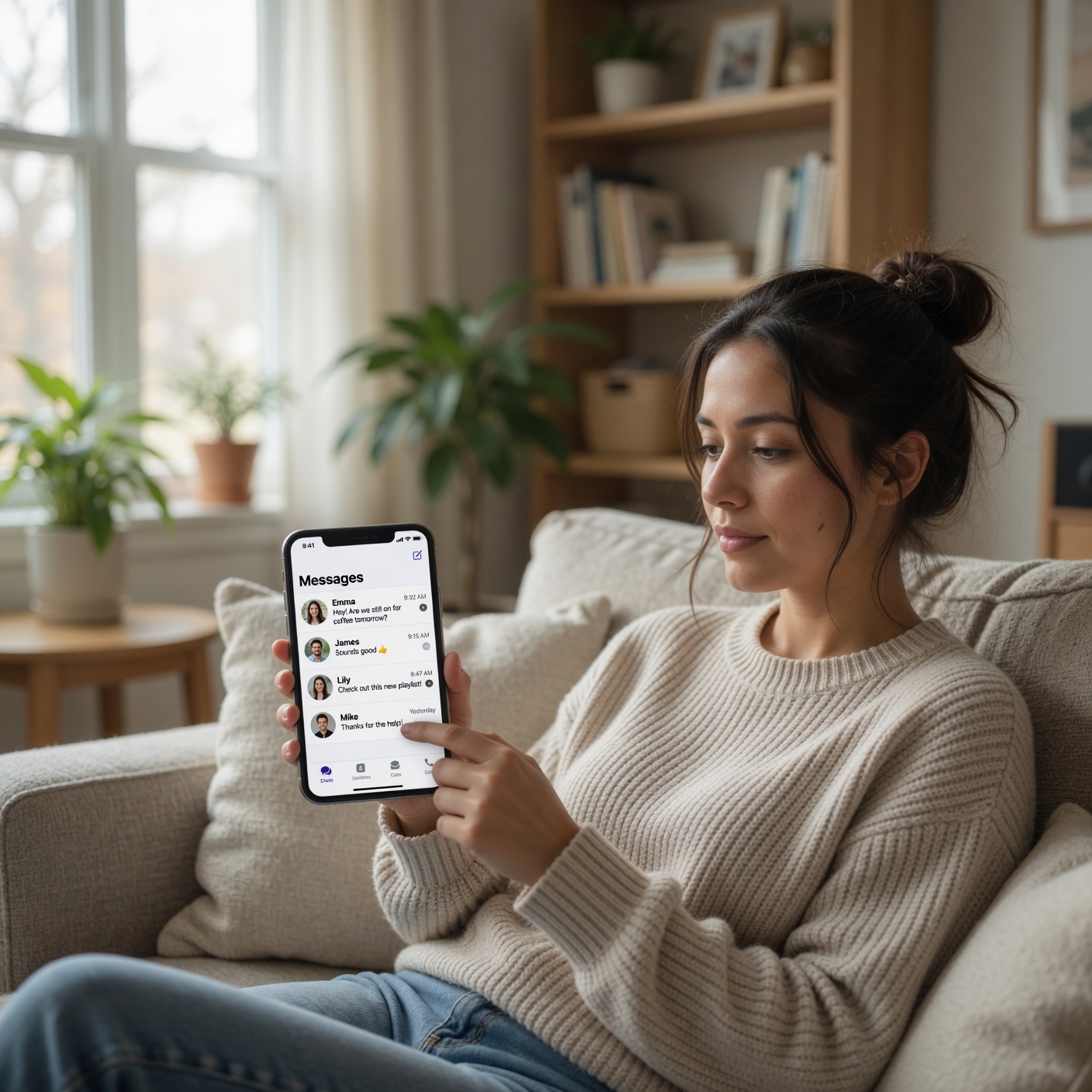
Over-Exposed Lock Screens: By default, many devices show the full contents of incoming text messages and emails on a locked screen. If someone glances at your phone on a table, they can easily read sensitive one-time verification codes (OTPs) sent by your bank or email provider.
-
Aggressive Data Aggregation: Device manufacturers and cellular carriers use out-of-the-box settings to monitor your app usage, track your physical location, and build advertising profiles without your explicit, conscious consent.
-
Broad App Permissions: Pre-installed system apps often possess deep, unrestricted access to your microphone, camera, and contact list before you have even evaluated whether those apps need that access.
Taking twenty minutes to configure your device before installing your personal data protects your privacy and significantly hardens your phone against modern cyber threats.
How to Handle the Initial Setup Without Exposing Your Privacy
The choices you make during the initial “Welcome” wizard set the baseline for your phone’s security posture. When you first boot up the device, you will be prompted to agree to a long list of terms, conditions, and optional privacy policies.
Read the Fine Print on Optional Data Collection
During setup, you will encounter checkboxes for “Diagnostic Data,” “Usage Analytics,” “Personalized Advertising,” and “System Improvement Programs.” Always uncheck these options. These programs track your app habits, typing telemetry, and device location, sending that data back to corporate servers. Unchecking them does not impact your phone’s performance; it simply prevents unnecessary background data collection.
Avoid Using Express Setup Options
Both Apple and Google offer “Express” or “Automatic” setup features that pull all your configurations from an old device or apply default corporate settings. Whenever possible, choose the Custom Setup route. This allows you to review each privacy option individually, ensuring you do not inadvertently carry over old, insecure permissions or accept bad default settings.
Establishing an Unbreakable Lock Screen and Authentication Layer
Your lock screen is the physical barrier between a thief and your entire digital life. If someone gains physical access to an unlocked phone, they can easily reset your passwords, access your bank accounts, and lock you out of your digital identity.
Move Beyond the 4-Digit PIN
A standard 4-digit PIN has only 10,000 possible combinations and is incredibly easy for a bad actor to guess or capture via “shoulder surfing” (watching you enter it in public).
-
The Fix: Opt for a custom alphanumeric password or, at bare minimum, a 6-digit or 8-digit PIN. Adding just two extra digits increases the combination pool from 10,000 to 1,000,000, making brute-force attacks mathematically impractical. Avoid predictable sequences like
123456,000000, or your birth year.
[4-Digit PIN]   -> 10,000 Combinations (Highly Vulnerable)
[6-Digit PIN]   -> 1,000,000 Combinations (Standard Security)
[Alphanumeric]  -> Billions of Combinations (Maximum Security)
Implement Secure Biometrics with Strong Fallbacks
Biometric authentication, such as Apple’s Face ID or Android’s secure fingerprint mapping, offers excellent day-to-day security and convenience. However, ensure your settings require your complex PIN or password immediately upon device restarts or after a few hours of inactivity.
On Android devices, ensure that features like “Face Unlock” are set to require your eyes to be open, preventing someone from unlocking your phone while you are asleep. Avoid using basic, camera-only face tracking on older or cheaper Android phones, as these can often be fooled by a high-resolution photograph; stick to the fingerprint scanner on those models instead.
Enable Lock Screen Lockdown Mode
Modern operating systems feature a built-in “Lockdown Mode” that you should configure immediately. When activated via the power menu shortcut, this feature instantly disables all biometric unlocking (fingerprint and face data) and hides notifications on the lock screen.
The only way to access the phone after entering lockdown is with your primary, secure PIN or password. This is an invaluable tool if you ever find yourself in an unpredictable situation where you might be forced or coerced into placing your finger on the scanner or holding the phone up to your face.
Updating the Operating System and Enforcing Hardware Encryption
Out-of-the-box phones have often sat in warehouses or retail shelves for months. During that time, security researchers discover new software vulnerabilities that hackers can exploit. Your first order of business upon reaching the home screen must be updating the software.
Run a Manual System Update Immediately
Connect your phone to a secure home Wi-Fi network, navigate to your system settings, and check for updates. Download and install the latest available version of iOS or Android. Do not stop at just one update; restart the device and check again, as some updates must be installed sequentially to patch critical kernel-level exploits.
Verify Full Disk Encryption Status
Hardware encryption scrambles the data on your phone’s internal storage drive, making it completely unreadable to anyone who tries to pull data chips directly out of the device.
-
For iPhones: Full hardware encryption is automatically activated the moment you set a passcode.
-
For Android Devices: While modern Android devices encrypt data by default, you should navigate to Settings > Security > Advanced to verify that your status says “Encrypted”. If it does not, run the manual encryption process before adding any personal accounts.
Auditing and Hardening Account Settings and Two-Factor Authentication
Your smartphone is inextricably linked to a master primary account: an Apple ID for iOS or a Google Account for Android. If an attacker compromises this master account, they can remotely wipe your device, track your live location, or download your entire cloud backup.
Fortify Your Primary Apple or Google Account
Before syncing your new phone, log into your primary account via a computer and change your password to a unique, 16-character string managed by a secure password manager. Check your logged-in sessions and terminate any old devices you no longer own.
Switch to App-Based Two-Factor Authentication (2FA)
Many users rely on SMS text messages to receive 2FA verification codes. However, cybercriminals frequently utilize a tactic called “SIM Swapping,” where they trick cellular carrier customer service reps into moving your phone number to a SIM card under their control. Once they control your number, they receive all your 2FA texts and bypass your account securities.
[Insecure]: Password + SMS Text Verification Code (Vulnerable to SIM Swapping)
[Secure]:   Password + Authenticator App (Google Auth, Aegis, Bitwarden)
[Max Sec]:  Password + Physical FIDO2 Hardware Security Key (YubiKey)
Download a dedicated authenticator app (such as Google Authenticator, Aegis, or Bitwarden) onto your new device to generate time-based codes locally. For maximum protection, connect a physical hardware security key (like a YubiKey) to your primary email and banking accounts.
Configuring Anti-Theft Protection and Remote Tracking Features
Smartphones are prime targets for physical theft. If your phone is snatched out of your hand in public, you need to ensure your data remains safe and that you can track or erase the device remotely.
Set Up Find My iPhone or Find My Device
Turn on Apple’s Find My network or Google’s Find My Device ecosystem. Make sure to enable features that allow the phone to be located even if it is completely powered off or disconnected from cellular data. Modern devices use secure, anonymous Bluetooth beacons broadcast to nearby phones to relay their location securely back to you.
Turn On Automated Theft Detection Locks
Modern operating systems leverage advanced artificial intelligence and internal accelerometers to detect the specific physical motion associated with someone snatching a phone from your hand and sprinting away.
Ensure that Theft Detection Lock and Remote Lock settings are toggled on. If the phone senses a sudden snatch-and-run movement, it automatically locks down the screen instantly, preventing the thief from browsing an unlocked device.
Hardening Network Configurations: Wi-Fi, Bluetooth, and 2G
Wireless connections are convenient entry points for malicious network traffic. Leaving all your radios open and looking for connections makes you a passive target in public areas.
Turn Off “Auto-Connect to Open Networks”
Your phone is programmed to constantly look for familiar Wi-Fi networks. Attackers can set up malicious routers with common names like “Airport_Free_WiFi” or “Starbucks_Guest.” If your phone has a setting enabled to automatically join open networks, it could connect to a rogue hotspot without your knowledge, allowing attackers to log your unencrypted internet traffic. Disable this feature and manually select your networks.
Disable the Exploitable 2G Cellular Band
Legacy 2G cellular networks lack modern mutual authentication protocols. Cybercriminals and state actors use affordable devices known as “IMSI Catchers” or “Stingrays” to mimic a cell tower, force nearby phones to drop down to the insecure 2G band, and then intercept unencrypted calls and text messages.
Go to your phone’s cellular network settings and look for the option to Disable 2G or enforce a “5G/LTE Only” configuration to neutralize this attack vector.
Stripping Down App Permissions and Eliminating Bloatware
Cellular carriers and manufacturers love loading new phones with third-party apps, casual games, and sponsored software—collectively known as bloatware.
Uninstall Unnecessary Software and Bloatware
Before doing anything else, scroll through your app drawer and systematically delete every pre-installed app you do not plan to use. If a system app cannot be fully uninstalled, choose the Disable option. Disabling an app prevents it from running background processes, consuming battery life, and transmitting telemetry data back to third-party ad networks.
Implement a Strict Zero-Trust Permission Policy
When you do install your essential apps, treat every permission prompt with skepticism. Does a simple calculator app need access to your precise location? Does a retail shopping app need access to your microphone?
-
Follow a baseline rule: Only grant permissions when the app is actively open, and reject permissions that seem outside the scope of the app’s primary utility. Turn on “Auto-Reset Permissions,” which automatically strips access privileges away from apps you haven’t opened in a few months.
Implementing Safe Browsing Practices and Using a Trusted VPN
The final layer of mobile security is protecting your data while it is in transit across the web.
Switch to a Privacy-Focused Web Browser
The stock browsers on your device are often designed to track your navigation habits to feed search engines and ad networks. Consider downloading privacy-first options like Brave, Firefox Focus, or DuckDuckGo. These browsers come equipped with built-in scripts that block cross-site trackers, prevent fingerprinting, and automatically strip tracking strings out of shared URLs.
Use a Reputable, No-Logs Virtual Private Network (VPN)
Whenever you must connect to a public Wi-Fi network—such as at a hotel, coffee shop, or airport—all your unencrypted data traffic is exposed to anyone else on that network. A reputable Virtual Private Network (VPN) creates an encrypted tunnel between your smartphone and the internet, protecting your passwords, banking details, and personal conversations from local network eavesdroppers. Avoid free VPN services, as they frequently monetize their business models by logging and selling your browsing history to third-party advertisers.
Checklist: The Ultimate Pre-Use Mobile Security Protocol
To make your setup process as efficient as possible, use this scannable step-by-step checklist to verify that your new phone is completely locked down and ready for daily operation:
| Category | Security Action Item | Verified |
| Initial Boot | Opt out of all optional diagnostic data and telemetry sharing. | [ ] |
| Updates | Run system updates repeatedly until no new firmware patches remain. | [ ] |
| Authentication | Establish a unique 6+ digit PIN and activate secure biometric fallbacks. | [ ] |
| Lock Screen | Hide sensitive notification content from appearing on the locked screen. | [ ] |
| Physical Defense | Verify Full Disk Encryption and enable the “Lockdown Mode” shortcut. | [ ] |
| Master Accounts | Change primary Apple/Google passwords and enable app-based 2FA. | [ ] |
| Anti-Theft | Activate Find My/Find My Device along with automated Theft Detection. | [ ] |
| Network | Turn off network auto-connect and completely disable the legacy 2G band. | [ ] |
| App Management | Purge factory bloatware and audit permissions for remaining apps. | [ ] |
By treating your smartphone with a security-first mindset right from day one, you establish an incredibly resilient layer of protection around your digital ecosystem. Taking these small steps before your personal files touch the device ensures your identity, finances, and private life stay safe from prying eyes.