How to Check If Your Webcam Is Being Used Without Permission
Learn how to detect unauthorized webcam access and protect your privacy
In today’s digital age, our lives are more connected than ever. From remote work meetings to catching up with friends and family across the globe, webcams have become an essential part of our daily hardware. However, this convenience comes with a hidden, unsettling risk: webcam spying, often referred to in the cybersecurity world as camfecting.
Imagine sitting at your desk, eating a snack, or typing a password, completely unaware that a cybercriminal—or even a malicious piece of software—is watching your every move through your computer’s camera lens. It sounds like a plot from a Hollywood techno-thriller, but it is a very real, everyday threat.
If you have ever felt that nagging sensation of being watched through your screen, you are not alone. Millions of internet users worry about digital privacy, and rightfully so. This comprehensive guide will walk you through everything you need to know about how to check if your webcam is being used without permission, how to spot the warning signs, and how to lock down your devices for ultimate peace of mind.
What Is Camfecting and Why Should You Care?

Before diving into the technical checks, it is important to understand the enemy. Camfecting is the act of hackers remotely taking control of a webcam without the user’s knowledge or consent.
Cybercriminals achieve this typically by tricking users into downloading malicious software, known as Remote Access Trojans (RATs). A RAT can enter your system through a harmless-looking email attachment, a pirated software download, or even a compromised website link. Once installed, the RAT hides silently in the background, granting the attacker full access to your webcam, microphone, keyboard strokes, and files.
Why do hackers do this? The motives vary, but they generally fall into a few disturbing categories:
-
Extortion and Blackmail: Attackers record private moments and threaten to release the footage unless a ransom is paid.
-
Identity Theft and Espionage: Spying on corporate executives, journalists, or everyday citizens to gather sensitive information, financial data, or login credentials.
-
Stalking and Harassment: In many personal cases, malicious actors use spyware to stalk ex-partners or acquaintances.
Understanding that this threat exists is the first step toward protecting yourself. Let’s look at the physical and digital warning signs that indicate your privacy might have been compromised.
1. Physical Warning Signs: The Webcam Light Indicator
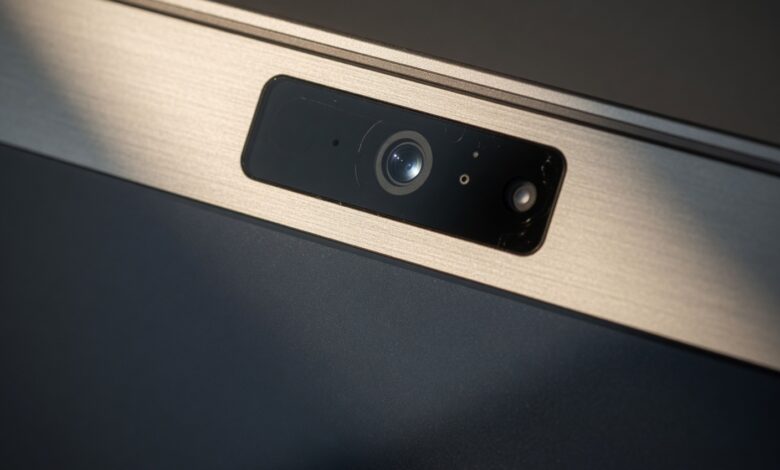
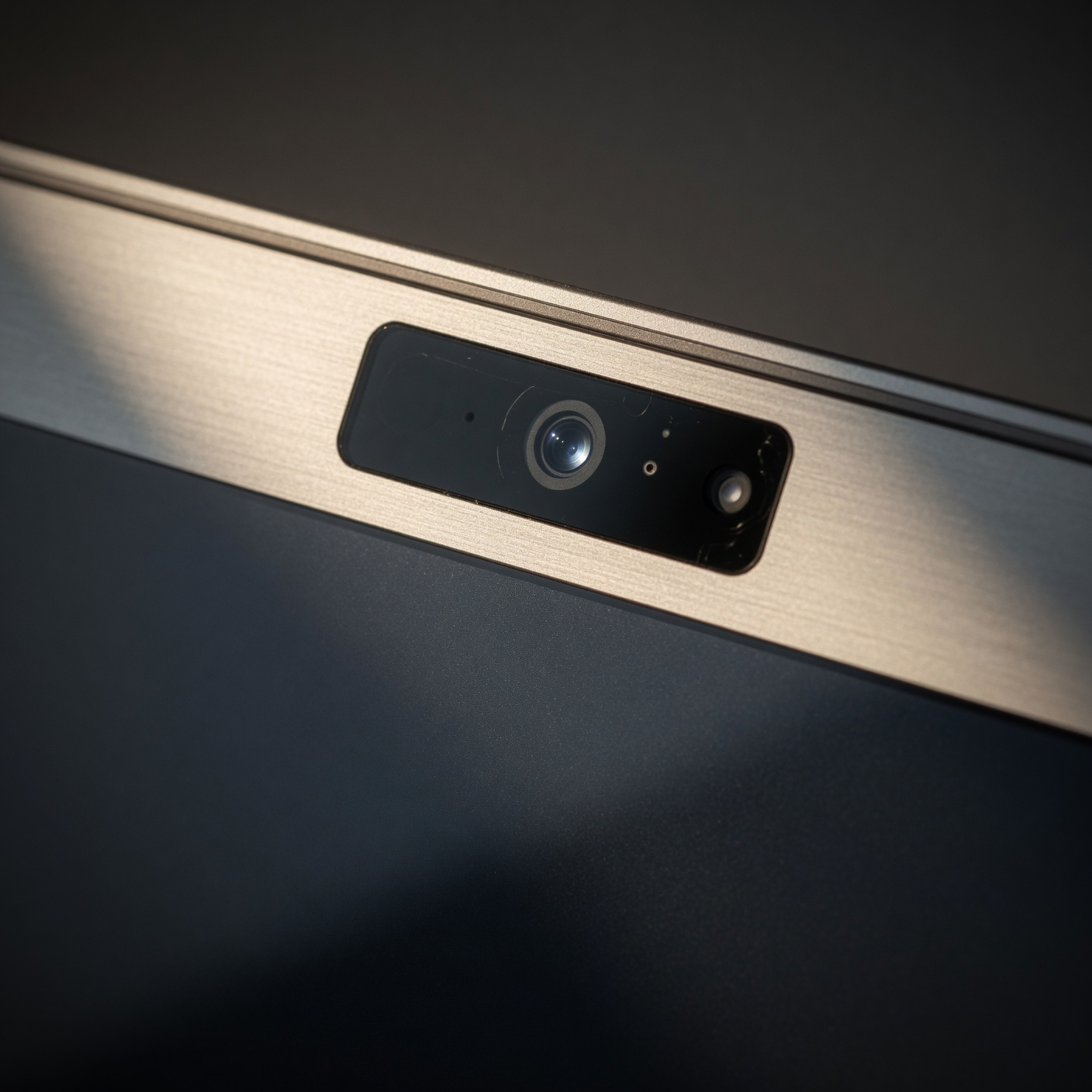
The most immediate and reliable physical clue your webcam is active is the LED indicator light. Most built-in laptop webcams and external USB cameras are hardwired so that the small LED light (usually green or white) turns on the exact moment the camera sensor receives power and begins streaming video.
How to Monitor Your Webcam Light
-
The Sudden Flash: Does your webcam light flicker or turn on when you are not using Zoom, Microsoft Teams, FaceTime, or any other video application?
-
Startup Anomalies: Does the light flash briefly when you boot up your computer, even though no startup apps should be using the camera? While some system diagnostics can trigger this, persistent or random blinking is a red flag.
The Limitation of the Indicator Light
While the hardware-level connection between the camera sensor and the LED light makes it difficult for hackers to disable the light on older or standard devices, advanced malware and specialized firmware hacks on modern smart devices can sometimes disable or bypass the LED indicator. Therefore, while a blinking light is a definite warning, a turned-off light does not 100% guarantee your safety.
2. Checking Active Webcam Usage in Windows
If you use a Windows PC (Windows 10 or Windows 11), the operating system provides built-in tools to monitor which applications currently have access to your camera hardware.
Using Windows Privacy Settings
Windows has robust permission settings that allow you to track real-time and recent camera usage:
-
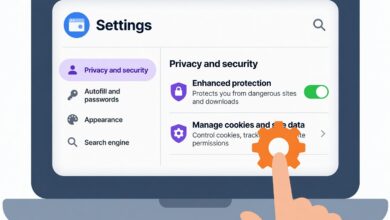
Click on the Start Menu and open Settings (the gear icon).
-
Navigate to Privacy & Security (or just Privacy in older versions).
-
Scroll down under the “App permissions” section and click on Camera.
-
Here, you will see a master toggle for camera access, as well as a list of apps that have requested or recently used your camera.
-
Look closely at the timestamps next to the apps. If you see an app you do not recognize—or an app like a web browser or calculator showing recent access when you haven’t used it—you have likely found your culprit.
Using the Windows Task Manager
To catch background processes actively streaming data:
-
Press
Ctrl + Shift + Escto open the Task Manager. -
Click on the Processes tab.
-
Look through the list of running apps and background processes for anything suspicious, unrecognized, or consuming high amounts of CPU/Network resources while your computer is idle.
-
Right-click any suspicious process and select Search online to investigate what it is.
3. Checking Active Webcam Usage on macOS
Apple’s macOS is renowned for its strong security architecture, making unauthorized webcam access significantly harder for hackers, but not entirely impossible. Apple implements strict visual indicators: whenever a camera is active on a modern Mac, a green dot appears in the Mac menu bar next to the Control Center icon.
How to Check Camera Permissions on Mac
-
Click the Apple logo in the top left corner of your screen.
-
Select System Settings (or System Preferences on older macOS versions).
-
Scroll down the sidebar and click on Privacy & Security.
-
Click on Camera.
-
Review the list of applications granted permission to use your camera. Toggle off any application that does not explicitly need camera access.
If you suspect a background process is hijacking your camera, you can use the Activity Monitor:
-
Open Spotlight (Command + Space) and type
Activity Monitor. -
Go to the CPU or Energy tab.
-
Look for unfamiliar processes running in the background. You can select a process and click the “X” button at the top to force quit it immediately.
4. Advanced Technical Checks: Monitoring Network and Processes
For users who want to dig deeper into advanced troubleshooting, inspecting network traffic and open ports can reveal if your webcam data is being transmitted to an unauthorized external server.
Checking Active Network Connections
Malware that controls your webcam must send that video feed back to the hacker’s command-and-control server via the internet.
-
On Windows (Command Prompt):
-
Type
cmdin the Windows search bar, right-click Command Prompt, and select Run as administrator. -
Type the command:
netstat -anoand press Enter. -
This will display all active network connections and the Process IDs (PIDs) associated with them. Look for foreign IP addresses communicating with unknown executable files.
-
-
On Mac (Terminal):
-
Open the Terminal application.
-
Type
lsof -ito list all open internet and network files, helping you identify which applications are currently connecting to the web.
-
5. Essential Best Practices to Secure Your Webcam
Checking your webcam is great, but prevention is always superior to cure. Implementing a few robust security habits will ensure that even if malware finds its way onto your machine, your privacy remains protected.
Use a Physical Webcam Cover
The simplest, cheapest, and most foolproof cybersecurity tool ever invented is a physical slider or privacy sticker.
-
Cybercriminals cannot hack what they cannot see.
-
When you are not actively using your video conferencing software, slide your webcam cover shut or place a dedicated privacy sticker over the lens.
-
Note: Avoid using standard sticky notes or thick tape that can leave sticky residue on your screen or damage delicate modern laptop displays when closed.
Keep Your Operating System and Software Updated
Software developers constantly patch security vulnerabilities that hackers exploit to gain remote access.
-
Turn on automatic updates for Windows, macOS, your web browser, and all installed applications.
-
Patching vulnerabilities closes the backdoors that RATs use to slip into your system.
Install Reputable Antivirus and Anti-Malware Software
A strong security suite acts as a digital shield for your computer.
-
Invest in a trusted antivirus program that offers real-time behavior monitoring.
-
Run full system scans weekly to detect hidden Trojans, spyware, or keyloggers before they can compromise your hardware.
Be Cautious with App Permissions
Never grant webcam access to apps, games, or websites that have no legitimate business using a camera. A photo editing app needs a camera; a plain text editor or a simple calculator game definitely does not. Always click “Deny” when prompted by suspicious websites asking for camera permissions in your browser.
Your digital privacy is a fundamental right, but in an interconnected world, it requires active defense. By understanding what camfecting is, monitoring your physical indicator lights, auditing your operating system permissions, and practicing smart digital hygiene—such as using physical webcam covers and reliable antivirus software—you can completely neutralize the threat of unauthorized spying.
Take a few minutes today to check your computer’s privacy settings, clean up unnecessary app permissions, and secure your lenses. A proactive approach today guarantees peace of mind tomorrow, ensuring that your private life stays private.