What Happens If You Click “Allow” on Every Website?
Learn how browser permissions can affect your privacy and online security
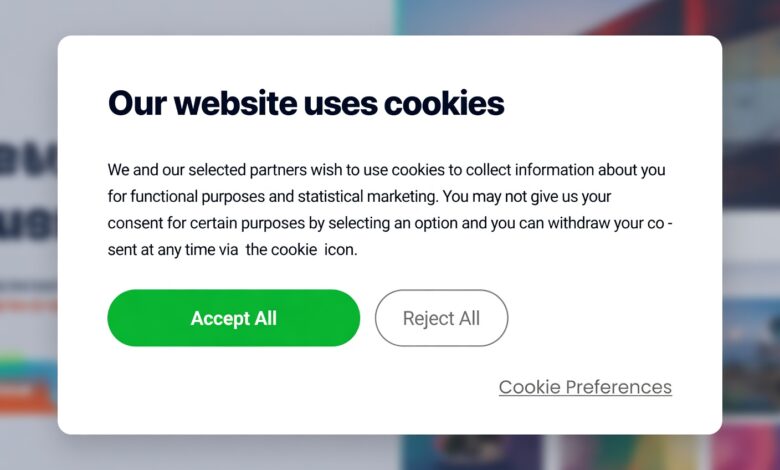
Every day, you visit dozens of websites looking for news, recipes, shopping deals, or entertainment. Almost immediately, modern browsing greets you with a series of intrusive pop-ups: banners asking you to accept cookies, requests to share your precise geographic location, and tiny notification boxes sliding in from the corner of your screen asking for permission to “Show Notifications.”
Faced with this digital friction, the easiest and most common reaction is frustration. You just want to read the article or access the tool on the page. To make the annoyance disappear as quickly as possible, your finger or mouse cursor gravitates toward the brightest, most prominent button available. You click “Allow.”
It feels harmless. After all, what real damage could a simple notification or cookie consent possibly cause? Websites ask for permissions constantly, so it is easy to assume it is just standard internet bureaucracy.
Unfortunately, clicking “Allow” indiscriminately across the web is the digital equivalent of leaving your front door unlocked, your windows wide open, and a welcome sign pointing directly to your valuables. When you grant unchecked permissions to every random website you visit, you open the door to aggressive marketing campaigns, invasive privacy breaches, annoying browser hijacking, and in worst-case scenarios, serious malware and financial fraud.
In this comprehensive guide, we will break down exactly what happens behind the scenes when you say “yes” to every prompt, the hidden risks you face, and how you can reclaim control of your digital safety without sacrificing your browsing convenience.
The Psychology of Consent Fatigue: Why We Click “Allow” Without Thinking

Before diving into the technical dangers, it helps to understand why millions of internet users fall into this trap every single day. The phenomenon is known in cybersecurity and user experience design as consent fatigue.
Websites are deliberately designed to exhaust your patience. When you land on a page, you are bombarded with:
-
Cookie consent banners covering half the screen.
-
Newsletter subscription modals blocking your view.
-
Dark patterns—design tricks that make the “Accept All” button glowing and friendly while hiding the “Reject” or “Manage Settings” button in faint gray text.
-
Browser notification prompts triggered instantly upon arrival, before you have even read a single sentence of content.
Your brain treats these interruptions as obstacles standing between you and your goal. Because the cognitive load of reading privacy policies or configuring granular permissions is high, your brain seeks the path of least resistance. You click “Allow” simply to make the pop-up go away.
Website owners and shady digital marketers know this psychology intimately. They exploit your fatigue to secure lifetime access to your browser, your attention, and your personal data.
1. Browser Push Notifications: The Gateway to Spam and Scams
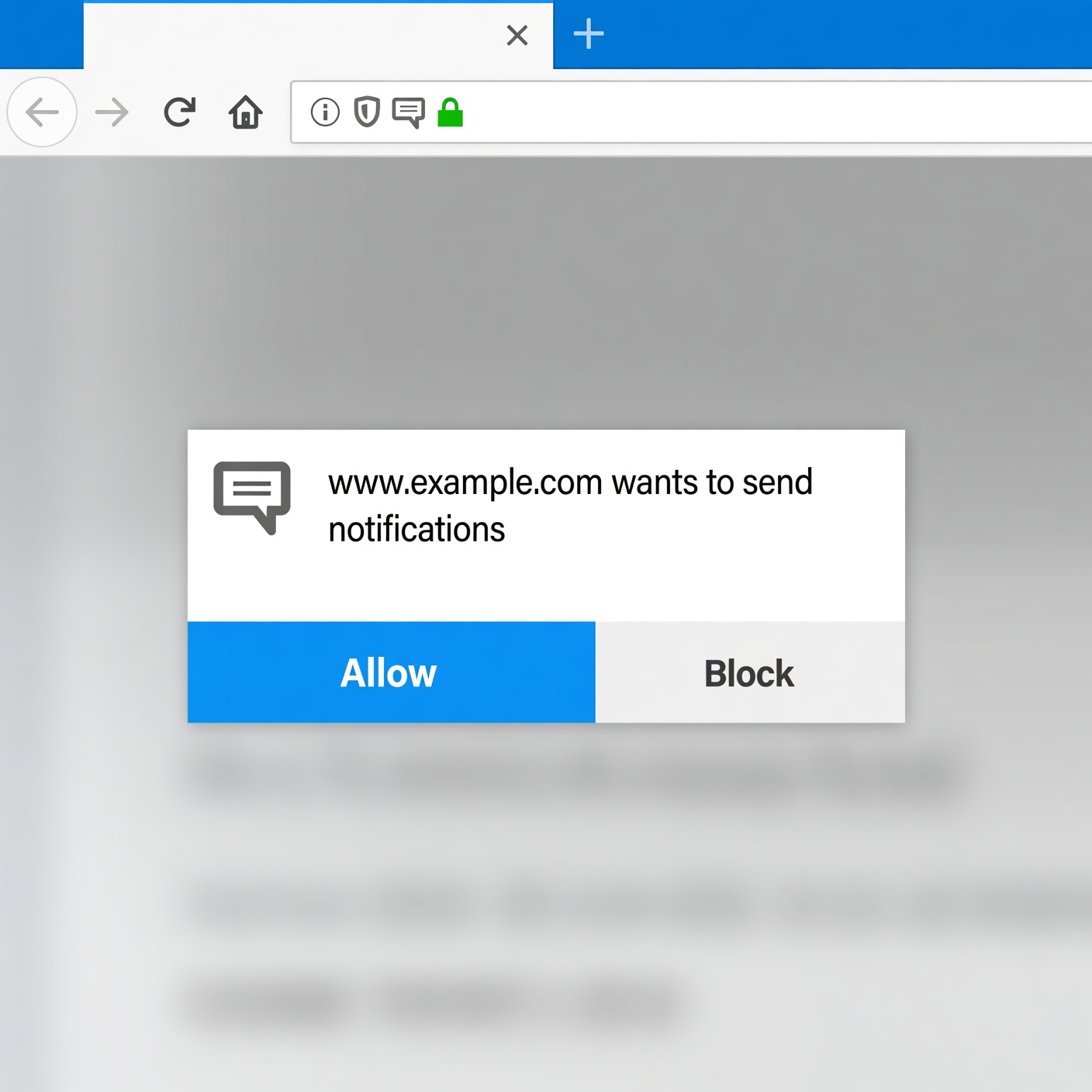
One of the most immediate consequences of clicking “Allow” on a website popup is granting permission for that domain to send browser push notifications.
In theory, push notifications are a fantastic tool. If you subscribe to a reputable news outlet, a weather service, or your favorite online store, receiving a subtle ping when breaking news happens or when your package ships is genuinely useful.
However, when you click “Allow” on an unverified, spammy, or malicious website, you are handing over a direct megaphone to your operating system. Here is what happens next:
The Flurry of Fake Alerts
Shady websites monetize these notification permissions by selling access to ad networks. Once you are subscribed, your computer or phone will begin receiving dozens of alerts per day—sometimes even per hour. These notifications are rarely benign; they are engineered to cause panic or excitement so you click them:
-
Fake Antivirus Warnings: “CRITICAL ALERT: Your PC is infected with 5 viruses! Click here to clean now.”
-
Phishing Prizes: “Congratulations! You won an iPhone 15. Click here to claim your prize.”
-
Financial Scams: Urgent alerts about compromised bank accounts or cryptocurrency windfalls.
Bypassing Traditional Spam Filters
Unlike email spam, which lands in a dedicated folder or gets caught by filters, browser notifications pop up directly on your desktop or mobile lock screen. They mimic system alerts, making them look authentic and urgent. Clicking these notification links often redirects you to dangerous phishing sites designed to steal your credit card details, passwords, or personal identity information.
2. Tracking, Profiling, and the Erosion of Digital Privacy
When you click “Allow” on cookie banners or site permission requests, you are participating in a massive, invisible data economy. Most everyday internet users do not realize how extensively modern tracking works.
Third-Party Trackers and Digital Fingerprinting
Websites rarely operate in a vacuum. A single blog post or news page often loads dozens of invisible scripts from third-party advertising networks, analytics companies, and social media platforms. When you give broad consent, these trackers begin building a detailed profile of your online life. They record:
-
Every search term you enter.
-
The exact products you look at and how long you linger on a page.
-
Your reading habits, political interests, and medical inquiries.
-
Your hardware specifications, operating system, and IP address (which reveals your approximate physical location).
The Real-World Impact of Profiling
This data is aggregated, packaged, and sold to data brokers. While personalized ads might seem like a minor annoyance—such as seeing shoes you looked at yesterday follow you across the internet—the implications go much deeper:
-
Dynamic Pricing: Companies can adjust prices for flights, hotels, or consumer goods based on your browsing history, perceived wealth, or location.
-
Data Breaches: Every database that stores your browsing profile is a target for hackers. If a shady marketing firm holding your data suffers a breach, your personal habits and preferences are leaked onto the dark web.
3. The Threat of Browser Hijackers and Malicious Redirects
Clicking “Allow” indiscriminately can sometimes trigger deep technical compromises within your browser environment. While modern browsers like Google Chrome, Mozilla Firefox, and Apple Safari feature robust sandboxing, malicious actors continuously find loopholes.
What is a Browser Hijacker?
A browser hijacker is a type of unwanted software that alters your browser settings without your explicit knowledge. It can change your default search engine, replace your homepage with a sponsored ad portal, or inject unwanted toolbars into your interface.
Many browser hijackers enter a system because the user clicked “Allow” on a deceptive notification prompt that subsequently triggered an automatic download or extension installation. Once installed, these hijackers make it notoriously difficult to revert your settings back to normal.
Malicious Redirect Chains
Have you ever clicked a link, only to see your browser rapidly flash through three or four different web addresses before landing on a strange page? That is a redirect chain.
When you give malicious sites notification or script permissions, they can abuse those permissions to forcefully redirect your active browser tabs to scam landing pages whenever they choose. This disrupts your browsing experience and exposes you to drive-by download attacks.
4. Drive-By Downloads and Malware Infection Risks
While it is true that modern operating systems make it difficult for a simple website click to instantly install a destructive virus, clicking “Allow” on compromised or malicious websites dramatically increases your exposure to drive-by downloads.
How Drive-By Downloads Work
A drive-by download occurs when you visit a website, and malicious code silently attempts to exploit vulnerabilities in your web browser or operating system plugins. If your software is even slightly out of date, visiting the site and granting permissions can allow the background script to:
-
Download and execute malicious payloads.
-
Install spyware or keyloggers that record everything you type on your keyboard.
-
Enlist your device into a botnet used for distributed denial-of-service (DDoS) attacks or cryptocurrency mining.
Cryptocurrency Cryptojacking
Some shady websites embed hidden JavaScript miners into their pages. If you grant permissions or keep the tab open, your computer’s processor (CPU) or graphics card (GPU) is secretly harnessed to mine cryptocurrencies like Monero for the site owner. This causes your computer fan to roar to life, slows your system to a crawl, drains laptop batteries rapidly, and shortens the lifespan of your hardware—all while earning money for a cybercriminal.
5. Account Takeovers and Credential Stuffing Vulnerabilities
Many websites utilize single sign-on (SSO) options, allowing you to log in using your Google, Apple, Facebook, or Twitter accounts.
When a sketchy website asks for permission to access your profile data via SSO, and you blindly click “Allow,” you are often granting that third-party application broad access to read your basic profile information, email address, contact lists, and sometimes even post on your behalf.
The Risks of Over-Permissive OAuth Apps
-
Data Harvesting: Shady app developers collect email addresses from your contact list to feed spam operations.
-
Malicious Automation: Compromised apps can spam your social media connections with phishing links disguised as recommendations from you.
-
Credential Exposure: If the third-party website has poor security practices, hackers can breach their database and exploit the tokens granting access to your primary accounts, leading to a full account takeover.
How to Clean Up Your Digital Footprint Right Now
If you recognize your own browsing habits in this article and realize you have clicked “Allow” on hundreds of websites over the years, do not panic. You can easily audit your permissions and restore your browser’s security in just a few minutes.
Managing Site Settings in Google Chrome
-
Open Chrome and click the three vertical dots in the top-right corner.
-
Go to Settings > Privacy and security > Site settings.
-
Review sections like Notifications, Location, Camera, and Microphone.
-
Under Notifications, look at the list of sites allowed to send alerts. Remove any unfamiliar or suspicious websites by clicking the three dots next to them and selecting Remove or Block.
Managing Site Settings in Mozilla Firefox
-
Click the three horizontal lines in the top-right corner and select Settings.
-
Navigate to Privacy & Security.
-
Scroll down to the Permissions section.
-
Click Settings next to Notifications, Location, and Camera to review and remove unwanted permissions.
Managing Site Settings in Apple Safari
-
Open Safari and select Safari > Settings (or Preferences) from the top menu bar.
-
Click on the Websites tab.
-
Review the sidebar options including Notifications, Location, and Pop-up Windows.
-
Change permissions for unfamiliar websites from “Allow” to Deny.
Best Practices for Safe Browsing Moving Forward
Protecting your digital life does not mean you have to stop exploring the internet. By adopting a few healthy cybersecurity habits, you can enjoy seamless browsing without compromising your security:
-
Default to “Block” or “Deny”: Make it a mental rule never to click “Allow” on a notification or location prompt unless you completely trust the website and understand why it needs that feature. Weather apps need location; random blogs do not.
-
Use a Reliable Ad and Tracker Blocker: Install a reputable browser extension like uBlock Origin. These tools automatically block malicious scripts, tracking cookies, and intrusive popup prompts before they ever load on your screen.
-
Keep Your Browser Updated: Browser developers patch security vulnerabilities constantly. Ensure your browser updates automatically so that exploit attempts fail.
-
Leverage Incognito or Private Browsing: When visiting unfamiliar websites or reading articles behind paywalls, use private browsing modes to limit cookie retention and persistent tracking.
-
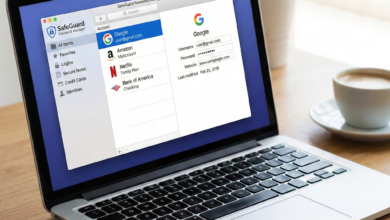
Use a Password Manager: Prevent phishing fallout by using a password manager that autofills credentials only on legitimate domains, making fake login pages useless to scammers.
Take Back Control of Your Browser
The modern internet often feels designed to wear down our defenses. Between aggressive cookie banners, relentless notification prompts, and endless data collection, it is easy to feel powerless. However, your browser is your personal digital workspace—you are the gatekeeper.
By pausing for just one second before you click, refusing to grant blind permissions to random web domains, and regularly auditing your site settings, you transform your device from an open target into a secure fortress. Remember: convenience is valuable, but your personal privacy, security, and peace of mind are always worth the extra second it takes to click “Block.”